
1. Introduction
Thank you for choosing the Xiaomi XCLEA H30 Plus Robot Vacuum Cleaner. This intelligent dust-collecting robot vacuum is designed to provide efficient and convenient cleaning for your home. Featuring HarmonyOS+HiLink Smart Dual Engines, a New Generation Smart Dust Collection Station, Hi-Navi Smart Planning System, and Beiming Suction & Mopping Deep Cleaning System, the H30 Plus offers advanced cleaning capabilities.
To ensure safe operation and optimal performance, please read this user manual thoroughly before using the product and retain it for future reference.

Image 1.1: The Xiaomi XCLEA H30 Plus Robot Vacuum Cleaner and its intelligent dust collection station.
2. Important Safety Instructions
- Always read all safety warnings and instructions before use.
- Do not allow children to operate the robot vacuum.
- Ensure the charging dock is placed on a level surface against a wall, with clear space around it.
- Keep hair, loose clothing, fingers, and all parts of the body away from openings and moving parts.
- Do not use the robot vacuum to pick up large objects, sharp objects, or liquids.
- Only use the original power adapter and charging dock provided with the product.
3. Setup and Installation
3.1 Unboxing and Components
Carefully remove all components from the packaging. Verify that all parts are present:
- Xiaomi XCLEA H30 Plus Robot Vacuum Cleaner
- Intelligent Dust Collection Station
- Power Adapter
- Side Brushes (pre-installed or to be installed)
- Main Brush
- Dustbin
- Mop Pad (if applicable)
- User Manual
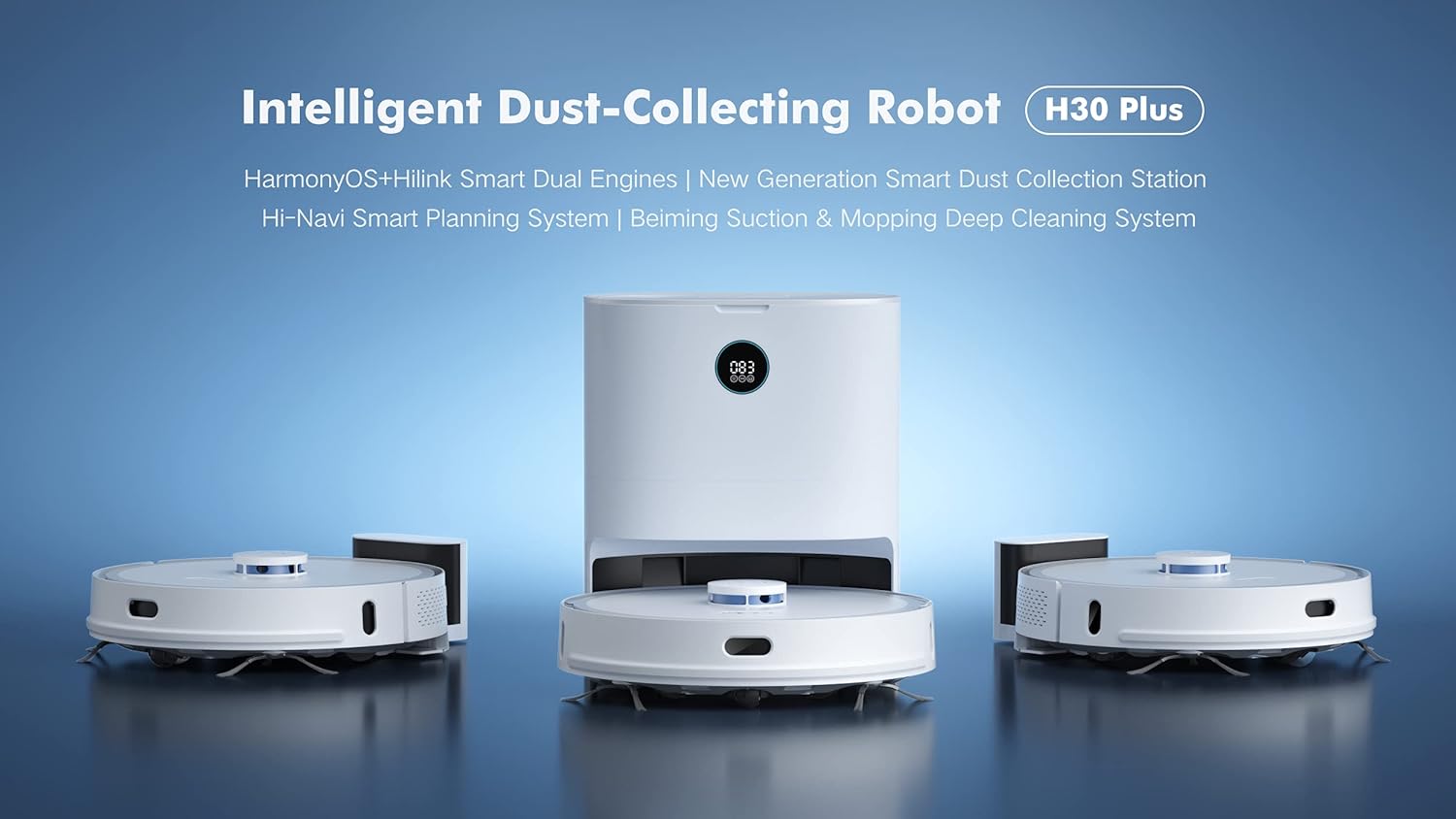
Image 3.1: Overview of the robot vacuum and its dust collection station components.
3.2 Placing the Dust Collection Station
Place the Intelligent Dust Collection Station on a hard, level surface against a wall. Ensure there is at least 0.5 meters (1.6 feet) of clear space on both sides and 1.5 meters (4.9 feet) in front of the station for optimal robot navigation and docking. Connect the power adapter to the station and plug it into a wall outlet.

Image 3.2: The robot vacuum returning to its dust collection station for charging and emptying.
3.3 Initial Charging
Place the robot vacuum onto the charging contacts of the dust collection station. Ensure the robot is properly aligned. The robot will automatically begin charging. For first-time use, it is recommended to fully charge the robot before its initial cleaning cycle. The display on the station will indicate the charging status.

Image 3.3: The digital display on the dust collection station showing charging status.
3.4 Connecting to the Mobile App
The Xiaomi XCLEA H30 Plus supports app control for enhanced functionality. Download the official Xiaomi Home app (or XCLEA app, if specified in packaging) from your device's app store. Follow the in-app instructions to add your device and connect it to your home Wi-Fi network. The app allows for remote control, scheduling, cleaning mode selection, and map management.
4. Operation
4.1 Starting a Cleaning Cycle
You can start a cleaning cycle in several ways:
- On-Device Button: Press the power button on the robot vacuum once to start a general cleaning cycle.
- Mobile App: Open the Xiaomi Home app, select your H30 Plus robot, and tap the "Start Cleaning" button. The app offers various cleaning modes (e.g., Auto, Spot, Zone, Mopping) and suction levels.
4.2 Pausing and Resuming
To pause a cleaning cycle, press the power button on the robot or use the pause function in the app. To resume, press the button again or use the app.
4.3 Returning to Charging Station
The robot will automatically return to the dust collection station when its battery is low or when a cleaning cycle is complete. You can also manually send it back using the "Dock" or "Recharge" button on the robot or within the mobile app.
4.4 Smart Navigation and Mapping
The H30 Plus utilizes a Hi-Navi Smart Planning System to efficiently map your home and plan optimal cleaning routes. The robot creates a map of your home during its first few cleaning cycles, which can be viewed and managed in the mobile app. You can set virtual walls, no-go zones, and specific cleaning areas through the app.

Image 4.1: The robot vacuum utilizing its smart navigation system to map and clean the environment.
5. Maintenance
Regular maintenance ensures the optimal performance and longevity of your robot vacuum. Always turn off the robot and disconnect the dust collection station from power before performing any maintenance.

Image 5.1: Top and bottom views of the robot vacuum, highlighting key components for maintenance.
5.1 Emptying the Dustbin
The H30 Plus features an intelligent dust collection station that automatically empties the robot's dustbin. However, you may need to manually empty the robot's internal dustbin or the station's dust bag periodically.
- Open the top cover of the robot vacuum.
- Remove the dustbin by pulling it upwards.
- Open the dustbin lid and empty its contents into a trash can.
- Close the dustbin lid and reinsert it into the robot.
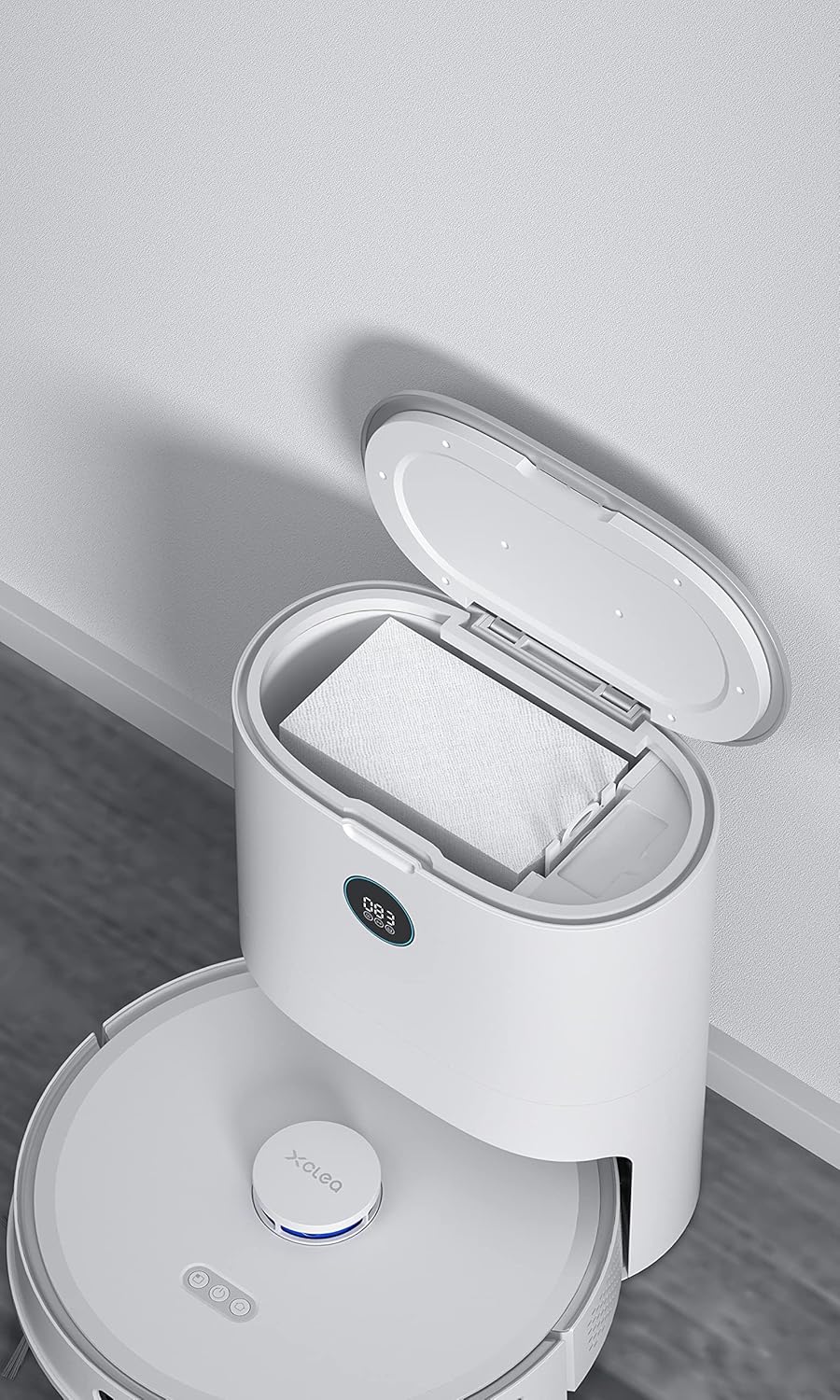
Image 5.2: The dust collection station with its lid open, revealing the disposable dust bag for easy emptying.
5.2 Cleaning the Main Brush
The main brush can accumulate hair and debris. Clean it weekly or as needed.
- Flip the robot over.
- Press the tabs on the main brush cover to remove it.
- Lift out the main brush.
- Use the cleaning tool (if provided) or scissors to cut and remove any tangled hair or debris.
- Reinstall the main brush and its cover.
5.3 Cleaning Side Brushes
Check side brushes regularly for wear and tear or tangled hair.
- Gently pull the side brushes to remove them.
- Remove any hair or debris.
- If damaged, replace with new side brushes.
- Press them back into place until they click.
5.4 Cleaning Filters
The robot vacuum uses a foam filter. Clean the filter regularly to maintain suction power.
- Remove the dustbin (as per 5.1).
- Remove the filter from the dustbin.
- Tap the filter against a trash can to remove dust. Do not wash the foam filter with water.
- Reinsert the filter into the dustbin and the dustbin into the robot.
5.5 Cleaning Sensors and Charging Contacts
Wipe the sensors and charging contacts on both the robot and the dust collection station with a clean, dry cloth periodically to ensure proper operation and charging.
6. Troubleshooting
If you encounter issues with your robot vacuum, refer to the following common problems and solutions.
| Problem | Possible Cause | Solution |
|---|---|---|
| Robot does not turn on. | Low battery; Power switch off. | Charge the robot; Ensure the main power switch is on. |
| Robot cannot return to charging station. | Charging station obstructed; Robot too far from station. | Clear obstacles around the station; Manually place robot closer to the station. |
| Poor cleaning performance. | Full dustbin; Clogged filter; Tangled brushes. | Empty dustbin; Clean or replace filter; Clean main and side brushes. |
| Robot gets stuck frequently. | Obstacles (cables, rugs); Dirty cliff sensors. | Clear the cleaning area; Wipe cliff sensors with a dry cloth. |
| Dust collection station not emptying robot. | Dust bag full; Obstruction in suction path. | Replace dust bag in station; Check for blockages in the station's suction port. |
For issues not listed here, please refer to the mobile app's help section or contact customer support.
7. Product Specifications
| Feature | Detail |
|---|---|
| Model Number | H30 Plus |
| Brand | XIAOMI |
| Color | White |
| Dimensions (L x W x H) | 35.8 x 35 x 17.5 cm (14.1 x 13.8 x 6.9 inches) |
| Item Weight | 4.3 Kilograms (9.5 lbs) |
| Dustbin Capacity | 3 Litres (for dust collection station) |
| Voltage | 14.4 Volts |
| Noise Level | 60 dB |
| Battery Type | Lithium-ion |
| Special Features | App Control, Carpet Cleaning, Low Noise Level, Lightweight, Advanced Technology, Intelligent Dust-Collecting |
| Surface Recommendation | Carpet (and presumably hard floors) |
| Controller Type | App Control |
| Filter Type | Foam |
8. Warranty and Support
For warranty information, please refer to the warranty card included with your product or visit the official XIAOMI website.
If you require technical support, have questions about product operation, or need to order replacement parts, please contact XIAOMI customer service through their official channels. Details can typically be found on the product packaging, the official website, or within the mobile application.

