
Introduction
Thank you for choosing the Uiosmuph G12 LED Wireless Mouse. This slim, rechargeable, and silent optical mouse is designed for comfortable and efficient use with various computer systems. This manual will guide you through the setup, operation, and maintenance of your new device.
What's in the Box
- 1 x LED Wireless Mouse
- 1 x USB Receiver (stored at the mouse bottom)
- 1 x Type C Adapter
- 1 x USB C Charging Cable
- 1 x User Manual
Video: Unboxing the Uiosmuph G12 LED Wireless Mouse, showing all included components.
Product Overview

Image: The Uiosmuph G12 LED Wireless Mouse in Mint Green, displayed alongside its USB receiver and Type C adapter.
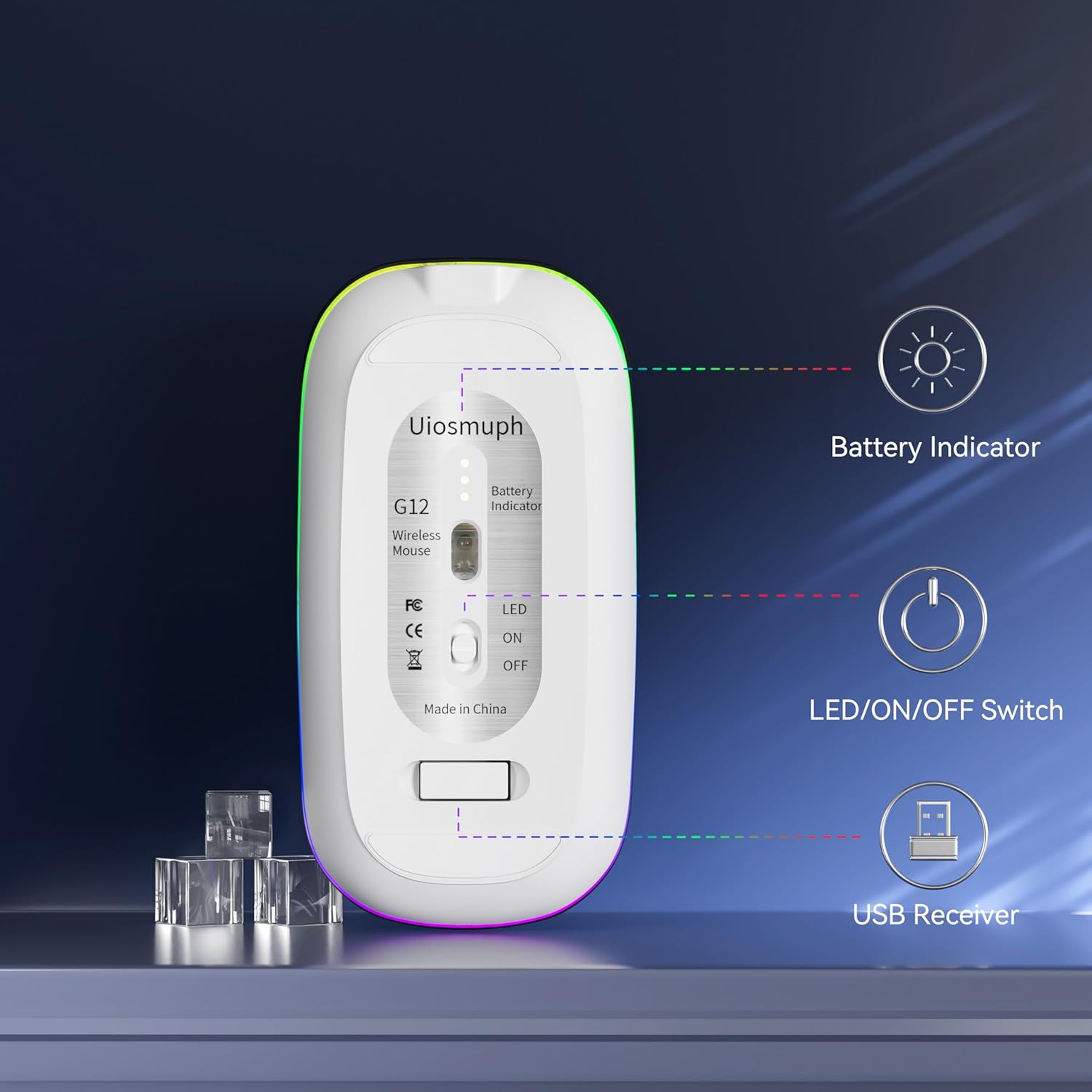
Image: The underside of the mouse, highlighting the battery indicator lights, the LED/ON/OFF switch, and the storage compartment for the USB receiver.
Video: A general overview of the Uiosmuph G12 LED Wireless Mouse, demonstrating its features including LED lights and portability.
Setup Instructions
Connecting to a USB-A Port
- Locate the USB receiver stored in the compartment on the bottom of the mouse.
- Plug the USB receiver directly into an available USB-A port on your computer or laptop.
- Turn on the mouse using the ON/OFF switch located on the bottom.
- The mouse should be recognized automatically by your system.
Connecting to a USB-C Port
- Locate the USB receiver stored in the compartment on the bottom of the mouse.
- Connect the USB receiver to the provided Type C adapter.
- Plug the Type C adapter (with the USB receiver inserted) into an available USB-C port on your computer or laptop.
- Turn on the mouse using the ON/OFF switch located on the bottom.
- The mouse should be recognized automatically by your system.
Video: Demonstrates the process of connecting the mouse using both the USB receiver and the Type C adapter.

Image: Visual guide illustrating the connection steps for both USB-A and USB-C ports.
Operating Instructions
Power On/Off
To power on the mouse, slide the switch on the bottom to the 'ON' position. To power off, slide it to 'OFF'.
LED Light Control
The mouse features 7 different color-changing LED lights. To turn the LED lights off, slide the switch on the bottom to the 'LED OFF' position. To turn them on, slide it to 'LED ON'.

Image: The mouse showcasing its colorful breathing LED lights.
DPI Adjustment
The mouse supports 3 adjustable DPI levels (800-1200-1600 DPI). Press the DPI button (usually located near the scroll wheel) to cycle through the sensitivity settings.
Charging
The mouse has a built-in rechargeable battery. Connect the provided USB C charging cable to the charging port on the front of the mouse and to a USB power source. The battery indicator lights on the bottom of the mouse will show the charging status.

Image: The mouse connected to a USB-C charging cable, illustrating its rechargeable feature.

Image: A graphic emphasizing the USB-C rechargeable capability of the mouse, eliminating the need for disposable batteries.
Energy Saving
The mouse is designed with an energy-saving feature. It will automatically enter sleep mode after 8 minutes of inactivity. To wake it up, simply move or click the mouse.
Maintenance
- Cleaning: Use a soft, dry cloth to clean the mouse. Avoid using harsh chemicals or abrasive materials.
- Storage: When not in use for extended periods, turn off the mouse to conserve battery life. Store the USB receiver in its designated compartment on the bottom of the mouse.
- Battery Care: Recharge the mouse when the battery indicator shows low power. Avoid fully draining the battery frequently to prolong its lifespan.
Troubleshooting
Mouse Not Responding
- Check Power: Ensure the mouse is turned ON and has sufficient battery charge. Recharge if necessary.
- Check Connection: Verify that the USB receiver is securely plugged into your computer's USB-A or USB-C port. Try a different port if available.
- Re-establish Connection: Turn off the mouse, unplug the USB receiver, wait a few seconds, then plug the receiver back in and turn the mouse on.
- Interference: Move the mouse closer to the receiver or away from other wireless devices that might cause interference.
LED Lights Not Working
- Ensure the switch on the bottom of the mouse is in the 'LED ON' position.
- Check battery level; low battery might affect LED functionality.
Specifications
| Product Dimensions | 4.4 x 2.22 x 0.79 inches |
| Item Weight | 2.4 ounces |
| Model Number | G12 |
| Connectivity Technology | 2.4G Wireless (USB-A, USB-C) |
| Movement Detection | Optical |
| DPI Levels | 800 / 1200 / 1600 |
| Special Features | LED Lights, Portable, Rechargeable, Silent Click |
| Compatibility | Windows 7/8/10/XP, Vista, Linux, Mac OS, Chrome OS |
Warranty and Support
For warranty information or technical support, please refer to the contact details provided on the product packaging or visit the official Uiosmuph website. Keep your purchase receipt for warranty claims.