
Introduction
This manual provides detailed instructions for the setup, operation, and maintenance of your mooas LED Clock Pure Mini White and 3D Big Plus White clocks. Please read this guide thoroughly before use to ensure optimal performance and longevity of your devices.
Setup Instructions
1. Power Connection
Both the Pure Mini White and 3D Big Plus White clocks require a continuous power supply via a USB cable (not included). Connect the provided USB cable to the clock and plug the other end into a compatible USB power adapter (e.g., phone charger, computer USB port) or a power bank.
Note: While the clocks are primarily electrical, they may include a compartment for backup batteries (not included) to retain settings during power outages. Refer to the specific clock's battery compartment for details.
2. Placement
Both clocks are designed for versatile placement:
- Desk Clock: Use the integrated stand to place the clock on any flat surface.
- Wall Mount: Utilize the keyhole slots on the back of the clock to hang it securely on a wall. Ensure the power cable can reach the clock comfortably.

Image: The mooas Pure Mini White LED Clock displayed on a desk, showing its compact size and digital time display.

Image: The mooas Pure Mini White LED Clock mounted on a tiled wall, demonstrating its wall-hanging capability.

Image: The mooas 3D Big Plus White LED Clock mounted on a wall, showcasing its larger size and clear digital display.
Operating Instructions
mooas Pure Mini White LED Clock
- Display Modes: Toggle between two display modes: Time display only, or Time/Date/Temperature rotation display. Consult the clock's buttons for mode selection.
- Time Format: Switch between 12-hour and 24-hour time formats.
- Calendar & Temperature: View current date and temperature (Celsius or Fahrenheit).
- Alarm: Set and manage alarms.
- Brightness Control: Adjust LED brightness through 3 levels (High, Medium, Low) or turn off the display.
- Automatic Brightness: The clock features an automatic brightness control function using a light sensor. In dark environments, the LED brightness will automatically lower. In bright environments, it will automatically increase for optimal visibility.
mooas 3D Big Plus White LED Clock
The 3D Big Plus White clock is controlled entirely via its small remote control.
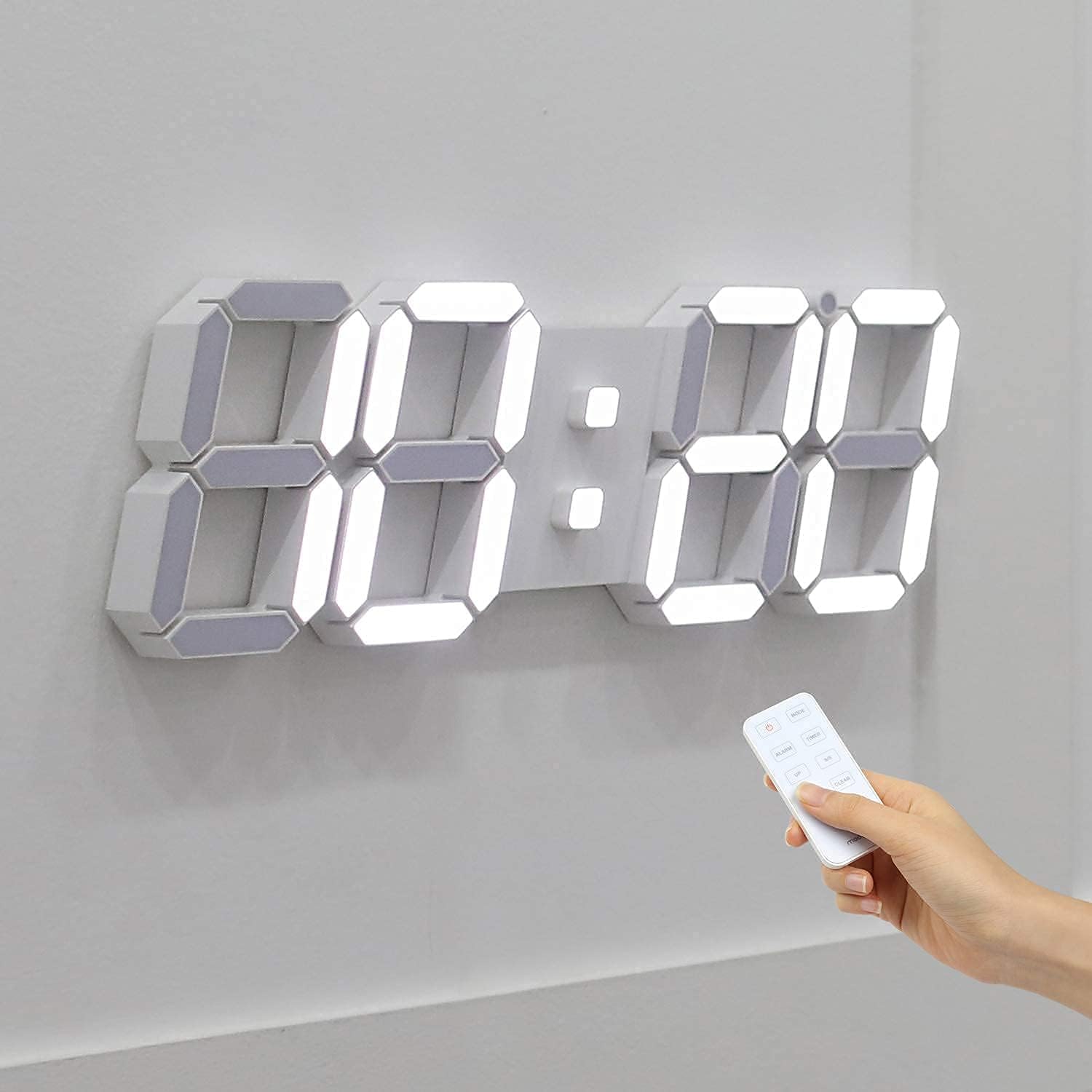
Image: A hand holding the remote control, pointing towards the mooas 3D Big Plus White LED Clock mounted on a wall, illustrating remote operation.
- Remote Control Functions: Use the remote to access and adjust all clock features, including:
- Setting Calendar
- Setting Alarms
- Displaying Temperature
- Activating Stopwatch
- Setting Countdown Timer
- Switching 12/24H Mode
- Luminance Adjustment: The remote allows adjustment of the LED display brightness to 3 levels (High, Medium, Low).
- 3D Module Design: The clock features a unique 3D module design with clear, high-brightness LEDs for excellent readability from various angles.

Image: A close-up view of the 3D module design of the mooas 3D Big Plus White LED Clock, highlighting the distinct segments of the digital display.
Maintenance
Cleaning
To clean your mooas LED clocks, gently wipe the surface with a soft, dry, or slightly damp cloth. Avoid using abrasive cleaners, solvents, or harsh chemicals, as these can damage the display or casing.
Power Supply
Ensure the USB power connection is secure and free from damage. If using backup batteries (for models that support them), replace them periodically to ensure settings retention during power interruptions.
Troubleshooting
- Clock Not Turning On: Check the USB power connection. Ensure the power adapter is working and the cable is not damaged. Try a different USB port or adapter.
- Display is Dim or Too Bright: Adjust the brightness settings using the clock's buttons (Pure Mini) or the remote control (3D Big Plus). If automatic brightness is enabled, ensure the light sensor is not obstructed.
- Time/Settings Not Saving: If your clock uses backup batteries, ensure they are correctly installed and not depleted. Replace batteries if necessary.
- Remote Control Not Working (3D Big Plus): Check the remote control's battery. Ensure there are no obstructions between the remote and the clock. Point the remote directly at the clock's sensor.
- Incorrect Time/Date: Refer to the operating instructions for setting the time and date. Ensure the 12/24H mode is set correctly.
Specifications
| Feature | Pure Mini White | 3D Big Plus White |
|---|---|---|
| Brand | mooas | |
| Color | White | |
| Display Type | Digital LED | |
| Product Dimensions (W x D x H) | 8.46" x 0.87" x 2.95" | 15.31" x 0.9" x 5.08" |
| Power Source | Electrical (USB Powered) | |
| Mounting Type | Desk Clock, Wall Mount | |
| Alarm Clock | Yes | |
| Brightness Levels | 3 levels + Auto | 3 levels |
| Additional Features | Time/Date/Temp rotation, 12/24H mode | Remote control, Calendar, Temp, Stopwatch, Countdown, 12/24H mode |
Warranty Information
mooas products are manufactured with quality and care. For specific warranty details, please refer to the warranty card included with your purchase or contact mooas customer support. Keep your proof of purchase for warranty claims.
Customer Support
If you encounter any issues or have questions regarding your mooas LED clocks, please contact our customer support team. Contact information can typically be found on the product packaging or the official mooas website.
For online resources and frequently asked questions, visit the official mooas store on Amazon: mooas Store


