
1. Introduction
This manual provides essential information and instructions for the proper installation and use of FocalTop Replacement TV Base Stand Pedestal Leg Screws. These screws are designed to securely attach the base, stand, pedestal, or legs to your compatible Westinghouse television models WR55UX4019, WR55UT4009, and WR50UX4019. Please read this manual thoroughly before proceeding with installation.
2. Safety Information
- Professional Installation Recommended: It is strongly recommended that these screws be installed by a qualified professional. Improper installation can lead to instability, potential injury, or damage to your television. The seller is not responsible for any injury or damage resulting from improper installation.
- Not for Wall Mounting: These screws are specifically designed for attaching the TV's base/stand/pedestal/legs. They are NOT intended for wall mounting applications. Do not attempt to use these screws for wall mounts.
- Not OEM Screws: These are replacement screws and may not be identical to the original equipment manufacturer (OEM) screws. Ensure they are compatible with your TV model before use.
- Secure Tightening: Ensure all screws are tightened securely to prevent the TV from wobbling or falling. Do not overtighten, as this may strip the threads.
3. Package Contents
Your package should contain the following items:
- FocalTop Replacement TV Base Stand Pedestal Leg Screws (Quantity as purchased)
Note: A Phillips head screwdriver (not included) will be required for installation.
4. Setup and Installation
Follow these steps to install the replacement screws and attach your TV's base stand or legs:
- Prepare the TV: Carefully place your television screen-down on a soft, clean, and stable surface (e.g., a blanket on a table) to prevent scratches or damage. Ensure the TV is unplugged from any power source.
- Identify Screw Holes: Locate the designated screw holes on the back or bottom of your television where the base stand or legs attach. Also, identify the corresponding holes on your TV's base stand or legs.
- Align Components: Carefully align the TV base stand or legs with the screw holes on the television. Ensure a proper fit before inserting any screws.
- Insert and Tighten Screws: Insert the FocalTop replacement screws into the aligned holes. Using a Phillips head screwdriver, turn the screws clockwise to tighten them. Tighten each screw firmly but avoid overtightening to prevent stripping the threads or damaging the TV casing.
- Verify Stability: Once all screws are installed, gently lift the TV and place it upright on a flat, stable surface. Carefully check for any wobbling or instability. If the TV is not stable, re-check the screw tightness and alignment.
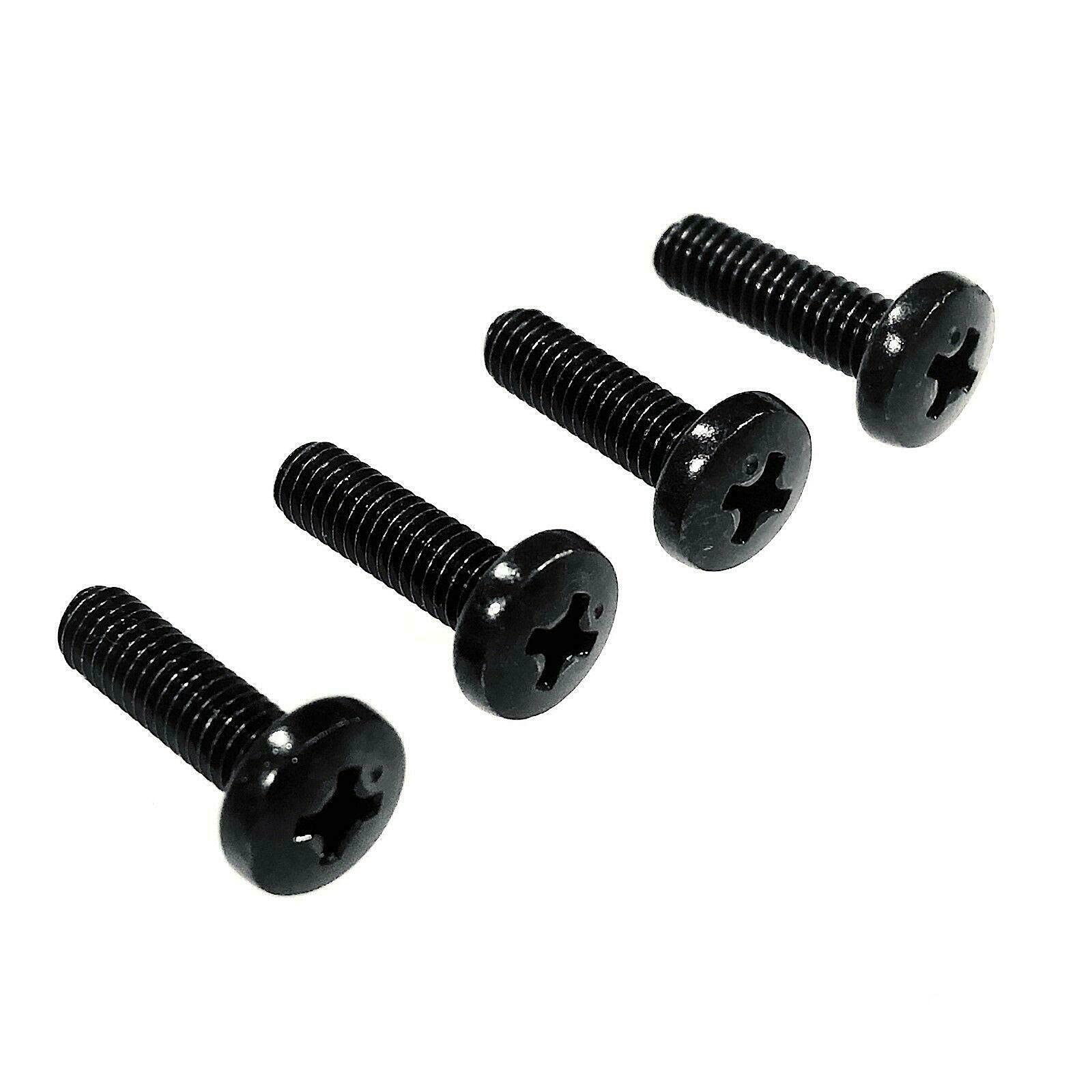
This image displays four black metal screws, designed for attaching a TV's base stand or pedestal legs. Each screw features a flat head with a Phillips drive and a fully threaded shaft.
5. Troubleshooting
- Screws do not fit:
- Double-check that your TV model (WR55UX4019, WR55UT4009, WR50UX4019) is listed as compatible.
- Ensure you are attempting to use the screws for the TV base/legs, not for wall mounting or other accessories.
- Verify that the screw holes on your TV and base are clear of debris or obstructions.
- TV base is wobbly after installation:
- Ensure all screws are fully tightened.
- Check that the base/legs are correctly aligned and seated against the TV.
- If issues persist, consider consulting a professional for assistance.
6. Specifications
| Feature | Specification |
|---|---|
| Brand | FocalTop |
| Material | Metal |
| Metal Type | Carbon Steel, Stainless Steel |
| Exterior Finish | Black |
| Head Style | Flat |
| Head Type | Socket (Phillips drive) |
| Point Style | Flat Point |
| Fastener Type | Screw |
| Fastener Size | 1/4 in x 1 in |
| Thread Coverage | Fully Threaded |
| Thread Style | Right Hand Fully Threaded |
| Thread Class | Standard |
| Color | Black |
7. Warranty and Support
For any questions regarding the installation or compatibility of these replacement screws, please contact FocalTop customer support through your original point of purchase. Specific warranty information may vary; please refer to the product listing or contact the seller for details.