
1. Introduction
Thank you for purchasing the Blueendless U23G USB3.0 2.5-inch SATA Hard Drive Enclosure. This enclosure is designed to provide a convenient and portable solution for connecting 2.5-inch SATA Hard Disk Drives (HDDs) or Solid State Drives (SSDs) to your computer via a high-speed USB 3.0 interface. Its aluminum alloy construction ensures durability, efficient heat dissipation, and shock absorption, protecting your valuable data.
This manual provides detailed instructions for the installation, operation, and maintenance of your Blueendless U23G enclosure. Please read it carefully before use to ensure proper functionality and to maximize the lifespan of your device.
2. Package Contents
Please verify that all items listed below are included in your package:
- 1 x Blueendless U23G 2.5-inch SATA Hard Drive Enclosure
- 1 x USB 3.0 Data Cable
3. Specifications
| Brand | Blueendless |
| Model | U23G |
| Material | Aluminum Alloy |
| Supported Drive Type | 2.5-inch SATA I/II/III HDD/SSD |
| Supported Capacity | Up to 8TB |
| Internal Interface | SATA |
| Output Interface | USB 3.0 Micro-B (5Gbps) |
| Supported Systems | Windows XP/7/8/10/Vista, Mac OS, Linux |
| Features | Tool-free installation, LED indicator, High-speed transmission, Excellent heat dissipation |
4. Setup: Installing Your HDD/SSD
The Blueendless U23G enclosure features a tool-free, pull-out design for easy installation of your 2.5-inch SATA drive.
- Open the Enclosure: Gently slide the top aluminum cover of the enclosure away from the black plastic end cap. The internal tray will slide out.
- Connect the Drive: Align your 2.5-inch SATA HDD or SSD with the SATA connector on the internal tray. Gently push the drive into the connector until it is firmly seated. Ensure the drive is oriented correctly.
- Close the Enclosure: Carefully slide the internal tray with the installed drive back into the aluminum cover until the black plastic end cap clicks securely into place. Do not force it.
Image: Blueendless U23G enclosure with the top cover slid open, revealing the internal black plastic tray.
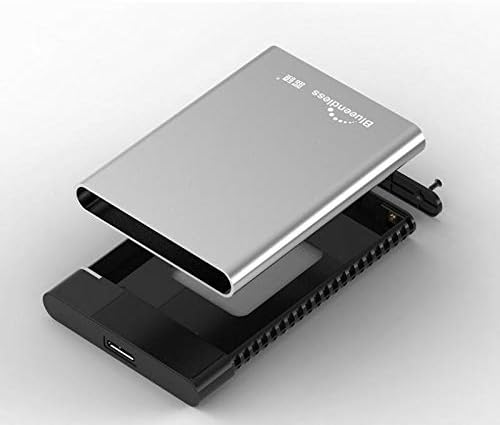
Your 2.5-inch SATA drive is now securely installed in the Blueendless U23G enclosure.
5. Operating Instructions
Follow these steps to connect and use your Blueendless U23G enclosure with a computer.
- Connect the USB Cable: Plug the Micro-B end of the provided USB 3.0 cable into the port on the Blueendless U23G enclosure.
- Connect to Computer: Plug the other end of the USB 3.0 cable (USB-A or USB-C, depending on your cable and computer port) into an available USB port on your computer. For optimal performance, use a USB 3.0 or higher port.
- Power On and LED Indicator: The enclosure is bus-powered, meaning it draws power directly from the USB port. Once connected, the LED indicator light on the enclosure will illuminate, indicating that the device is powered on and functioning. The LED may blink during data transfer.
- Accessing the Drive: Your operating system (Windows, Mac, Linux) should automatically detect the new drive.
- For new drives: If you are using a brand new HDD/SSD, it may need to be initialized and formatted before it appears in 'My Computer' (Windows) or 'Finder' (Mac). Refer to your operating system's documentation for instructions on disk management.
- For used drives: If the drive was previously formatted, it should appear as a removable drive. You can then access your files.
- Safe Removal: Always safely eject or unmount the drive from your operating system before disconnecting the USB cable to prevent data corruption.
Image: Blueendless U23G enclosure connected to a laptop via a USB cable.

Image: Blueendless U23G enclosure with a USB-A to Micro-B cable.

Image: Blueendless U23G enclosure with a USB-C to USB-C cable.

Image: Blueendless U23G enclosure with a USB-A to USB-C cable.

6. Maintenance
To ensure the longevity and optimal performance of your Blueendless U23G enclosure and the installed drive, follow these maintenance guidelines:
- Cleaning: Use a soft, dry cloth to clean the exterior of the enclosure. Avoid using liquid cleaners or solvents, as they may damage the finish or internal components.
- Storage: When not in use, store the enclosure in a cool, dry place away from direct sunlight, extreme temperatures, and humidity.
- Handling: Handle the enclosure with care. Avoid dropping it or subjecting it to strong impacts, as this can damage the internal drive.
- Cable Care: Do not bend or crimp the USB cable excessively. Store it neatly to prevent damage.
7. Troubleshooting
If you encounter issues with your Blueendless U23G enclosure, refer to the following common problems and solutions:
- Drive Not Detected:
- Ensure the USB cable is securely connected to both the enclosure and the computer.
- Try connecting to a different USB port on your computer.
- Verify that the HDD/SSD is properly seated within the enclosure's SATA connector.
- If it's a new drive, check your operating system's disk management utility to see if it needs to be initialized and formatted.
- Test the enclosure with a different HDD/SSD, or test the HDD/SSD in another enclosure/system if possible, to isolate the issue.
- Slow Transfer Speeds:
- Ensure you are connected to a USB 3.0 (or higher) port on your computer. USB 2.0 ports will result in significantly slower speeds.
- Verify that your computer's USB 3.0 drivers are up to date.
- The actual speed depends on the performance of the installed HDD/SSD.
- LED Indicator Not Lighting Up:
- Check the USB cable connection.
- Try a different USB port on your computer. Some USB ports may not provide sufficient power.
- Ensure the enclosure is not damaged.
If these steps do not resolve your issue, please contact customer support for further assistance.
8. Warranty and Support
Information regarding product warranty and customer support details is not available in the provided product data. Please refer to the retailer or manufacturer's official website for specific warranty terms and contact information for technical support.
