
1. Introduction
This manual provides comprehensive instructions for the assembly, operation, and maintenance of your SilverStone GD09 Home Theater PC (HTPC) computer case. The GD09 is engineered for space efficiency and broad compatibility, supporting full-size components within a compact form factor suitable for living room environments.
Please read this manual thoroughly before beginning installation to ensure proper setup and to maximize the performance and longevity of your system.
2. Key Features
- Positive air pressure design for excellent cooling, quiet operation, and dust prevention.
- Supports SSI-CEB, ATX, and Micro-ATX motherboards.
- Compatible with SilverStone RA02 rackmount ears (sold separately).
- Includes quick-access dust filters for easy maintenance.
- Incredible 358mm depth to fit comfortably inside most home theater cabinets.
3. Specifications
| Feature | Specification |
|---|---|
| Model Number | SST-GD09B |
| Dimensions (LxWxH) | 14.09 x 17.32 x 6.69 inches (358 x 440 x 170 mm) |
| Item Weight | 9.26 pounds (4.2 kg) |
| Material | Aluminum (Faux Aluminum Design) |
| Motherboard Compatibility | SSI-CEB, ATX, Micro-ATX |
| Power Supply Mounting Type | Front Mount (ATX) |
| Cooling Method | Air |
| Fan Size Support | 120mm (front, side), 80mm (rear) |
| Front I/O Ports | 2x USB 3.0, Audio In/Out |
4. Setup and Installation
4.1. General Overview
The SilverStone GD09 is designed for horizontal placement, blending seamlessly with home theater components. Its internal layout is optimized for standard PC hardware.

Figure 1: Front view of the SilverStone GD09 HTPC case, showcasing its faux aluminum design and accessible front I/O ports.

Figure 2: Rear view of the SilverStone GD09, highlighting the motherboard I/O shield area, expansion slots, and power supply bay.
4.2. Opening the Case
- Locate the two thumbscrews at the rear of the case. Unscrew them to loosen the top panel.
- Slide the top panel backward and then lift it off to access the internal components.

Figure 3: Illustration of removing the top panel by sliding it back after unscrewing the rear thumbscrews.
4.3. Motherboard Installation
- Install the I/O shield into the rear opening of the case.
- Align your ATX, Micro-ATX, or SSI-CEB motherboard with the standoffs inside the case.
- Secure the motherboard using the provided screws.

Figure 4: Internal layout showing the motherboard mounting area and various internal bays.
4.4. Power Supply Installation
- The GD09 supports standard ATX power supplies.
- Mount the power supply in the designated front-right compartment of the case.
- Secure the power supply with screws from the rear of the case.
4.5. Drive Installation
The case features versatile drive mounting options, including removable drive cages.
- Identify the 3.5-inch and 2.5-inch drive bays. The main drive cage can accommodate up to two 3.5-inch drives.
- An additional cage is provided for one 3.5-inch or two 2.5-inch drives, mounting behind the power supply.
- Secure drives to the cages using the appropriate screws.
- Reinstall the drive cages into their respective positions within the chassis.

Figure 5: Close-up of a removable drive cage, illustrating mounting points for storage devices.
4.6. Graphics Card Installation
- The GD09 supports graphics cards up to 340mm in length.
- Ensure your graphics card's height (depth) is compatible, especially when considering power connectors. For thicker cards, a 90-degree power adapter may be beneficial to prevent cable bending.
- Install the graphics card into the appropriate PCIe slot on your motherboard and secure it with the expansion slot screw.
4.7. Cooling System Setup
The GD09 features a positive air pressure design to enhance cooling performance and minimize dust accumulation. It supports multiple fan configurations.
- The case includes quick-access dust filters for easy cleaning. These are located on the side panels where intake fans are typically mounted.
- The case supports up to two 120mm fans in the front, two 120mm fans on the side, and two 80mm fans at the rear for exhaust.
- For optimal cooling, ensure proper airflow direction: intake fans at the front/side and exhaust fans at the rear.
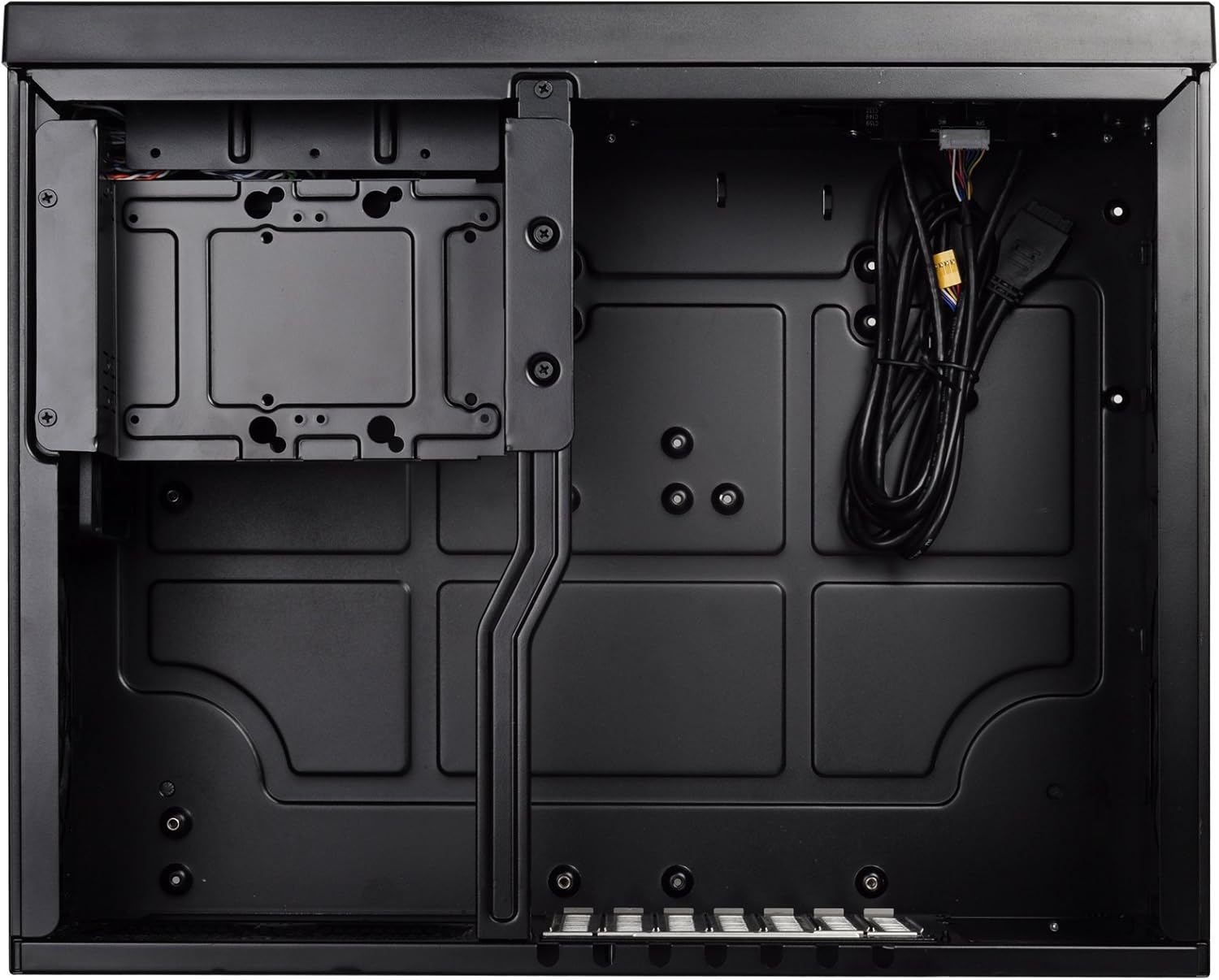
Figure 6: Detail of a removable dust filter, designed for easy cleaning and maintenance.
5. Operating Instructions
5.1. Front I/O Panel
The front panel provides convenient access to essential ports and controls:
- Power Button: Press to power on/off the system.
- Reset Button: Press to restart the system.
- USB 3.0 Ports (x2): For high-speed data transfer with compatible devices.
- Audio In/Out: For connecting headphones, microphones, or other audio devices.
6. Maintenance
6.1. Dust Filter Cleaning
Regular cleaning of the dust filters is crucial for maintaining optimal airflow and preventing dust buildup inside the case.
- Gently pull the quick-access dust filters from their slots on the side panels.
- Clean the filters using compressed air, a soft brush, or by rinsing them with water (ensure they are completely dry before reinstallation).
- Reinsert the clean filters back into their respective slots.
6.2. General Cleaning
Use a soft, dry cloth to wipe down the exterior of the case. Avoid abrasive cleaners or solvents that may damage the finish.
7. Troubleshooting
If you encounter issues with your system, consider the following basic troubleshooting steps:
- No Power: Ensure all power cables (PSU to wall, PSU to motherboard, CPU, GPU) are securely connected. Check the power switch on the PSU.
- No Display: Verify that your monitor cable is connected to the graphics card (not the motherboard integrated graphics, unless intended) and that the graphics card is properly seated and powered.
- Overheating: Check fan connections and ensure they are spinning. Clean dust filters. Verify CPU cooler installation. Ensure adequate airflow within the case.
- Component Not Detected: Reseat the component (e.g., RAM, GPU, storage drive). Check power and data cables.
For more complex issues, consult the manuals for your individual components or contact SilverStone support.
8. Warranty and Support
For detailed warranty information, technical support, and product registration, please visit the official SilverStone Technology website or contact their customer service department. Keep your proof of purchase for warranty claims.


