
1. Introduction
The TP-Link AC750 WiFi Extender (RE215) is a dual-band wireless repeater designed to expand your existing Wi-Fi signal to areas of your home or office that your router cannot reach. It supports both 2.4GHz and 5GHz bands, providing combined speeds of up to 750 Mbps. This device helps eliminate Wi-Fi dead zones, ensuring a stable and reliable network experience for multiple devices.
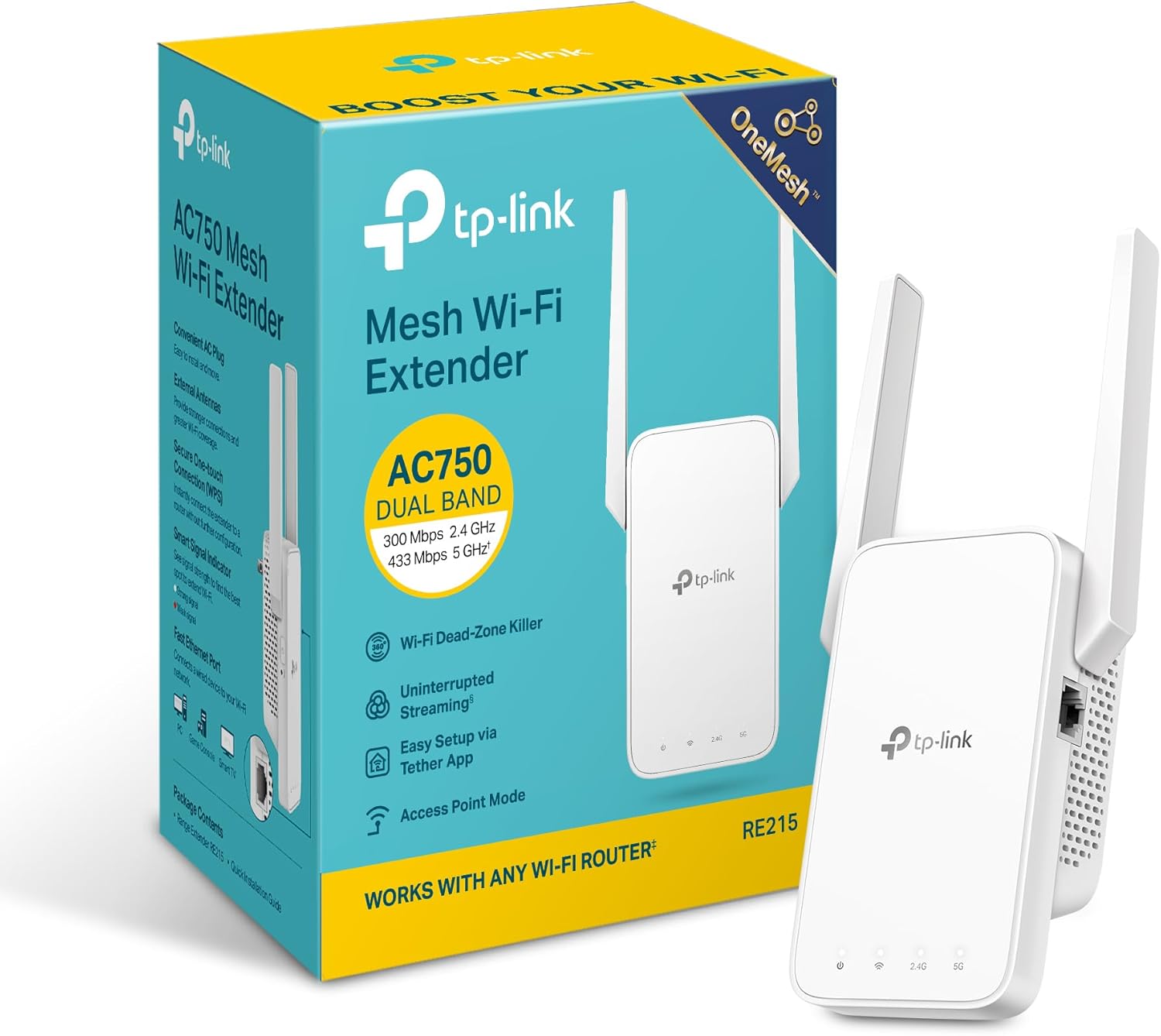
Image 1.1: TP-Link AC750 WiFi Extender (RE215) and its packaging.
2. Package Contents
- Wi-Fi Range Extender RE215
- Quick Installation Guide
3. Product Overview
The RE215 features a compact design with external antennas for enhanced signal coverage. It includes an Ethernet port, allowing it to function as a wireless adapter for wired devices or as an access point.
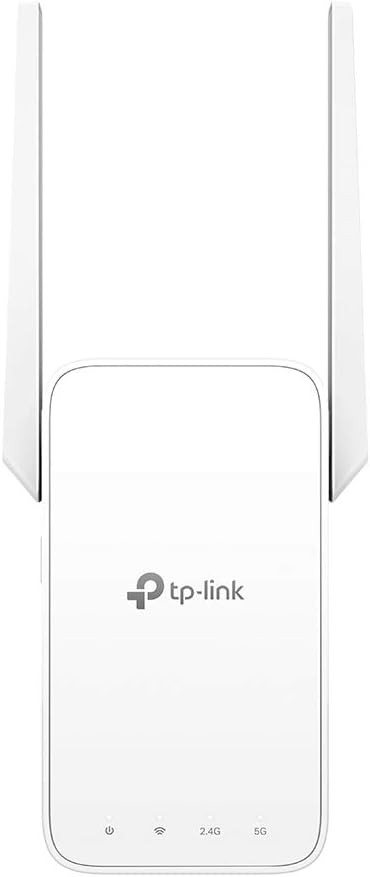
Image 3.1: Front view of the RE215 Extender with LED indicators.
Key Features:
- Dual-Band Wi-Fi: Operates on both 2.4GHz (300 Mbps) and 5GHz (433 Mbps) bands for flexible connectivity.
- External Antennas: Two adjustable external antennas enhance Wi-Fi coverage and reliability.
- Ethernet Port: Allows for wired connections to devices like smart TVs or gaming consoles, or to convert a wired connection into a wireless access point.
- Intelligent Signal Indicator: Helps find the optimal location for the extender by displaying signal strength.
- OneMesh™ Compatibility: Creates a unified mesh network with compatible TP-Link OneMesh routers for seamless roaming.
4. Setup
The TP-Link AC750 WiFi Extender (RE215) can be set up using the TP-Link Tether app, a web browser, or the WPS button.
Method 1: Via TP-Link Tether App (Recommended)
- Plug In the Extender: Plug the RE215 into a power outlet near your main router.
- Wait for Power LED: Wait until the Power LED on the extender turns solid on.
- Download Tether App: Download the TP-Link Tether app from the App Store (iOS) or Google Play (Android) on your smartphone.
- Log In or Create TP-Link ID: Launch the Tether app and log in with your TP-Link ID. If you don't have one, create an account first.
- Add Device: In the Tether app, tap the '+' icon and select 'Range Extender' from the device list.
- Confirm Power LED: Follow the app instructions to confirm the Power LED is solid on.
- Connect to Extender's Wi-Fi: Connect your smartphone to the extender's Wi-Fi network (e.g., 'TP-Link_Extender').
- Create Password: Create a local password to log in to the extender.
- Scan for Host Network: The app will scan for available 2.4GHz and 5GHz host networks.
- Select Host Networks: Select your desired 2.4GHz host network and enter its password. Repeat for the 5GHz host network if available.
- Customize Network Names (Optional): You can keep the default extended network names (e.g., 'YourNetworkName_EXT') or customize them.
- Apply Settings: Confirm the settings and tap 'Apply'. The extender will reboot to apply the changes.
- Relocate the Extender: Once the setup is complete, unplug the extender and move it to an optimal location (see Section 6 for guidance).

Image 4.1: The RE215 Extender plugged into a wall outlet.
Setup Video:
Video 4.1: How to Set up TP-Link Range Extender RE215 via Tether App.
Method 2: Via WPS Button
- Plug In the Extender: Plug the RE215 into a power outlet near your main router.
- Press WPS on Router: Press the WPS button on your router.
- Press WPS on Extender: Within two minutes, press the WPS button on the RE215 extender.
- Wait for Signal LED: The Signal LED on the extender should turn solid, indicating a successful connection.
- Relocate the Extender: Unplug the extender and move it to an optimal location.
5. Operating Modes
Range Extender Mode
In this mode, the RE215 wirelessly connects to your existing router and extends its Wi-Fi signal to provide broader coverage, eliminating dead zones.
Access Point Mode
The Ethernet port on the RE215 allows it to function as a wireless access point. By plugging an Ethernet cable from your router into the extender's Ethernet port, you can convert that wired internet connection into a dual-band wireless access point, creating a new Wi-Fi hotspot.
6. OneMesh™ Technology
OneMesh™ is a feature that allows you to form a Mesh network with a single Wi-Fi name for seamless whole-home coverage. When paired with a compatible TP-Link OneMesh router, the RE215 ensures uninterrupted streaming as you move around your home, eliminating the need to switch between different network names.
7. Optimal Placement
Proper placement of your RE215 extender is crucial for maximizing Wi-Fi coverage and performance. Use the intelligent signal indicator on the extender or the Tether app to find the best location.
- Halfway Point: Plug the extender about halfway between your router and the Wi-Fi dead zone. The location must be within the range of your router.
- Open Area: Place the extender in an open, unobstructed area. Avoid placing it behind large furniture or inside cabinets.
- Avoid Interference: Keep the extender away from large appliances (e.g., microwaves, refrigerators) or other electronic devices that may cause signal interference.

Image 7.1: Illustration of Wi-Fi coverage with an extender in a home environment.
8. Maintenance
- Firmware Updates: Regularly check for and install firmware updates via the Tether app or TP-Link website to ensure optimal performance and security.
- Ventilation: Ensure the extender has adequate ventilation and is not covered, to prevent overheating.
- Cleaning: Gently clean the device with a dry, soft cloth. Avoid liquid cleaners.
9. Troubleshooting
Weak Signal (Red Signal LED)
If the Signal LED on your extender is red, it indicates a weak connection to your router. Try the following:
- Relocate the Extender: Move the extender closer to your main router. Use the Tether app's signal indicator to find a location where the LED turns white (strong signal).
- Check Router Placement: Ensure your main router is in a central location and not obstructed.
Connection Drops
If devices connected to the extender frequently lose connection:
- Update Firmware: Ensure both your router and extender have the latest firmware.
- Adjust DHCP Lease: In some cases, adjusting the DHCP lease time on your router or extender settings can improve stability. Refer to your router's manual or TP-Link support for specific instructions.
- Reduce Interference: Move the extender away from potential sources of interference.
Cannot Connect to Extended Network
- Verify Password: Ensure you are entering the correct password for the extended network.
- Reboot Devices: Try rebooting both your router and the extender.
- Reset Extender: If issues persist, perform a factory reset on the extender (using the reset button) and repeat the setup process.
10. Specifications
| Feature | Detail |
|---|---|
| Model Number | RE215 |
| Wireless Type | 802.11a, 802.11ac, 802.11b, 802.11g, 802.11n |
| Data Transfer Rate | 750 Megabits Per Second (AC750) |
| Frequency Band Class | Dual-Band (2.4GHz & 5GHz) |
| Special Feature | Access Point Mode |
| Item Weight | 5.6 ounces |
| Product Dimensions | 3.5 x 1.38 x 4.89 inches |

Image 10.1: Dimensions of the RE215 Extender.
11. Legal Disclaimer
1. Maximum wireless signal rates are the physical rates derived from IEEE Standard 802.11 specifications. Actual wireless data throughput and wireless coverage are not guaranteed and will vary as a result of 1) environmental factors, including building materials, physical objects, and obstacles, 2) network conditions, including local interference, volume and density of traffic, product location, network complexity, and network overhead, and 3) client limitations, including rated performance, location, connection quality, and client condition. 2. The product may not be compatible with routers or gateways with firmware that has been altered, is based on open source programs, or is non-standard or outdated. 3. Smart Roaming is designed for devices that support the 802.11k/v standard. 4. Actual network speed may be limited by the rate of the product's Ethernet WAN or LAN port, the rate supported by the network cable, Internet service provider factors and other environmental conditions.
12. Support Information
For further assistance or technical support, please refer to the official TP-Link support channels:
- Phone Support: (866) 225-8139
- Product Website: myproducts.tp-link.com/us
- Email Support: support.USA@tp-link.com


