
1. Introduction
This manual provides instructions for the Ecarke 2-Key Gaming Keyboard, a compact and programmable mechanical keyboard designed for gaming and custom macro functions. It features RGB LED lighting and a plug-and-play USB interface.
Key Features
- Full Key Customization
- One-Click Password Function
- Multimedia Control
- Two-Step Operation
- Mouse Mode
- Game Controller Mode
- Driver-Free Plug-and-Play

Image: Diagram illustrating key features of the Ecarke 2-Key Gaming Keyboard, such as full key customization, one-click password, multimedia control, and driver-free operation.
2. Setup
Package Contents
- Ecarke 2-Key Gaming Keyboard
- USB Cable
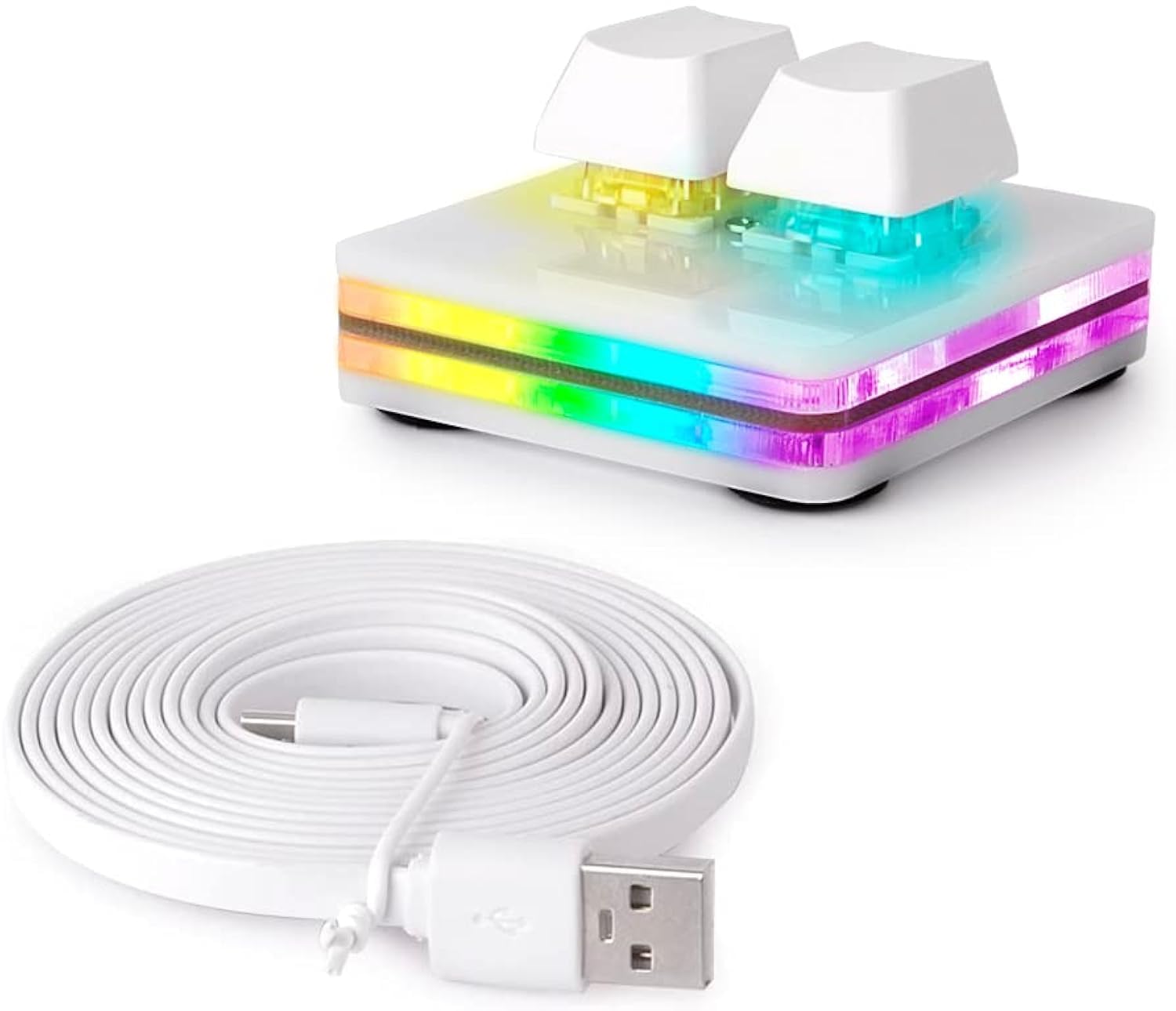
Image: The Ecarke 2-Key Gaming Keyboard shown with its detachable USB cable.
Connecting the Keyboard
Connect the provided USB cable from the keyboard's USB-C port to an available USB-A port on your computer. The keyboard is plug-and-play and does not require additional drivers for basic functionality.

Image: A close-up view of the keyboard's USB-C port with the cable connected.
Software Installation and Configuration
To customize key functions and RGB lighting, software is required.
- Download the configuration software from the official website: https://osu.sayobot.cn/download/.
- For Windows: Run the downloaded executable file. The software will typically open a web interface in your browser.
- For Mac OS: The software needs to be set up on a Windows 7 or above system first. After configuration, it can be used on Mac OS. Download the appropriate Mac CLI tool (
Sayo_CLI_Mac_X86orSayo_CLI_Mac_M1), make it executable usingchmod 755in the terminal, and then run it. It will launch a local server and open the configuration interface in your browser. - In the software interface, select your keyboard and proceed with customization.
Important Note:
If you experience issues with the software detecting the keyboard or saving settings, temporarily unplug any other mechanical keypads or keyboards connected to your computer. This can prevent potential software conflicts.

Image: Screenshot of the SayoDevice Control Program interface, used for customizing keyboard functions and settings.
Switch Handling
The keyboard features mechanical switches. During transport, switches may become loose. If a switch is dislodged, gently press it back into its socket. Please note that the Cherry switches used in this mini keyboard are not hot-swappable, meaning they cannot be easily replaced without desoldering.

Image: A close-up view of a mechanical key switch, highlighting its structure.
3. Operating Instructions
Key Programming
Use the configuration software to assign functions to each of the two keys.
- Open the software and connect to your keyboard.
- Navigate to the "button" tab.
- For each button, select a "mode" from the dropdown menu (e.g., default, mouse mode, multimedia control, one-key password).
- Assign "modifier keys" (e.g., Ctrl, Alt, Shift) and "general keys" as needed.
- Click "Permanent Save" to apply your settings to the keyboard's firmware.
Video: This video demonstrates how to set up a one-key password function using the keyboard's configuration software. It shows the steps to input a password and save it to a key.
Available Modes
- Default Mode: Assigns standard keyboard keys.
- Mouse Mode: Configures keys for mouse actions like left-click, cursor movement.
- Multimedia Control: Allows control over media playback (volume up/down, play/pause, next/previous track).
- One-Key Password: Stores a sequence of characters that can be input with a single key press.
- Two-Step Operation: Assigns two different actions to a single key, triggered by press and release.
- Game Controller Mode: Maps keys to game controller inputs.

Image: An illustration detailing the various operational modes available for the keyboard, such as multimedia control and game controller mode.
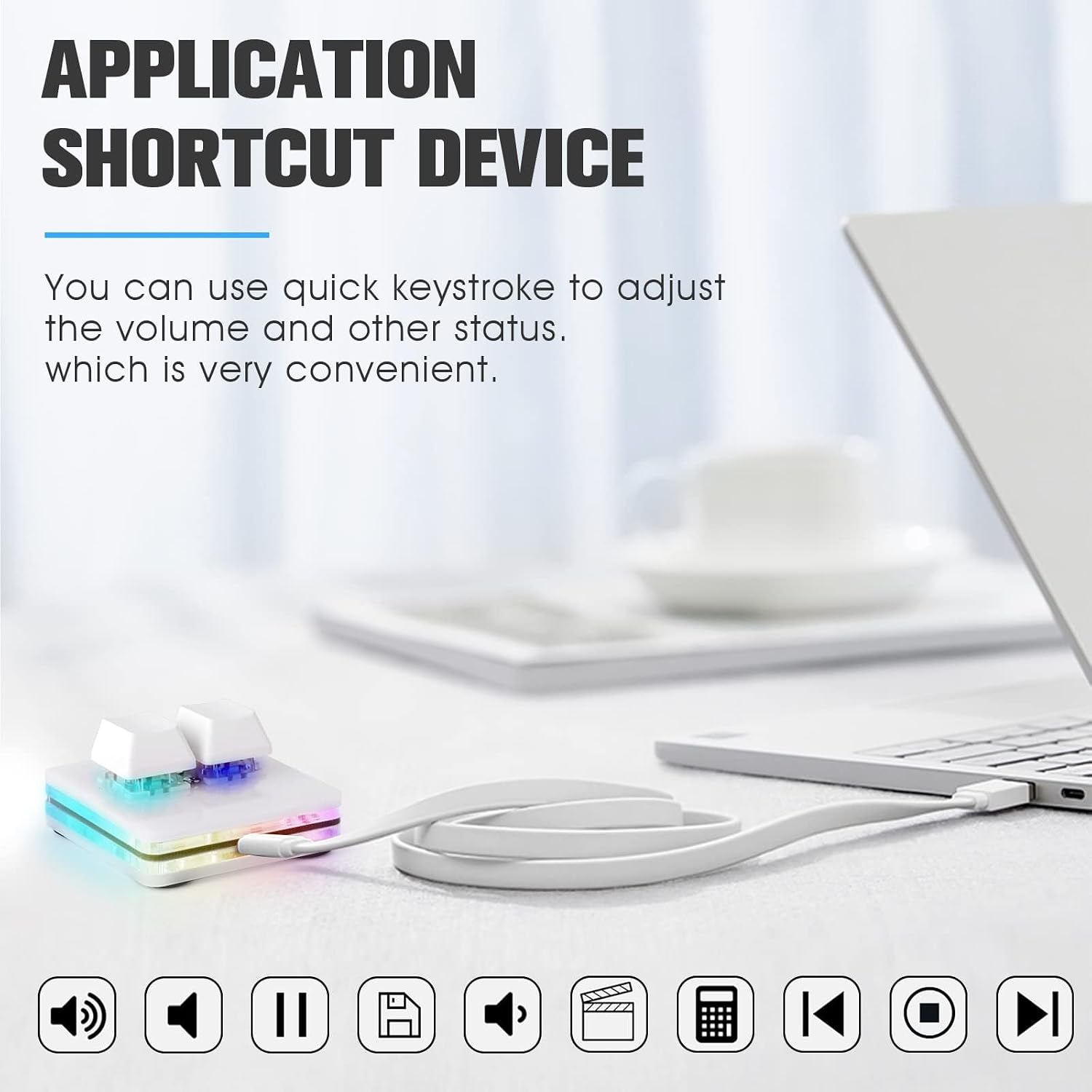
Image: The keyboard connected to a laptop, with icons representing various multimedia and application shortcut functions.
RGB LED Control
The keyboard features customizable RGB LED lighting. Use the configuration software to select various lighting effects, colors, and brightness levels.

Image: The Ecarke 2-Key Gaming Keyboard illuminated with colorful RGB lighting.
4. Maintenance
Cleaning
To clean the keyboard, use a soft, dry, lint-free cloth. Avoid using liquid cleaners or abrasive materials, as these can damage the surface or internal components.
Storage
Store the keyboard in a cool, dry place away from direct sunlight and extreme temperatures.
5. Troubleshooting
Common Issues and Solutions
| Issue | Possible Cause | Solution |
|---|---|---|
| Keyboard not detected or unresponsive | Loose USB connection, software conflict, faulty cable | Ensure USB cable is securely connected. Unplug other mechanical keypads. Try a different USB port or the original USB cable. |
| Key assignments not saving | "Permanent Save" not clicked in software | After making changes in the software, click the "Permanent Save" button to write settings to the keyboard's firmware. |
| RGB lighting not working or customizing | Software settings, power issue | Check the RGB settings within the configuration software. Ensure the keyboard is receiving adequate power. |
| Mac OS compatibility issues | Incorrect setup procedure | Ensure the initial software configuration was performed on a Windows system as required for Mac OS use. |

Image: A user operating the 2-key keyboard during a rhythm game, demonstrating its functional integration with a computer setup.
6. Specifications
| Model | 2-key |
| Brand | Ecarke |
| Connectivity | Mini USB |
| Keyboard Type | Mechanical Gaming Keyboard |
| Features | Programmable, RGB LED Backlit |
| Dimensions | 6.1 x 5 x 1.34 inches |
| Item Weight | 2.89 ounces |
| Material | Plastic, Metal or both |
| Package Contents | Ecarke 2-Key Gaming Keyboard, USB Cable |
7. Warranty Information
Specific warranty details for the Ecarke 2-Key Gaming Keyboard are not provided in this manual. Please refer to the product packaging, the manufacturer's official website, or your point of purchase for comprehensive warranty terms and conditions.
8. Support
For further assistance, technical support, or inquiries regarding your Ecarke 2-Key Gaming Keyboard, please visit the official Ecarke website or contact their customer service department.
Software download link: https://osu.sayobot.cn/download/
Manufacturer: Ecarke