1. Introduction
This manual provides comprehensive instructions for the installation, operation, and maintenance of the Wolf Guard W4Q WiFi 4G Wireless Home Security Alarm System with Doorbell (W4Q-ML02). Please read this manual thoroughly before using the product to ensure proper function and safety. Keep this manual for future reference.
The Wolf Guard security alarm kit offers complete control via the "Smart Life" app, connecting to your home WiFi network. Leveraging your home internet connection, you can receive push notifications directly on your smartphone. The application enables full management of the alarm system from anywhere.
2. Package Contents
Verify that all items listed below are included in your package:
- 1 x WIFI + 4G Control Unit (Main Panel)
- 1 x Infrared Motion Sensor (PIR)
- 2 x Wireless Anti-Theft Remote Controls
- 1 x Door/Window Contact Sensor
- 1 x Wireless Doorbell Button
- 1 x Wired Mini Indoor Siren (110 Db)
- 2 x RFID Cards
- 1 x Host Power Adapter

3. Setup and Installation
Follow these steps to set up your Wolf Guard W4Q-ML02 alarm system.
3.1. Main Panel Overview

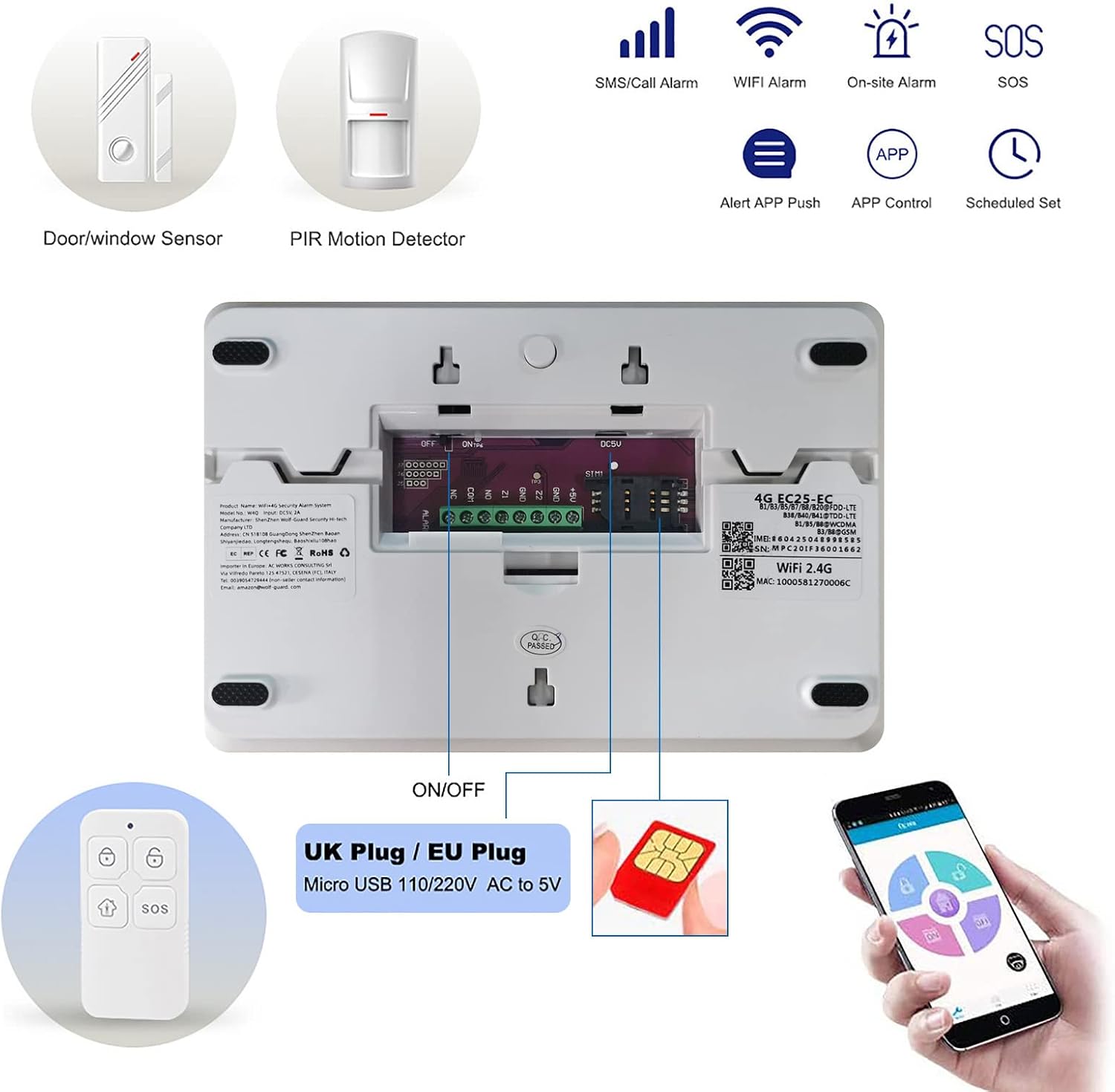
3.2. Initial Setup and Device Pairing
This video demonstrates the initial unboxing, SIM card installation, powering on the device, and pairing various sensors and remote controls with the main panel. It also shows the process of connecting the system to the mobile application.
- Insert 4G SIM Card: Open the back cover of the main panel and carefully insert a 4G SIM card into the designated slot. Ensure it is correctly seated.
- Power On: Connect the host power adapter to the main panel and a power outlet. Turn on the ON/OFF switch located at the back of the panel.
- App Download: Download the "Smart Life" or "Tuya Smart" application from your smartphone's app store. You can find direct links here: Smart Life App and Tuya Smart App.
- Connect to Wi-Fi: Open the app, select "Add Device," and follow the on-screen instructions to connect your alarm system to your 2.4 GHz Wi-Fi network. Ensure your mobile phone is connected to the same 2.4 GHz Wi-Fi network during this process.
- Pair Remote Controls: On the main panel, navigate to the device management menu. Select to add a wireless device, then activate each remote control by pressing any button to pair it with the system.
- Pair Door/Window Sensor: Activate the door/window sensor by separating its two parts or pressing its test button. The main panel will detect and pair it.
- Pair Motion Sensor (PIR): Turn on the motion sensor switch. Activate the sensor by moving in front of it or pressing its test button. The main panel will detect and pair it.
- Pair Wireless Doorbell Button: Press the wireless doorbell button to pair it with the main panel.
- Pair RFID Cards: On the main panel, navigate to the RFID card management. Swipe each RFID card over the RFID swipe area on the main panel to pair them.
4. Operating Instructions
The Wolf Guard W4Q-ML02 system offers multiple ways to control its functions.
4.1. Arming and Disarming
The system can be armed or disarmed using the following methods:
- Main Panel Keypad: Enter your security code and press the arm/disarm button.
- Remote Control: Use the dedicated arm or disarm buttons on the wireless remote controls.
- Mobile Application: Use the "Smart Life" or "Tuya Smart" app to remotely arm or disarm the system.
- RFID Card: Swipe a paired RFID card over the RFID area on the main panel to quickly arm or disarm.
- Remote Call: If a 4G SIM card is installed, you can arm or disarm the system by calling the panel and entering specific commands.

4.2. Emergency SOS Function
In case of an emergency, press the SOS button on the main panel or the wireless doorbell button (if configured as an SOS button). The system will trigger an immediate alarm and notify pre-set emergency contacts.

4.3. Two-Way Audio Communication
The main panel supports two-way audio communication, allowing you to speak and listen through the system. This feature can be activated via the mobile app or by calling the panel (if a 4G SIM is installed).

4.4. Scheduled Arm/Disarm
You can set up schedules for automatic arming and disarming of the system through the mobile application. This allows for convenient automation based on your daily routine.

5. Key Features
- Dual Network Connectivity (WiFi + 4G): The system supports both WiFi and 4G SIM card connectivity, ensuring reliable communication. It can send calls and SMS via 4G and push notifications via WiFi.
- Mobile App Control: Full system management (arm, disarm, sensor management, alarm history, notifications) is available through the free "Smart Life" or "Tuya Smart" app for Android and iOS.
- Integrated Backup Battery: Equipped with a backup battery, the system operates for several hours during power outages. Users receive SMS notifications for power interruptions and restorations.
- Anti-Dismantling Alarm: Both the alarm system and siren feature an anti-dismantling function, triggering an alarm if tampered with.
- Expandable System: The system can support up to 99 wireless detectors, allowing for comprehensive coverage of your property.
- Multiple Zone Types: Supports various access zones including entry zone, indoor zone, perimeter zone, 24-hour zone, and doorbell zone. Customizable defense zone names are available for specific locations like entrance doors, corridors, bedrooms, windows, and for detecting smoke, gas, carbon monoxide, or water leaks.
- Door/Window Unclosed Reminders: Receive notifications if doors or windows are left open.
- Voice Control Compatibility: Works with popular voice assistants like Amazon Alexa and Google Assistant for convenient voice commands.

6. Specifications
| Attribute | Detail |
|---|---|
| Manufacturer | CTD |
| Item Model Number | W4Q-ML02 |
| Product Dimensions | 20 x 14 x 3.2 cm |
| Item Weight | 1.01 Kilograms |
| Color | White |
| Power Source Type | Battery Powered |
| Voltage | 220 Volts |
| Installation Method | Screw-in |
| Sound Level | 110 Decibels |
| Usage | Indoor |
| Included Components | Battery, Adapter |
| Batteries Included? | Yes |
| Batteries Required? | Yes |
| Battery Type | Lithium Ion |
| Average Battery Life | 8 Hours |
| Compatible Devices | Smartphone |
7. Maintenance
- Battery Monitoring: The system will notify you via the app or SMS if the backup battery or sensor batteries are low. Replace sensor batteries promptly when indicated.
- Regular Cleaning: Keep the main panel and sensors free from dust and debris. Use a soft, dry cloth for cleaning. Avoid using abrasive cleaners or solvents.
- Firmware Updates: Periodically check the mobile application for any available firmware updates for the main panel to ensure optimal performance and security.
- System Testing: It is recommended to periodically test the alarm system and all connected sensors to ensure they are functioning correctly.
8. Troubleshooting
If you encounter issues with your Wolf Guard W4Q-ML02 system, refer to the following common problems and solutions:
- System Not Connecting to Wi-Fi:
Ensure your Wi-Fi network is 2.4 GHz. The system does not support 5 GHz networks. Verify the Wi-Fi password is correct. Try resetting the main panel and re-attempting the connection process through the app. - Sensors Not Triggering Alarm:
Check if the system is armed. Ensure sensors are correctly paired with the main panel. Verify sensor battery levels. Confirm sensors are placed within effective range of the main panel and are not obstructed. - No Alarm Notifications on Phone:
Check your phone's notification settings for the "Smart Life" or "Tuya Smart" app to ensure notifications are enabled. Verify the app is connected to the alarm system. Ensure the 4G SIM card has credit and signal if relying on SMS/calls, or that the Wi-Fi connection is stable for push notifications. - Main Panel Display Language:
The main panel supports multiple languages. Navigate to the system settings on the panel or via the app to change the display language to your preference. - Short Backup Battery Life:
The integrated backup battery provides approximately 8 hours of operation. Ensure the main panel is connected to a stable power source for continuous charging.
9. Warranty and Support
For warranty information, technical support, or service inquiries, please refer to the documentation provided with your purchase or contact Wolf Guard customer service through their official channels. Keep your purchase receipt as proof of purchase for warranty claims.


