1. Introduction
The Nokia G10 is an unlocked smartphone designed for extended use, featuring a 3-day battery life, a large 6.52-inch screen, and a versatile 13MP triple camera system. This manual provides essential information to help you get started and make the most of your device.

Figure 1: Front view of the Nokia G10 smartphone displaying its home screen.
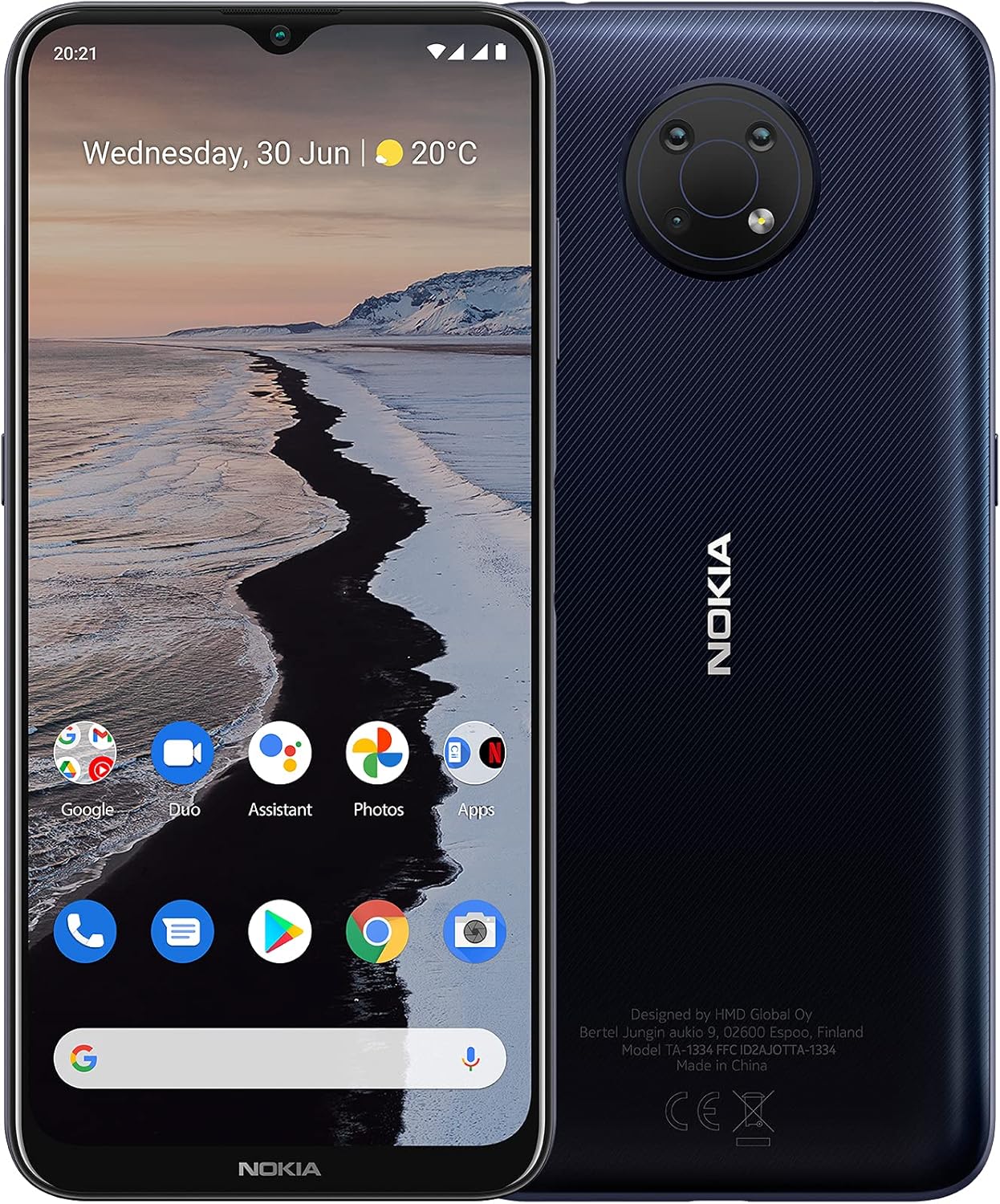
Figure 2: Front and back views of the Nokia G10, highlighting its design.
2. What's in the Box
Ensure all items are present upon unboxing your Nokia G10:
- Nokia G10 Device
- Charging Adapter
- USB Cable
- Screen Protector (pre-applied)
- Quick Start Guide

Figure 3: Contents of the Nokia G10 retail box.
3. Setup
3.1 Inserting the SIM Card
To connect to a cellular network, insert your SIM card into the device. Use the included SIM card removal tool to open the SIM tray. Place your SIM card(s) and any memory card into the tray as indicated, then carefully reinsert the tray into the phone.

Figure 4: Side view of the Nokia G10, indicating the location of the SIM tray and buttons.
3.2 Initial Power On and Configuration
Press and hold the power button until the Nokia logo appears. Follow the on-screen prompts to complete the initial setup, including language selection, Wi-Fi connection, and Google account setup. Ensure you download the newest available version of Android during product setup for the best experience.
3.3 Charging the Device
Connect the provided charging adapter and USB cable to your Nokia G10 and a power outlet. The device is designed to be charged using the included accessories. Charging with other adapters or cables may cause malfunction. Observe basic safety steps and do not charge with malfunctioning or damaged equipment.
4. Operating Your Nokia G10
4.1 Battery Life
The Nokia G10 features a long-lasting battery, providing up to 3 days of life between charges under typical usage conditions. Battery life can vary based on usage frequency, application requirements, operating system, and cellular signal strength.
4.2 Display and Viewing
Enjoy content on the 6.5-inch screen with brightness boost for clear viewing, even outdoors. The display resolution is 1600x720 pixels.
4.3 Camera Features
Capture moments with the 13MP triple camera system. The phone includes enhanced imagery and AI modes to improve your photos and videos.
4.4 Security Features
Unlock your phone using the side fingerprint sensor or secure face recognition for quick and convenient access while keeping your data safe.
5. Maintenance
5.1 Cleaning Your Device
To clean your Nokia G10, use a soft, lint-free cloth. Avoid using harsh chemicals, cleaning solvents, or strong detergents, as these may damage the device's finish or internal components. Ensure the screen and ports are free of dirt and debris.
5.2 Environmental Considerations
Avoid exposing your phone to extreme temperatures, direct sunlight for prolonged periods, or excessive moisture. These conditions can affect battery performance and overall device longevity.
6. Troubleshooting
This section addresses common issues and provides solutions.
How can I install available updates?
Navigate to Settings > System > System update > Check for update to check if updates are available. Follow the on-screen prompts to install the latest software version.
How can I close an app that has stopped working?
Open Settings on your phone and select Apps. Then find the app you're having issues with and select Force Stop.
I want to conserve battery life. How can I activate the Power Saver mode?
On your phone, open Settings, then choose and activate Battery Power Saving.
How can I back up my files?
Navigate to Settings > System > Backup, and switch backup on.
How can I reset my smartphone's network settings?
Navigate to Settings > Network & Internet > more_vert > Reset. Performing this reset may help if you're having connection issues.
How do I connect my phone to my carrier network?
If your Nokia phone and network are compatible, place your SIM card in the SIM card tray using the included SIM card removal tool. Once your SIM card has been inserted, power on your phone and proceed through the product setup steps. If you are not able to connect to your network after finalizing setup, please contact your carrier support for additional assistance.
How can I ensure other people hear me on my microphone?
Ensure the Google Assistant button is not stuck or dirty. Check that there is no dirt or debris in the headphone port. If clear, disable the microphone permission of the Google Assistant by going to Settings > Apps & Notifications > Google App > Permission > Microphone > Deny.
How can I turn up the volume to my speaker?
First, ensure there is no dirt or debris in the headphone port. Make sure “Do Not Disturb” is not enabled (Settings > Do not disturb). If off, navigate to Settings > Sounds and vibration > Volume and move the Media slider to the right. Check individual application volume settings if the issue persists.
Why is my phone feeling warm, closing apps or occasionally slowing down?
During extended operation, the device may feel warm, which is often normal. To prevent overheating, the device may automatically slow down, dim the display, close apps, or switch itself off. If the device is not working properly, take it to an authorized service facility.
How do I reboot my smartphone when it’s not responding?
If your phone is unresponsive, perform a “soft reset” by pressing the volume up key and the power button simultaneously for about 15 seconds (or until the phone vibrates). Your phone should then restart momentarily. This is a safe way to reboot without losing data.
My phone won’t charge. What should I do?
First, check the power source or socket by trying a different outlet. If the socket is not the issue, inspect the power cable and charging port for damage. Try turning your phone off completely and plugging it in; if the battery is completely drained, it might take 2-3 minutes to show charging.
How do I fix touch sensitivity issues on my phone?
Ensure your product has no physical damage, has not been exposed to water, the screen is clean, and your fingers are dry. Remove any third-party screen protectors, as they may decrease touch sensitivity. If issues persist, perform a hard reset to factory settings (back up your data first). To hard reset, press the volume up key and power button simultaneously for about 30 seconds until the root menu appears, then choose “Wipe data/factory reset”. Alternatively, go to Settings > Backup & Reset > Factory data reset > Reset phone > Erase everything.
7. Specifications
| Feature | Detail |
|---|---|
| Product Dimensions | 6.49 x 2.99 x 0.36 inches |
| Item Weight | 6.8 ounces |
| Item Model Number | TA-1338 |
| Batteries | 1 Lithium Polymer batteries required (included) |
| Operating System | Android 11.0 |
| RAM | 3 GB |
| Memory Storage Capacity | 512 GB (expandable via microSD) |
| Screen Size | 6.52 Inches |
| Resolution | 1600x720 pixels |
| Refresh Rate | 60 Hz |
| CPU Model | MediaTek Helio |
| CPU Speed | 1.8 GHz |
| Wireless Communication | Bluetooth, Wi-Fi |
| Connectivity Technologies | Bluetooth, USB, Wi-Fi |
| GPS | True |
| Special Features | Camera, Dual SIM, LTE, Smartphone, Touchscreen |
| Audio Jack | 3.5 mm |
| Battery Power Rating | 5050 mAh |
| Phone Talk Time | 36 Hours |
| Phone Standby Time (with data) | 72 hours |
| Charging Time | 3 Hours |
| Manufacturer | HMD Global Oy |
8. Warranty and Support
For detailed warranty information, please refer to the warranty card included with your product or visit the official Nokia website. For further assistance and support, you can visit the Nokia website for customer support resources.
You can also refer to the official User Guide PDF for more in-depth information: Nokia G10 User Guide (PDF)


