
UNITOPSCI Q3508 9-Inch Single DIN Car Stereo User Manual
Model: Q3508
1. Introduction
This manual provides detailed instructions for the installation, operation, and maintenance of your UNITOPSCI Q3508 9-inch Single DIN Car Stereo. This unit features a high-definition touchscreen, Apple CarPlay, Android Auto, Bluetooth connectivity, FM/AM radio, Mirror Link, USB playback, backup camera input, and steering wheel control compatibility. Please read this manual thoroughly before use to ensure proper functionality and safety.
2. Safety Information
- Always operate the vehicle safely. Distracted driving can lead to accidents.
- Do not attempt to install or service the unit if you are not experienced with car electronics. Professional installation is recommended.
- Ensure all wiring is correctly connected to prevent short circuits or damage to the unit and vehicle.
- Keep the volume at a level that allows you to hear outside traffic sounds.
- Avoid exposing the unit to extreme temperatures, direct sunlight for prolonged periods, or excessive moisture.
3. Package Contents
Verify that all items are present in the package:
- 1 x UNITOPSCI Q3508 Car Stereo Unit
- 1 x Backup Camera (12 LEDs)
- 1 x Power Cable
- 1 x Horn Cable
- 1 x User Manual
- 1 x External Microphone
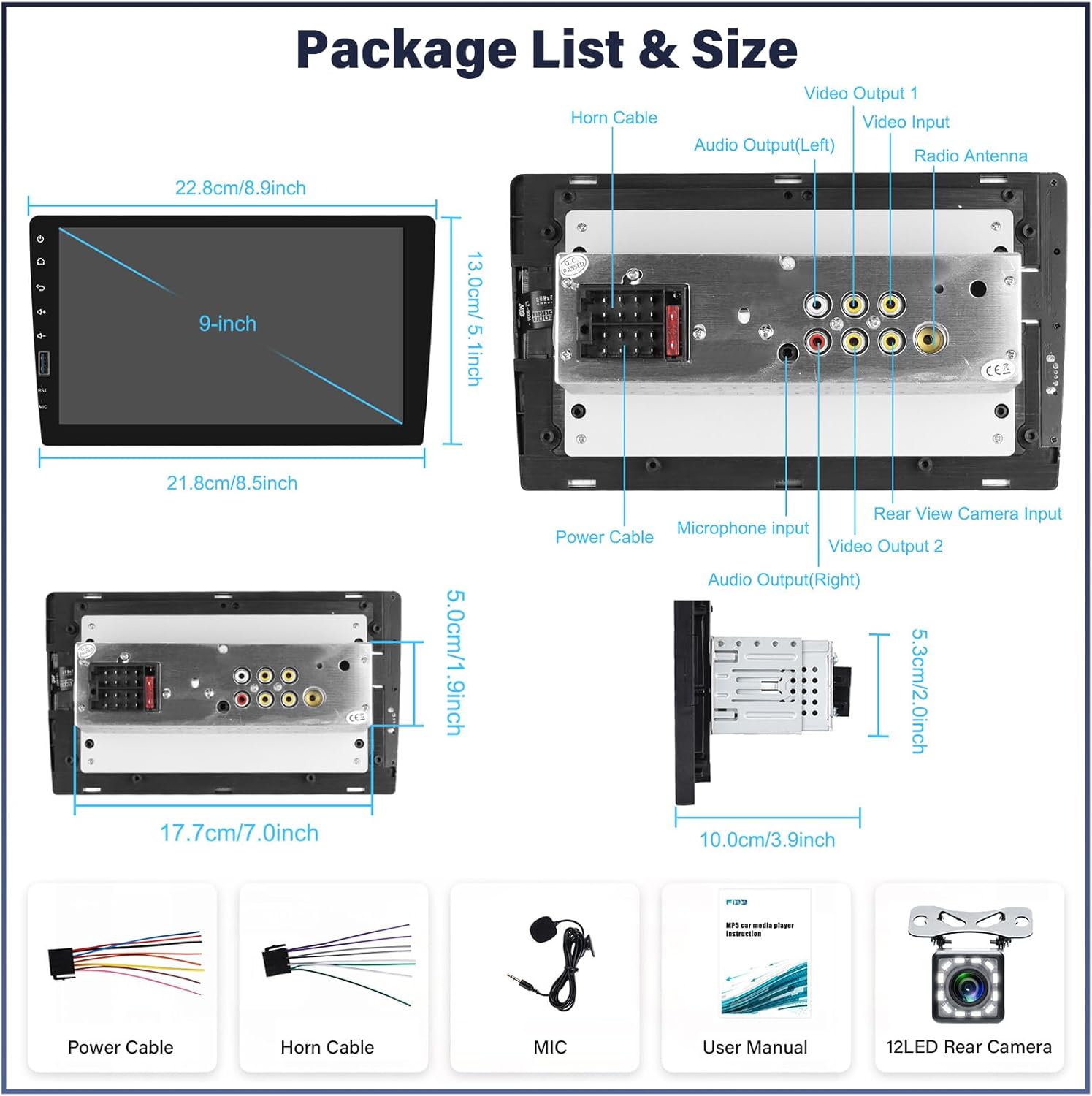
Figure 3.1: Package contents and unit dimensions.
4. Product Overview
The UNITOPSCI Q3508 is a versatile car stereo designed to enhance your driving experience with modern connectivity and entertainment features.

Figure 4.1: Front view of the UNITOPSCI Q3508 car stereo with key features highlighted.
Key Features:
- 9-Inch High-Definition Touch Screen: Provides a clear and responsive interface.
- Apple CarPlay & Android Auto: Seamless smartphone integration via USB for navigation, music, calls, and messages.
- Bluetooth Connectivity: Hands-free calling and wireless audio streaming.
- FM/AM Radio: Access to local radio stations with preset memory.
- Mirror Link: Display your smartphone screen directly on the stereo.
- USB Input: For media playback and smartphone charging.
- Backup Camera Input: Automatic display of rear view when reversing.
- Steering Wheel Control (SWC): Compatible with existing vehicle SWC for safe operation.
- Audio Equalizer (EQ): Customizable sound settings with various presets.
- 7-Color Backlight: Customizable button illumination.
5. Installation
5.1 Physical Installation
The Q3508 is a single DIN unit. Ensure your vehicle's dashboard opening is compatible with single DIN dimensions. Professional installation is highly recommended to avoid damage to the unit or vehicle's electrical system.
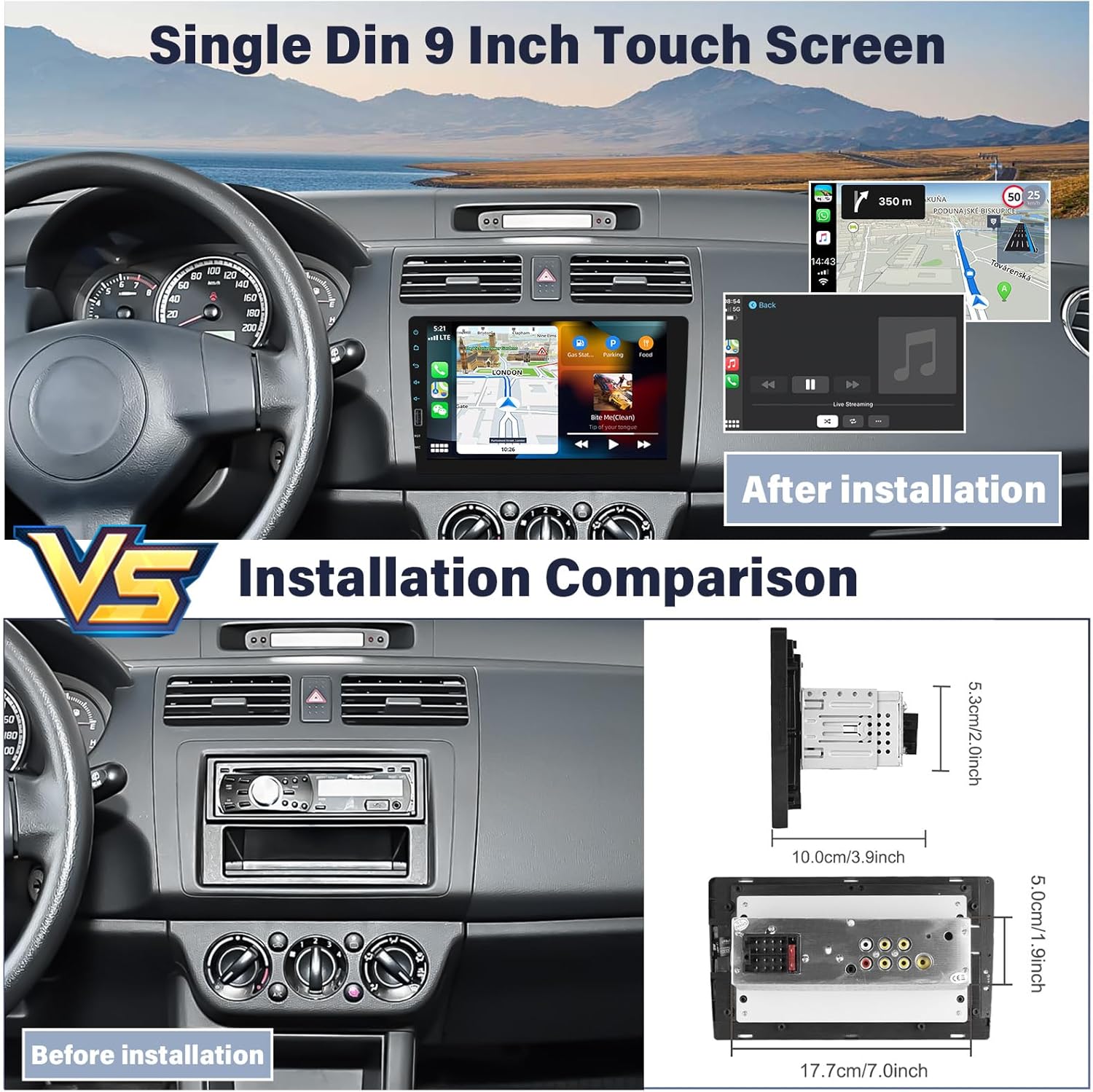
Figure 5.1: Installation comparison and unit dimensions.
5.2 Wiring Diagram
Refer to the following diagram for proper wiring connections. Incorrect wiring can cause damage.

Figure 5.2: Camera wiring instruction and general unit connections.
- Power Cable: Connect to vehicle's power supply (constant 12V, accessory 12V, and ground).
- Horn Cable: Connect as per vehicle specifications.
- Microphone Input: Plug in the external microphone for clear hands-free calls.
- Video Input/Output: For external video sources or monitors.
- Audio Output (RCA): For connecting to external amplifiers.
- Rear View Camera Input: Connect the included backup camera. The pink wire labeled "BACK" should be connected to the vehicle's reverse light positive (+) for automatic switching.
- Radio Antenna: Connect your vehicle's FM/AM antenna.
6. Operation
6.1 Basic Controls
The unit is primarily controlled via its 9-inch capacitive touch screen. Physical buttons on the side provide quick access to essential functions like volume, home, and power.
6.2 Apple CarPlay & Android Auto
Connect your iPhone or Android smartphone to the stereo via a USB cable. The system will automatically launch Apple CarPlay or Android Auto, allowing you to access navigation, music, messages, and make calls using the stereo's interface or voice commands.

Figure 6.1: Apple CarPlay and Android Auto voice control functionality.
6.3 Bluetooth Connectivity
To pair your device:
- Go to the Bluetooth menu on the stereo.
- Enable Bluetooth on your smartphone and search for available devices.
- Select "UNITOPSCI" (or similar name) from the list on your phone.
- Confirm the pairing code if prompted.
Once paired, you can make hands-free calls and stream audio wirelessly.

Figure 6.2: Bluetooth hands-free calling interface.
6.4 FM/AM Radio
Access the Radio application from the main menu. You can manually tune to stations or use the auto-scan function to find and save available stations. Up to 30 preset stations can be stored.
6.5 Mirror Link
Connect your smartphone via USB to use the Mirror Link function. This feature duplicates your phone's screen onto the stereo display, allowing you to interact with your phone's apps directly from the stereo. Compatibility may vary by phone model and operating system.
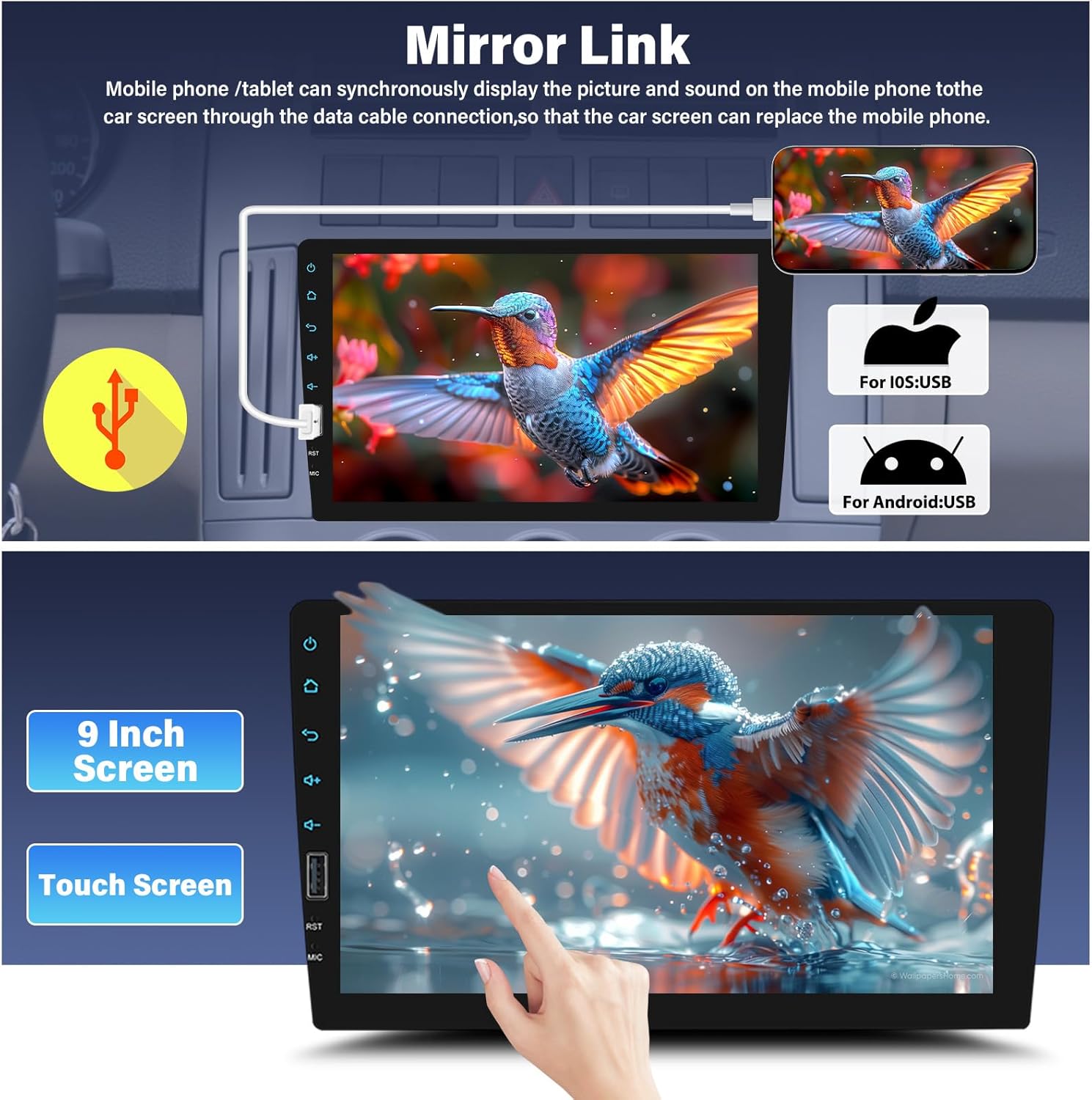
Figure 6.3: Mirror Link functionality for iOS and Android devices.
6.6 USB Playback & Charging
Insert a USB drive into the USB port to play audio or video files. The USB port also supports charging for compatible smartphones.

Figure 6.4: USB input for media and charging.
6.7 Backup Camera
When the vehicle is shifted into reverse gear, the stereo will automatically display the feed from the connected backup camera, providing a clear view of the area behind your vehicle. This feature includes parking guidelines for assistance.
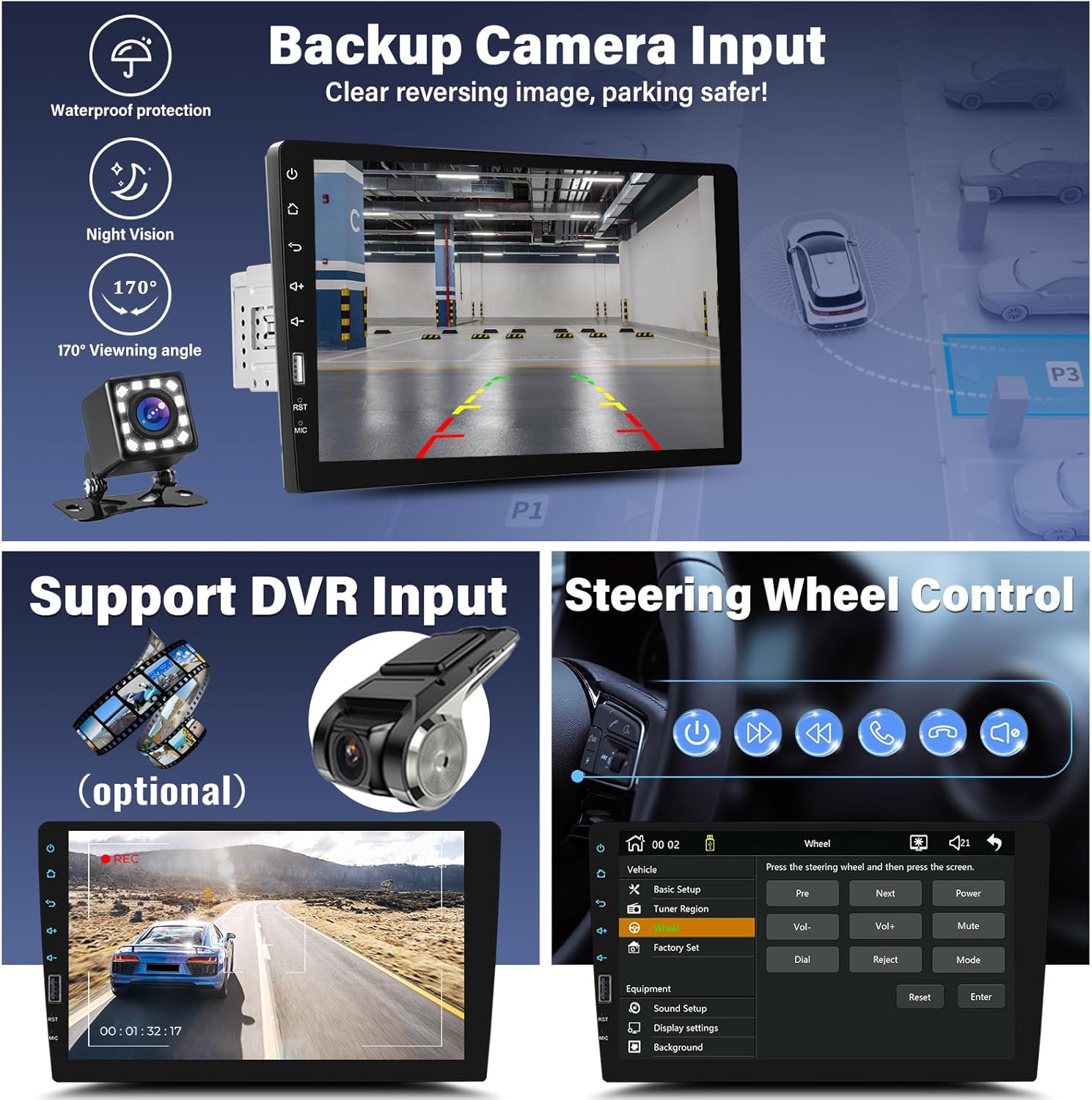
Figure 6.5: Backup camera display with parking assistance.
6.8 Steering Wheel Control (SWC)
If your vehicle has existing steering wheel controls, you can configure them to operate the stereo's functions (e.g., volume, track skip, mode). Access the SWC settings in the system menu and follow the on-screen instructions to map the buttons.
6.9 Audio Settings (EQ)
The built-in 16-band equalizer allows you to customize the audio output. Choose from preset modes (Pop, Jazz, Rock, Classic) or create a custom profile. Adjust bass, treble, and other frequency bands to suit your preferences.
6.10 Display Settings (Backlight)
Customize the backlight color of the physical buttons. The unit supports 7 colorful backlight options, which can be set to cycle automatically or remain a single color.
7. Maintenance
- Cleaning the Screen: Use a soft, lint-free cloth to gently wipe the touchscreen. For stubborn smudges, slightly dampen the cloth with water or a screen cleaner designed for electronics. Avoid harsh chemicals.
- General Cleaning: Keep the unit free from dust and debris. Use a soft brush or compressed air to clean crevices.
- Software Updates: Check the manufacturer's website periodically for any available software updates to ensure optimal performance and new features.
8. Troubleshooting
If you encounter issues, refer to the following common problems and solutions:
| Problem | Possible Cause | Solution |
|---|---|---|
| No Power | Incorrect wiring, blown fuse, vehicle battery issue. | Check power cable connections, inspect vehicle fuses, ensure battery is charged. |
| No Sound | Speaker wires disconnected, volume too low, incorrect audio source. | Verify speaker connections, increase volume, select correct audio source. |
| Bluetooth Not Connecting | Device not in pairing mode, incorrect pairing process, interference. | Ensure both devices are in pairing mode, retry pairing, move closer to the unit. |
| Mirror Link Not Working | Incorrect USB cable, phone not compatible, app issues. | Use original USB cable, check phone compatibility, restart phone and stereo. |
| Backup Camera No Display | Camera not connected, reverse trigger wire not connected, faulty camera. | Check camera video input and reverse trigger wire connection. |
9. Specifications
| Feature | Specification |
|---|---|
| Model Number | Q3508 |
| Screen Size | 9 inches |
| Product Dimensions | 2.68 x 8.5 x 1.97 inches |
| Item Weight | 2.4 pounds |
| Connectivity Technology | Bluetooth, USB |
| Controller Type | Hand Control (Touch Screen, Steering Wheel Control) |
| Special Features | Backup Camera, Steering Wheel Control, Bluetooth, FM/AM Radio, CarPlay and Android Auto, Mirror Link, EQ System, Touchscreen |
| Compatible Devices | Smartphone |
| Connector Type | USB Type A |
| Audio Encoding | Stereo |
| Audio Output Mode | Stereo |
| Surround Sound Channel Configuration | 2.1 |
| Video Encoding Support | AVI, MP4, MOV, MPG, MKV, VOB, RMVB, RM |
10. Warranty and Support
UNITOPSCI offers customer support and warranty services for its products.
- Replacement: Available within 24 months of purchase.
- Returns: 60-day return policy.
- Technical Support: Lifetime after-sales consultation and technical support.
- Response Time: Quick response to inquiries within 16 hours.
For support, please contact UNITOPSCI via email at: UNITOPSCI@126.com

