
MARVUE Pad M11
MARVUE Pad M11 10-inch Wi-Fi Tablet User Manual
Model: Pad M11 | Brand: MARVUE
1. Introduction
This manual provides essential information for the safe and efficient use of your MARVUE Pad M11 10-inch Wi-Fi Tablet. Please read this manual thoroughly before using the device and keep it for future reference.
Key Features:
- Operating System: Android 11 with Google GMS certification for stable and smooth performance.
- Performance: Equipped with a 4-core CPU, 4GB RAM, and 64GB internal storage.
- Expandable Storage: Supports MicroSD card expansion up to 512GB for ample space for photos, videos, and music.
- Display: 10-inch IPS HD screen with 1280x800 resolution for a clear visual experience.
- Cameras: Features an 8MP front camera and a 2MP rear camera for daily photography and video calls.
- Battery: Large capacity 7000mAh battery for extended usage.
- Connectivity: Supports 2.4G Wi-Fi for stable internet connection and Bluetooth for wireless accessories.
- Design: Lightweight (525g) and thin (9.3mm) metal body for portability.

Figure 1.1: MARVUE Pad M11 Tablet. This image shows the front and back of the tablet, emphasizing its 7000mAh battery capacity and 4GB RAM with 64GB internal storage.
2. Getting Started (Setup)
2.1 Package Contents
Verify that all items are present in the package:
- MARVUE M11 Tablet
- Power Adapter (5V2A Type-C compatible only)
- USB Type-C Cable
- User Manual
2.2 Initial Charging
Before first use, fully charge the tablet using the provided power adapter and Type-C cable. Connect the Type-C cable to the tablet's charging port and the adapter to a power outlet. A full charge may take 2-3 hours. If the tablet does not power on, charge it for 2-3 hours with the original charger, as it might be in sleep mode.

Figure 2.1: Charging the Tablet. This image illustrates the tablet's 7000mAh battery and its Type-C charging interface.
2.3 Power On/Off
- To Power On: Press and hold the power button until the MARVUE logo appears.
- To Power Off: Press and hold the power button until the power options appear, then select "Power off".
2.4 MicroSD Card Installation and Initialization
The tablet supports MicroSD card expansion up to 512GB. When using an SD card for the first time, it must be initialized (formatted) by the tablet. Follow the on-screen prompts after inserting the card.

Figure 2.2: Storage Expansion. This image shows the tablet's display with various applications, highlighting its 4GB RAM, 64GB internal storage, and the capability for 512GB MicroSD expansion.
2.5 Language and Time Settings
To set the language to English:
- Go to Settings.
- Select System.
- Choose Languages & input.
- Tap Languages.
- Select Add a language and choose English.
- Drag English to the top of the list to set it as the primary language.
To set the time zone:
- Go to Settings.
- Select System.
- Choose Date & time.
- Tap Time zone.
- Search for and select your region (e.g., "Tokyo" for Japan Standard Time).
3. Basic Operation
3.1 Navigating Android 11
Your tablet runs on Android 11, offering features like screen lock, dark mode, user assistance, digital well-being, and screen recording. Navigate using gestures or on-screen buttons.
3.2 Wi-Fi Connection
The tablet supports 2.4G Wi-Fi for stable internet connectivity. To connect to Wi-Fi:
- Go to Settings.
- Select Network & internet.
- Tap Wi-Fi and turn it on.
- Select your desired Wi-Fi network from the list and enter the password if prompted.
Note: This tablet is a Wi-Fi model and does not support SIM cards.
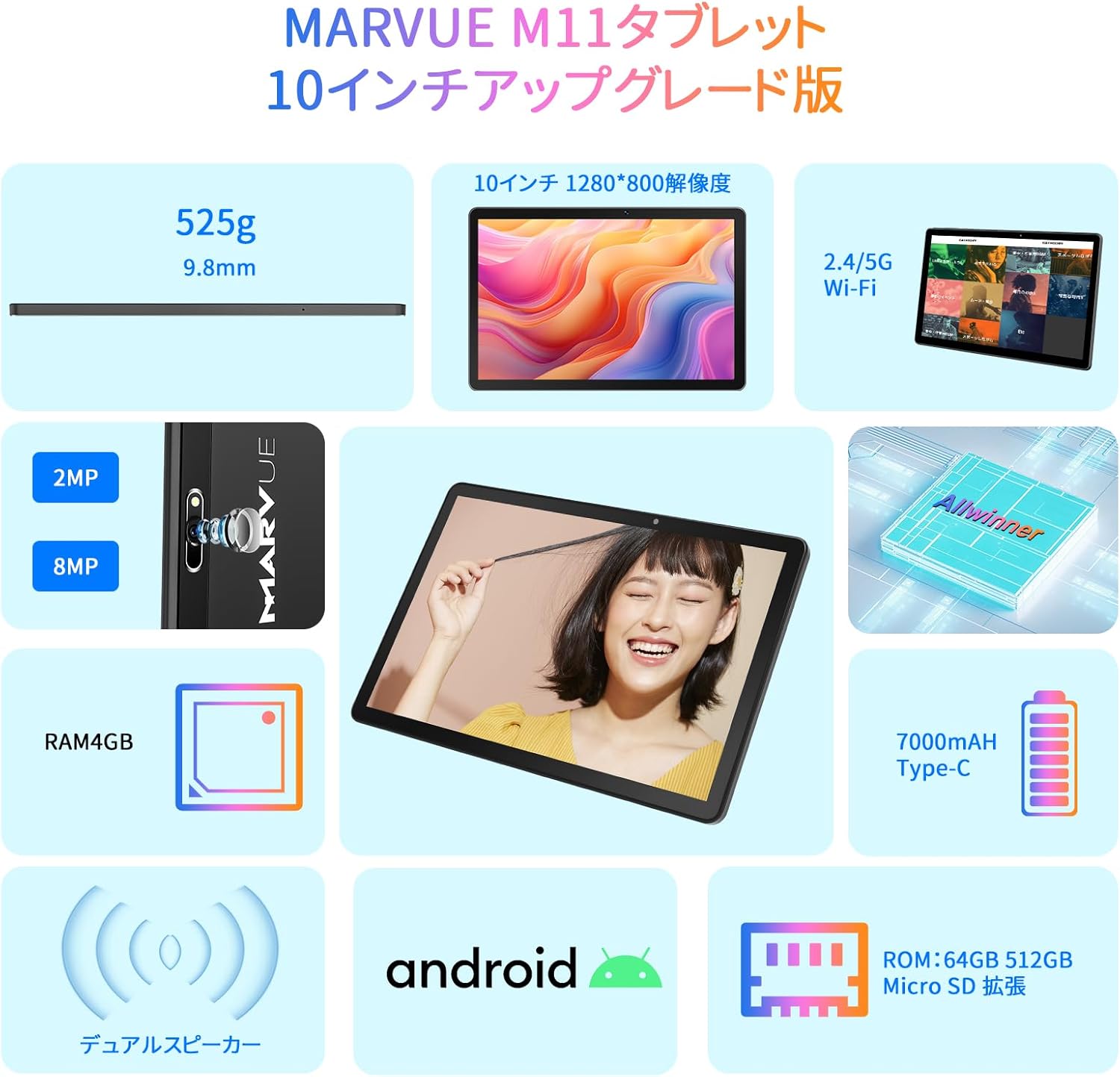
Figure 3.1: Tablet Feature Overview. This image provides a visual summary of the MARVUE M11 tablet's key features, including its dimensions, display resolution, Wi-Fi capabilities, camera specifications, RAM, battery, operating system, and storage.
3.3 Using the Cameras
The tablet is equipped with an 8MP front camera and a 2MP rear camera. Open the Camera app to take photos or record videos. The front camera is ideal for video calls and selfies, while the rear camera is suitable for general photography.

Figure 3.2: Dual Camera Functionality. This image displays the MARVUE Pad M11 tablet being used for a video call, demonstrating its dual camera capabilities for communication and photography.
3.4 Audio and Connectivity
The tablet features dual speakers for an enhanced audio experience. It also includes a 3.5mm headphone jack for private listening. Wireless headphones can be connected via Bluetooth.

Figure 3.3: Versatile Usage. This composite image illustrates various features and usage scenarios of the tablet, including dark mode, 2.4G Wi-Fi connectivity, digital health and parental controls, and the dual speaker system.
4. Care and Maintenance
4.1 Battery Care
- Use only the original charger provided with the tablet.
- Avoid exposing the tablet to extreme temperatures.
- Do not leave the tablet fully discharged for extended periods.
4.2 General Handling
- Keep the tablet away from water and excessive moisture.
- Avoid dropping or subjecting the tablet to strong impacts.
- Clean the screen with a soft, lint-free cloth. Do not use harsh chemicals.
- Do not attempt to disassemble or repair the tablet yourself.
5. Troubleshooting
This section addresses common issues you might encounter with your MARVUE Pad M11 tablet.
5.1 Charging Issues
Q: The tablet does not charge.
- A1: Ensure you are using the original 5V2A Type-C charger. If the power button shows an exclamation mark, charge for 2-3 hours.
- A2: Check if the charging port is loose. If not, try charging with another Type-C cable for 2-3 hours.
5.2 Wi-Fi Connection Problems
Q: Cannot connect to Wi-Fi.
- A1: First, check your tethering function (if applicable).
- A2: Restart your Wi-Fi router.
- A3: Ensure your router is set to 2.4G single mode, as this tablet only supports 2.4G Wi-Fi.
5.3 Performance and App Issues
Q: The tablet is slow or apps are crashing.
- A1: Avoid running many applications simultaneously. Close unnecessary apps.
- A2: This tablet is not recommended for heavy games or demanding applications like Photoshop. If high performance is required, consider a different model.
- A3: Ensure sufficient storage space. Delete unused files or apps, or utilize the MicroSD card.
5.4 SD Card Not Recognized
Q: The SD card is not recognized.
- A: For first-time use, the SD card needs to be initialized (formatted) by the tablet. Ensure it is inserted correctly and follow any on-screen prompts.
6. Specifications
| Feature | Specification |
|---|---|
| Brand | MARVUE |
| Model Name | Pad M11 |
| Operating System | Android 11 |
| Screen Size | 10 Inches |
| Display Resolution | 1280x800 Pixels |
| CPU Brand | Allwinner |
| CPU Speed | 1.6 GHz (Quad-Core) |
| RAM Capacity | 4 GB |
| Memory Type | DDR3 SDRAM |
| Storage Capacity | 64 GB (Internal) |
| Expandable Storage | Up to 512GB MicroSD |
| Connectivity | Bluetooth, Wi-Fi (2.4G 802.11a/b/g/n) |
| Rear Camera Resolution | 2 MP |
| Front Camera Resolution | 8 MP |
| Battery Type | Lithium Polymer Battery (1 included) |
| Battery Capacity | 7000mAh (22.8 Watt Hours) |
| Product Dimensions | 28.1 x 19.8 x 4.9 cm |
| Product Weight | 550 g |
| Color | Gray |
| SIM Card Support | No |
| GPS Navigation | No |
7. Warranty and Support
7.1 Warranty Period
Your MARVUE Pad M11 tablet comes with a one-year warranty period from the date of purchase.
7.2 Contacting Support
If you have any questions or require assistance, please contact our customer support. You can typically find contact information on the product page under the seller details. Look for the "Ask a question" button or similar contact options.
For Amazon purchases, you can usually find the seller's contact information by navigating to your order history or the product detail page:
- Go to your "Order History" or the "Product Details Page".
- Click on the "Sold by" store name.
- Look for the "Ask a question" option on the top right to send an email to the store.
Ask a question about this manual
Ask about setup, troubleshooting, compatibility, parts, safety, or missing instructions. Manuals+ will review the question and use this page’s manual context to help answer it.