
1. Introduction
This manual provides instructions for the proper setup, operation, and maintenance of your MLEEDA USB Volume Control Knob, Model AM-U001CS. This device is designed to offer convenient and precise control over your system's audio volume and mute function.
The USB Volume Control Knob is compatible with various operating systems, including Windows 7/8/10/XP, Mac, Vista, Android, and iOS, offering a plug-and-play experience without the need for additional drivers.
2. Package Contents
Please verify that all items are present in your package:
- 1 x USB Volume Control Knob (Model AM-U001CS)
- 1 x USB Cable
- 1 x User Manual

Image 2.1: Contents of the MLEEDA USB Volume Control Knob package, including the device, USB cable, and user manual.
3. Product Overview
The MLEEDA USB Volume Control Knob features a durable metal casing and a responsive rotary knob for audio adjustments. It is designed for ease of use and integrates seamlessly with your computer or compatible device.
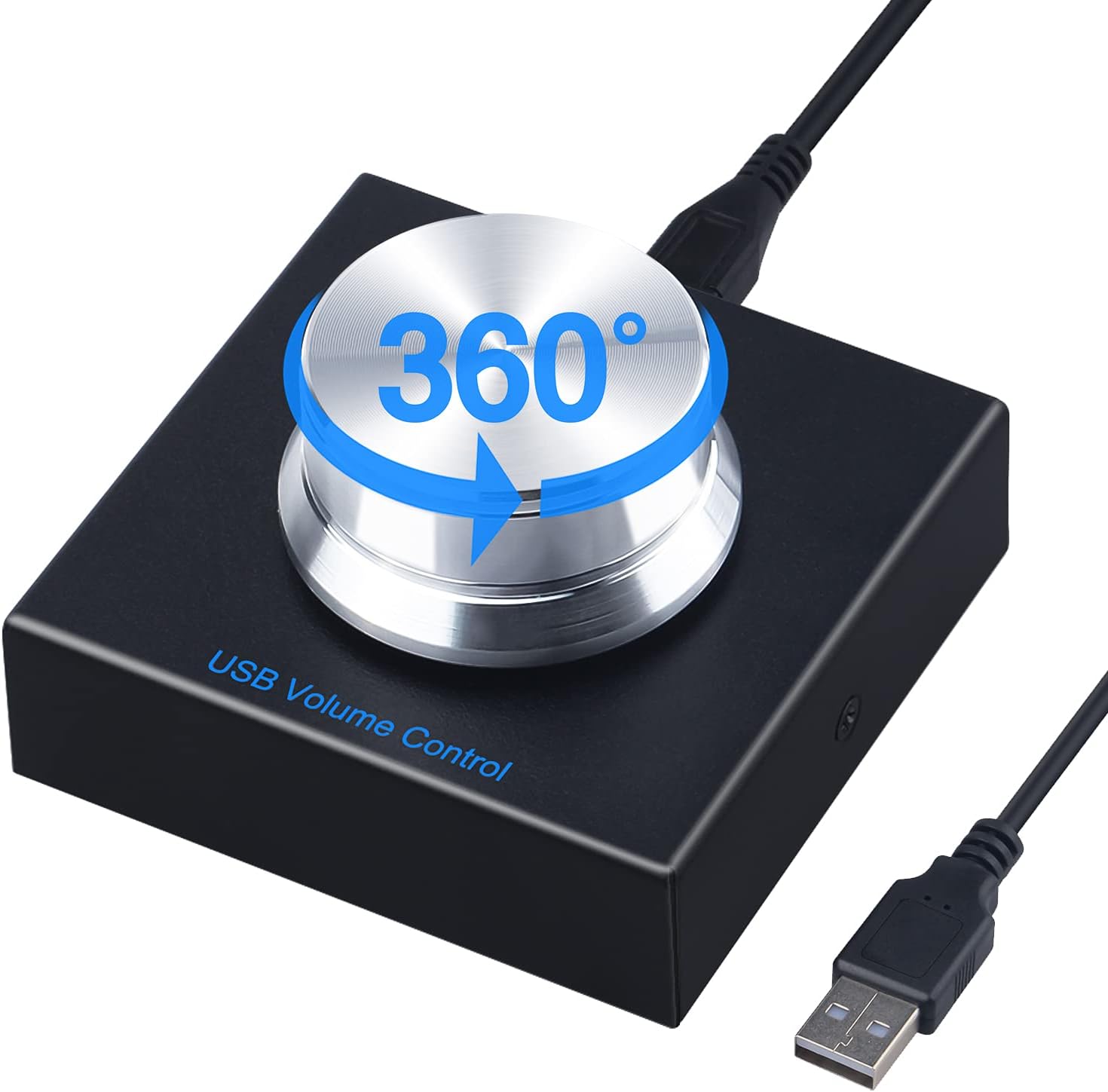
Image 3.1: Front view of the MLEEDA USB Volume Control Knob, highlighting its 360-degree rotatable design.

Image 3.2: Bottom view of the device, displaying the model number AM-U001CS and compliance markings.
4. Setup
Follow these steps to connect your USB Volume Control Knob:
- Connect the provided USB cable to the USB port on the back of the volume control knob.
- Plug the other end of the USB cable into an available USB port on your computer or compatible device.
- The device is plug-and-play and typically requires no driver installation. Your operating system should automatically recognize it.

Image 4.1: The USB Volume Control Knob connected via USB to a laptop, ready for use.
5. Operation
The USB Volume Control Knob offers intuitive control over your audio:
5.1. Volume Adjustment
- Increase Volume: Rotate the knob clockwise.
- Decrease Volume: Rotate the knob counter-clockwise.

Image 5.1: A hand demonstrating the rotation of the knob to adjust audio volume.
5.2. Mute Function
- Mute/Unmute: Press the top of the knob once to mute the audio. Press it again to unmute.

Image 5.2: A hand demonstrating the press function of the knob for muting and unmuting audio.

Image 5.3: Visual guide detailing the rotation for volume control and the press action for mute/unmute.
5.3. Usage Scenarios
The USB Volume Control Knob is suitable for various applications, enhancing your audio experience during:
- Listening to music
- Watching videos or movies
- Playing games
- Office work
- Conference calls or speeches

Image 5.4: Examples of how the volume knob can be integrated into different daily activities for convenient audio control.
6. Compatibility
The MLEEDA USB Volume Control Knob is designed for broad compatibility with various operating systems:
- Windows (XP, Vista, 7, 8, 10)
- Mac OS
- Android
- iOS
It functions as a standard USB audio device, ensuring plug-and-play functionality without the need for specific drivers.

Image 6.1: Visual representation of the device's compatibility across multiple operating systems.
7. Maintenance
To ensure the longevity and optimal performance of your USB Volume Control Knob, follow these maintenance guidelines:
- Cleaning: Use a soft, dry cloth to wipe the surface of the device. Avoid using liquid cleaners or abrasive materials, as they may damage the finish.
- Storage: When not in use, store the device in a cool, dry place away from direct sunlight and extreme temperatures.
- Handling: Avoid dropping the device or subjecting it to strong impacts, which could damage internal components.
8. Troubleshooting
If you encounter issues with your USB Volume Control Knob, please refer to the following common problems and solutions:
- Device Not Recognized:
Solution: Ensure the USB cable is securely connected to both the knob and your computer. Try plugging the device into a different USB port. Restart your computer and reconnect the device. - Volume Not Changing:
Solution: Verify that the device is recognized by your operating system. Check your system's audio settings to ensure the USB audio device is selected as the primary output. If the issue persists, unplug and re-plug the device. - Mute Function Not Working:
Solution: Ensure the device is properly connected and recognized. Press the knob firmly to activate the mute/unmute function. - Intermittent Connection:
Solution: If the device frequently disconnects or requires re-plugging after a reboot, try using a different USB port or a different USB cable. Ensure the USB port on the device itself is not loose.
9. Specifications
| Feature | Specification |
|---|---|
| Model Number | AM-U001CS |
| Item Weight | 5.9 ounces |
| Product Dimensions | 2.48 x 2.48 x 1.54 inches |
| Material Type | Metal |
| Connectivity Technology | USB |
| Hardware Interface | USB |
| Compatible Devices | Smartphone, Tablet, PC |
| Special Feature | Mute Controls, Portable |
10. Warranty and Support
This product comes with a standard manufacturer's warranty. Please refer to the product packaging or retailer's website for specific warranty terms and conditions.
For technical support or inquiries, please contact:
- Email: amoyard@163.com