
Introduction
This manual provides instructions for the setup, operation, and maintenance of your NC GH0715L LED Digital Alarm Clock. This device features time, date, and temperature display, voice control, and multiple alarm settings.

Figure 1: Front view of the NC GH0715L LED Digital Alarm Clock displaying time and temperature.
Package Contents
- NC GH0715L LED Digital Alarm Clock
- USB Power Cable
- User Manual (this document)

Figure 2: The NC GH0715L LED Digital Alarm Clock and its packaging.
Product Features
- LED Time Display (12/24-hour format)
- Date Display
- Temperature Display (Celsius/Fahrenheit)
- Voice Control Activation
- Three Independent Alarm Settings
- Snooze Function (1-60 minutes)
- Adjustable Brightness Levels
- Night Mode (automatic dimming)
- Power-off Time Memory Function
- Dual Power Source: USB (corded electric) or 3x AAA Batteries (battery powered)

Figure 3: Visual representation of the clock's main features.
Setup
Powering the Device
The clock can be powered by either a USB cable or AAA batteries.

Figure 4: Power source options: USB cable (included) and 3x AAA batteries (not included).
- USB Power (Recommended for continuous display):
- Connect the provided USB cable to the clock's power input port.
- Plug the other end of the USB cable into a 5V/1A USB adapter (not included) or a powered USB port.
- The LED display will remain on continuously when powered via USB.
- Battery Power (Energy-saving mode):
- Open the battery compartment cover on the back of the clock.
- Insert 3 AAA batteries (not included), ensuring correct polarity (+/-).
- Close the battery compartment cover.
- In battery-only mode, the LED display will automatically turn off after 15 seconds of inactivity to conserve power. It can be reactivated by tapping the clock or making a sound (voice control).
Upon power-on, the LED will display for approximately 2 seconds, then enter normal clock mode with a sound. The default time is 0:00 in 24-hour format.
Identifying Controls
The control buttons are located on the back of the clock.
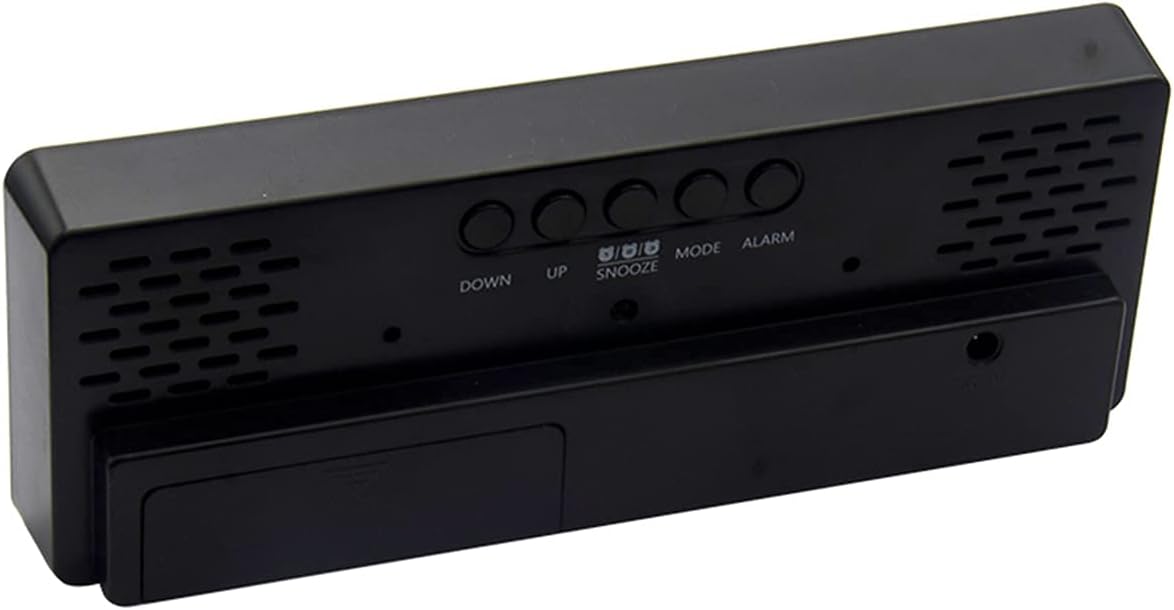
Figure 5: Rear view of the clock with control buttons.
- DOWN: Decrease value, adjust settings.
- UP: Increase value, adjust settings, adjust brightness (short press).
- SNOOZE: Activate snooze during an alarm.
- MODE: Cycle through display modes (Clock, Date, Temperature, Night ON/OFF). Long press to enter time/date setting.
- ALARM: View alarm mode (short press). Turn alarm ON/OFF (short press in alarm mode). Long press to enter alarm setting.
Operating Instructions
Time and Date Settings
- In normal clock mode, press and hold the MODE button to enter the setting state.
- The setting order is typically: 12/24-hour format → Hour → Minute → Year → Month → Day.
- Use the UP or DOWN buttons to adjust the current flashing value. Press and hold UP or DOWN to accelerate the adjustment.
- Press the MODE button again to confirm the setting and move to the next parameter.
- After setting all parameters, the clock will return to normal display mode.
Alarm Settings
The clock supports three independent alarm groups.
- In normal mode, short press the ALARM button to cycle through alarm modes (A1, A2, A3).
- To turn an alarm ON/OFF, short press the ALARM button when the desired alarm (e.g., A1) is displayed. An indicator will show if the alarm is active.
- To set an alarm, long press the ALARM button in any mode. The setting order is typically: Alarm Hour → Alarm Minute → Snooze Duration.
- Use the UP or DOWN buttons to adjust the values. Press and hold to accelerate.
- Press the ALARM button again to confirm the setting and move to the next parameter.
- Snooze duration can be set from 1 to 60 minutes. The snooze function can be activated up to 3 times.
Display Modes and Brightness
- Cycle Display: In normal clock mode, short press the MODE button to cycle through: Clock mode → Date mode → Temperature mode → Night ON/OFF.
- Automatic Cycle (Time, Date, Temperature): Long press the MODE button until a "BI" beep is heard. The LED will then display time for 10 seconds, followed by date, then temperature, cycling continuously.
- Manual Brightness Adjustment: In normal mode, short press the UP button to adjust between two levels of brightness.
- Night Mode: When Night Mode is enabled (via MODE button cycle), the display brightness will automatically dim between 18:00 (6 PM) and 6:00 (6 AM).
- Turn off LED: Long press the UP button to turn off the LED display. Press any button to turn it back on.
Voice Control Activation
When operating on battery power in energy-saving mode, the display will turn off after 15 seconds. It can be activated by sound.

Figure 6: Voice control feature, activating the display with sound (e.g., a clap) above 90dB.
- When the ambient sound reaches approximately 90 decibels, or by gently tapping the desktop where the alarm clock is placed, the display will activate.
- The display will automatically turn off after 16 seconds of inactivity.
Maintenance
- Clean the clock surface with a soft, dry cloth. Do not use abrasive cleaners or solvents.
- Avoid exposing the clock to extreme temperatures, direct sunlight, or high humidity.
- If using batteries, replace them when the display becomes dim or unresponsive. Remove batteries if the clock will not be used for an extended period.
Troubleshooting
| Problem | Possible Cause | Solution |
|---|---|---|
| Display is off or dim. |
|
|
| Alarm does not sound. |
|
|
| Incorrect temperature reading. |
|
|
Specifications
| Feature | Detail |
|---|---|
| Model Number | GH0715L |
| Brand | NC |
| Display Type | Digital LED |
| Product Dimensions | 6.3" W x 2.3" H (16 cm x 5.8 cm) |
| Item Weight | 5.1 ounces (144.6 grams) |
| Power Source | USB (5V/1A adapter not included), 3x AAA Batteries (not included) |
| Material | Acrylonitrile Butadiene Styrene (ABS) |
| Special Features | Alarm, Temperature Display, Voice Control, Snooze, Adjustable Brightness |
| UPC | 732016879737 |
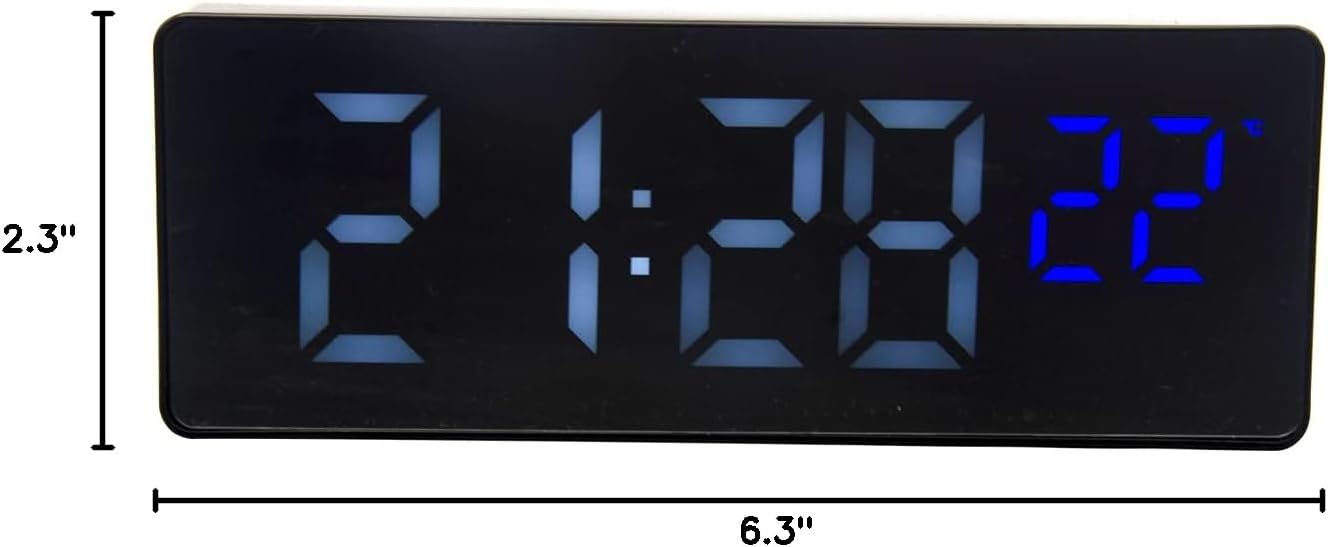
Figure 7: Product dimensions.
Warranty and Support
Specific warranty information for the NC GH0715L LED Digital Alarm Clock is not provided in the product details. For support or warranty inquiries, please refer to the retailer or manufacturer's contact information provided at the point of purchase.