
Introduction
This manual provides essential information for the proper use and maintenance of your GOODRAM ODA3-0320S0R1 OTG 32GB USB 3.2+Type C DUALDRIVE Key. Please read this manual thoroughly before using the device.

Image: Front of the product packaging for the GOODRAM ODA3-0320S0R1 OTG 32GB USB 3.2+Type C DUALDRIVE Key, highlighting its 32GB capacity, USB 3.2 Gen 1 (3.0) Type-A and USB Type-C dual interface, and lifetime warranty.
Product Overview
The GOODRAM ODA3-0320S0R1 is a versatile dual-interface USB flash drive designed for easy data transfer between devices with USB Type-A and USB Type-C ports. Its compact and durable design makes it ideal for on-the-go use.

Image: Front view of the GOODRAM ODA3-0320S0R1 USB drive, showing the "goodram 32 GB" branding and the USB Type-A connector.

Image: Angled view of the GOODRAM ODA3-0320S0R1 USB drive, showcasing both the USB Type-A and the retractable USB Type-C connectors.

Image: The GOODRAM ODA3-0320S0R1 USB drive with its USB Type-C connector fully extended and ready for use.
Setup and Connection
The ODA3-0320S0R1 is a plug-and-play device, requiring no special drivers for most operating systems.
- Identify the correct port: Determine whether your device (computer, smartphone, tablet) has a USB Type-A port or a USB Type-C port.
- Connect the drive:
- For USB Type-A: Insert the standard USB connector into an available USB Type-A port on your device.
- For USB Type-C: Extend the USB Type-C connector and insert it into an available USB Type-C port on your device.
- Device Recognition: Your operating system should automatically detect the drive and make it accessible. You may see a notification indicating that a new device has been connected.

Image: The GOODRAM ODA3-0320S0R1 USB drive connected to a laptop's USB port, demonstrating typical usage.
Operating Instructions
Once connected, the drive functions like any standard external storage device.
- Accessing the Drive:
- On Windows: Open "This PC" or "My Computer" and locate the drive listed under "Devices and drives" (e.g., "Removable Disk" or "GOODRAM").
- On macOS: The drive icon will appear on your desktop or in Finder under "Locations."
- On Android (OTG compatible devices): The drive will typically appear in your file manager application.
- Transferring Files:
- Copy/Paste: Select the files or folders you wish to transfer, right-click (or long-press on touch devices), select "Copy," navigate to the desired destination on the USB drive (or from the drive to your device), right-click, and select "Paste."
- Drag and Drop: Open two windows (one for your source files, one for the USB drive) and drag the files or folders directly from one window to the other.
- Safely Removing the Drive:
Always safely eject the drive before physically removing it to prevent data corruption.
- On Windows: Click the "Safely Remove Hardware and Eject Media" icon in the system tray, then select the USB drive.
- On macOS: Drag the drive icon to the Trash, or right-click the drive icon in Finder and select "Eject."
- On Android: Look for an "Eject" or "Unmount" option next to the drive in your file manager or storage settings.

Image: The GOODRAM ODA3-0320S0R1 USB drive resting on a laptop keyboard next to a pen, illustrating its compact size and portability.
Maintenance and Care
- Physical Protection: While the drive is shockproof, avoid dropping it from significant heights or subjecting it to extreme physical impact.
- Environmental Conditions: Store the drive in a cool, dry place away from direct sunlight, extreme temperatures, and high humidity.
- Cleaning: Use a soft, dry, lint-free cloth to clean the exterior of the drive. Do not use liquid cleaners or solvents.
- Data Backup: Regularly back up important data stored on the drive to another location to prevent data loss in case of unforeseen circumstances.
Troubleshooting
| Problem | Possible Cause | Solution |
|---|---|---|
| Drive not recognized | Incorrect port, loose connection, driver issue, or incompatible device. |
|
| Slow transfer speeds | Using a USB 2.0 port, large file sizes, or background processes. |
|
| Cannot write files to drive | Drive is full, write-protected, or file system incompatibility. |
|
Specifications
| Model Name | ODA3-0320S0R11 |
| Capacity | 32 GB |
| Connectivity Technology | USB |
| Hardware Interface | USB Type C, USB Type A |
| Flash Memory Type | USB |
| Read Speed | 20 Megabytes Per Second |
| Color | Silver |
| Special Feature | Shockproof |
| Item Weight | 1.23 ounces (converted from pounds for better readability for small item) |
| Product Dimensions (LxWxH) | 4.72 x 3.94 x 0.04 inches |
| Manufacturer | Goodram |
| Part Number (P/N) | 5908267960257 |
Note: Actual usable storage capacity may be less than the stated capacity due to formatting and other functions.
Warranty and Support
The GOODRAM ODA3-0320S0R1 OTG 32GB USB 3.2+Type C DUALDRIVE Key comes with a Lifetime Warranty. This warranty covers defects in materials and workmanship under normal use.
For detailed warranty terms, technical support, or to register your product, please visit the official GoodRam website:
You can also refer to the information provided on the product packaging for additional details.
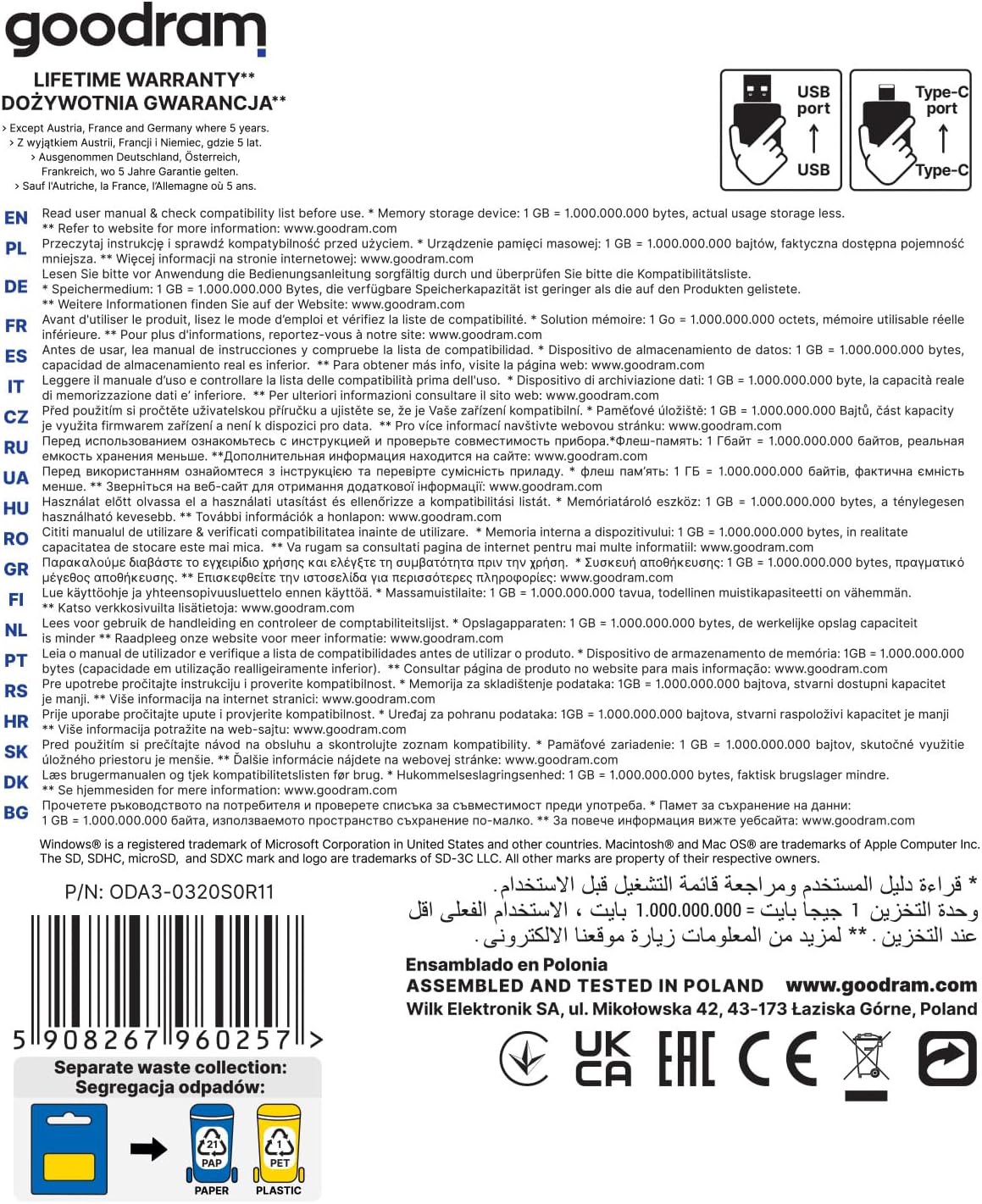
Image: Back of the product packaging, displaying multilingual information regarding memory storage, compatibility, and the lifetime warranty, along with the manufacturer's details and certifications.