
Introduction
This manual provides essential instructions for the setup, operation, and maintenance of your PERFASCIN BN59-01006A replacement remote control. This remote is designed to be compatible with various Samsung Plasma and LCD TV models, offering a direct replacement experience without the need for complex programming.
Setup
1. Battery Installation
The remote control requires two (2) AAA alkaline batteries for operation. Follow these steps to install them:
- Locate the battery compartment on the back of the remote control.
- Press down on the tab and slide the battery cover downwards to open it.
- Insert two AAA batteries, ensuring the positive (+) and negative (-) terminals align correctly with the markings inside the compartment.
- Slide the battery cover back into place until it clicks securely.

Image: Back view of the remote control with the battery compartment open, illustrating where to insert AAA batteries.
2. Initial Use and Compatibility
This PERFASCIN BN59-01006A remote control is an infrared (IR) replacement unit. It is designed to work immediately with compatible Samsung Plasma and LCD TV models without any programming or pairing. Simply install the batteries, point the remote at your television, and begin use.
Operating Instructions
The remote control features a standard layout for easy navigation and control of your Samsung television. Below is a general overview of key buttons and their functions:
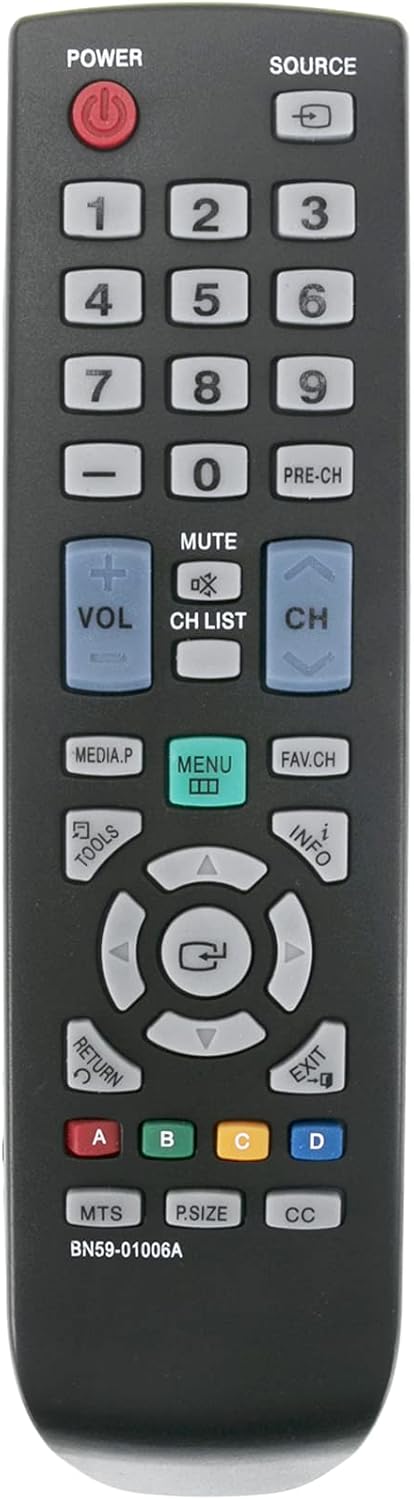
Image: Front view of the remote control, highlighting the button layout.
- POWER (Red Button): Turns the television on or off.
- SOURCE: Cycles through available input sources (e.g., HDMI1, HDMI2, AV).
- Number Buttons (0-9): Directly select channels or input numerical values.
- PRE-CH: Returns to the previous channel.
- VOL (+/-): Adjusts the volume level.
- MUTE: Silences or restores the television audio.
- CH (+/-): Changes the television channel up or down.
- CH LIST: Displays the channel list.
- MEDIA.P: Accesses media playback functions.
- MENU: Opens the television's main menu.
- FAV.CH: Accesses favorite channels.
- TOOLS: Opens a quick menu with common functions.
- INFO: Displays information about the current program or input.
- Navigation Pad (Up, Down, Left, Right, Enter): Used to navigate menus and confirm selections.
- RETURN: Returns to the previous screen or menu.
- EXIT: Exits the current menu or function.
- Color Buttons (A, B, C, D): Perform specific functions depending on the TV menu or application.
- MTS: Multi-Track Sound (audio language selection).
- P.SIZE: Picture Size adjustment.
- CC: Closed Captioning toggle.
Maintenance
Cleaning the Remote
To maintain optimal performance and appearance, clean the remote control periodically:
- Use a soft, dry cloth to wipe the surface of the remote.
- For stubborn dirt, slightly dampen the cloth with water or a mild, non-abrasive cleaner. Avoid excessive moisture.
- Do not use harsh chemicals, solvents, or abrasive cleaning pads, as these can damage the remote's finish or internal components.
Battery Care
- Replace batteries when the remote's response becomes sluggish or stops working.
- Always replace both batteries at the same time with new AAA alkaline batteries. Do not mix old and new batteries, or different types of batteries.
- If the remote will not be used for an extended period, remove the batteries to prevent leakage, which can damage the remote.
- Dispose of used batteries responsibly according to local regulations.
Troubleshooting
If you encounter issues with your remote control, try the following troubleshooting steps:
- Remote Not Responding:
- Check if the batteries are inserted correctly with the correct polarity (+/-).
- Replace the batteries with fresh AAA alkaline batteries.
- Ensure there is a clear line of sight between the remote control and the TV's infrared sensor. Remove any obstructions.
- Make sure you are within the effective range of the remote control (typically up to 20 feet).
- Specific Buttons Not Working:
- Clean the remote control, especially around the problematic buttons, to ensure no dirt or debris is preventing contact.
- If only certain functions are affected, ensure your TV is on the correct input source or in the appropriate menu for those functions to be active.
- TV Not Turning On/Off:
- Verify the TV is plugged into a working power outlet.
- Test the remote with another compatible Samsung TV if available, to determine if the issue is with the remote or the TV.
If these steps do not resolve the issue, please refer to the Support section.
Specifications
| Model Number | BN59-01006A |
| Brand | PERFASCIN |
| Compatible Devices | Samsung Plasma and LCD Televisions |
| Power Source | 2 x AAA Batteries (not included) |
| Product Dimensions | 7 x 2 x 0.65 inches (17.78 x 5.08 x 1.65 cm) |
| Item Weight | 2.3 ounces (65 grams) |
| Color | Black |
Warranty
This PERFASCIN product is covered by the manufacturer's standard warranty. Please retain your proof of purchase for any warranty claims. For specific details regarding warranty terms and conditions, refer to the documentation provided with your purchase or contact the manufacturer directly.
Support
For further assistance, technical support, or inquiries regarding your PERFASCIN BN59-01006A remote control, please contact the manufacturer or your retailer. Ensure you have your product model number (BN59-01006A) and purchase information ready when seeking support.