
BYDIFFER LKS-2092
ByDiffer iPad Keyboard Case User Manual
Model: LKS-2092
1. Introduction
Thank you for purchasing the ByDiffer iPad Keyboard Case. This manual provides detailed instructions on how to set up, operate, and maintain your new keyboard case, ensuring optimal performance and longevity. Please read this manual thoroughly before using the product.
2. Package Contents
- ByDiffer iPad Keyboard Case
- USB Charging Cable
- User Manual (this document)
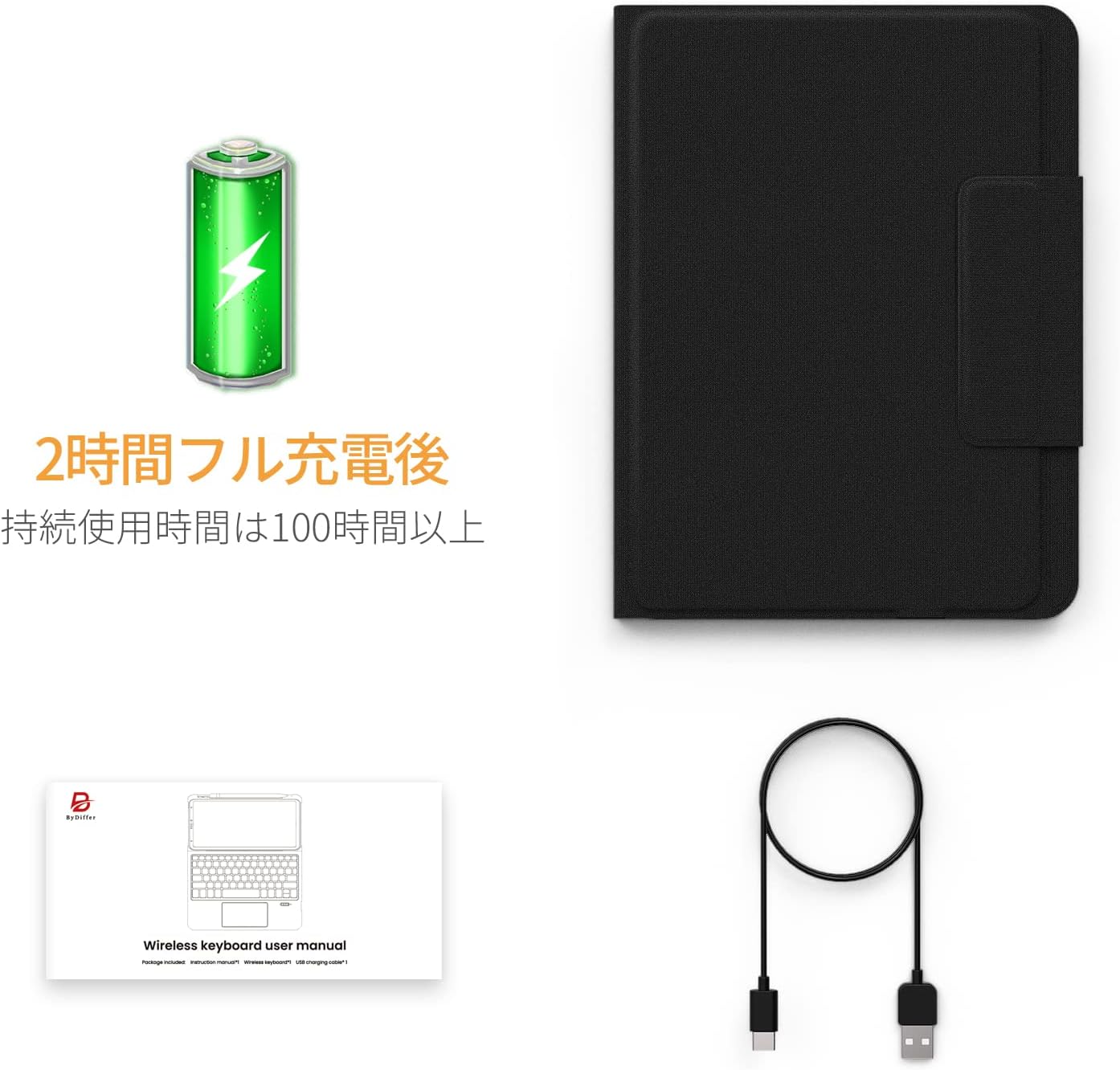
Image: The ByDiffer iPad Keyboard Case, a USB charging cable, and the included user manual.
3. Setup
3.1 Charging the Keyboard
Before initial use, fully charge the keyboard. Connect the provided USB charging cable to the keyboard's charging port and a USB power source. The charging indicator light will show the charging status. A full charge typically takes approximately 2 hours and provides up to 100 hours of continuous use.
3.2 Bluetooth Pairing
Important: For first-time use, press the Fn key + Z key (with the Bluetooth mark) on the keyboard to enable Bluetooth pairing mode. The Bluetooth indicator light will flash. After the initial pairing, the keyboard will automatically connect to your iPad when powered on, without needing to press Fn+Z again.
- Ensure your iPad's Bluetooth is turned on.
- On your iPad, go to Settings > Bluetooth.
- The keyboard (e.g., "Bluetooth Keyboard") should appear in the list of available devices. Tap on it to connect.
- Once connected, the Bluetooth indicator light on the keyboard will stop flashing.
Note: Ensure your iPad is updated to iPadOS 13 or higher for full touchpad functionality.

Image: The ByDiffer Keyboard Case with an iPad inserted, showcasing its laptop-like setup.
4. Operating Instructions
4.1 Keyboard Layout and Shortcut Keys
The keyboard features a JIS standard Japanese layout with scissor-switch keys for comfortable and responsive typing. The top row of keys includes dedicated shortcut keys for quick access to various iPad functions, such as screen brightness adjustment, volume control, and taking screenshots.
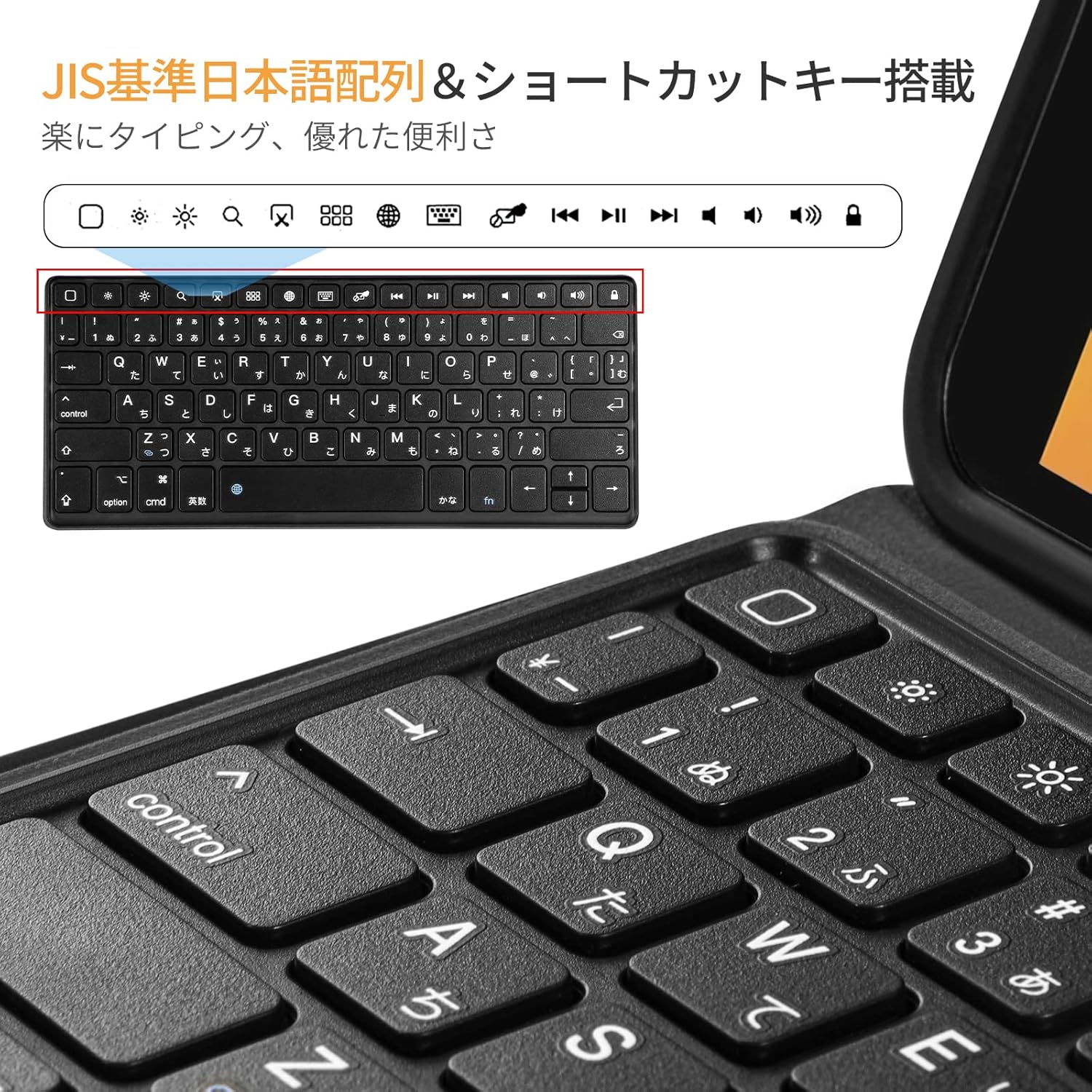
Image: A detailed view of the keyboard, highlighting the JIS standard Japanese layout and the row of shortcut keys at the top.
4.2 Touchpad Functionality
The integrated touchpad allows for precise navigation and multi-finger gestures, enhancing your productivity. Refer to your iPad's iPadOS settings for detailed touchpad gesture customization.
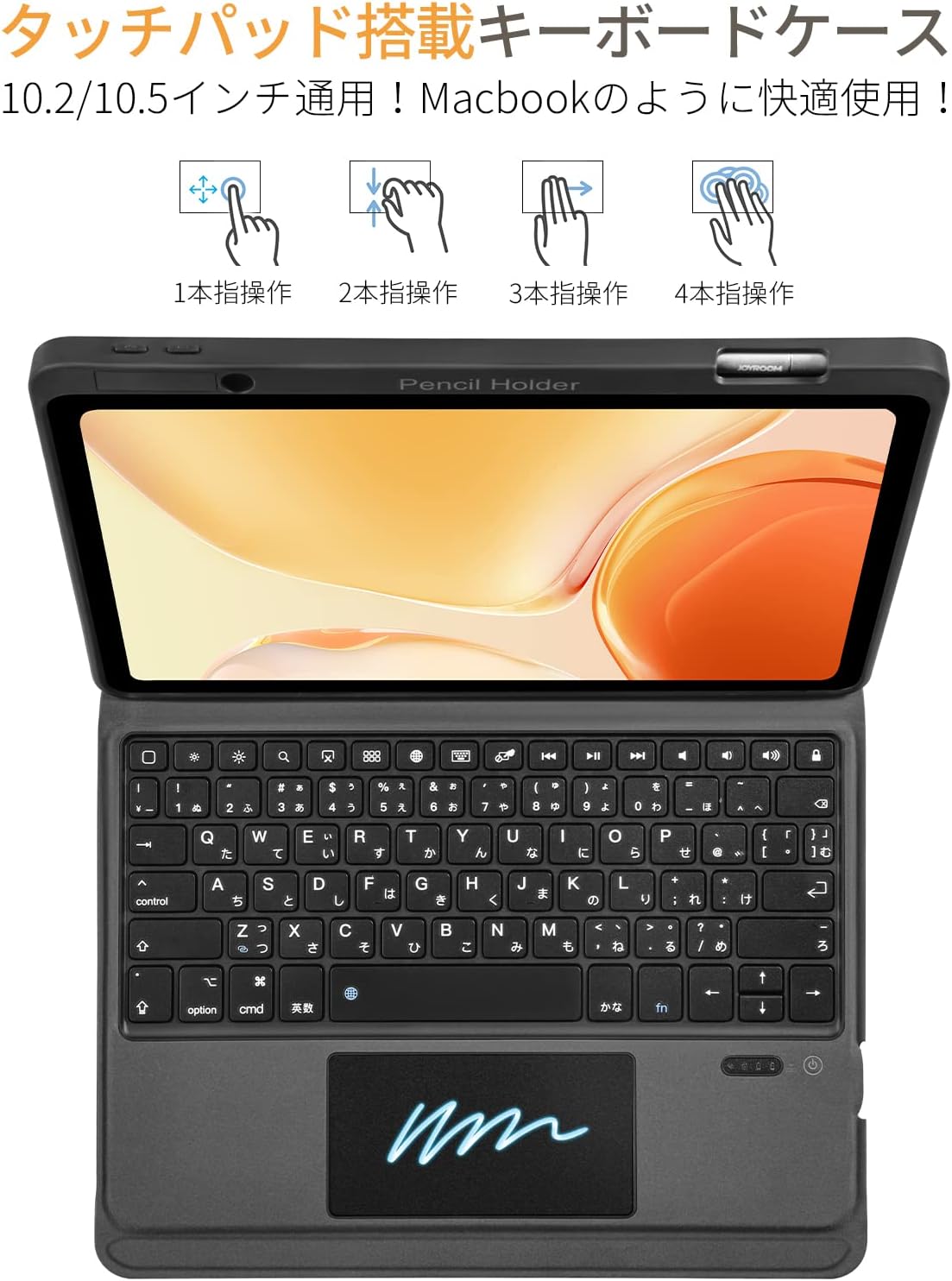
Image: Illustrations demonstrating one-finger, two-finger, three-finger, and four-finger gestures on the touchpad.
4.3 Auto-Sleep and Auto-Wake Feature
The keyboard case is designed with power-saving features. It automatically puts your iPad to sleep when closed and wakes it up when opened, conserving battery life for both the iPad and the keyboard.

Image: A visual representation of the auto-sleep function when the case is closed and the auto-wake function when it is opened.
4.4 Integrated Pen Holder
A convenient pen holder is integrated into the case, allowing you to securely store your Apple Pencil or other stylus when not in use. This ensures your pen is always accessible and protected.

Image: A close-up of the keyboard case demonstrating the pen holder, with a stylus inserted for storage.
5. Maintenance
5.1 Cleaning
To clean the keyboard case, gently wipe it with a soft, damp cloth. Avoid using harsh chemicals, abrasive cleaners, or excessive moisture, as these can damage the TPU material and electronic components. For the keyboard keys, use a soft brush or compressed air to remove dust and debris.
5.2 Storage
When not in use for extended periods, store the keyboard case in a cool, dry place away from direct sunlight and extreme temperatures. Ensure the keyboard is turned off to conserve battery life.
6. Troubleshooting
6.1 Bluetooth Connection Issues
- Keyboard not appearing in Bluetooth devices: Ensure the keyboard is charged and powered on. For first-time pairing, press Fn + Z to activate pairing mode.
- Connection drops frequently: Ensure the keyboard is within the effective Bluetooth range (typically 10 meters). Check for interference from other wireless devices.
- Keyboard unresponsive: Try turning the keyboard off and on again. If the issue persists, unpair the keyboard from your iPad's Bluetooth settings and re-pair it.
6.2 Internal Rattling Sound
If you hear an internal rattling sound from the keyboard, this may indicate a loose internal component. While some users have reported this, it does not always affect functionality. If the sound is significant or affects performance, please contact customer support for assistance. Do not attempt to open or repair the device yourself, as this may void the warranty.
6.3 Touchpad Lag
Some users may experience slight lag with the touchpad. Ensure your iPad's operating system is updated to the latest version. If you prefer, you can disable the touchpad and use the iPad's touchscreen directly.
7. Specifications
| Feature | Specification |
|---|---|
| Brand | BYDIFFER |
| Model Number | LKS-2092 |
| Product Dimensions | 25.6 x 19 x 2.2 cm |
| Item Weight | 600 g |
| Color | Black |
| Connectivity Technology | Bluetooth |
| Keyboard Description | Wireless |
| Number of Keys | 81 |
| Material | TPU |
| Battery Type | Lithium-Ion (1 included) |
| Battery Life (Continuous Use) | Approx. 100 hours (after full charge) |
7.1 Compatible iPad Models
This keyboard case is compatible with the following iPad models:
- iPad 9th Generation 10.2-inch (2021 Model): A2602, A2603, A2604, A2605
- iPad 8th Generation 10.2-inch (2020 Model): A2270, A2428, A2429, A2430
- iPad 7th Generation 10.2-inch (2019 Model): A2197, A2200, A2198
- iPad Air 3rd Generation 10.5-inch (2019 Model): A2152, A2123, A2153
- iPad Pro 10.5-inch (2017 Model): A1701, A1709
Please verify the 'A' series model number on the back of your iPad before use to ensure compatibility.

Image: An illustration indicating the location of the model number (starting with 'A') on the back of an iPad.
8. Warranty and Support
This product comes with a 1-year warranty from the date of purchase. If any defect occurs within this period, a new product will be shipped free of charge. For warranty claims, technical support, or any inquiries, please contact ByDiffer customer service through the platform where you purchased the product.
Related documentsLKS-2092

Ask a question about this manual
Ask about setup, troubleshooting, compatibility, parts, safety, or missing instructions. Manuals+ will review the question and use this page’s manual context to help answer it.