Introduction
Thank you for purchasing the Gear4music DD80 Portable Electric Drum Kit Set. This manual provides essential information for the safe and effective operation of your new electronic drum kit. The DD80 is designed to offer a comprehensive drumming experience with its touch-sensitive pads and versatile sound options, suitable for both beginners and experienced players.
Please read this manual thoroughly before using the product and retain it for future reference.
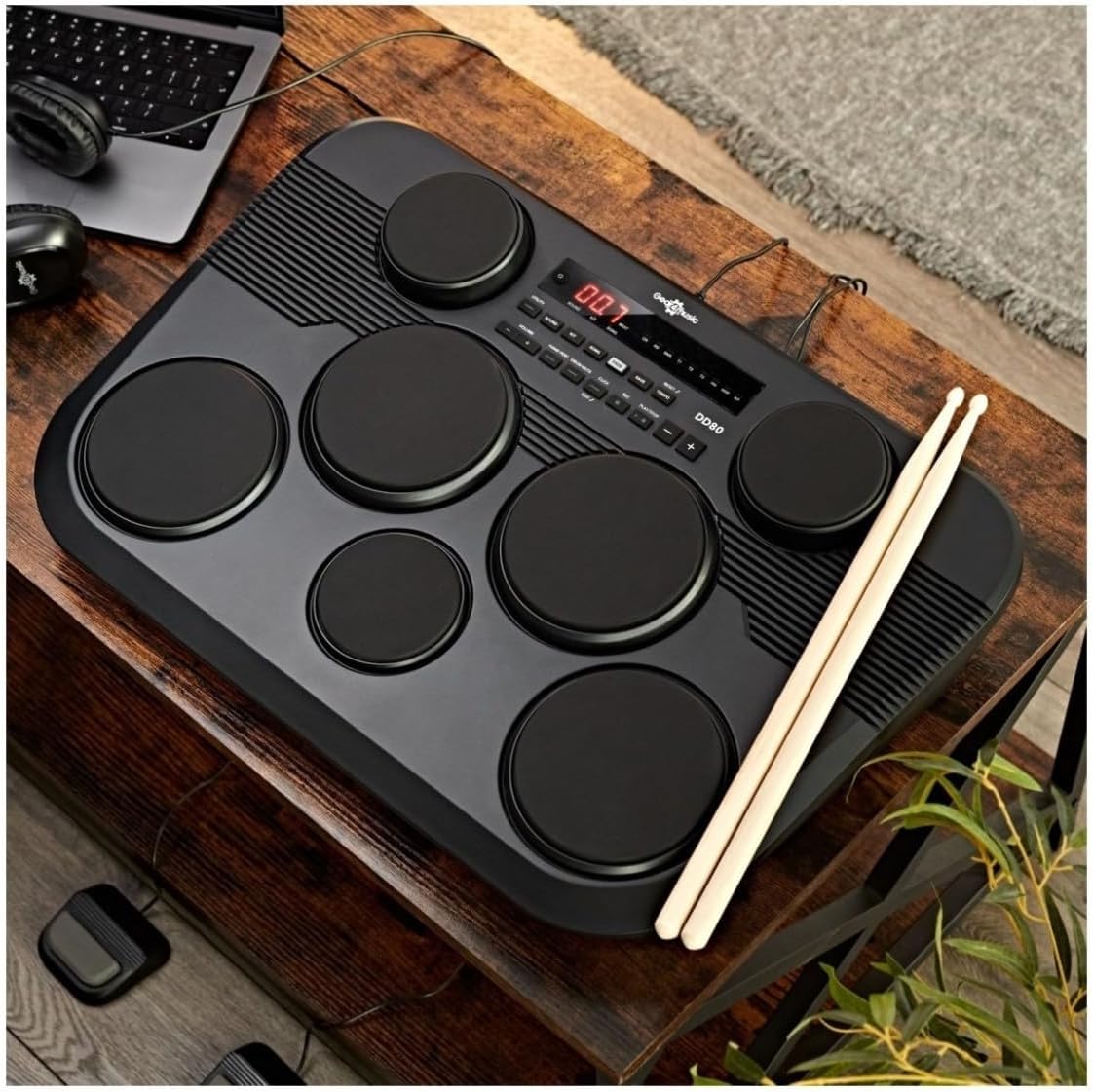
Image: The DD80 Electronic Drum Kit, showcasing its compact design on a wooden surface, accompanied by drumsticks.
Safety Information
- Power Supply: Use only the specified power adapter. Ensure the voltage matches the product's requirements. Unplug the unit during lightning storms or when unused for long periods.
- Water and Moisture: Do not expose the unit to rain, moisture, or spills. If liquid enters the unit, disconnect power immediately and contact customer support.
- Ventilation: Ensure adequate ventilation around the unit. Do not block ventilation openings.
- Placement: Place the unit on a stable, flat surface. Avoid placing it near heat sources or in direct sunlight.
- Cleaning: Clean only with a dry, soft cloth. Do not use liquid cleaners or aerosols.
- Servicing: Do not attempt to service this product yourself. Refer all servicing to qualified service personnel.
- Hearing Protection: When using headphones, set the volume to a moderate level to prevent hearing damage.
Package Contents
Verify that all items listed below are included in your package:
- DD80 Electronic Drum Pad Unit
- Drum Sticks
- SubZero Headphones
- Kick Pedal
- Hi-Hat Pedal
- Power Adapter
- User Manual (this document)

Image: The DD80 Electronic Drum Kit, including the main unit, headphones, and drumsticks, as typically found in the package.
Setup
- Unpacking: Carefully remove all components from the packaging.
- Placement: Place the DD80 unit on a stable, flat surface.
- Connect Pedals:
- Connect the Kick Pedal cable to the "KICK PEDAL" input on the rear of the DD80 unit.
- Connect the Hi-Hat Pedal cable to the "HI-HAT PEDAL" input on the rear of the DD80 unit.

Image: Rear panel of the DD80 unit, illustrating the various input and output ports, including those for the kick and hi-hat pedals.

Image: A single foot pedal, used for either kick drum or hi-hat control, with its connecting cable.
- Connect Headphones (Optional): If using headphones for private practice, connect the SubZero headphones to the "PHONES" output.
- Connect External Audio (Optional): To play along with external audio, connect your device (e.g., smartphone, MP3 player) to the "AUX IN" input using a 3.5mm audio cable.
- Connect Power: Connect the power adapter to the "12V DC" input on the rear of the DD80 unit, then plug the adapter into a suitable power outlet.
- Power On: Press the power button (usually located on the control panel) to turn on the unit.
Operating Instructions
Control Panel Overview
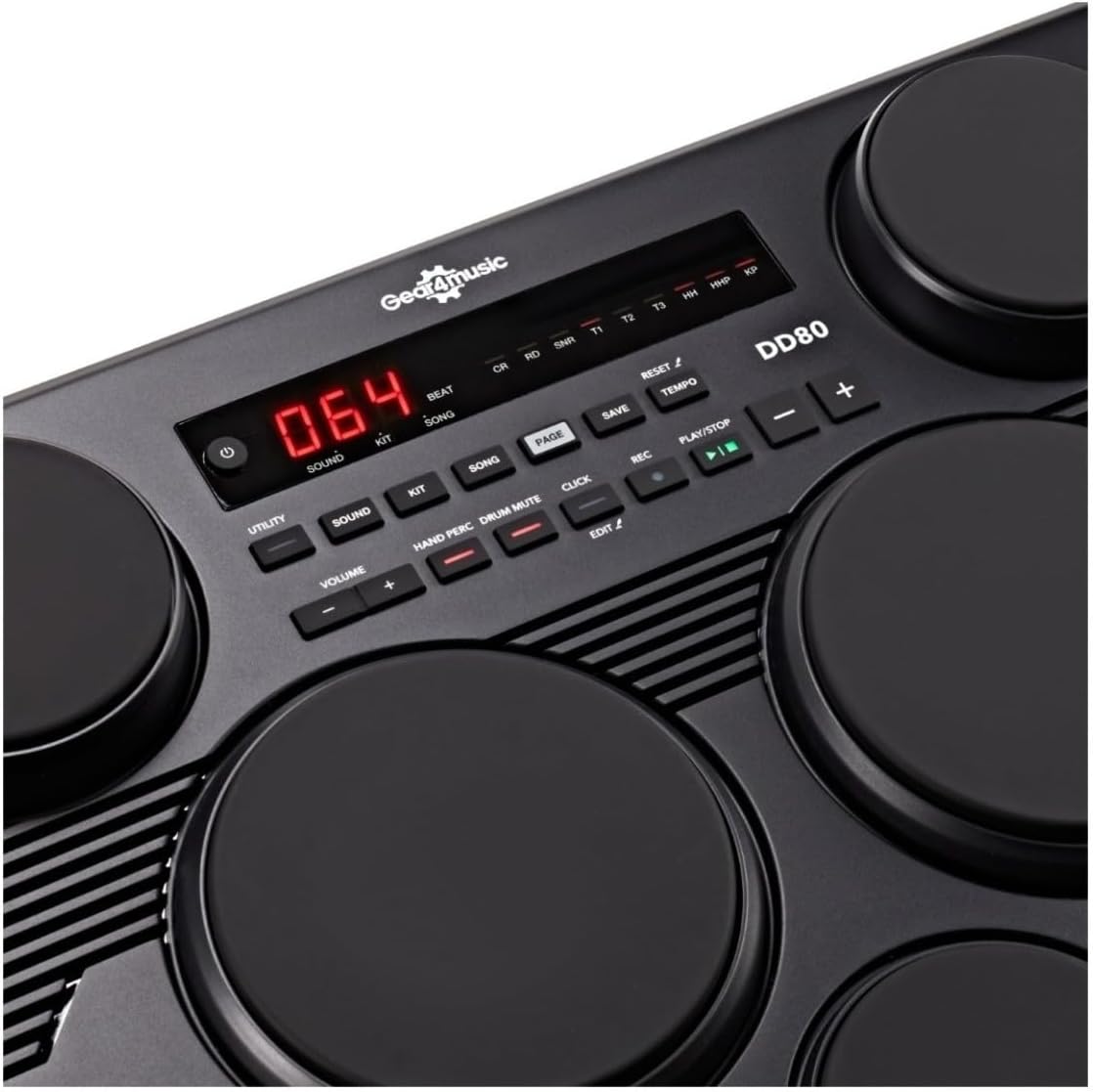
Image: Detailed view of the DD80's central control panel, showing the digital display, various buttons for sound, kit, song selection, and volume controls.
The DD80 features an intuitive control panel for easy navigation and sound customization. Key controls include:
- Power Button: Turns the unit on/off.
- Volume +/-: Adjusts the overall output volume.
- Sound Button: Selects individual drum and percussion sounds.
- Kit Button: Selects from 45 preset drum kits or 10 user-defined kits.
- Song Button: Selects from 100 built-in backing tracks.
- Tempo +/-: Adjusts the tempo of backing tracks and metronome.
- Click Button: Activates/deactivates the metronome.
- REC Button: Initiates recording of your performance.
- Play/Stop Button: Starts or stops playback of songs or recorded performances.
- Utility Button: Accesses advanced settings and functions.
- Hand Perc. / Drum Mute: Toggles hand percussion mode or mutes specific drums.
- Edit: Enters edit mode for customizing kit parameters.
- Save: Saves user-defined settings.
- Reset: Resets settings to factory defaults.
Playing the DD80
The DD80 features 7 touch-sensitive pads that respond to your playing dynamics. Use the included drum sticks to strike the pads. The two foot pedals control the kick drum and hi-hat functions.
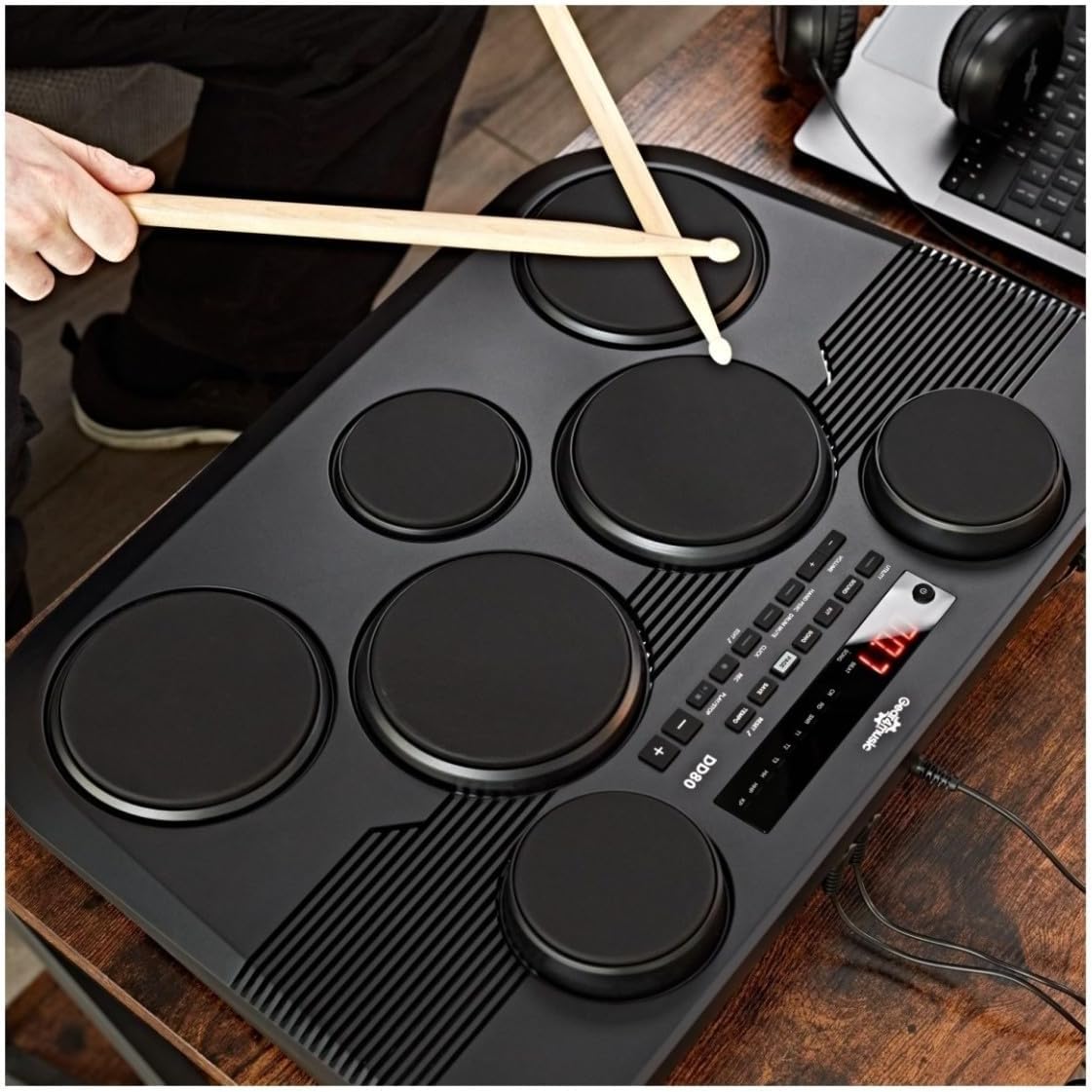
Image: A user's hands holding drumsticks, actively playing on the touch-sensitive pads of the DD80 electronic drum kit.
Customizing Sounds and Kits
The DD80 offers 270 drum and percussion sounds and 45 preset kits. You can also create and save up to 10 user presets.
- Selecting a Kit: Press the KIT button, then use the +/- buttons to cycle through the available kits.
- Editing a Kit:
- Select the kit you wish to edit.
- Press the EDIT button.
- Strike the pad you wish to modify.
- Use the SOUND button and +/- buttons to change the sound assigned to that pad.
- Adjust parameters like volume, panning, tuning, and reverb using the appropriate controls (refer to the full manual for detailed parameter editing).
- Press SAVE to store your changes to a user kit slot.
Playing Along and Recording
- Backing Tracks: Press the SONG button, then use +/- to select from 100 built-in backing tracks. Press PLAY/STOP to start or stop the track. Adjust tempo with TEMPO +/-.
- Recording: Press the REC button to begin recording your performance. Press PLAY/STOP to end recording and play back your performance.
Maintenance
- Cleaning: Wipe the unit with a soft, dry cloth. Do not use abrasive cleaners, waxes, or solvents.
- Storage: When not in use, store the DD80 in a cool, dry place away from direct sunlight and extreme temperatures.
- Pad Care: Avoid striking the pads with excessive force or sharp objects, as this may damage the sensors.
- Cable Management: Ensure cables are not tangled or pinched to prevent damage.
Troubleshooting
| Problem | Possible Cause | Solution |
|---|---|---|
| No sound from speakers/headphones. |
|
|
| Pads not responding. |
|
|
| Foot pedals not working. |
|
|
| Unit freezes or behaves erratically. |
|
|
Specifications
| Feature | Detail |
|---|---|
| Model Name | DD70 |
| Pads | 7 touch-sensitive drum pads |
| Sounds | 270 drum and percussion sounds |
| Preset Kits | 45 |
| User Kits | 10 (customizable) |
| Backing Tracks | 100 built-in songs |
| Connectivity | USB-C (MIDI), 3.5mm Headphone Out, AUX In, Kick Pedal Input, Hi-Hat Pedal Input, 12V DC Power Input |
| Dimensions (L x W x H) | 50 x 37 x 15.7 cm |
| Weight | 4.76 kg |
| Included Components | Drum sticks, SubZero headphones |
| Material | Metal, Plastic |
Warranty and Support
Gear4music products are designed and manufactured to high standards. For warranty information and technical support, please refer to the warranty card included with your product or visit the official Gear4music website. Keep your proof of purchase for warranty claims.
Manufacturer: Gear4music
Website: www.gear4music.com


