
1. Introduction
This manual provides detailed instructions for the installation, operation, and maintenance of your MACHSWON DCR1080P4LCD Dash Cam. This device is designed to record driving footage in 1080P Full HD, offering a 170-degree wide-angle view, G-Sensor for emergency locking, Wide Dynamic Range (WDR) for improved low-light performance, parking monitor, loop recording, and motion detection capabilities. Please read this manual thoroughly before use to ensure proper functionality and safety.
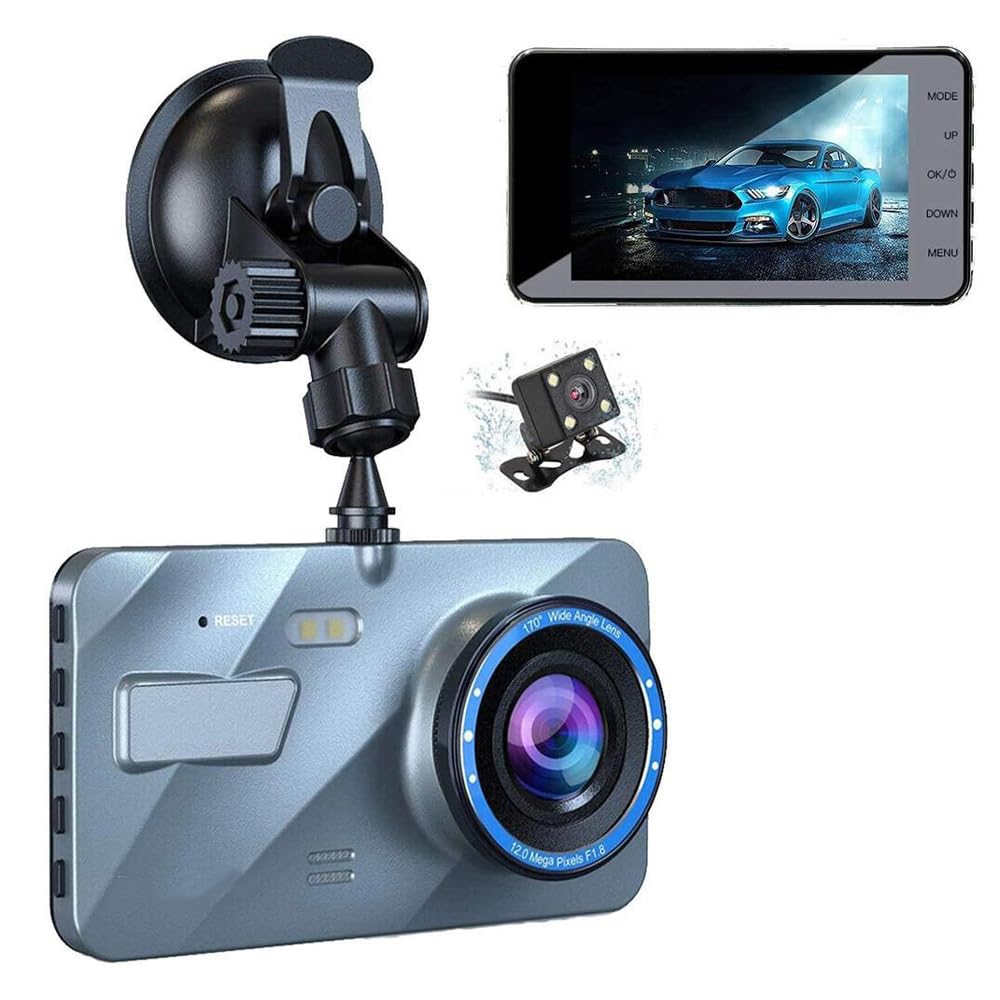
Image 1.1: The MACHSWON DCR1080P4LCD Dash Cam, showing the main unit, suction mount, and power cables.
2. Package Contents
Verify that all items listed below are present in your package. If any items are missing or damaged, please contact customer support.
- 1 x MACHSWON DCR1080P4LCD Dash Cam
- 1 x Car Charger
- 1 x Suction Mount
- 1 x USB Cable
- 1 x User Manual (this document)
- 1 x Memory Card (Micro SD card)

Image 2.1: Contents of the package, including the dash cam, car charger, suction mount, USB cable, and rear camera (if applicable).
3. Product Overview
The MACHSWON DCR1080P4LCD Dash Cam is equipped with advanced features to enhance your driving safety and record important events. Key features include:
- 1080P FHD Recording: Captures clear video footage of your journey.
- 4-Inch LCD Screen: Provides a live view and playback of recorded videos.
- 170° Wide Angle Lens: Offers extensive road coverage, minimizing blind spots.
- G-Sensor: Automatically detects sudden impacts or collisions and locks the current video file to prevent overwriting.
- WDR (Wide Dynamic Range): Improves video quality in varying light conditions, especially at night or in tunnels.
- Parking Monitor: Records events when the vehicle is parked and detects motion or impact.
- Loop Recording: Continuously records, overwriting the oldest files when the memory card is full.
- Motion Detection: Starts recording automatically when motion is detected in front of the camera.

Image 3.1: The dash cam displaying its 1080P recording capability and wide-angle lens, alongside an optional rear camera.

Image 3.2: MACHSWON brand image, representing automotive accessories.
4. Setup
Follow these steps to properly install your dash cam in your vehicle.
4.1. Inserting the Memory Card
- Ensure the dash cam is powered off.
- Locate the Micro SD card slot on the side of the dash cam.
- Insert the Micro SD card with the gold contacts facing the back of the camera until it clicks into place.
- To remove, gently push the card in until it clicks, then release. The card will eject.
4.2. Mounting the Dash Cam
- Clean the windshield area where you intend to mount the dash cam. Ensure it is free of dust and grease.
- Attach the suction mount to the dash cam.
- Press the suction cup firmly against the windshield and flip the lever to secure it. Position the camera to ensure a clear view of the road without obstructing your driving vision.

Image 4.1: The dash cam attached to the windshield using the suction mount, ready for power connection.
4.3. Connecting Power
- Connect the car charger to the dash cam's power input port.
- Plug the other end of the car charger into your vehicle's 12V power outlet (cigarette lighter socket).
- Route the power cable neatly along the windshield trim to avoid obstructing your view or interfering with driving controls.
5. Operating Instructions
5.1. Powering On/Off
- Automatic: The dash cam will automatically power on and begin recording when your vehicle's ignition is turned on (and the 12V outlet receives power). It will power off automatically when the ignition is turned off.
- Manual: Press and hold the Power button (usually labeled 'OK' or 'Power') to manually turn the device on or off.
5.2. Recording Modes
- Loop Recording: The dash cam records video in continuous loops (e.g., 1, 3, or 5-minute segments). When the memory card is full, the oldest unlocked files are overwritten.
- G-Sensor (Emergency Recording): In the event of a sudden impact or collision, the built-in G-Sensor will automatically detect the event and lock the current video segment, preventing it from being overwritten by loop recording.
- Parking Monitor: When enabled, the dash cam will automatically start recording if it detects motion or an impact while the vehicle is parked and the ignition is off. This feature typically requires a continuous power supply or a hardwire kit (not included).
- Motion Detection: When enabled, the camera will start recording when it detects movement in its field of view. This is often used in parking mode.
5.3. Menu Navigation
Use the physical buttons on the dash cam (e.g., MODE, UP, DOWN, OK/Power, MENU) to navigate through settings and modes. Refer to the on-screen icons for guidance.
- MODE Button: Switches between video recording, photo, and playback modes.
- MENU Button: Accesses the settings menu for the current mode. Press again to exit.
- UP/DOWN Buttons: Navigate through menu options or zoom in/out in photo mode.
- OK/Power Button: Confirms selections in the menu, starts/stops recording, or takes a photo.
6. Maintenance
Proper maintenance ensures the longevity and optimal performance of your dash cam.
- Cleaning the Lens: Use a soft, lint-free cloth to gently wipe the camera lens. Avoid abrasive materials or chemical cleaners that could scratch the lens.
- Cleaning the Screen: Use a microfiber cloth to clean the LCD screen.
- Memory Card Formatting: It is recommended to format the Micro SD card every 2-4 weeks to prevent data corruption and ensure smooth recording. This can usually be done through the dash cam's menu settings. Formatting will erase all data on the card, so back up any important files first.
- Temperature: Avoid exposing the dash cam to extreme temperatures for extended periods. High temperatures can damage the internal components and battery.
- Firmware Updates: Check the manufacturer's website periodically for firmware updates. Updates can improve performance and add new features.
7. Troubleshooting
If you encounter issues with your dash cam, refer to the following common problems and solutions.
| Problem | Possible Cause | Solution |
|---|---|---|
| Dash cam does not power on. | No power from car charger; faulty charger/cable; dash cam malfunction. | Check car charger connection and vehicle's 12V outlet. Try a different charger/cable. If still no power, contact support. |
| Recording stops unexpectedly. | Memory card full or corrupted; low battery; G-Sensor sensitivity too high. | Format the memory card. Reduce G-Sensor sensitivity in settings. Ensure continuous power supply. |
| Video footage is blurry or unclear. | Protective film on lens; dirty lens; windshield obstruction. | Remove any protective film. Clean the lens and windshield. |
| Dash cam freezes or crashes. | Memory card issue; firmware issue; power fluctuation. | Format the memory card. Perform a factory reset (if available in settings). Update firmware. |
| Parking monitor not working. | Feature not enabled; insufficient power supply; G-Sensor/motion detection not triggered. | Ensure parking monitor is enabled in settings. Verify continuous power supply (e.g., hardwire kit). Adjust G-Sensor/motion detection sensitivity. |
If the problem persists after trying these solutions, please contact MACHSWON customer support for further assistance.
8. Specifications
Below are the technical specifications for the MACHSWON DCR1080P4LCD Dash Cam:
- Product Name: Car Driving Recorder
- Model Number: DCR1080P4LCD
- Material: Plastic
- Screen Size: 4 Inches LCD
- Video Capture Resolution: 1080p Full HD
- Wide Angle: 170°
- Connectivity Technology: USB
- Flash Memory Type: TF (Micro SD Card)
- Mounting Type: Suction Mount
- Item Weight: 14 ounces (approximately 397 grams)
- Package Dimensions: 9.25 x 6.69 x 2.83 inches
- Special Features: G-Sensor, WDR, Parking Monitor, Loop Recording, Motion Detection
- Vehicle Service Type: Car (Compatible with various sedans, SUVs, minivans, taxis, and trucks)
- Batteries Included: No (Internal capacitor for emergency power-off, not for sustained operation)

Image 8.1: Diagram showing the approximate dimensions of the dash cam unit.
9. Warranty and Support
For warranty information and customer support, please refer to the contact details provided with your purchase or visit the official MACHSWON website. Keep your proof of purchase for warranty claims.
Note: Please check on your car model details to confirm if this item is fitted for your specific vehicle before installation.