
1. Introduction
This manual provides instructions for the setup, operation, and maintenance of your Nixplay 10.1 inch Smart Digital Photo Frame (Model W10J). Please read this manual thoroughly before using your device to ensure proper functionality and longevity.
2. Product Overview
The Nixplay Smart Digital Photo Frame allows you to display photos and videos from your connected accounts or directly uploaded content. It features Wi-Fi connectivity for easy content management.
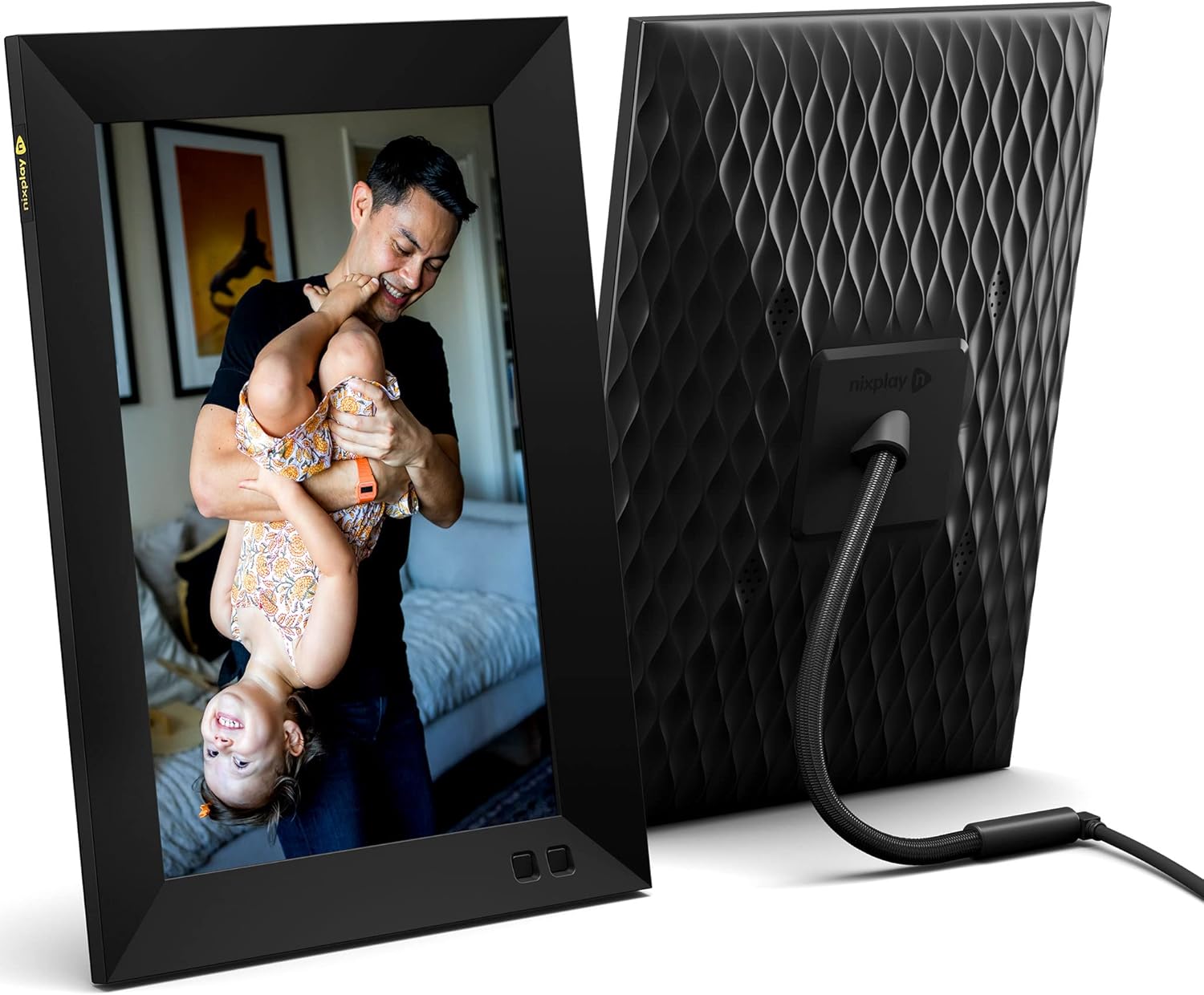
Figure 2.1: Front and rear view of the Nixplay 10.1 inch Smart Digital Photo Frame. The front displays an image of a person holding a child, while the rear shows the textured back panel and power cable connection.
2.1 Package Contents

Figure 2.2: Contents of the Nixplay Smart Digital Photo Frame package. Includes the frame, power adapter, remote control, wall mounting guide, screws, and a brief guide.
Upon unboxing, verify that all items are present:
- Nixplay 10.1 inch Smart Digital Photo Frame
- Power Adapter
- Remote Control
- Wall Mounting Guide and Hardware
- Quick Start Guide
3. Setup
3.1 Powering On the Frame
- Connect the power adapter to the frame's power port.
- Plug the power adapter into a wall outlet.
- The frame will automatically power on and display the Nixplay logo.
3.2 Initial Wi-Fi and Account Setup
Follow the on-screen prompts to connect your frame to a Wi-Fi network and create or log in to your Nixplay account. This process typically involves:
- Selecting your Wi-Fi network and entering the password.
- Downloading the Nixplay app on your smartphone or tablet.
- Pairing your frame with your Nixplay account using the app.

Figure 3.1: The Nixplay app displayed on a smartphone, illustrating how to share photos and videos instantly. The digital frame is shown displaying a family photo.
4. Operating Instructions
4.1 Managing Content with the Nixplay App
The Nixplay app is the primary tool for managing your frame's content. It allows you to upload photos and videos, create playlists, and invite others to share content.
- Uploading Photos/Videos: Use the app to select media from your device or linked cloud services (e.g., Google Photos, Dropbox) and upload them to your Nixplay account.
- Creating Playlists: Organize your uploaded media into playlists. You can assign specific playlists to your frame.
- Sharing: Invite family and friends to contribute photos and videos to your frame via email or the Nixplay app.

Figure 4.1: The Nixplay app interface displaying various playlists, including "Google Photos family," "Christmas Playlist," and "Wedding." This demonstrates the app's content organization features.
4.2 Using the Remote Control
The included remote control allows for basic navigation and settings adjustments directly on the frame. Functions typically include:
- Navigating through menus.
- Adjusting volume (for videos).
- Pausing/playing slideshows.
- Accessing frame settings.
4.3 Motion Sensor Functionality
The frame features a motion sensor that can be configured to turn the display on when motion is detected and off after a period of inactivity, conserving energy.
5. Maintenance
5.1 Cleaning the Frame
- Use a soft, dry, lint-free cloth to clean the screen and frame exterior.
- Avoid using abrasive cleaners, solvents, or aerosol sprays, as these can damage the surface.
- For stubborn marks on the screen, lightly dampen the cloth with water, then wipe gently.
5.2 Software Updates
Ensure your frame's software is up to date for optimal performance and new features. The frame typically updates automatically when connected to Wi-Fi, or you may be prompted to install updates via the Nixplay app.
6. Troubleshooting
| Issue | Possible Solution |
|---|---|
| Frame does not power on. | Ensure the power adapter is securely connected to both the frame and a working power outlet. Try a different outlet. |
| Cannot connect to Wi-Fi. | Verify the Wi-Fi password. Ensure the frame is within range of your router. Restart your router and the frame. |
| Photos are not appearing on the frame. | Check your Nixplay app to confirm photos are uploaded and assigned to the correct playlist for your frame. Ensure the frame is connected to Wi-Fi. |
| Remote control is not working. | Ensure there are no obstructions between the remote and the frame. Replace the remote control battery if necessary. |
7. Specifications
- Model Number: W10J
- Screen Size: 10.1 Inches
- Resolution: 1280 x 800
- Color: Black
- Product Dimensions: 8.54 x 35 x 0.99 inches
- Item Weight: 2.86 pounds
- Compatible Devices: Smartphone, Tablet
- Batteries: 1 Lithium Metal battery (included, for remote control)
- Manufacturer: Nixplay
- ASIN: B09364Y1QJ
8. Warranty and Support
For warranty information and technical support, please refer to the documentation included with your product or visit the official Nixplay support website. Contact information for customer service can typically be found on the manufacturer's website.


