
1. Product Overview and Package Contents
This manual provides instructions for the NADAMOO Bur3400 Thermal Label Printer. This printer is designed for high-speed, direct thermal printing of labels up to 4x6 inches, compatible with various shipping platforms and operating systems.
Package Contents

Image: Contents of the NADAMOO Thermal Label Printer package, showing the printer, power adapter, cables, USB flash drive, and user manual.
- Thermal Printer: The main printing unit.
- Packing Box: Original product packaging.
- Power Adapter: For connecting the printer to a power source.
- Power Cable: Connects the power adapter to the electrical outlet.
- USB Cable: For connecting the printer to your computer.
- USB Flash Driver: Contains necessary drivers and software.
- User Manual: This instruction guide.
2. Setup Guide
2.1 Physical Connection
- Connect Power: Plug the power adapter into the printer's power port, then connect the power cable to the adapter and a wall outlet.
- Connect to Computer: Use the provided USB cable to connect the printer to your computer.

Image: The NADAMOO Thermal Label Printer connected to a laptop via USB cable, illustrating compatibility with Windows and Mac OS.
The printer supports Windows and Mac OS. It is not compatible with Google Chrome OS, Surface Tablets, Smartphones, or iPads for direct connection.
2.2 Loading Labels
The printer supports both stack labels and roll labels. Ensure the label holder (sold separately) is used for roll labels if needed.
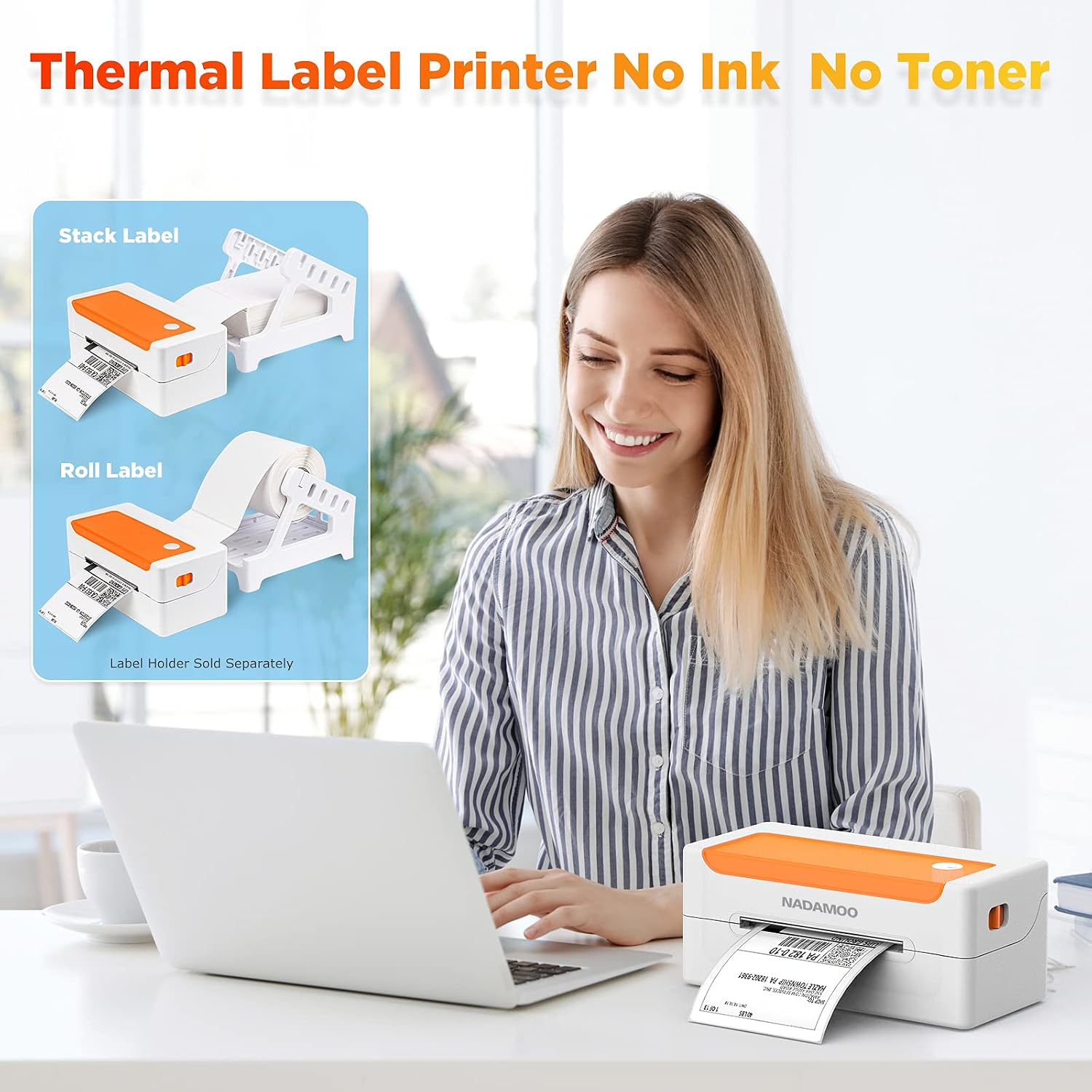
Image: Diagrams illustrating how to load both stack labels and roll labels into the thermal printer. A label holder is shown for roll labels, noted as sold separately.
- Open the top cover of the printer.
- Insert the labels into the feed slot, ensuring the print side is facing up.
- Adjust the label guides to fit the width of your labels snugly, without being too tight. The printer supports label widths between 1.5 inches and 4.4 inches.
- Close the top cover.

Image: An open view of the NADAMOO Thermal Label Printer, highlighting the internal components and the adjustable label guides for widths between 1.5 and 4.4 inches.
2.3 Driver Installation
- Insert the provided USB Flash Driver into your computer.
- Locate and run the appropriate driver installer for your operating system (Windows or Mac).
- Follow the on-screen instructions to complete the driver installation.
- After installation, restart your computer if prompted.
3. Operating Instructions
3.1 Printing Labels
The NADAMOO Bur3400 printer is designed for high-speed printing of 4x6 inch shipping labels and other label types.

Image: The NADAMOO Thermal Label Printer actively printing a label, highlighting its 150mm/s high-speed capability, capable of printing approximately 60 labels per minute.
- Ensure the printer is powered on and connected to your computer.
- Open the document or application from which you wish to print (e.g., Shopify, eBay, Amazon, USPS, UPS, FedEx).
- Go to the print settings or dialog box.
- Select the "NADAMOO Bur3400" printer from the list of available printers.
- In the printer preferences or page setup, ensure the paper size is set to 4 x 6 inches. This is crucial for correct label output.
- Adjust any other necessary settings (e.g., orientation, darkness) as required by your label type or platform.
- Initiate the print command. The printer will begin printing at a speed of up to 150mm/s.
4. Maintenance
4.1 Cleaning the Print Head and Rollers
Regular cleaning helps maintain print quality and extends the life of your printer. It is recommended to clean the print head and rubber roller weekly or as needed.
- Turn off the printer and unplug it from the power source.
- Open the top cover of the printer.
- Gently wipe the print head (the dark strip inside the top cover) with an alcohol swab or a soft, lint-free cloth lightly dampened with isopropyl alcohol.
- Clean the rubber roller (visible inside the printer, below the print head) using the same method.
- Allow all components to dry completely before closing the cover and reconnecting power.
4.2 General Care
- Keep the printer in a clean, dust-free environment.
- Avoid exposing the printer to direct sunlight, high temperatures, or excessive humidity.
- Use only high-quality thermal labels to prevent damage to the print head.
- Do not attempt to disassemble the printer beyond routine cleaning.
5. Troubleshooting
If you encounter issues with your NADAMOO Thermal Label Printer, refer to the following common troubleshooting steps:
- No Power: Ensure the power adapter and cable are securely connected to both the printer and a working electrical outlet.
- No Print/Faded Print:
- Check if the labels are loaded correctly with the print side facing up.
- Clean the print head and rubber roller as described in the Maintenance section.
- Verify that the label type is thermal and not requiring ink or toner.
- Adjust print darkness settings in your printer preferences.
- Paper Jam:
- Turn off the printer and carefully open the top cover.
- Gently remove any jammed labels. Avoid tearing them inside the printer.
- Ensure label guides are properly adjusted to the label width.
- Incorrect Label Size/Layout:
- In your computer's print dialog or application settings, confirm that the paper size is set to 4 x 6 inches.
- Ensure the label orientation (portrait/landscape) matches your print job.
- Driver Issues: Reinstall the printer drivers from the provided USB Flash Driver or the manufacturer's website.
For further assistance, please refer to the detailed troubleshooting section in the full user manual or contact customer support.
6. Specifications
| Brand | NADAMOO |
| Model Name | Bur3400 |
| Printing Technology | Thermal |
| Connectivity Technology | Bluetooth, USB |
| Special Features | Network-Ready |
| Color | Orange |
| Printer Output | Monochrome |
| Max Print Speed (Monochrome) | 150 mm/s (approx. 60 labels/minute) |
| Product Dimensions (D x W x H) | 10.4D x 21.8W x 9.4H centimetres |
| Controller Type | Windows |
| Print Media | Labels |
| Compatible Devices | PC |
| Control Method | App (via Bluetooth) |
| Maximum Media Size | 4x6 inches |
| Maximum Sheet Capacity | 100 |
| Hardware Interface | USB |
| Total USB Ports | 1 |
| Maximum Copy Resolution (B&W) | 203 dpi |
| Specific Uses For Product | Office Label Printing |
7. Warranty and Support
NADAMOO products are manufactured to high-quality standards. This product comes with a standard manufacturer's warranty. Please refer to the warranty card included in your package for specific terms and conditions, including the warranty period and coverage details.
For technical support, troubleshooting assistance, or warranty claims, please contact NADAMOO customer service through the contact information provided in your product packaging or on the official NADAMOO website. When contacting support, please have your product model number (Bur3400) and purchase information ready.