
Introduction
This manual provides essential information for the safe and efficient use of your Apple 11-inch iPad Pro (2021 Model). It covers setup, operation, maintenance, and troubleshooting to help you maximize your device's capabilities. The iPad Pro features the Apple M1 chip, an 11-inch Liquid Retina display, advanced camera systems, and high-speed Wi-Fi connectivity.
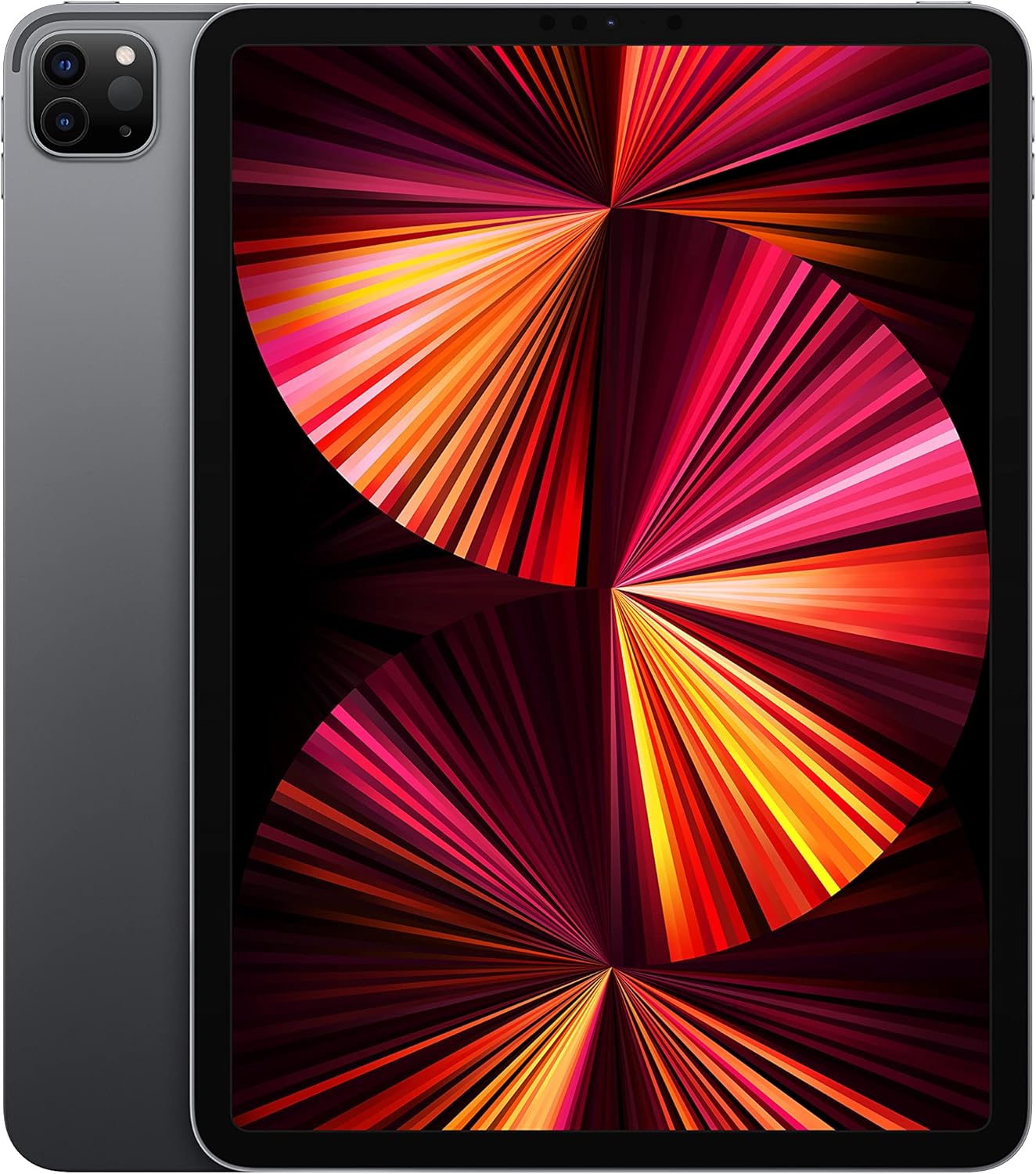
Image: The Apple 11-inch iPad Pro (2021 model) in Space Gray, showcasing its sleek design with the display active and the rear camera module visible.
Setup
1. Unboxing and Contents
Carefully remove all items from the packaging. Verify that the following components are included:
- iPad Pro
- USB-C Charge Cable (1 meter)
- 18W USB-C Power Adapter
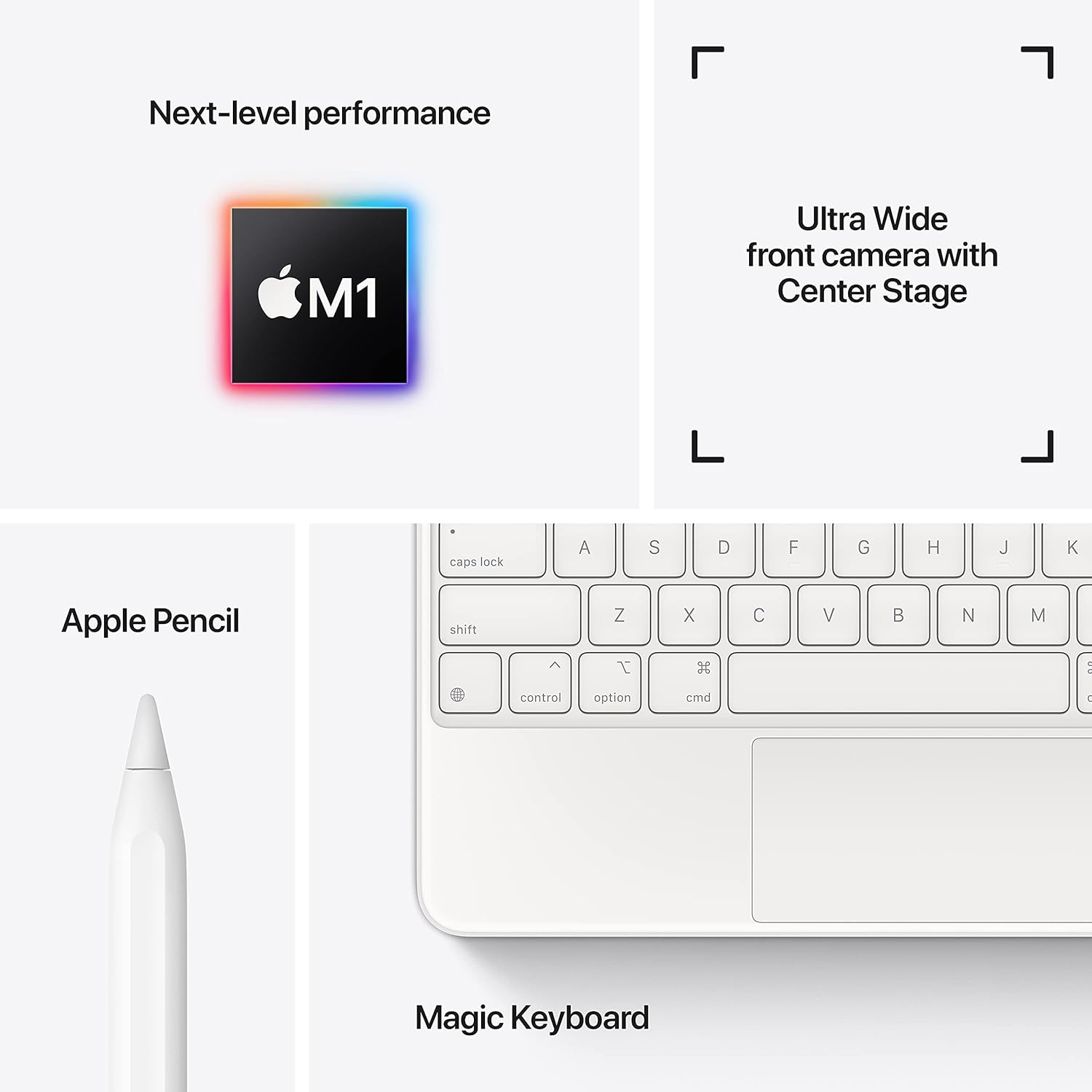
Image: A visual representation of the items included in the iPad Pro packaging: the iPad Pro device, a USB-C charging cable, and a USB-C power adapter.
2. Initial Charge
Before first use, connect your iPad Pro to the power adapter using the provided USB-C cable and charge it until the battery indicator shows a full charge. This ensures optimal battery calibration.
3. Powering On/Off
- To Power On: Press and hold the top button until the Apple logo appears.
- To Power Off: Press and hold the top button and either volume button simultaneously until the power off slider appears. Drag the slider to shut down the device.
4. Initial Setup Steps
Follow the on-screen instructions to configure your iPad Pro:
- Select your language and region.
- Connect to a Wi-Fi network.
- Set up Face ID for secure authentication.
- Sign in with your Apple ID or create a new one.
- Configure data and privacy settings.
Operating
1. Basic Navigation
The iPad Pro uses intuitive multi-touch gestures for navigation:
- Home Screen: Swipe up from the bottom edge of the screen.
- App Switcher: Swipe up from the bottom edge and pause in the middle of the screen.
- Control Center: Swipe down from the top-right corner of the screen.
- Notifications: Swipe down from the top-left corner or center of the screen.
2. Face ID
Face ID allows you to securely unlock your iPad, authorize purchases, and sign in to apps using facial recognition. Ensure your face is clear and visible to the TrueDepth camera.
3. Connecting Accessories
The iPad Pro supports various accessories to enhance productivity and creativity:
- Apple Pencil (2nd Generation): Attach the Apple Pencil magnetically to the side of your iPad Pro to pair and charge it.
- Magic Keyboard / Smart Keyboard Folio: Attach the keyboard magnetically to the Smart Connector on the back of your iPad Pro. No pairing is required.

Image: A user engaged in creative work on an iPad Pro, utilizing both the Magic Keyboard and Apple Pencil for enhanced interaction.

Image: An infographic illustrating the core features of the iPad Pro, including the M1 chip for performance, the Ultra Wide front camera with Center Stage, and compatibility with Apple Pencil and Magic Keyboard.
4. Using the Cameras
The iPad Pro features a 12MP Wide camera, 10MP Ultra Wide camera, and a LiDAR Scanner on the rear, and a 12MP Ultra Wide TrueDepth front camera with Center Stage. Center Stage automatically keeps you in the frame during video calls.
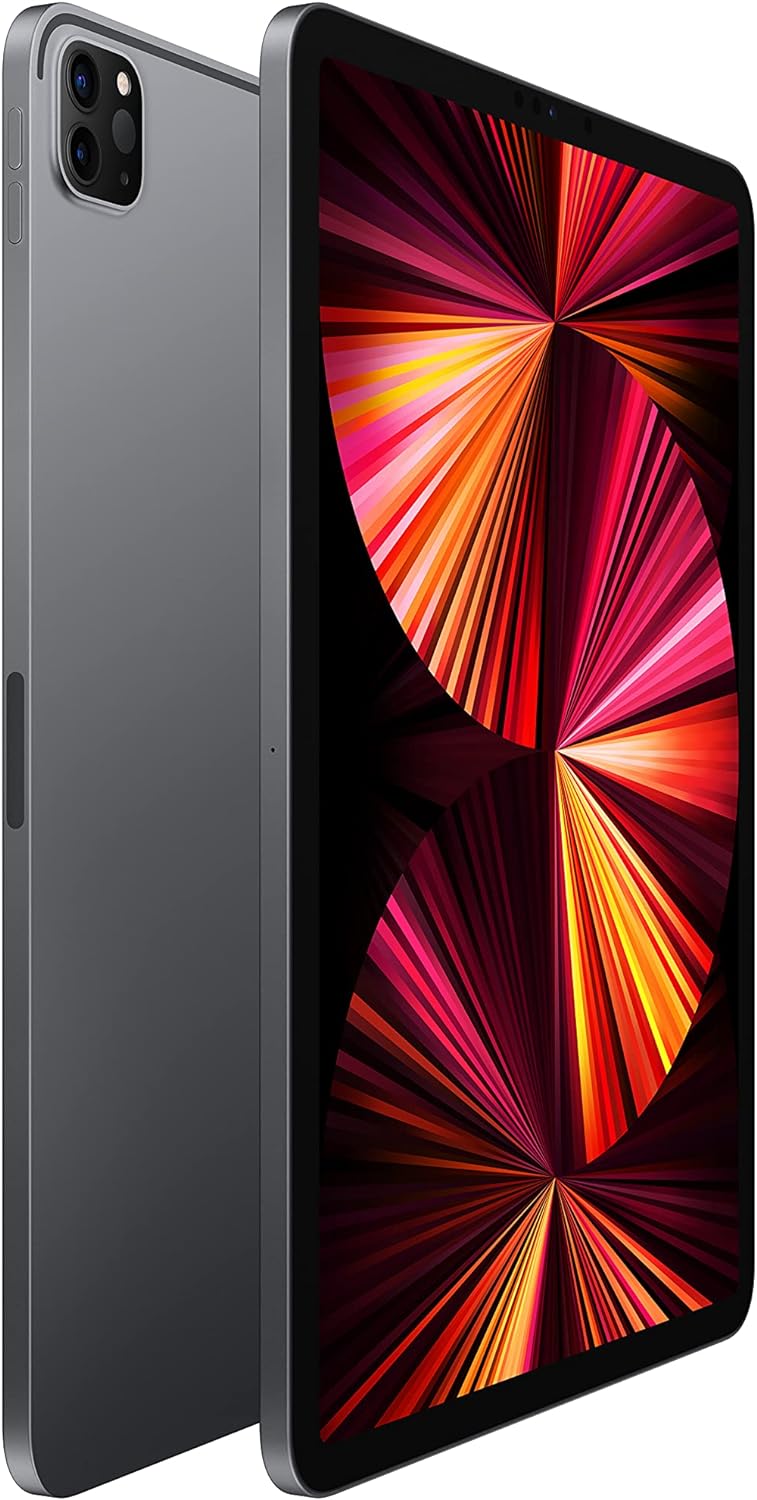
Image: A detailed close-up of the iPad Pro's advanced camera system and its sleek side design, with a glimpse of the Magic Keyboard in the background.
5. Wi-Fi Connectivity
To connect to a Wi-Fi network, go to Settings > Wi-Fi, select your desired network, and enter the password if prompted. The iPad Pro supports ultrafast Wi-Fi for reliable internet access.
Maintenance
1. Cleaning the Display
Use a soft, lint-free cloth to clean the display. For stubborn smudges, slightly dampen the cloth with water. Avoid using abrasive materials or chemical cleaners.
2. Battery Care
To prolong battery life:
- Avoid extreme temperatures.
- Keep the software updated.
- Optimize settings such as screen brightness and background app refresh.
The iPad Pro offers up to 10 hours of web surfing on Wi-Fi or video playback.
3. Software Updates
Regularly check for and install software updates to ensure your iPad Pro has the latest features, security enhancements, and performance improvements. Go to Settings > General > Software Update.
Troubleshooting
1. Device Not Responding
If your iPad Pro is unresponsive, perform a force restart:
- Press and quickly release the Volume Up button.
- Press and quickly release the Volume Down button.
- Press and hold the Top button until the Apple logo appears.
2. Wi-Fi Connectivity Issues
- Ensure Wi-Fi is enabled in Settings > Wi-Fi.
- Restart your Wi-Fi router.
- Forget the network and reconnect: Settings > Wi-Fi > (i) icon > Forget This Network.
3. App Not Working Correctly
- Close and reopen the app.
- Check for app updates in the App Store.
- Delete and reinstall the app.
4. Factory Reset (Last Resort)
If issues persist, you may need to erase all content and settings. This will delete all data on your iPad. Go to Settings > General > Transfer or Reset iPad > Erase All Content and Settings. Backup your data before proceeding.
Specifications
| Feature | Detail |
|---|---|
| Model Number | MHQR3LL/A |
| Brand | Apple |
| Model Name | iPad Pro |
| Product Dimensions | 9.74 x 7.02 x 0.23 inches (247.6 x 178.5 x 5.9 mm) |
| Item Weight | 1.03 pounds (466 grams) Wi-Fi model |
| Screen Size | 11 inches |
| Display | Liquid Retina display with ProMotion technology and True Tone |
| Display Resolution Maximum | 2388-by-1668-pixel resolution at 264 pixels per inch (ppi) |
| Chip | Apple M1 chip (8-core CPU, 8-core GPU, 16-core Neural Engine) |
| Capacity | 128GB (as per this model variant) |
| Rear Camera | 12MP Wide and 10MP Ultra Wide cameras with Smart HDR and LiDAR Scanner |
| Video Recording | 4K video at 24 fps, 30 fps, or 60 fps |
| Front Camera | 12MP Ultra Wide TrueDepth front camera with Portrait mode, Portrait Lighting, and Smart HDR 3 |
| Battery Life | Up to 10 hours of web surfing on Wi-Fi, watching video, or listening to music |
| Connector | USB-C |
| Batteries | 1 Lithium Polymer battery (included) |
| Date First Available | April 30, 2021 |
Warranty and Support
Your Apple iPad Pro is covered by Apple's standard limited warranty. For detailed warranty information, please refer to the documentation included with your purchase or visit the official Apple website.
For technical assistance, troubleshooting, and service, please visit the Apple Support website or contact Apple customer service directly.


