
1. Product Overview
The Tek Styz Portable Bluetooth Speaker G2 Pro TWS is a compact and versatile wireless speaker designed for various audio playback needs. It features Bluetooth 4.2 connectivity, multiple input options, and the ability to pair two speakers for stereo sound. Its durable design makes it suitable for both indoor and outdoor use.

Image: The Tek Styz Portable Bluetooth Speaker, showcasing its stylish and portable design, suitable for use in various environments.
2. Package Contents
- Tek Styz Portable Bluetooth Speaker G2 Pro TWS
- MicroUSB Charging Cable
- User Manual (this document)
Note: A USB charger block/adapter is not included and must be supplied by the user.
3. Setup Instructions
3.1 Charging the Speaker
- Locate the MicroUSB charging port on the speaker.
- Connect the provided MicroUSB charging cable to the speaker's charging port.
- Connect the other end of the MicroUSB cable to a compatible USB power source (e.g., a USB wall adapter, computer USB port).
- The charging indicator light will illuminate (specific color/behavior may vary by unit) to show that the speaker is charging.
- Allow approximately 2-3 hours for a full charge. A full charge provides up to 6+ hours of playtime.
3.2 Powering On/Off
- To Power On: Press and hold the Power button (usually labeled 'On/Off' or with a power icon) for a few seconds until you hear an audible prompt or see an indicator light.
- To Power Off: Press and hold the Power button again for a few seconds until you hear an audible prompt or the indicator light turns off.
3.3 Bluetooth Pairing
- Ensure the speaker is powered on and in Bluetooth pairing mode. An indicator light will typically flash rapidly, and an audible prompt may sound.
- On your device (e.g., smartphone, tablet), navigate to the Bluetooth settings.
- Enable Bluetooth and search for available devices.
- Select "Tek Styz G2 Pro" or a similar name from the list of found devices.
- Once connected, the speaker will provide an audible confirmation, and the indicator light will typically stop flashing and remain solid.
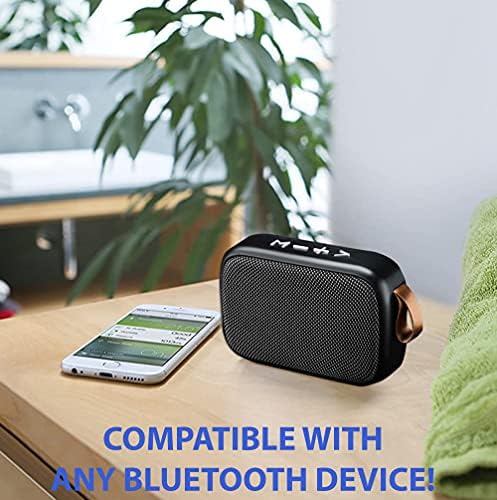
Image: The Tek Styz Portable Bluetooth Speaker shown next to a smartphone, illustrating its compatibility with any Bluetooth device.
3.4 TWS (True Wireless Stereo) Pairing (Optional)
To achieve stereo surround sound, you can pair two Tek Styz G2 Pro TWS speakers together.
- Ensure both speakers are powered on and not connected to any other Bluetooth device.
- On one of the speakers (this will be the primary speaker), press and hold the 'Mode' or 'M' button (or a dedicated TWS button if present) for a few seconds until you hear a pairing tone.
- The two speakers will automatically search for and connect to each other. Once connected, you will hear a confirmation tone.
- Now, connect your device to the primary speaker via Bluetooth as described in section 3.3. Audio will play in stereo through both speakers.
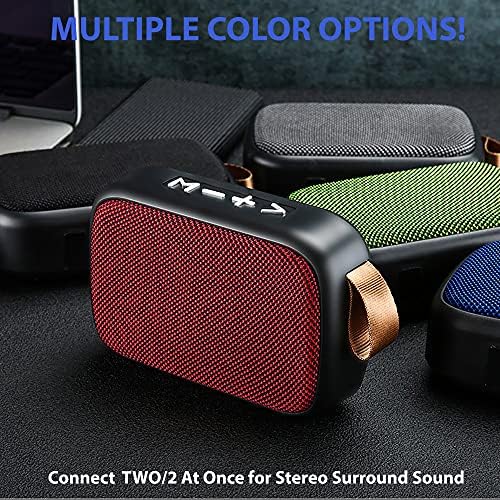
Image: Multiple Tek Styz Portable Bluetooth Speakers in various colors, demonstrating the ability to connect two speakers for stereo surround sound.
4. Operating Instructions
4.1 Controls and Functions
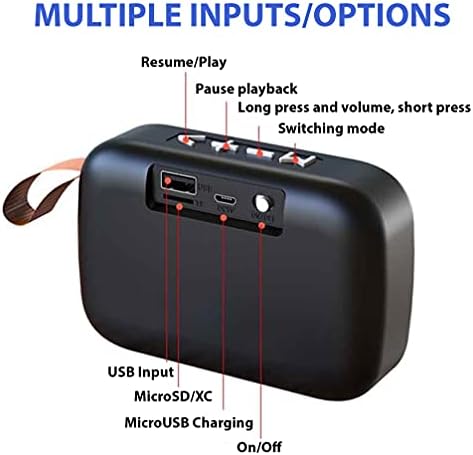
Image: A detailed view of the Tek Styz Portable Bluetooth Speaker's rear panel, illustrating the various input ports (USB, MicroSD/TF, MicroUSB Charging) and control buttons (Resume/Play, Volume, Mode Switching).
- Power Button: Press and hold to power on/off.
- Play/Pause Button: Press once to play or pause audio.
- Volume Up (+): Short press to increase volume. Long press for next track.
- Volume Down (-): Short press to decrease volume. Long press for previous track.
- Mode Button (M): Press to switch between playback modes: Bluetooth, USB, TF card, FM Radio, Line Input.
- Built-in Microphone: Allows for hands-free calling when connected via Bluetooth.
4.2 Playback Modes
The speaker supports multiple playback modes:
- Bluetooth Mode: Connect wirelessly to your Bluetooth-enabled device.
- USB Input: Insert a USB flash drive with audio files.
- TF Card (MicroSD) Input: Insert a MicroSD card with audio files.
- FM Radio: Tune into FM radio stations.
- Line Input (AUX): Connect via a 3.5mm audio cable (not included) to devices without Bluetooth.
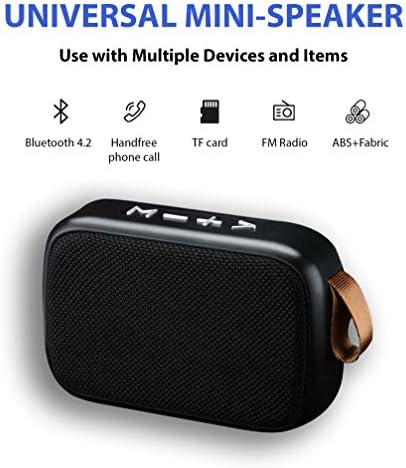
Image: Icons depicting the universal features of the mini-speaker, including Bluetooth 4.2, Handfree phone call, TF card support, FM Radio, and ABS+Fabric construction.
4.3 Answering/Ending Calls
When a call comes in while connected via Bluetooth:
- To Answer: Press the Play/Pause button once.
- To End: Press the Play/Pause button once during a call.
- To Reject: Press and hold the Play/Pause button for a few seconds.
5. Maintenance
5.1 Cleaning
- Ensure the speaker is powered off before cleaning.
- Use a soft, dry, lint-free cloth to wipe the exterior surfaces.
- Do not use abrasive cleaners, solvents, or strong chemicals, as these may damage the speaker's finish or internal components.
- Avoid getting moisture into any openings.
5.2 Storage
- Store the speaker in a cool, dry place away from direct sunlight and extreme temperatures.
- If storing for an extended period, charge the battery to approximately 50% every few months to prolong battery life.
5.3 Battery Care
- Avoid completely draining the battery frequently.
- Do not leave the speaker connected to a charger indefinitely after it is fully charged.
6. Troubleshooting
6.1 Speaker Does Not Power On
- Ensure the battery is charged. Connect the speaker to a power source using the MicroUSB cable and allow it to charge for at least 30 minutes before attempting to power on again.
- Verify that the power button is being pressed and held for the correct duration.
6.2 Cannot Pair with Bluetooth Device
- Ensure the speaker is in Bluetooth pairing mode (indicator light flashing).
- Make sure Bluetooth is enabled on your device and it is within range (typically 10 meters or 33 feet).
- Turn off and then on your device's Bluetooth, then try searching again.
- If previously paired, try forgetting or unpairing the speaker from your device's Bluetooth list and then re-pairing.
- Ensure no other devices are currently connected to the speaker.
6.3 No Sound or Low Volume
- Check the volume levels on both the speaker and your connected device.
- Ensure the speaker is properly connected to your device via Bluetooth or the selected input mode.
- If using a wired connection (AUX), ensure the cable is fully inserted and functional.
- Try playing a different audio source or file.
6.4 TWS Pairing Fails
- Ensure both speakers are fully charged and powered on.
- Make sure neither speaker is currently connected to any other Bluetooth device. Disconnect them if necessary.
- Place the speakers close to each other during the TWS pairing process.
- Follow the TWS pairing steps carefully as outlined in section 3.4.
7. Specifications
| Brand | Tek Styz |
| Model | G2 Pro TWS |
| Speaker Type | Portable Bluetooth Speaker |
| Bluetooth Version | 4.2 |
| Speaker Output Power | 3 Watts |
| Battery Capacity | 800 mAh (approximate) |
| Playtime | Up to 6+ hours |
| Charging Port | MicroUSB |
| Dimensions (L x W x H) | 4.5 x 1.6 x 3 inches |
| Item Weight | 4 ounces |
| Material | ABS Plastic, Fabric, Aluminum, Metal, Stainless Steel |
| Connectivity Options | Bluetooth, USB, TF Card, FM Radio, Line Input |
| Special Features | Built-in Microphone, TWS Pairing, Multiple Playback Modes |
| UPC | 600983103387 |
8. Warranty and Support
Warranty information for the Tek Styz Portable Bluetooth Speaker G2 Pro TWS is not provided within this manual. For details regarding warranty coverage, returns, or technical support, please refer to the product packaging, the retailer where the product was purchased, or contact Tek Styz customer service directly.
You may also visit the Tek Styz Store on Amazon for additional product information and support resources.