
HP DeskJet 2720e
HP DeskJet 2720e All-in-One Colour Printer User Manual
Model: DeskJet 2720e (26K67B) | Brand: HP
Introduction
The HP DeskJet 2720e is a versatile all-in-one colour printer designed for home and small office use. It offers print, copy, and scan functionalities, along with wireless connectivity options for convenient operation from various devices. This manual provides essential information for setting up, operating, maintaining, and troubleshooting your printer.

Image: Front view of the HP DeskJet 2720e printer, showing its compact design and paper output tray.
Setup Guide
Follow these steps to set up your HP DeskJet 2720e printer for the first time.
- Unboxing and Placement: Remove the printer from its packaging and place it on a stable, flat surface. Remove all protective tapes and packing materials.
- Connect Power: Plug the power cord into the printer and then into a wall outlet. The printer will power on automatically.
- Install Ink Cartridges: Open the ink cartridge access door. Wait for the carriage to move to the center. Install the black and tri-color HP Original ink cartridges into their respective slots. Close the access door.
- Load Paper: Open the input tray and load a stack of plain white paper. Adjust the paper guides to fit the paper size.
- Connect to Network:
- Wireless Setup (Recommended): Download the HP Smart app on your smartphone or computer. Follow the in-app instructions to connect your printer to your Wi-Fi network. The printer supports dual-band Wi-Fi with self-reset for reliable connections.
- USB Connection: Connect a USB cable (not included) from the printer to your computer. Install the necessary drivers from the HP website or the HP Smart app.

Image: Diagram highlighting key features of the HP DeskJet 2720e, including the LCD screen with buttons, dual-band Wi-Fi, 60-sheet input tray, flatbed scanner, and mobile printing via HP Smart app.

Image: Information on HP+ requirements, including the need for Original HP Ink, an HP account, and an uninterrupted internet connection for full benefits like 6 months of Instant Ink and extended warranty.
Operating the Printer
Learn how to use the print, copy, and scan functions of your HP DeskJet 2720e.
Printing
You can print documents and photos from your computer or mobile device.
- From a Computer: Select your printer from the print dialogue box in your application. Adjust print settings such as paper size, quality, and colour/grayscale.
- From a Mobile Device (HP Smart App): Open the HP Smart app, select the document or photo you wish to print, and follow the on-screen prompts.

Image: The HP DeskJet 2720e actively printing a colourful document, with paper exiting the output tray.
Copying
Use the control panel to make copies of documents.
- Place the original document face-down on the scanner glass, aligning it with the guide.
- On the printer's control panel, press the Colour Copy button for a colour copy or the Black Copy button for a black and white copy.
- Press the button multiple times for multiple copies (up to 9 copies directly from the panel).
Scanning
Scan documents or photos to your computer or mobile device using the HP Smart app.
- Place the original document face-down on the scanner glass.
- Open the HP Smart app on your device.
- Select the "Scan" option and adjust settings such as resolution, colour mode, and destination.
- Initiate the scan from the app.

Image: The HP DeskJet 2720e with its top lid open, revealing the flatbed scanner glass.

Image: A close-up view of the HP DeskJet 2720e's control panel, showing the LCD display and various function buttons for power, Wi-Fi, information, and copy functions.
Maintenance
Regular maintenance ensures optimal performance and longevity of your printer.
Ink Cartridge Management
The HP DeskJet 2720e is designed to work with HP Original ink cartridges. For convenience, consider activating HP Instant Ink, which automatically orders and delivers ink to your door before you run out.
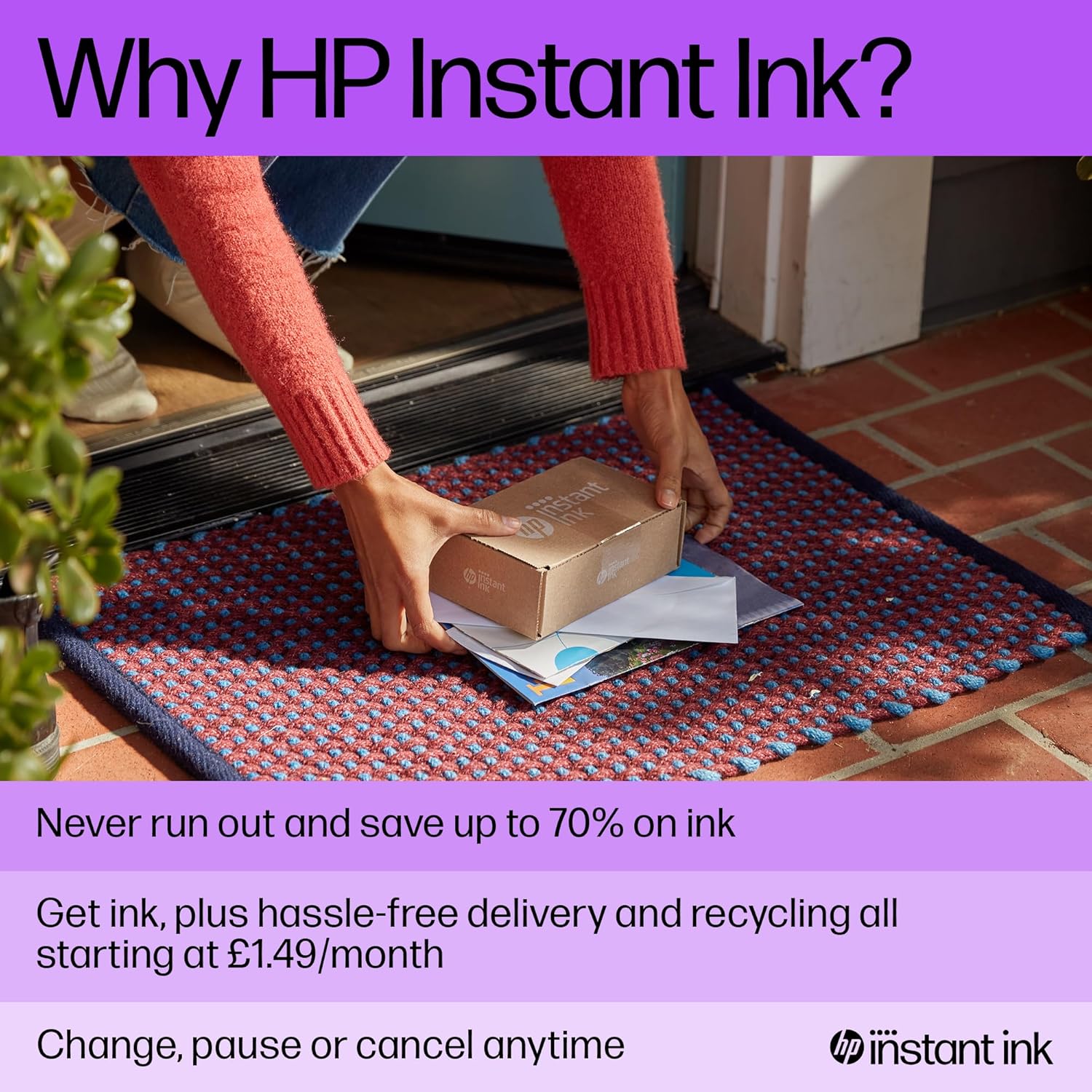
Image: A package labeled "HP Instant Ink" being delivered to a doorstep, illustrating the automatic ink delivery service.

Image: A chart detailing various HP Instant Ink monthly printing plans based on page volume, showing different price points for light, occasional, moderate, frequent, and business printing needs.
Cleaning the Printer
- Exterior: Wipe the exterior surfaces with a soft, damp, lint-free cloth.
- Scanner Glass: Clean the scanner glass with a soft cloth lightly dampened with glass cleaner. Do not spray cleaner directly onto the glass.
- Printhead Cleaning: If print quality issues arise (e.g., streaks, faded colours), perform a printhead cleaning cycle through the HP Smart app or printer software.
Firmware Updates
HP periodically releases firmware updates to improve printer performance and security. Ensure your printer is connected to the internet for automatic updates, or check for updates via the HP Smart app.
Troubleshooting
This section addresses common issues you might encounter with your printer.
- Printer Not Responding:
- Check power connections.
- Ensure the printer is turned on.
- Verify network connectivity (Wi-Fi light on control panel). Restart your router and printer if necessary.
- For USB connection, ensure the cable is securely connected.
- Print Quality Issues:
- Check ink levels. Replace cartridges if low or empty.
- Perform a printhead cleaning and alignment from the HP Smart app.
- Ensure you are using Original HP Ink cartridges. The printer is designed to block cartridges using non-HP chips.
- Paper Jams:
- Turn off the printer and unplug it.
- Carefully remove any jammed paper from the input tray, output tray, or inside the printer.
- Ensure paper is loaded correctly and not overfilled.
- Error Lights on Control Panel:
- Refer to the HP Smart app or the printer's online support for specific error code meanings and solutions.
- Common indicators include low ink warnings, paper jam alerts, or connectivity issues.
Specifications
| Feature | Detail |
|---|---|
| Model Name | HP DeskJet 2720e |
| Model Number | 26K67B |
| Functions | Print, Copy, Scan |
| Connectivity Technology | Bluetooth, Wi-Fi, USB |
| Printing Technology | Inkjet |
| Printer Output | Colour |
| Max Print Speed (Monochrome) | 20 ppm |
| Max Print Speed (Colour) | 16 ppm |
| Max Copy Speed (Black & White) | 16 ppm |
| Max Input Sheet Capacity | 60 sheets |
| Maximum Supported Paper Size | A4 |
| Scanner Type | Flatbed |
| Product Dimensions | 30.4D x 42.5W x 15.4H cm |
| Item Weight | 4.72 kg |
| Included Components | 6 months instant ink (with HP+ activation) |
Warranty and Support
Your HP DeskJet 2720e printer comes with a standard warranty. Activating HP+ can provide additional warranty benefits.
- Warranty: The product includes a full and extended warranty. Activating HP+ provides an additional year of HP hardware warranty.
- HP Instant Ink: Includes 6 months of Instant Ink when activated during printer setup. This service ensures you receive new ink cartridges automatically before you run out.
- Customer Support: For further assistance, visit the official HP support website or use the HP Smart app for troubleshooting guides, FAQs, and contact options.
Ask a question about this manual
Ask about setup, troubleshooting, compatibility, parts, safety, or missing instructions. Manuals+ will review the question and use this page’s manual context to help answer it.