
Gtek Canada Gtek Mini
Gtek Wireless Mini Keyboard with Touchpad User Manual
Model: Gtek Mini
1. Introduction
Thank you for choosing the Gtek Wireless Mini Keyboard with Touchpad. This compact and versatile device combines a full QWERTY keyboard with a multi-touch touchpad, offering convenient control for various compatible devices. It is designed for ease of use with Android devices, Smart TVs, and IPTV boxes.
Package Contents:
- 1 x 2.4Ghz Mini Wireless Keyboard
- 1 x USB Wireless Receiver
- 1 x Lithium-ion Battery
- 1 x USB Charging Cable
- 1 x User Manual (this document)

Figure 1: Gtek Wireless Mini Keyboard, USB receiver, and product packaging. This image displays the compact keyboard alongside its small USB wireless receiver and the retail box, illustrating the complete product package.
2. Setup
2.1 Charging the Keyboard
- Locate the USB charging port on the keyboard.
- Connect the provided USB charging cable to the keyboard and a standard USB power source (e.g., computer USB port, USB wall adapter).
- The charging indicator light will illuminate. Allow approximately 2-3 hours for a full charge. The indicator light may change or turn off once fully charged.
2.2 Connecting the USB Receiver
- Ensure the keyboard is charged.
- Locate the USB wireless receiver, typically stored in a compartment on the keyboard itself or within the packaging.
- Plug the USB wireless receiver into an available USB port on your compatible device (Android box, Smart TV, IPTV box, PC, etc.).
- Turn on the keyboard using the power switch, usually located on the side or back. The device should automatically detect the keyboard.
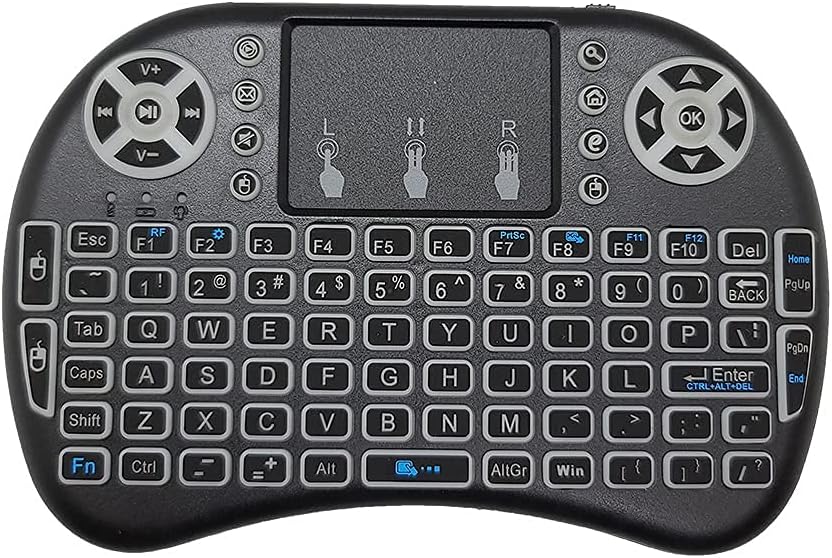
Figure 2: Top-down view of the Gtek Wireless Mini Keyboard. This image highlights the full QWERTY keyboard layout and the integrated touchpad, showing the arrangement of keys and control buttons.
3. Operating Instructions
3.1 Basic Keyboard Functions
- Typing: Use the QWERTY keys for text input.
- Function Keys (Fn): Press the Fn key simultaneously with other keys to access secondary functions (e.g., F1-F12, multimedia controls).
- Navigation Keys: Use the arrow keys and dedicated navigation buttons (Home, Page Up, Page Down, End) for menu and content navigation.
3.2 Touchpad Usage
- Single Finger Tap: Functions as a left-click.
- Two Finger Tap: Functions as a right-click.
- Two Finger Scroll: Drag two fingers up or down on the touchpad to scroll content.
- Mouse Buttons: Dedicated left and right mouse buttons are also available above the touchpad for precise control.
3.3 Backlight Control
The keyboard features a 3-color backlight (Blue, Green, Red). To cycle through the backlight colors or turn it off:
- Press the Fn key and the F2 key simultaneously. Each press will cycle to the next color or turn the backlight off.
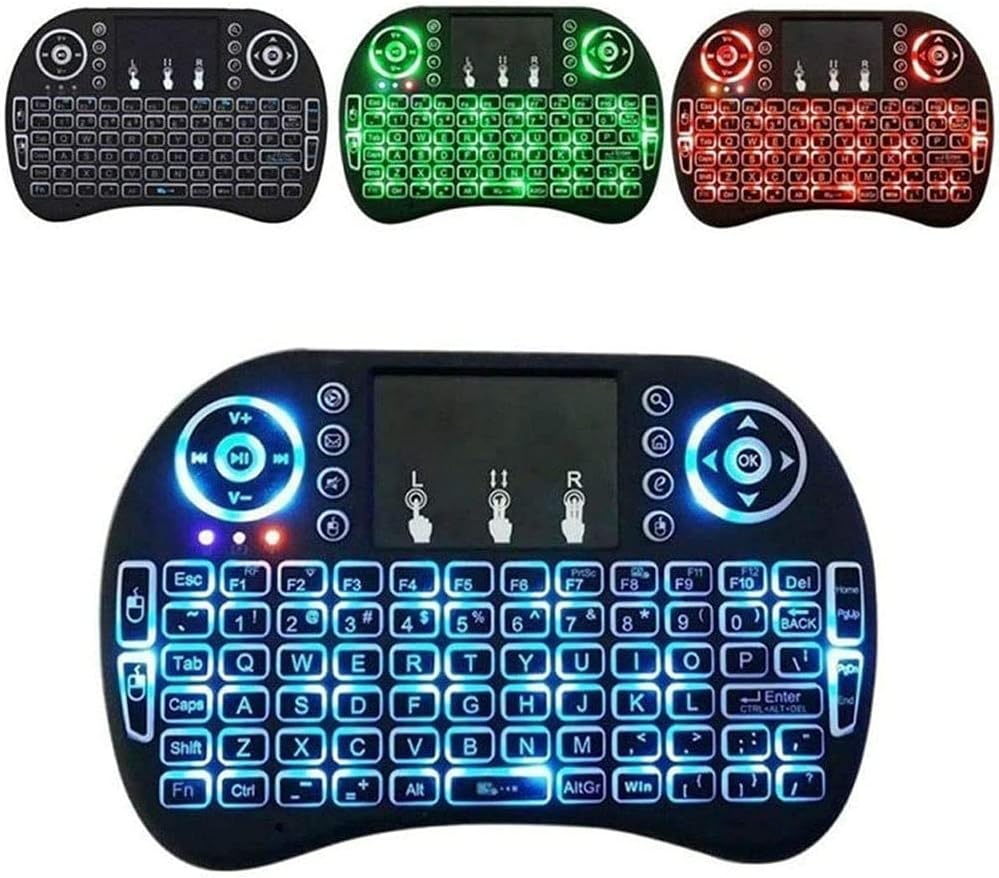
Figure 3: Gtek Wireless Mini Keyboard displaying its three backlight color options: blue, green, and red. This image demonstrates the visual effect of the backlit keys in different colors.
4. Maintenance
- Cleaning: Use a soft, dry cloth to clean the keyboard surface. For stubborn dirt, a slightly damp cloth can be used, ensuring no moisture enters the device. Avoid harsh chemicals or abrasive materials.
- Battery Care: To prolong battery life, avoid fully discharging the battery frequently. Charge the keyboard regularly, especially if it will be stored for an extended period.
- Storage: Store the keyboard in a cool, dry place away from direct sunlight and extreme temperatures.
5. Troubleshooting
| Problem | Solution |
|---|---|
| Keyboard not responding. |
|
| Backlight not working or stuck on one color. |
|
| Touchpad is erratic or unresponsive. |
|
6. Specifications
- Model: Gtek Mini
- Connectivity: RF 2.4G Wireless
- Operating Range: Up to 15 meters (Max)
- Backlight: 3 Colors (Blue, Green, Red)
- Battery Type: Rechargeable Lithium-ion
- Compatible Devices: Android Boxes, Smart TVs (not all models), IPTV Boxes, Streaming Players
- Wireless Transmit Power: +5dBm
- Dimensions: Approximately 18.4 x 10.4 x 2.8 cm
- Weight: Approximately 130 g
7. Warranty and Support
Gtek Canada products are designed for reliability and performance. For warranty information or technical support, please refer to the purchase documentation or contact your retailer. Keep your proof of purchase for any warranty claims.
For additional support or product information, you may visit the official Gtek Canada store online: Gtek Canada Store.
Ask a question about this manual
Ask about setup, troubleshooting, compatibility, parts, safety, or missing instructions. Manuals+ will review the question and use this page’s manual context to help answer it.