
1. Introduction
This manual provides detailed instructions for the installation, operation, and troubleshooting of the ninetom Wireless CarPlay Retrofit Kit Decoder. This device integrates Apple CarPlay and Android Auto functionalities into your existing BMW NBT/ID4 infotainment system, enhancing your driving experience with modern connectivity features while retaining original vehicle functions.
2. Compatibility
This Wireless CarPlay Retrofit Kit Decoder is designed for specific BMW models and infotainment systems. Please verify your vehicle's compatibility before installation.
- Compatible BMW Series: 1/2/3/4/5/6/7/X1/X2/X3/X4/X5/X6 Series.
- Compatible BMW Chassis Codes: F01, F02, F06, F07, F10, F11, F12, F13, F15, F16, F18, F20, F21, F22, F25, F26, F30, F32, F33, F34, F36, F48, F80, F85, F86.
- Compatible Model Years: 2012 to 2018.
- Required System: NBT/ID.4 System.
- Incompatible System: This kit is not compatible with CIC System or EVO System.
To confirm your car's system, please refer to the images below. The correct system will display 'Telefon' under CD/Multimedia, while CIC and EVO systems have different menu layouts.

Image: Compatibility table showing BMW series, displacement, year, and system (NBT) for wired CarPlay.

Image: Visual guide to confirm your car's infotainment system (CIC, NBT, EVO) for correct compatibility.
3. What's in the Box
Upon opening the package, ensure all components are present:
- Decoder Box
- Power Cable
- LVDS Cable
- RCA Cable
- WiFi Antenna (if applicable)
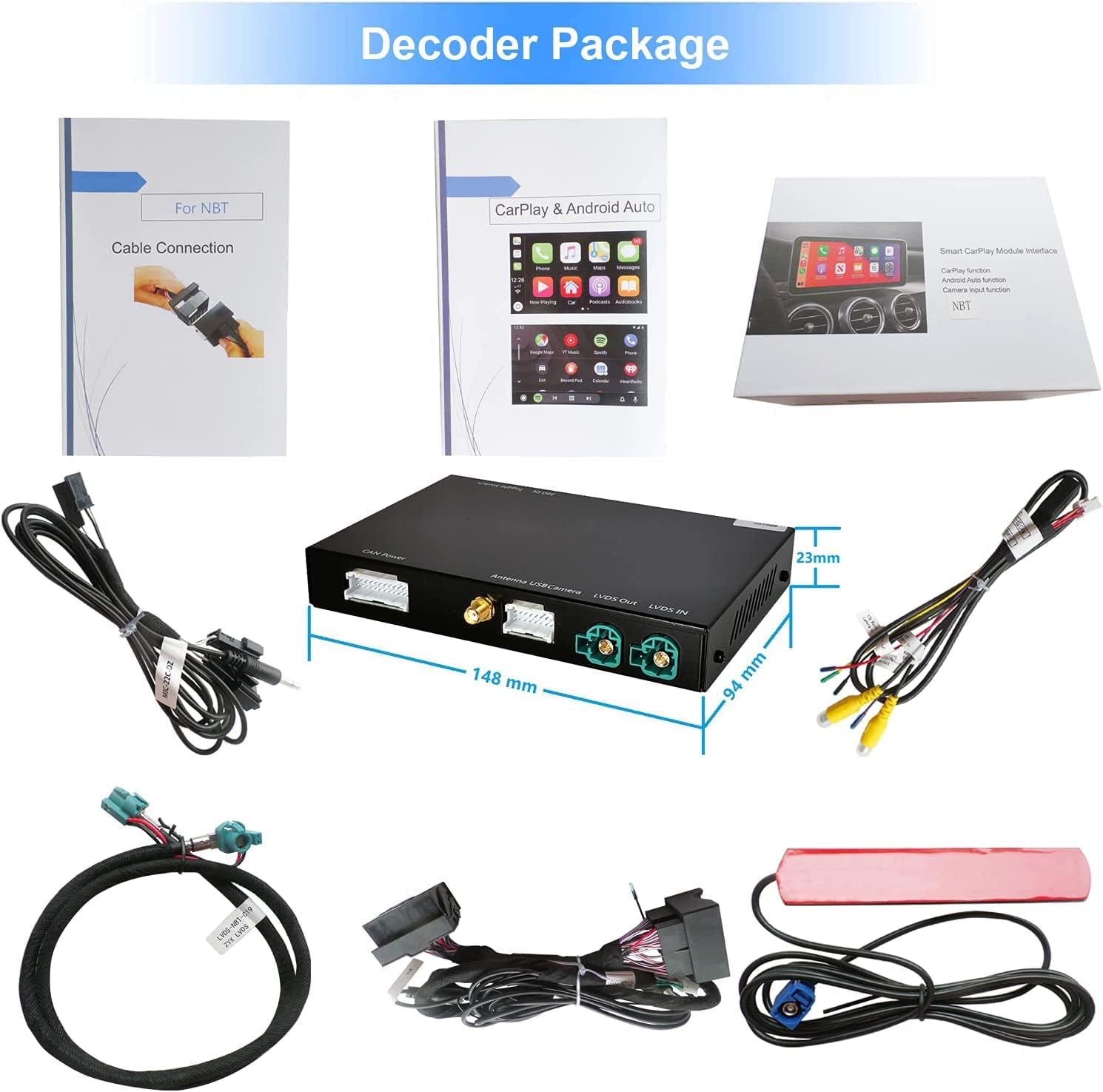
Image: Contents of the decoder package, including the main decoder unit and various connecting cables.
4. Setup and Installation
The installation process is designed to be non-destructive, utilizing original car wire plug-and-play connections without cutting or breaking wires. The factory screen does not need to be removed. After installation, the car's interior remains unchanged, and all original console features, including button and steering wheel controls, are retained.
Important Considerations:
- Ensure the vehicle's ignition is off and the battery is disconnected before beginning installation.
- Carefully follow the provided wiring diagrams and connection instructions.
- If you are not confident with the installation, it is recommended to seek assistance from a professional auto repair shop.
An installation video link can be provided upon purchase for detailed visual guidance.
Video: Detailed installation guide for the Wireless CarPlay Retrofit Kit Decoder.
5. Operating Instructions
The retrofit kit enables various functionalities, including Wireless CarPlay, Android Auto, Mirrorlink, and camera support, all controllable via original car controls.
5.1. Wireless CarPlay and Android Auto
After installation, switch to the CarPlay/Android Auto interface using your car's original controls. The system supports steering wheel buttons, knob operation, and voice commands.
- Wireless CarPlay: Connect your iPhone wirelessly via Bluetooth and Wi-Fi.
- Android Auto: Connect your Android phone via USB for wired Android Auto.
- Voice Control: Utilize Siri (for CarPlay) or Google Assistant (for Android Auto) for hands-free operation of maps, music, and phone calls. Note: When using Siri, turn off the car's Bluetooth to avoid conflicts.
- Split Screen: iOS 13 and later support split-screen functionality, allowing simultaneous display of music and navigation.

Image: Comparison of Apple CarPlay and Android Auto interfaces displayed on a BMW infotainment screen.

Image: Illustrates wireless CarPlay and wired Android Auto connectivity with the decoder box.
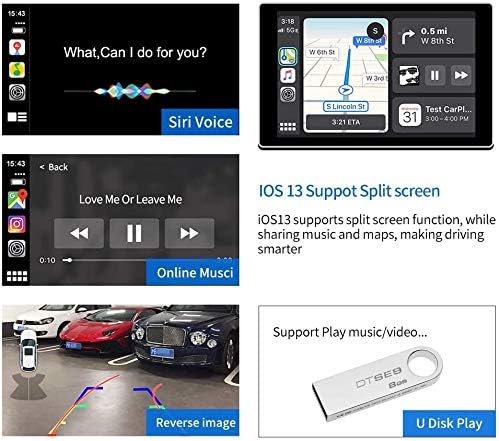
Image: Demonstrates key CarPlay features including Siri voice control, navigation maps, music playback, reverse camera display, and USB media playback.

Image: Shows various control methods for the CarPlay system, including steering wheel buttons, voice commands, and the iDrive controller knob.
Video: Overview of the system's features and user interface.
Video: Demonstration of various functions and controls.
5.2. Mirror Link Function (Airplay/AutoLink)
The device supports screen mirroring via Airplay (for iOS) and AutoLink (for Android), allowing you to display your phone's screen content directly on the car's infotainment display. This enables viewing of videos, navigation, and other apps.

Image: Illustrates the Mirror Link function for streaming phone content to the car screen and the ability to play media from a USB flash drive.
5.3. Camera Support
The kit supports various camera inputs:
- Original reversing camera and parking radar.
- Aftermarket reversing camera and 360-degree camera systems.
- Front camera DVR (CVBS input).
When reversing, the camera display will automatically activate.
5.4. USB Media Playback
Connect a USB flash drive to the CarPlay Kit's USB port to play music and videos directly on your car's screen.
6. Troubleshooting
If you encounter issues, refer to the following common problems and solutions:
- Bluetooth Connection Drops Frequently:
Ensure your phone's Bluetooth is not simultaneously connected to the car's original Bluetooth system and the CarPlay kit. Try disconnecting and reconnecting Bluetooth on your phone. If issues persist, check for firmware updates from the manufacturer. - No Audio or Volume Issues:
Verify all cable connections, especially the AUX cable if used, are secure. Ensure the car's audio input is set correctly (e.g., to AUX if the kit uses it for audio). Try unplugging and re-connecting all cables. - Device Stays On After Car is Off:
This can sometimes occur due to specific vehicle wiring configurations. Ensure the power cable is correctly connected to a switched power source. If the issue persists, consult with a professional installer. - Screen Mirroring (Airplay) Not Working with Newer iPhone Models:
Ensure both your iPhone and the CarPlay kit have the latest software/firmware. Some compatibility issues may arise with newer iOS versions. Check manufacturer support for specific compatibility notes. - Missing Parts Upon Arrival:
Immediately contact customer support with your order details if any essential cables (e.g., LVDS, WiFi antenna) are missing from the package. - CarPlay/Android Auto Not Activating:
Double-check all electrical and data connections. Ensure your phone's Wi-Fi and Bluetooth are enabled and correctly paired with the kit. Restart both your phone and the car's infotainment system.
7. Specifications
| Feature | Specification |
|---|---|
| Brand | ninetom |
| Model Number | B092SDGQ7T |
| Connectivity Technology | Wi-Fi |
| Controller Type | Android (supports iPhone via CarPlay) |
| Special Feature | Built-In Bluetooth |
| Compatible Devices | Smartphone, iPhone |
| Connector Type | USB |
| Video Encoding | H.264 (AVC) |
| Number of Channels | 4 |
| Supported Internet Services | YouTube |
| Control Method | App, Touch (via car's screen), Steering Wheel, iDrive Knob, Voice |
| Item Weight | 2.38 pounds |
| Package Dimensions | 8.5 x 5.94 x 3.82 inches |
8. Warranty and Support
The ninetom Wireless CarPlay Retrofit Kit Decoder comes with a one-year free warranty. For any questions or assistance with installation or operation, please contact customer support. The manufacturer's support team is available to provide professional guidance.