
1. Introduction
This manual provides comprehensive instructions for the Samsung Galaxy Tab S7 (Model SM-T878UZKAATT). It covers essential information regarding device setup, operation, features, maintenance, and troubleshooting to ensure optimal use of your tablet.
The Samsung Galaxy Tab S7 is a 5G-enabled tablet designed for enhanced productivity and entertainment. This renewed product has been professionally inspected and tested to function and appear like new, ensuring a reliable user experience.
2. Initial Setup
2.1. Unboxing and First Power On
Carefully remove the tablet and included accessories from the packaging. Press and hold the power button located on the side of the device to turn it on. Follow the on-screen prompts to select your language, connect to a Wi-Fi network, and set up your Google account.
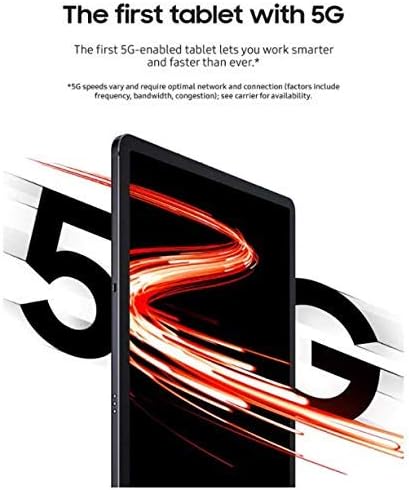
Image: Front view of the Samsung Galaxy Tab S7 tablet.
2.2. S Pen Setup
The S Pen is included with your Galaxy Tab S7. To pair and charge the S Pen, attach it magnetically to the designated strip on the back of the tablet, near the camera module. The S Pen will automatically connect and begin charging.
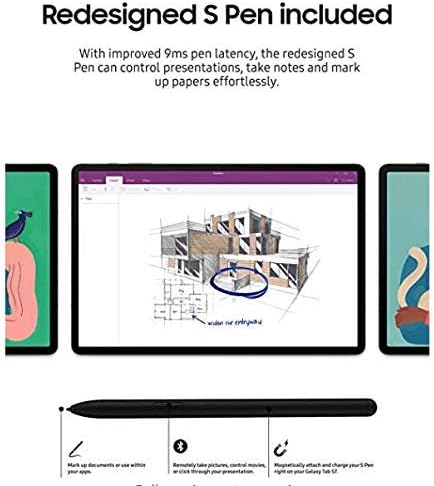
Image: The S Pen magnetically attached to the back of the Samsung Galaxy Tab S7.
2.3. Network Connectivity
This tablet supports 5G LTE/WiFi connectivity (AT&T Network Only). To set up cellular data, insert your AT&T SIM card into the SIM tray. For Wi-Fi, navigate to Settings > Connections > Wi-Fi and select your desired network.
3. Operating Instructions
3.1. Navigating the Interface
The Galaxy Tab S7 runs on Android 10 with Samsung's One UI. Swipe down from the top of the screen to access the Quick Panel for settings and notifications. Swipe up from the bottom to access the app drawer. Utilize the S Pen for precise navigation and input.
3.2. Samsung DeX Mode
Transform your tablet into a PC-like experience with Samsung DeX. Access DeX mode from the Quick Panel or by connecting an external keyboard and mouse. DeX mode allows for a multi-window interface, enhancing productivity for tasks such as document editing and web browsing. The tablet supports video output to external monitors via a compatible USB-C to HDMI adapter.
Image: Samsung Galaxy Tab S7 connected to an external keyboard, demonstrating DeX mode for a PC-like experience.
3.3. S Pen Functionality
The redesigned S Pen offers improved 9ms latency for a natural writing and drawing experience. Use it to take notes, mark up documents, control presentations remotely, and navigate the tablet with precision. Air Actions allow for gesture controls without touching the screen.
3.4. Entertainment and Gaming
Experience cinematic viewing on the 11-inch display with a 120Hz refresh rate and quad speakers tuned by AKG with Dolby Atmos surround sound. The tablet's powerful processor supports smooth gaming. Connect a Bluetooth-enabled controller for an enhanced gaming experience.
Video: A review of the Samsung Galaxy Tab S7, highlighting its features and performance. This video is provided by a Seller.
4. Key Features
- 5G Connectivity: Supports AT&T Network for high-speed mobile data.
- PC Performance with DeX Mode: Transform your tablet into a PC experience with DeX mode and optional keyboard (sold separately).
- Enhanced Entertainment: 11-inch edge-to-edge display, sAMOLED™ screen, and quad speakers tuned by AKG with Dolby Atmos surround sound.
- Redesigned S Pen: Improved 9ms pen latency for precise control, note-taking, and document markup.
- Gaming Optimization: Immersive screen and Bluetooth-enabled controller support for console-like gaming (controller sold separately).
- Fast Charging: Supports 45W fast charging via USB-C port.
- Expandable Storage: Up to 512GB built-in memory, expandable up to 1TB with a microSD card (sold separately).
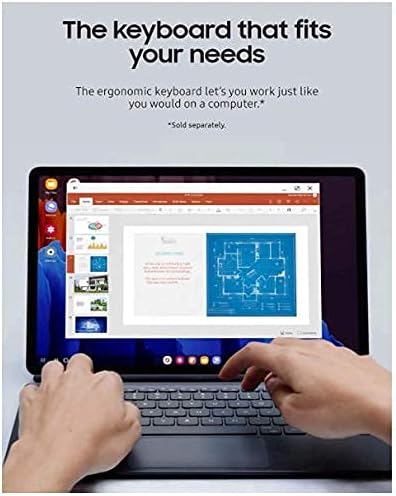
Image: The Samsung Galaxy Tab S7 charging via its USB-C port, highlighting its fast-charging capability and battery life.
5. Specifications
| Feature | Detail |
|---|---|
| Brand | Samsung |
| Model Name | Tab S7 |
| Model Number | SM-T878UZKAATT |
| Memory Storage Capacity | 128 GB |
| RAM Size | 6 GB |
| Screen Size | 11 Inches |
| Display Resolution Maximum | 2560 x 1600 Pixels |
| Display Type | AMOLED |
| Processor Speed | 3.09 GHz |
| Processor Description | Qualcomm SDM865 Pro |
| Operating System | Android 10 |
| Cellular Technology | 5G (AT&T) |
| Rear Facing Camera | 13 MP |
| Front Facing Camera | 8 MP |
| Battery Average Life | 15 Hours |
| Built-In Media | S Pen |
6. Maintenance
6.1. Cleaning Your Tablet
Use a soft, lint-free cloth to clean the screen and body of your tablet. Avoid using abrasive cleaners or solvents that may damage the finish. For stubborn smudges, lightly dampen the cloth with water or a screen-safe cleaning solution.
6.2. Software Updates
Regularly check for and install software updates to ensure your tablet has the latest features, security patches, and performance improvements. Navigate to Settings > Software update > Download and install.
6.3. Battery Care
To prolong battery life, avoid exposing the tablet to extreme temperatures. For optimal performance, keep the battery charge between 20% and 80% when possible. Use the provided charger or a compatible 45W fast charger.
7. Troubleshooting
7.1. Device Not Powering On
- Ensure the battery is charged. Connect the tablet to its charger and wait a few minutes before attempting to power on again.
- Press and hold the Power button for at least 10 seconds to perform a forced restart.
7.2. S Pen Not Responding
- Ensure the S Pen is properly attached to the charging strip on the back of the tablet to ensure it is charged and paired.
- Restart the tablet.
7.3. Wi-Fi Connectivity Issues
- Restart your Wi-Fi router and the tablet.
- Forget the network in your tablet's Wi-Fi settings and reconnect.
- Ensure you are within range of the Wi-Fi signal.
8. Warranty and Support
8.1. Product Warranty
This renewed product comes with a 90 days limited warranty. Please refer to the warranty documentation provided with your purchase for specific terms and conditions.
8.2. Customer Support
For further assistance, technical support, or warranty claims, please contact Samsung customer service or the retailer from whom you purchased the renewed product. Keep your proof of purchase and model number (SM-T878UZKAATT) readily available.


