
TOPDON AD500-UK
TOPDON ArtiDiag500 Diagnostic Tool User Manual
Model: AD500-UK
1. Introduction
Thank you for choosing the TOPDON ArtiDiag500 diagnostic tool. This manual provides detailed instructions on how to set up, operate, and maintain your device to ensure optimal performance and accurate vehicle diagnostics. The ArtiDiag500 is designed to assist in identifying and resolving issues across various vehicle systems, offering both comprehensive diagnostics and essential maintenance functions.
Please read this manual thoroughly before using the device and keep it for future reference.
2. Product Overview
2.1 Key Features
- 4-System Diagnostic: Performs in-depth inspections for Engine, Transmission, ABS, and SRS systems.
- 6 Service Reset Functions: Supports Oil Reset, Electronic Throttle Relearn (ETC), Steering Angle Sensor (SAS) Reset, Tire Pressure Monitoring System (TPMS) Reset, Battery Management System (BMS) Reset, and Electronic Parking Brake (EPB) Reset.
- Full OBD2 Functions: Includes reading/clearing fault codes, viewing live data streams, I/M readiness, O2 sensor test, EVAP test, on-board monitor test, and vehicle information retrieval.
- AutoVIN Technology: Automatically identifies vehicle models for quick and accurate diagnostics.
- Graphic Live Data: Displays real-time data streams in graphical format for easy analysis.
- Lifetime Free Software Updates: Ensures your device always has the latest functionalities and vehicle coverage.
- DTC Library: Provides clear explanations for diagnostic trouble codes.
2.2 Product Components
The TOPDON ArtiDiag500 package includes the diagnostic tool, an OBDII diagnostic cable, a USB charging cable, and a user manual. A protective carrying case is also provided for convenient storage and transport.

Image: Contents of the ArtiDiag500 package, showing the diagnostic tool, OBDII cable, USB cable, and carrying bag.

Image: The ArtiDiag500 diagnostic tool with its screen showing various function icons.
3. Setup Guide
Follow these steps to set up your TOPDON ArtiDiag500 for the first time:
- Charge the Device: Connect the ArtiDiag500 to a power source using the provided USB cable to ensure it is fully charged before first use.
- Power On: Press the power button to turn on the device.
- Language Selection: Upon first boot, select your preferred language from the available options. The device supports 16 languages, including English, French, German, Spanish, and Italian.
- Connect to Wi-Fi: Navigate to the 'Settings' menu and connect the device to a stable Wi-Fi network. This is crucial for software updates.
- Perform Software Updates: Once connected to Wi-Fi, go to the 'Update' section and download the latest software packages for your vehicle brands. This ensures the device has the most current diagnostic data and functions.
- Connect to Vehicle: Locate the OBDII port in your vehicle (usually under the dashboard) and connect the ArtiDiag500 using the diagnostic cable. The device will power on automatically when connected to the vehicle's OBDII port.

Image: Illustration of the software update process, highlighting Wi-Fi connection and one-click updates.
4. Operating Instructions
4.1 4-System Diagnosis
The ArtiDiag500 can perform comprehensive diagnostics on four core vehicle systems: Engine, Transmission, Anti-lock Braking System (ABS), and Supplemental Restraint System (SRS).
- Engine System: Diagnoses issues related to engine performance, emissions, and fuel efficiency. Regular checks help detect problems early.
- Transmission System: Monitors the vehicle's transmission for smooth gear changes and optimal driving. Quick diagnosis ensures fluid operation.
- ABS System: Verifies the functionality of the anti-lock braking system, crucial for safe braking, especially during sudden stops.
- SRS System: Checks the Supplemental Restraint System, including airbags and seatbelt pretensioners, to ensure proper operation for occupant safety.
To perform a system diagnosis, select 'Diagnostics' from the main menu, then choose the specific system you wish to scan. The tool will read Diagnostic Trouble Codes (DTCs) and display live data streams.

Image: The ArtiDiag500 displaying the 4-System Diagnosis menu, including Engine, Transmission, Airbag, and ABS.
4.2 6 Maintenance Services
The ArtiDiag500 supports six commonly required maintenance reset functions:
- Oil Reset: Resets the oil life reminder after an oil change.
- Electronic Throttle Relearn (ETC): Relearns the throttle body position after cleaning or replacement.
- Steering Angle Sensor (SAS) Reset: Calibrates the steering angle sensor after alignment or component replacement.
- Tire Pressure Monitoring System (TPMS) Reset: Resets TPMS lights after tire rotation or sensor replacement.
- Battery Management System (BMS) Reset: Registers a new battery to the vehicle's ECU.
- Electronic Parking Brake (EPB) Reset: Resets the electronic parking brake system after brake pad replacement.
To access these functions, select 'Maintenance' from the main menu and choose the desired service reset.
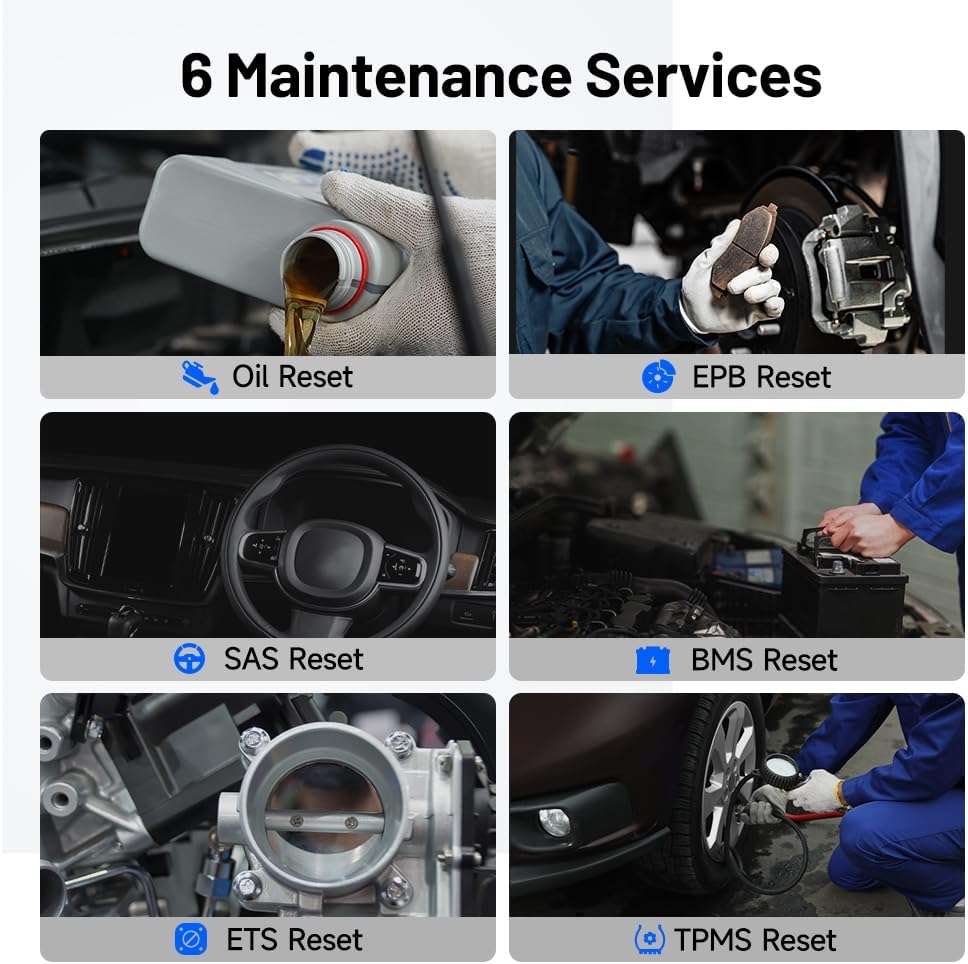
Image: Visual representation of the six maintenance services supported by the ArtiDiag500.
4.3 Full OBD2 Functions
The ArtiDiag500 provides all 10 modes of OBDII testing, allowing for comprehensive emission-related diagnostics:
- Read/Clear Codes: Reads current, pending, and permanent Diagnostic Trouble Codes (DTCs) and clears them to turn off the Check Engine Light.
- Live Data Stream: Displays real-time data parameters from the vehicle's sensors in text or graph format.
- I/M Readiness: Checks the readiness of the emission monitoring systems.
- Freeze Frame Data: Captures a snapshot of vehicle conditions when an emission-related fault occurs.
- O2 Sensor Test: Retrieves O2 sensor monitor test results for the most recently completed tests.
- On-Board Monitor Test: Retrieves test results for emission-related powertrain components and systems that are not continuously monitored.
- EVAP System Test: Initiates a leak test for the vehicle's EVAP system.
- Component Test: Allows initiation of a leak test for the vehicle's EVAP system.
- Vehicle Information: Retrieves the Vehicle Identification Number (VIN), Calibration ID (CALID), and Calibration Verification Number (CVN).
Access these functions by selecting 'OBDII/EOBD' from the main menu.
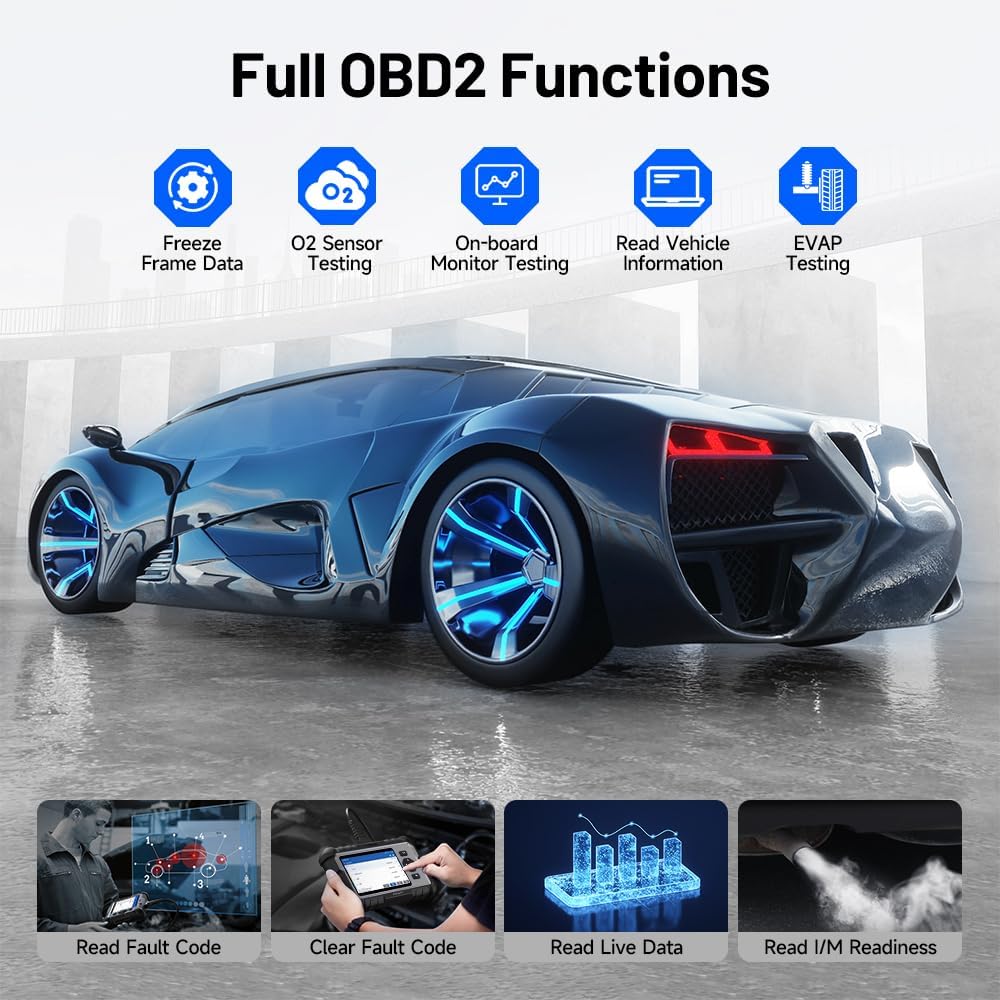
Image: Overview of the comprehensive OBD2 functions available on the ArtiDiag500.
4.4 AutoVIN Function
The AutoVIN function allows the ArtiDiag500 to automatically identify your vehicle's make, model, and year, streamlining the diagnostic process by eliminating the need for manual input. This feature is accessible from the main diagnostics screen.

Image: The AutoVIN feature in action, automatically identifying vehicle information.
4.5 Graphic Live Data
View live sensor data in a graphical format, making it easier to analyze trends and identify anomalies in real-time. This is particularly useful for diagnosing intermittent issues.
4.6 DTC Library
The built-in DTC library provides detailed explanations for diagnostic trouble codes, including possible causes and suggested repair tips. This helps users understand the meaning of codes without needing external resources.

Image: The DTC Library feature, providing clear explanations for fault codes.
4.7 Diagnostic Report
After completing a diagnostic scan, the ArtiDiag500 can generate a professional diagnostic report. This report can be saved, printed, or shared via email, providing a clear overview of the vehicle's status and identified issues.

Image: The diagnostic report feature, allowing users to generate, save, and share reports.
5. Maintenance
5.1 Device Care
- Keep the device clean and free from dust and moisture.
- Store the device in its protective carrying case when not in use.
- Avoid exposing the device to extreme temperatures or direct sunlight.
5.2 Software Updates
The ArtiDiag500 comes with lifetime free software updates. Regularly updating the software ensures compatibility with new vehicle models and access to the latest diagnostic features and bug fixes. Connect the device to Wi-Fi and navigate to the 'Update' section to download and install updates.
Image: The software update process, emphasizing the ease of keeping the device current.
6. Troubleshooting
This section addresses common issues you might encounter while using the ArtiDiag500.
| Problem | Possible Cause | Solution |
|---|---|---|
| Device does not power on. | Low battery; Loose OBDII connection; Vehicle's OBDII port not supplying power. | Charge the device; Ensure the OBDII cable is securely connected; Check vehicle's fuse for the OBDII port. |
| Communication error with vehicle. | Incorrect vehicle protocol; Loose connection; Vehicle ignition off. | Verify vehicle compatibility; Reconnect the OBDII cable; Turn vehicle ignition to ON position (engine off). |
| Unable to perform a specific function (e.g., reset). | Software not updated; Vehicle not supported for that specific function; Incorrect procedure. | Ensure software is up-to-date; Consult the vehicle's service manual; Contact TOPDON support for specific vehicle compatibility. |
| Slow operation or freezing. | Too many applications running; Low storage space. | Close unnecessary applications; Clear cache or unused data; Ensure sufficient storage (2GB RAM + 32GB ROM). |
If you encounter issues not listed here, please refer to the online feedback function on the device or contact TOPDON customer support.
7. Specifications
| Feature | Detail |
|---|---|
| Model | ArtiDiag500 (AD500-UK) |
| Operating System | Android 11.0 |
| Dimensions (L x W x H) | 23.11 x 3.3 x 12.7 cm |
| Weight | 1.06 Kilograms |
| Battery | 1 Lithium-ion (included) |
| Storage | 2GB RAM + 32GB ROM |
| Connectivity | Wi-Fi (2.4 & 5 GHz), OBDII Cable |
| Supported Languages | 16 (including English, French, German, Spanish, Italian) |
8. Warranty and Support
TOPDON products are designed for reliability and performance. This product comes with a standard manufacturer's warranty. Please refer to the warranty card included in your package or visit the official TOPDON website for detailed warranty terms and conditions.
For technical assistance, product inquiries, or troubleshooting support, please contact TOPDON customer service. You can typically find contact information (email, phone, online chat) on the TOPDON official website or through the 'User Info' / 'Feedback' section on your ArtiDiag500 device.

Image: TOPDON professional assistance is available on demand.
Related documentsAD500-UK


Ask a question about this manual
Ask about setup, troubleshooting, compatibility, parts, safety, or missing instructions. Manuals+ will review the question and use this page’s manual context to help answer it.