
Logitech G 920-010453
Logitech G715 Wireless Mechanical Gaming Keyboard User Manual
Model: 920-010453 | Brand: Logitech G
1. Introduction
The Logitech G715 Wireless Mechanical Gaming Keyboard, part of the Aurora Collection, offers a blend of style and performance for an enhanced gaming and typing experience. This compact, tenkeyless (TKL) keyboard features LIGHTSPEED wireless and Bluetooth connectivity, LIGHTSYNC RGB lighting, and tactile GX Brown mechanical switches. It is designed for comfort with an included cloud-shaped palm rest and is compatible with PC and Mac systems.
What's in the Box
- Logitech G715 Wireless Mechanical Gaming Keyboard
- Cloud-shaped Palm Rest
- LIGHTSPEED USB Receiver
- USB-C to USB-A Cable (for charging and wired connection)
- User Documentation (Quick Start Guide, Safety Information)
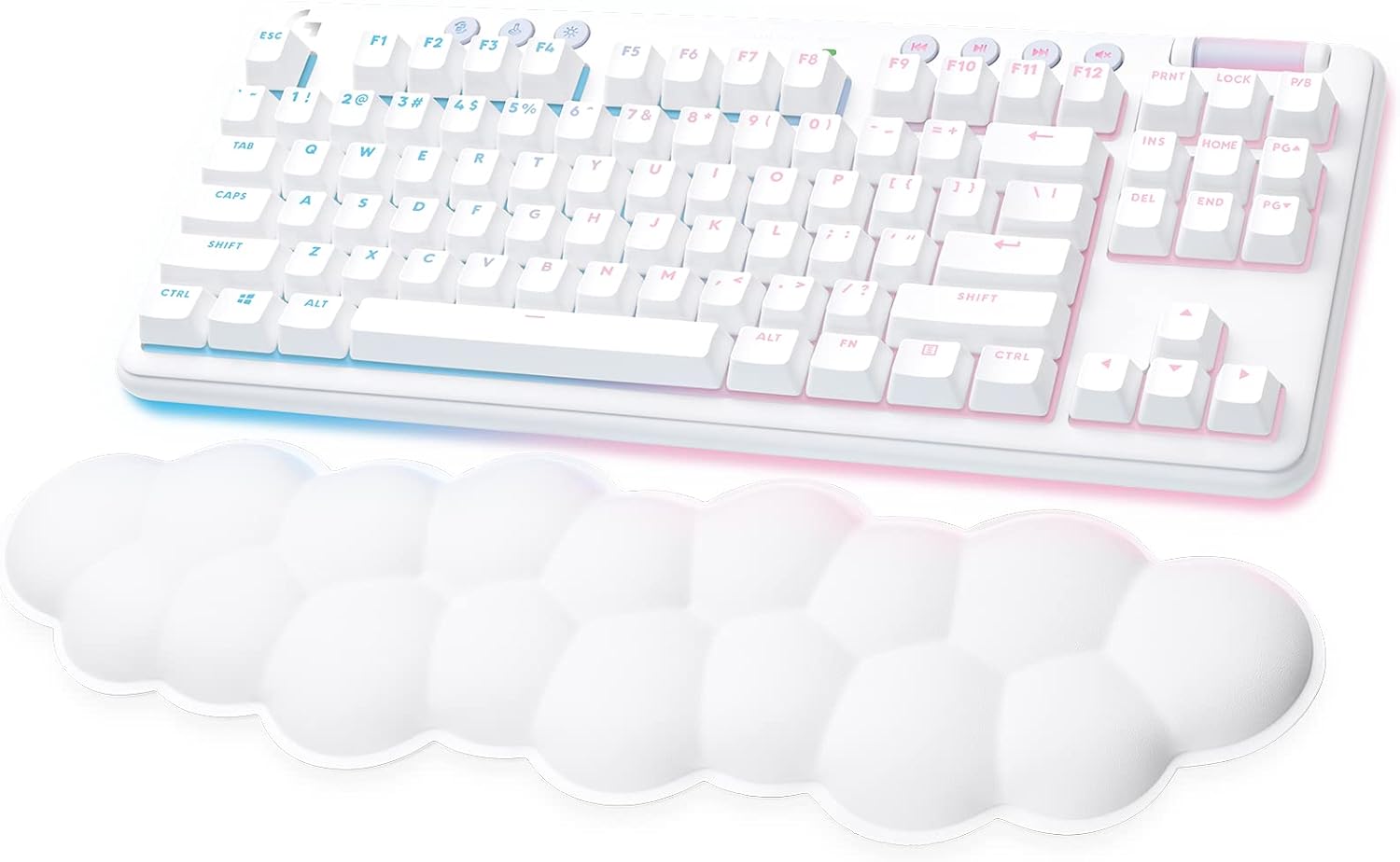
Figure 1: The Logitech G715 Wireless Mechanical Gaming Keyboard shown with its detachable cloud-shaped palm rest.
2. Setup
2.1 Initial Charging
Before first use, it is recommended to fully charge your keyboard. Connect the supplied USB-C to USB-A cable to the keyboard's USB-C port and the other end to a USB-A port on your computer or a USB power adapter. The keyboard's battery indicator light will show charging status.
2.2 Connectivity Options
The G715 keyboard offers two wireless connectivity modes: LIGHTSPEED wireless via the USB receiver and Bluetooth. You can also use the keyboard in wired mode by connecting the USB-C cable directly to your computer.
2.2.1 LIGHTSPEED Wireless Connection
- Locate the LIGHTSPEED USB receiver stored in the compartment on the underside of the keyboard.
- Plug the LIGHTSPEED USB receiver into an available USB-A port on your computer.
- Turn on the keyboard using the power switch located on the top edge of the keyboard. The keyboard should automatically connect to the receiver.

Figure 2: The G715 keyboard supports LIGHTSPEED wireless and Bluetooth connectivity for flexible use.
2.2.2 Bluetooth Connection
- Turn on the keyboard using the power switch.
- Press and hold the Bluetooth button (usually indicated by a Bluetooth icon) on the keyboard for 3 seconds until the indicator light flashes blue, indicating pairing mode.
- On your computer or device, navigate to Bluetooth settings and select "Logitech G715" from the list of available devices to pair.
2.3 Attaching the Palm Rest
The cloud-shaped palm rest attaches magnetically to the front edge of the keyboard for added comfort during use. Simply align the palm rest with the keyboard's front edge until it snaps into place.

Figure 3: The G715 keyboard features a comfortable, cloud-soft palm rest for ergonomic support.
3. Operating Instructions
3.1 Keyboard Layout and Features
The G715 is a tenkeyless (TKL) keyboard, meaning it lacks a dedicated numeric keypad, offering a more compact footprint. It includes dedicated media controls and a volume roller for convenient audio management.

Figure 4: Dedicated media controls and a volume roller provide quick access to audio functions.
3.2 LIGHTSYNC RGB Lighting
The keyboard features per-key and perimeter LIGHTSYNC RGB lighting. It comes with preloaded "Play Moods" animations. You can customize the lighting effects, colors (16.8 million programmable RGB colors), and animations using the free Logitech G HUB software.

Figure 5: Experience vibrant LIGHTSYNC RGB lighting with customizable effects.
3.3 Logitech G HUB Software
For full customization of your G715 keyboard, including RGB lighting, key assignments, and macros, download and install the Logitech G HUB software from the official Logitech G website. This software allows you to personalize your keyboard to suit your preferences and gaming style.
4. Maintenance
4.1 Cleaning the Keyboard
To clean your keyboard, use a soft, lint-free cloth. For stubborn dirt or spills, slightly dampen the cloth with water or a mild, non-abrasive cleaning solution. Avoid excessive moisture and do not spray cleaners directly onto the keyboard. The keycaps can be carefully removed for deeper cleaning, but ensure to reattach them correctly.
4.2 Battery Care
The G715 keyboard features a rechargeable lithium polymer battery. To maximize battery life, avoid fully discharging the battery frequently. Recharge the keyboard when the battery indicator is low. For prolonged storage, charge the battery to approximately 50% and store in a cool, dry place.
5. Troubleshooting
5.1 Connectivity Issues
- No Connection (LIGHTSPEED): Ensure the USB receiver is securely plugged into a working USB port. Try a different USB port. Make sure the keyboard is turned on.
- No Connection (Bluetooth): Ensure Bluetooth is enabled on your device. Re-enter pairing mode on the keyboard (hold Bluetooth button for 3 seconds) and re-pair with your device.
- Interference: Move the keyboard closer to your computer or device. Avoid placing the keyboard near other wireless devices that might cause interference.
5.2 Lighting Not Working / Customization Issues
- No Lights: Check if the keyboard is powered on and charged. Ensure the lighting is not turned off via the keyboard's dedicated lighting button or G HUB software.
- Customization Problems: Ensure Logitech G HUB software is installed and up to date. Restart the software or your computer.
5.3 Keyboard Not Responding
- Low Battery: Connect the keyboard to power using the USB-C cable.
- Firmware Update: Check Logitech G HUB for any pending firmware updates for the keyboard.
- Driver Issues: For PC users, ensure your operating system drivers are up to date.
6. Specifications
| Feature | Detail |
|---|---|
| Product Dimensions | 14.59 x 6.18 x 1.46 inches |
| Item Weight | 2.15 pounds |
| Manufacturer | Logitech |
| Model Number | 920-010453 |
| ASIN | B092LHVB4N |
| Batteries | 1 Lithium Polymer battery required (included) |
| Compatible Devices | Gaming Console, PC |
| Connectivity Technology | Bluetooth, LIGHTSPEED Wireless, Wired (USB-C) |
| Keyboard Description | Gaming, Tenkeyless (TKL) |
| Special Features | Backlit, Rechargeable, Wrist Rest, Dedicated Media Controls |
| Color | White Mist (RGB lighting) |
| Number of Keys | 87 |
| Switch Type | Tactile (GX Brown) |
7. Warranty and Support
Logitech G products are manufactured to high standards and are designed to provide reliable performance. This product is covered by a limited hardware warranty. For detailed warranty information, please refer to the warranty card included with your product or visit the official Logitech G support website.
For further assistance, troubleshooting guides, and the latest software downloads, please visit the Logitech G support page or refer to the full user manual:
Related documents920-010453


Ask a question about this manual
Ask about setup, troubleshooting, compatibility, parts, safety, or missing instructions. Manuals+ will review the question and use this page’s manual context to help answer it.