
Andoer KB1
Andoer GMK KB1 Mini PC User Manual
Model: KB1 | Brand: Andoer
Introduction
This manual provides comprehensive instructions for the setup, operation, and maintenance of your Andoer GMK KB1 Mini PC. Please read this manual thoroughly before using the device to ensure proper functionality and longevity. The GMK KB1 is a compact, high-performance mini PC designed for various applications, from daily computing to 4K entertainment.
Product Overview
The Andoer GMK KB1 Mini PC is a small form factor computer featuring an Intel Celeron J4125 processor, Intel UHD Graphics 600, 8GB of LPDDR4 RAM, and 512GB SSD storage. It supports dual-band Wi-Fi and Bluetooth connectivity, offering versatile usage options.

Figure 1: Front view of the Andoer GMK KB1 Mini PC, showcasing its compact design and power button.

Figure 2: The GMK KB1 Mini PC integrated into a typical desk environment, highlighting its small footprint and suitability for productivity and entertainment.

Figure 3: Diagram illustrating the core features including Palm-Size & Lightweight, Intel Celeron J4125 Processor, Intel UHD Graphics 600, 8GB RAM, 512GB SSD Storage, Multiple I/O Interfaces, 4K UHD Video Output, 867Mb/s Dual Band WiFi, Stable BT Connection, Quiet Thermal Engineering, Textured Metal Design, Supports Multiple Systems, and Compact USB-C Charger.

Figure 4: Internal view highlighting the 8GB LPDDR4 memory and 512GB SSD storage, emphasizing fast boot-up and app launch times. It also shows dual-channel 8GB LPDDR4 Controller, Up to 512GB High-Speed SSD, and 5 times Faster than eMMC Storage.

Figure 5: Illustration of the built-in Bluetooth feature, enabling pairing with various BT-enabled devices such as mice, keyboards, and speakers. Also indicates WiFi 2x2 AC 867Mbps.

Figure 6: The GMK KB1 Mini PC connected to various display devices: a TV, a monitor, and a projector, demonstrating its versatility for different setups.
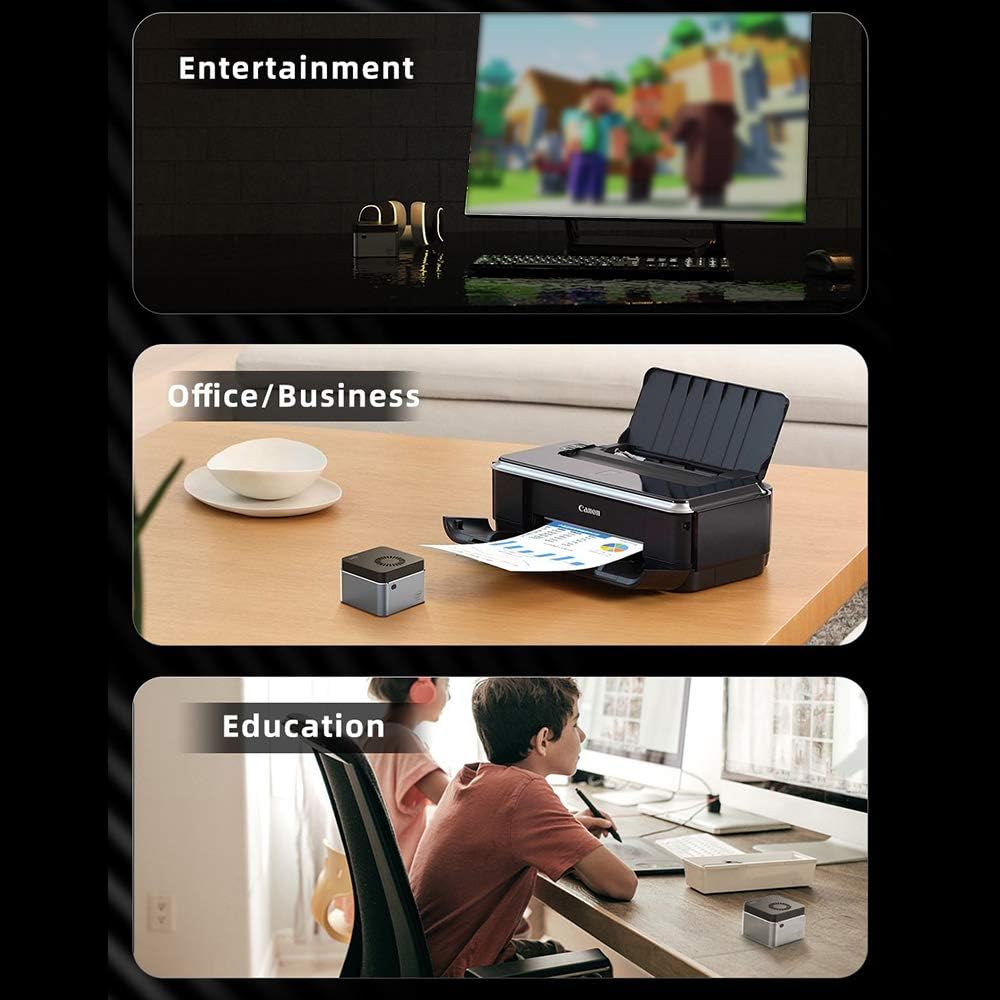
Figure 7: Examples of the Mini PC's application in different environments: for entertainment (watching movies), office/business tasks (printing documents), and educational purposes (studying).

Figure 8: Visual representation of the compact and lightweight design, showing dimensions (2.4x2.4x1.6 inches) and weight (0.27 lbs), highlighting its portability and premium textured metal design.

Figure 9: Detailed view of the Intel Celeron J4125 CPU, emphasizing its 4-core, 4-thread architecture with up to 2.7GHz frequency, contributing to fluent and quick response performance.
Setup Guide
- Unpack the Device: Carefully remove the Mini PC and all accessories from the packaging.
- Connect to Display: Connect your monitor, TV, or projector to the Mini PC using an HDMI cable. Ensure the display device is set to the correct input source.
- Connect Peripherals: Plug in your USB keyboard and mouse into the available USB ports. For Bluetooth peripherals, refer to the "Operating Instructions" section for pairing.
- Connect Power Adapter: Insert the power adapter into the DC-in port on the Mini PC, then plug the adapter into a power outlet.
- Power On: Press the power button located on the front of the Mini PC. The power indicator light will illuminate.
- Initial Setup: Follow the on-screen instructions to complete the Windows 10 Home operating system setup, including language, region, network connection, and user account creation.
Operating Instructions
Power On/Off
- To Power On: Press the power button once.
- To Shut Down: Click the Start button in Windows, then select Power > Shut down.
- To Restart: Click the Start button in Windows, then select Power > Restart.
- To Sleep: Click the Start button in Windows, then select Power > Sleep.
Connecting to Network
- Wi-Fi: After initial setup, click the Wi-Fi icon in the system tray, select your network, enter the password, and click Connect.
- Ethernet: Connect an Ethernet cable from your router or modem to the LAN port on the Mini PC. The connection will be established automatically.
Bluetooth Pairing
- Go to Windows Settings > Devices > Bluetooth & other devices.
- Ensure Bluetooth is turned On.
- Click "Add Bluetooth or other device" and select "Bluetooth".
- Put your Bluetooth device into pairing mode.
- Select your device from the list and follow the on-screen prompts to complete pairing.
Maintenance
- Cleaning: Use a soft, dry cloth to clean the exterior of the Mini PC. Do not use liquid cleaners or aerosols. For dust accumulation in vents, use compressed air. Ensure the device is powered off and unplugged before cleaning.
- Software Updates: Regularly check for and install Windows updates to ensure system stability, security, and performance. Go to Settings > Update & Security > Windows Update.
- Driver Updates: Periodically check the manufacturer's website for updated drivers for components like graphics and Wi-Fi.
- Storage Management: Regularly clear temporary files and unnecessary programs to maintain optimal storage performance.
Troubleshooting
| Problem | Possible Cause | Solution |
|---|---|---|
| No power / Device does not turn on. | Power adapter not connected properly; Power outlet issue; Faulty power adapter. | Ensure power adapter is securely connected to both the Mini PC and a working power outlet. Try a different outlet. |
| No display on monitor. | HDMI cable loose or faulty; Incorrect display input selected on monitor; Monitor not powered on. | Check HDMI cable connections. Ensure monitor is powered on and set to the correct input source (e.g., HDMI 1, HDMI 2). |
| No Wi-Fi connection. | Wi-Fi disabled; Incorrect password; Router issue; Driver issue. | Ensure Wi-Fi is enabled in Windows settings. Verify Wi-Fi password. Restart your router. Check for updated Wi-Fi drivers. |
| Bluetooth device not pairing. | Bluetooth disabled; Device not in pairing mode; Interference. | Ensure Bluetooth is enabled in Windows settings. Put the Bluetooth device into pairing mode. Move closer to the Mini PC and away from other wireless devices. |
| System is slow or unresponsive. | Too many applications running; Low disk space; Malware; Outdated drivers. | Close unnecessary applications. Free up disk space. Run a malware scan. Update drivers and Windows. |
Specifications
| Feature | Detail |
|---|---|
| Brand | Andoer |
| Series | KB1 |
| Form Factor | Small Form Factor |
| Processor Brand | Intel |
| Processor Type | Celeron J4125 |
| Processor Speed | 2.7 GHz (Max Burst) |
| RAM Size | 8 GB |
| Memory Technology | LPDDR4 |
| Hard Disk Description | SSD |
| Memory Storage Capacity | 512 GB |
| Graphics Coprocessor | Intel UHD Graphics 600 |
| Graphics RAM Type | DDR4 SDRAM |
| Connectivity Type | Wi-Fi (802.11a/b/g/n/ac, 5 GHz), Bluetooth |
| Operating System | Windows 10 Home |
| Dimensions | Approx. 2.4 x 2.4 x 1.6 inches |
| Weight | Approx. 0.27 lbs |
Warranty and Support
For warranty information and technical support, please refer to the documentation provided with your purchase or contact the seller directly. Additional protection plans may be available for purchase, such as extended warranty or accidental damage protection plans. Please consult your retailer for details on these options.
For general inquiries or troubleshooting not covered in this manual, please visit the official Andoer support website or contact their customer service.
Ask a question about this manual
Ask about setup, troubleshooting, compatibility, parts, safety, or missing instructions. Manuals+ will review the question and use this page’s manual context to help answer it.