
1. Product Overview
The EPOS Adapt 130T USB II is a wired, single-sided headset designed for professional communication. It offers superior sound quality and enhanced comfort for extended use. This headset is certified for Microsoft Teams and optimized for Unified Communications (UC), ensuring seamless integration with your business tools.
Key Features:
- Microsoft Teams certified and UC optimized for professional communication.
- Single-sided design allows awareness of surroundings.
- Plug and play USB connectivity for quick setup.
- Integrated call control and microphone for clear communication.
- Lightweight design (4 ounces) with enhanced comfort for long workdays.
2. What's in the Box
Upon opening your EPOS Adapt 130T USB II Headset package, you should find the following items:
- EPOS Adapt 130T USB II Headset
- User Manual (this document)
- Safety Guide
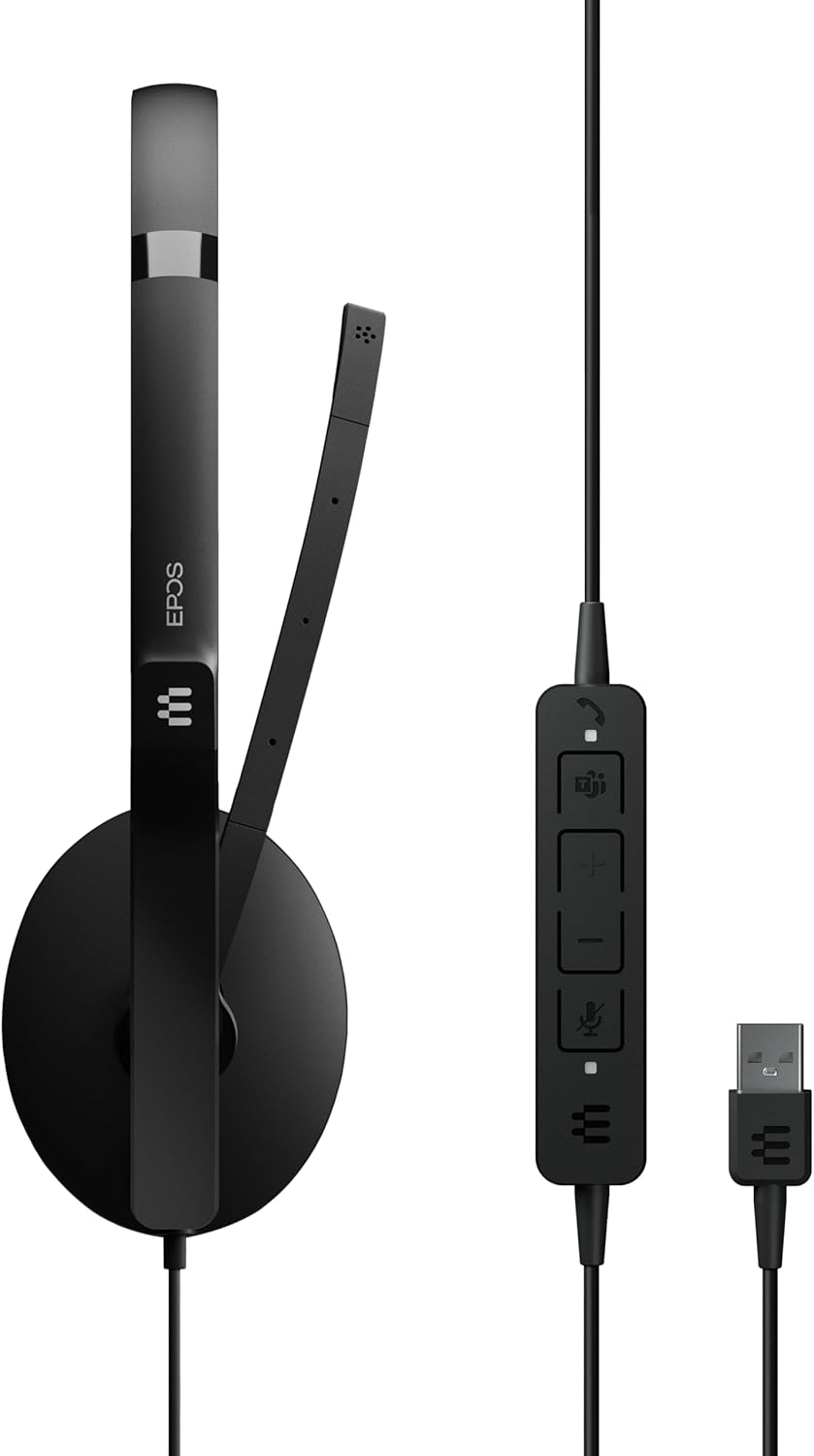
Image: The EPOS Adapt 130T USB II Headset, showcasing the single earcup, adjustable headband, microphone boom, inline call controls, and USB-A connector.
3. Setup Instructions
The EPOS Adapt 130T USB II Headset features plug-and-play functionality, making setup quick and straightforward.
- Connect the Headset: Locate an available USB-A port on your computer (PC or Mac). Insert the USB-A connector of the headset into the USB port.
- System Recognition: Your operating system should automatically detect and install the necessary drivers for the headset. This may take a few moments.
- Verify Audio Settings: Once connected, open your computer's sound settings or the settings within your communication application (e.g., Microsoft Teams, Zoom, Skype). Ensure that the EPOS Adapt 130T USB II is selected as both the input (microphone) and output (speaker) device.
- Adjust Fit: Place the headset on your head with the earcup over one ear. Adjust the headband for a comfortable fit. Position the microphone boom approximately two fingers' width from your mouth for optimal voice pickup.

Image: Front view of the EPOS Adapt 130T USB II Headset, showing the earcup and microphone boom in position.
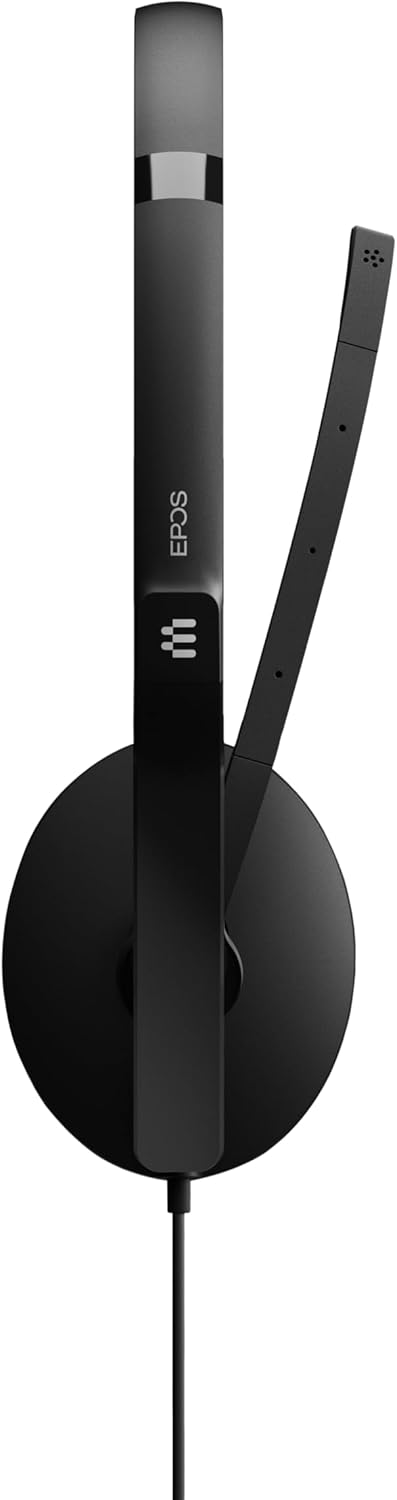
Image: Side view of the EPOS Adapt 130T USB II Headset, highlighting the single earcup and the flexible microphone arm.
4. Operating Instructions
The headset features an inline control unit for easy management of calls and audio settings.
Inline Control Unit Functions:

Image: A detailed view of the inline control unit, showing the various buttons for call management and volume adjustment.
- Answer/End Call Button: Press to answer an incoming call or end an active call. (Typically represented by a phone icon).
- Volume Up (+): Press to increase the listening volume.
- Volume Down (-): Press to decrease the listening volume.
- Microphone Mute Button: Press to mute or unmute your microphone. An indicator light on the control unit may show the mute status. (Typically represented by a microphone icon).
- Microsoft Teams Button: For MS Teams certified models, this button can be used to launch Teams, bring the Teams window to the foreground, or answer/end Teams calls.
Microphone Positioning:
For optimal voice clarity, position the microphone boom so that the microphone is approximately 2 cm (0.8 inches) from the corner of your mouth. The boom is flexible and can be adjusted.
5. Maintenance
Proper care and maintenance will extend the life of your headset and ensure optimal performance.
- Cleaning: Use a soft, dry cloth to wipe the headset. For ear cushions, a slightly damp cloth with mild soap can be used, but ensure they are completely dry before use. Do not use harsh chemicals or abrasive cleaners.
- Storage: When not in use, store the headset in a clean, dry place, away from extreme temperatures and direct sunlight. Avoid tangling the cable.
- Cable Care: Do not pull on the cable to disconnect the headset. Always grasp the USB connector. Avoid sharp bends or kinks in the cable.
- Avoid Moisture: The headset is not water-resistant. Keep it away from liquids and high humidity.
6. Troubleshooting
If you encounter issues with your headset, try the following troubleshooting steps:
- No Sound/Microphone Not Working:
- Ensure the headset is securely plugged into a USB port.
- Check your computer's sound settings to confirm the EPOS Adapt 130T USB II is selected as the default playback and recording device.
- Verify that the microphone is not muted via the inline control unit or within your communication software.
- Try plugging the headset into a different USB port or another computer to rule out port or system issues.
- Poor Audio Quality:
- Adjust the volume using the inline controls and your computer's settings.
- Ensure the microphone is correctly positioned near your mouth.
- Check for any software updates for your operating system or communication applications.
- Inline Controls Not Responding:
- Unplug and re-plug the headset.
- Restart your computer.
- Ensure your communication software is up-to-date.
7. Specifications
| Feature | Specification |
|---|---|
| Brand | EPOS |
| Model Name | ADAPT 130T USB II |
| Model Number | 1000899 |
| Color | Black |
| Connectivity Technology | Wired (USB) |
| Ear Placement | On Ear (Single-sided) |
| Form Factor | On Ear |
| Impedance | 32 Ohms |
| Frequency Response | 8000 Hz |
| Frequency Range | 20 Hz - 20,000 Hz |
| Control Type | Call Control |
| Noise Control | Passive Noise Cancellation |
| Item Weight | 4 Ounces |
| Compatible Devices | Tablets, Mobile Phones, PCs with Softphone Capabilities |
| Water Resistance Level | Not Water Resistant |
8. Warranty and Support
Warranty Information:
This EPOS Adapt 130T USB II Headset comes with a 2-year manufacturer's warranty. Please retain your proof of purchase for warranty claims.
Customer Support:
For further assistance, technical support, or to explore other EPOS products, please visit the official EPOS store or contact their customer service.
Official EPOS Store: EPOS Store on Amazon
9. Product Video
Video: An official product video showcasing the EPOS Adapt 130T USB II Headset, highlighting its features and design. Duration: 1 minute 15 seconds.


