
Introduction
Thank you for choosing the ODK ZJZ-1847-W Mini Desk. This manual provides detailed instructions for the assembly, operation, and maintenance of your new desk. Please read this manual thoroughly before assembly and use to ensure proper setup and safe operation. Keep this manual for future reference.

Image: The ODK ZJZ-1847-W Mini Desk, white with a black metal frame, shown in a room with a laptop, printer, and decorative items.
Safety Information
- Always follow the assembly instructions carefully.
- Ensure all screws and fasteners are securely tightened before use. Periodically check and retighten if necessary.
- Do not overload the desk or shelves. Refer to the 'Specifications' section for maximum weight recommendations.
- Keep small parts away from children during assembly to prevent choking hazards.
- Place the desk on a level surface to prevent tipping. Use the adjustable foot pads to stabilize the desk on uneven floors.
- Avoid placing hot items directly on the desk surface without protection.
Package Contents
Please verify that all components are present before beginning assembly. If any parts are missing or damaged, please contact customer support.
- Desktop Panel
- Monitor Shelf Panel
- Lower Storage Shelf Panel
- R-shaped Steel Frame Components
- Adjustable Foot Pads
- Assembly Hardware (screws, bolts, Allen wrench)
- Instruction Manual
Setup and Assembly
Assembly is required for this desk. It is recommended to assemble the desk on a soft, clean surface to prevent scratches. Two people may be helpful for certain steps.
- Unpack all components and lay them out on a protected surface. Verify all parts against the package contents list.
- Attach the R-shaped steel frame components together using the provided hardware. Ensure all connections are firm but do not overtighten initially.
- Secure the desktop panel to the assembled steel frame.
- Install the lower storage shelf panel onto the frame.
- Attach the monitor shelf panel to the designated supports on the frame.
- Screw the adjustable foot pads into the bottom of the desk legs.
- Once all components are in place, tighten all screws and bolts securely.
- Adjust the foot pads to ensure the desk is stable and level on your floor.

Image: A detailed diagram illustrating the dimensions of the ODK Mini Desk, including the main desktop, monitor shelf, and lower storage shelf, with measurements in inches and weight capacities in pounds.
Operating Instructions
The ODK Mini Desk is designed for versatility and functionality in compact spaces.
Monitor Shelf Usage
The integrated monitor shelf is designed to elevate your monitor, promoting better posture and reducing strain on your neck and back. This shelf also provides additional storage space underneath for small items.
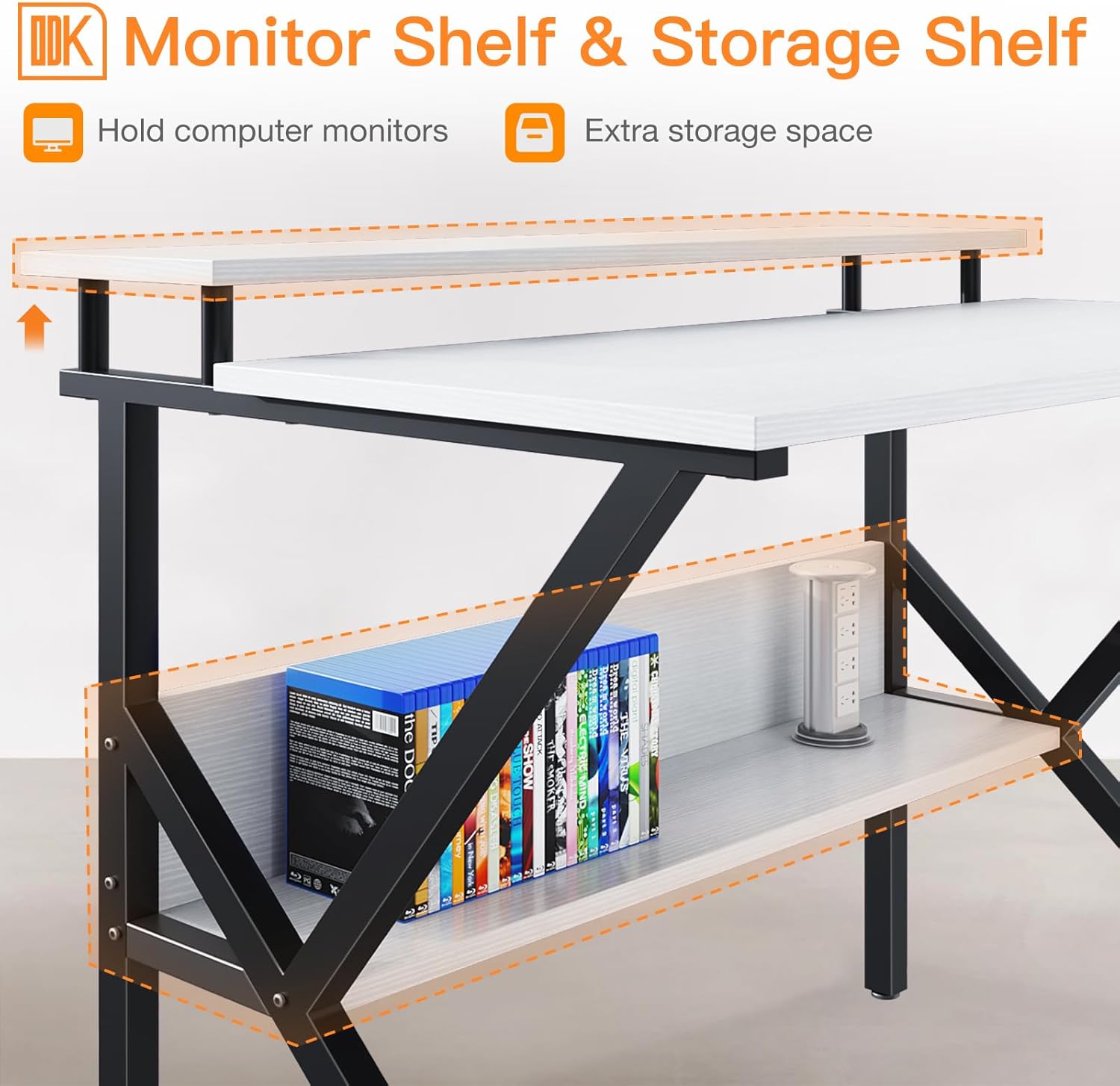
Image: A close-up of the monitor shelf and lower storage shelf, demonstrating their use for holding a monitor, books, and other office supplies.
Dual-Purpose Desktop
The monitor shelf can be removed if you prefer a deeper desktop surface, suitable for larger laptops or more expansive work areas. Simply detach the monitor shelf from its supports to convert the desk.

Image: A visual comparison showing the desk configured as a computer desk with a monitor shelf (A) and as a laptop desk with a deeper desktop (B) after removing the monitor shelf.
Lower Storage Shelf
The lower storage shelf provides convenient access to books, binders, and other office essentials, helping to keep your workspace organized and clutter-free.
Maintenance
Proper care will extend the life and appearance of your ODK Mini Desk.
- Cleaning: Wipe the desk surfaces with a soft, damp cloth. Avoid using harsh chemicals or abrasive cleaners, as these can damage the particleboard finish.
- Spills: The desktop is designed to be waterproof. In case of spills, wipe them immediately with a dry cloth to prevent water damage.
- Scratches: The desktop is scratch-resistant, but avoid dragging sharp or heavy objects across the surface to maintain its appearance.
- Stability: Periodically check all screws and bolts to ensure they remain tight. Re-tighten if any looseness is detected.

Image: A visual representation of the premium particleboard desktop material, emphasizing its easy-to-clean, scratch-resistant, and waterproof properties.
Troubleshooting
- Desk is wobbly: Ensure all assembly screws are fully tightened. Adjust the foot pads on each leg to compensate for uneven floor surfaces.
- Missing parts: Double-check the packaging and compare with the 'Package Contents' list. If parts are genuinely missing, contact customer support for assistance.
- Difficulty with assembly: Review the 'Setup and Assembly' section. Ensure you are using the correct hardware for each step. Do not force components together.
Specifications
| Brand | ODK |
| Model Number | ZJZ-1847-W |
| Color | White |
| Product Dimensions (L x W x H) | 168 x 120 x 75 cm (approximately 66.1 x 47.2 x 29.5 inches) |
| Material | Particleboard (Desktop), Steel (Frame) |
| Item Weight | 454 g (approximately 1 lb) |
| Maximum Weight Recommendation | 220.4 lbs |
| Assembly Required | Yes |
Warranty Information
Specific warranty details for the ODK ZJZ-1847-W Mini Desk are not provided in this manual. Please refer to the product packaging or the retailer's website for information regarding warranty coverage and terms. Keep your proof of purchase for any warranty claims.
Customer Support
If you have any questions, require assistance with assembly, or need to report missing/damaged parts, please contact ODK customer support through the retailer's platform or the official ODK website. Have your model number (ZJZ-1847-W) and purchase information ready when contacting support.