
Introduction
Thank you for choosing the 7KEYS Typewriter Keyboard. This retro-style mechanical keyboard combines vintage aesthetics with modern technology, offering versatile connectivity and a unique typing experience. This manual provides detailed instructions for setup, operation, and maintenance to ensure optimal performance and longevity of your device.
Package Contents
Please check the package carefully to ensure all items are present:
- 7KEYS Typewriter Keyboard (Model TW1869/TW1867Pro)
- USB Cable (Type-C)
- Mechanical Switch Puller
- User Manual
- Dust Cover
- Hand Support (Wrist Rest)
- Spring Power Cable
- Receiver (for 2.4G wireless connection)

Figure 1: Included items in the 7KEYS Typewriter Keyboard package. This includes the keyboard, USB cable, mechanical switch puller, user manual, dust cover, hand support, spring power cable, and receiver.
Product Features
- Retro Typewriter Design: Features aluminum alloy metal electroplated wood grain panels, mate black pull rods and rollers, and electroplated round key caps for a classic vintage aesthetic.
- Versatile Connectivity: Supports Bluetooth 5.0 for fast switching between up to three devices (A, B, or C), 2.4G wireless via receiver, and wired USB-C connection for broad compatibility.
- Mechanical Blue Switches: Equipped with hot-swappable blue switches, providing a tactile and audible "click" reminiscent of traditional typewriters.
- Adjustable White LED Backlight: Customize your typing experience with various white LED light modes, adjustable via the lever and brightness control wheel.
- Integrated Tablet/Phone Stand: Designed with a built-in slot to securely hold your smartphone or tablet, transforming your setup into a compact workstation.
- Multimedia Controls: Dedicated knobs for volume and brightness adjustment, along with function keys for multimedia control.
- Portable Design: Compact dimensions (12.8 inches length, 6.65 inches width) make it easy to transport in a 13-inch computer bag.
- Rechargeable Battery: Built-in 2000mA rechargeable battery for extended use.

Figure 2: The 7KEYS Typewriter Keyboard showcasing its retro design, round keycaps, and white LED backlighting. A comfortable wrist rest is also shown.

Figure 3: Ergonomic design of the keyboard, featuring a 15-degree typing angle for comfortable use. The integrated stand supports various sizes of tablets and phones.

Figure 4: The keyboard's sleek, elegant, compact, and portable design, making it easy to store in a bag for travel.
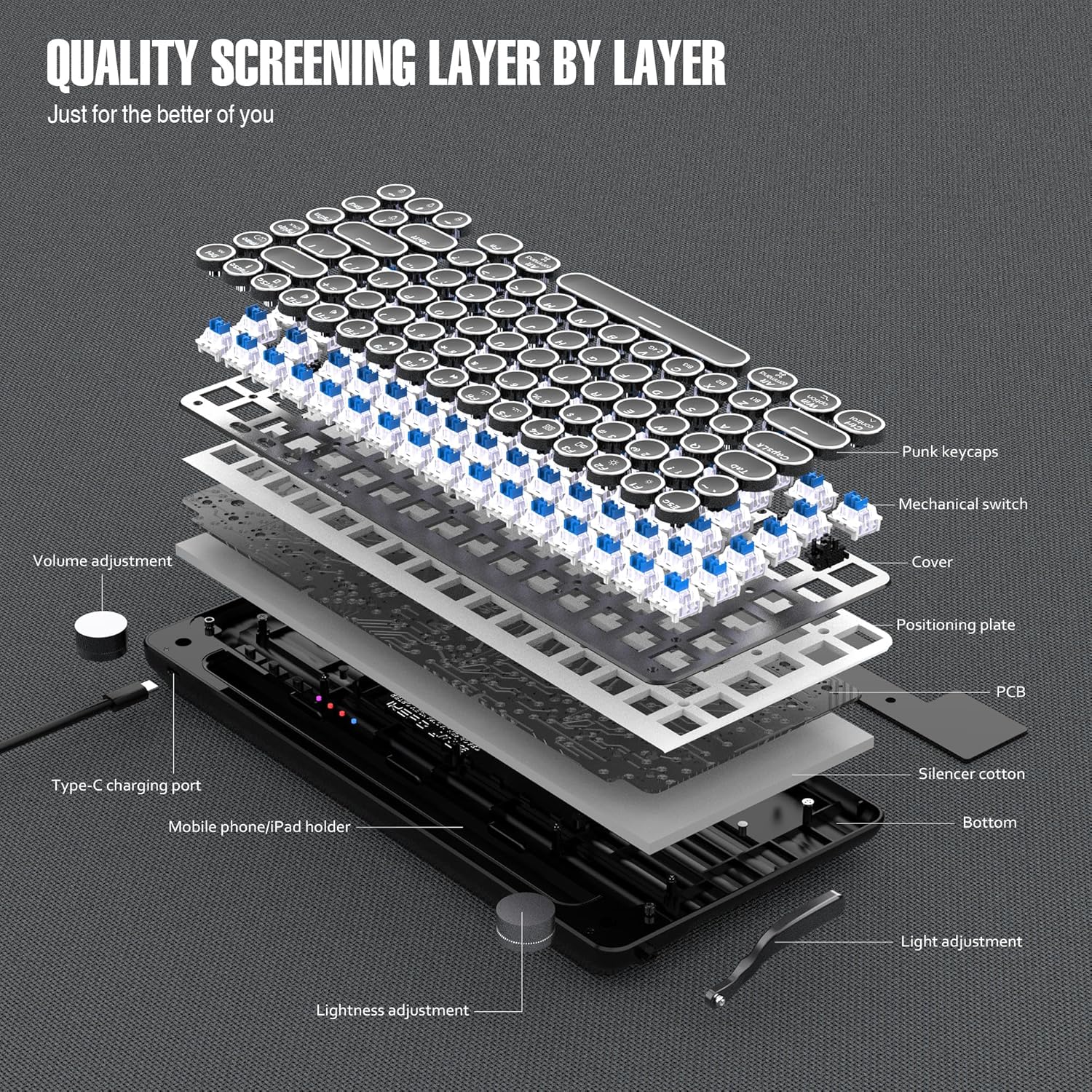
Figure 5: An exploded diagram illustrating the internal components and quality construction of the keyboard, including punk keycaps, mechanical switches, cover, positioning plate, PCB, silencer cotton, and bottom casing.
Official Product Video
Video 1: An official product video from 7KEYS showcasing the Wireless Typewriter Keyboard Mini and its vintage style, highlighting its features and design.
Setup
1. Powering On and Charging
Before first use, fully charge the keyboard using the provided USB-C cable. Connect the USB-C end to the keyboard's charging port and the USB-A end to a compatible power source (e.g., computer USB port, USB wall adapter).
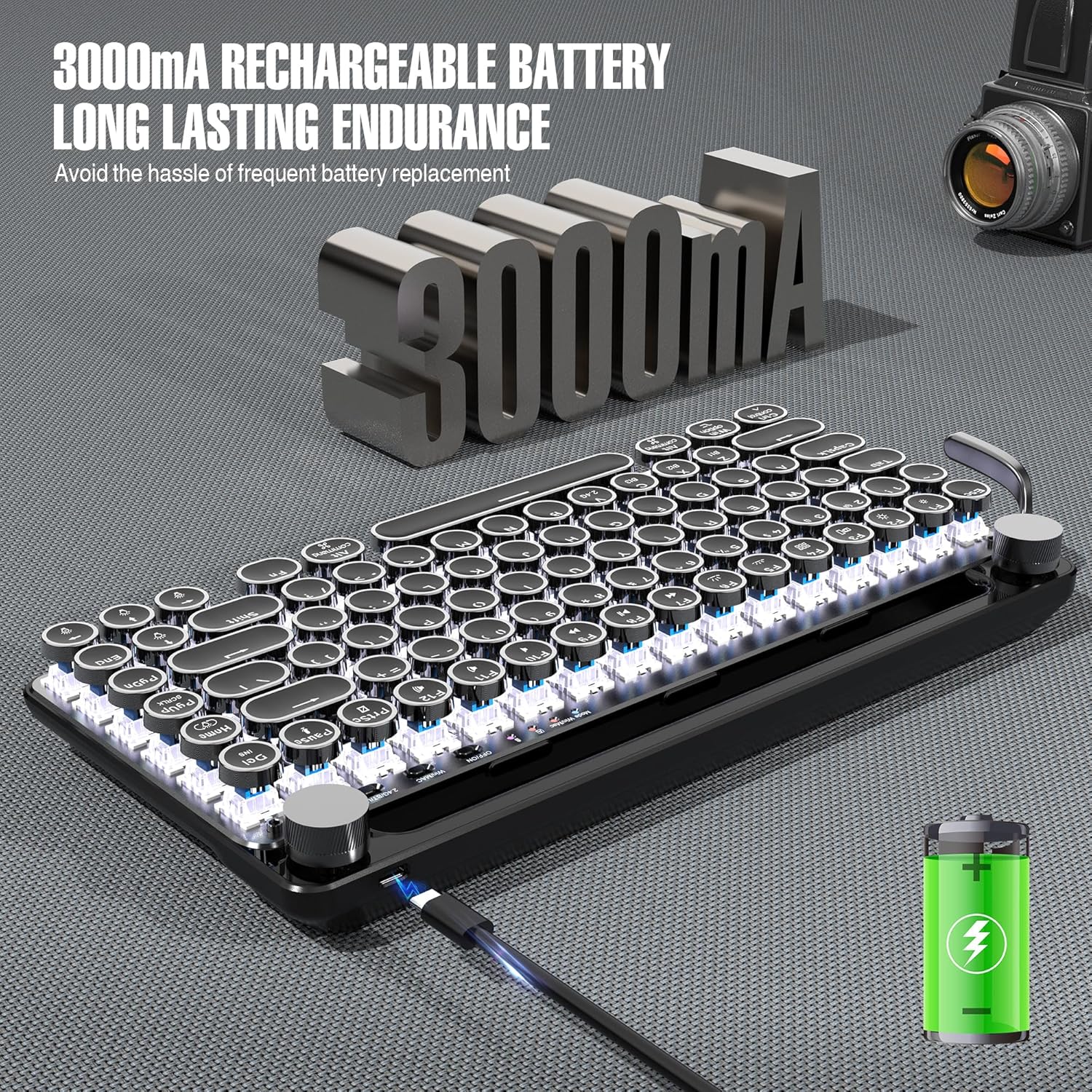
Figure 6: The keyboard's built-in rechargeable battery (2000mA) being charged via the Type-C USB cable, ensuring long battery life for gaming and office use.
2. Connecting the Keyboard
The 7KEYS keyboard offers three connection modes: Bluetooth, 2.4G Wireless, and Wired USB-C.
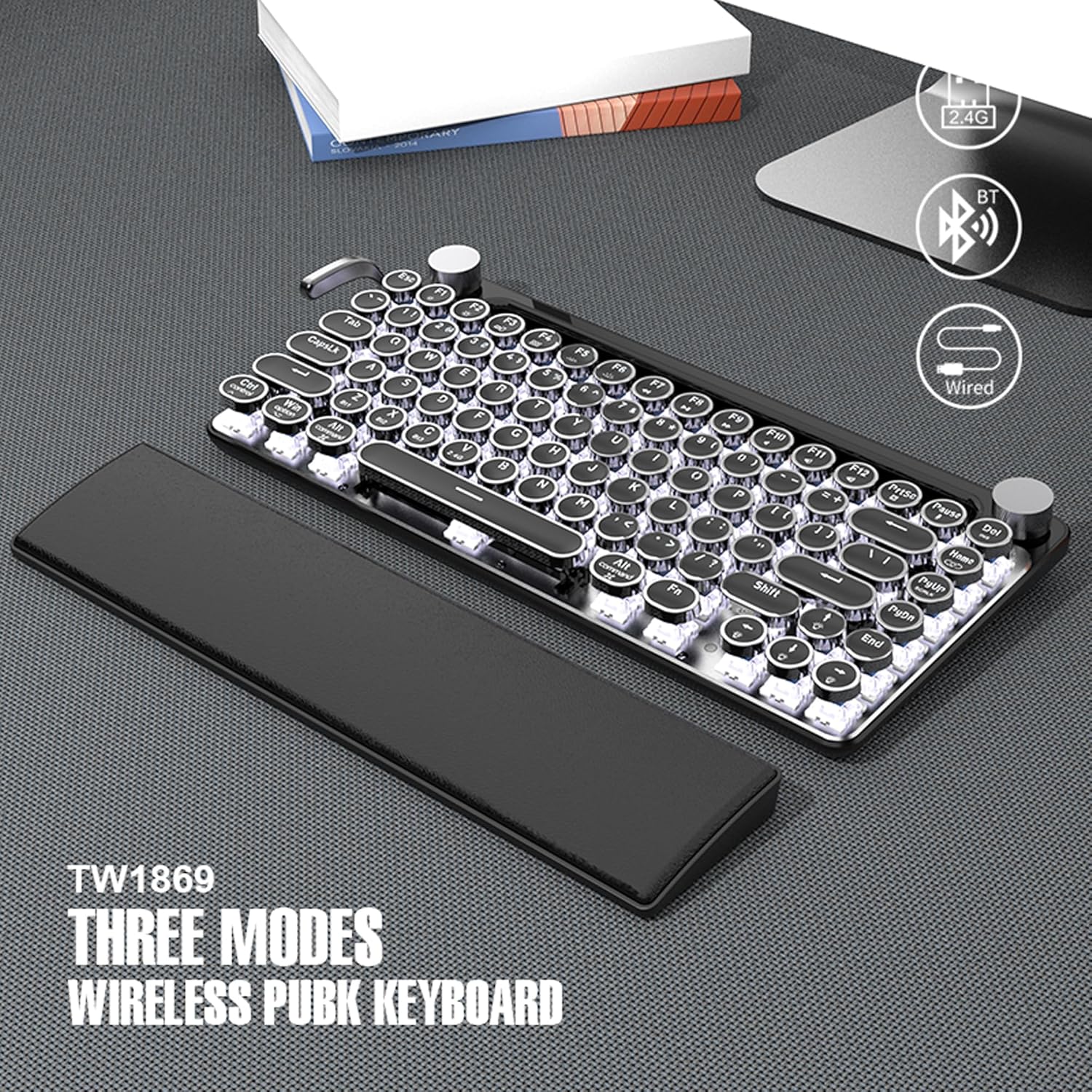
Figure 7: The keyboard supports three connection modes: 2.4G wireless, Bluetooth, and wired USB. This provides flexibility for various devices and usage scenarios.
Bluetooth Connection:
- Ensure the keyboard is powered on.
- Press and hold the Fn key and one of the Bluetooth keys (A, B, or C) for 3-5 seconds until the indicator light flashes, indicating pairing mode.
- On your device (smartphone, tablet, laptop), enable Bluetooth and search for "7KEYS Keyboard" or similar.
- Select the keyboard from the list to pair. The indicator light will become solid once connected.
- Repeat for up to three different devices using A, B, and C channels. Switch between paired devices by pressing Fn + A/B/C.
2.4G Wireless Connection:
- Insert the 2.4G USB receiver into an available USB port on your computer.
- Ensure the keyboard is powered on and in 2.4G mode (refer to manual for specific key combination if needed, usually indicated by an icon).
- The keyboard should automatically connect to the receiver.
Wired USB-C Connection:
- Connect the provided USB-C cable to the keyboard's USB-C port.
- Connect the other end of the cable to a USB port on your computer.
- The keyboard will be recognized as a wired device and begin charging simultaneously.
3. Compatibility
The 7KEYS Typewriter Keyboard is compatible with a wide range of operating systems, including:
- Android devices
- Windows 10 and later
- iOS devices (iPad, iPhone)
- Mac OS (MacBook, iMac, Mac Mini)
For optimal performance, ensure your device's operating system is up to date.
Operating Instructions
1. Key Functions and Layout
The keyboard features a standard QWERTY layout with additional function keys and unique control elements:
- Round Keycaps: Designed for comfortable typing and a vintage feel.
- Left Lever: Functions as a backlight mode switch. Pulling the lever cycles through 14 different white LED light effects.
- Left Knob: Controls the brightness of the LED backlight. Rotate to adjust intensity.
- Right Knob: Functions as a volume control for your connected device. Rotate to adjust volume.
- FN Key Combinations: Use the Fn key in combination with F1-F12 keys for multimedia controls (e.g., play/pause, next/previous track, mute).
2. Hot-Swappable Switches
The keyboard features hot-swappable blue mechanical switches, allowing you to easily replace them without soldering. This enables customization of your typing feel.
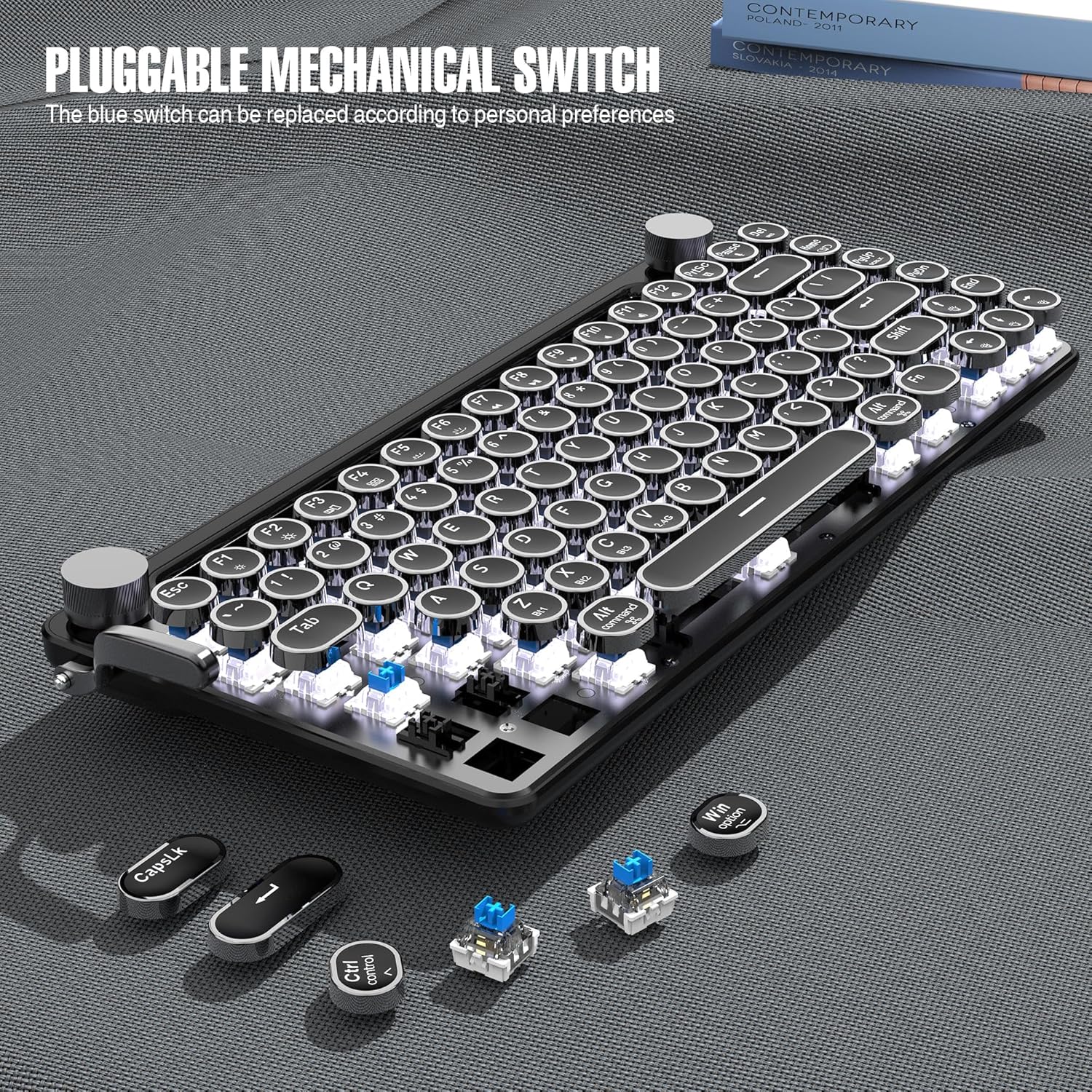
Figure 8: Illustration of the pluggable mechanical switches. The blue switches can be replaced according to personal preferences using the included switch puller.
To replace a switch:
- Gently pull the keycap off using the keycap puller (if needed).
- Use the switch puller to carefully grip the switch from its top and bottom clips.
- Pull the switch straight up to remove it from the PCB.
- Align the pins of the new switch with the holes on the PCB and press firmly until it clicks into place.
- Reattach the keycap.
Maintenance
- Cleaning: Regularly wipe the keyboard surface with a soft, dry, lint-free cloth. For deeper cleaning, remove keycaps and use compressed air to clear debris from between switches.
- Avoid Liquids: Do not expose the keyboard to liquids. If spills occur, immediately disconnect power and allow to dry completely before re-use.
- Storage: When not in use, store the keyboard in a cool, dry place. Use the provided dust cover to protect it from dust and spills.
- Battery Care: To prolong battery life, avoid fully discharging the keyboard frequently. Charge it when the low battery indicator appears.
Troubleshooting
| Problem | Possible Cause | Solution |
|---|---|---|
| Keyboard not connecting via Bluetooth. | Keyboard not in pairing mode; device Bluetooth off; interference. | Ensure keyboard is in pairing mode (Fn + A/B/C). Turn device Bluetooth off/on. Move closer to device. |
| Keys not responding or typing incorrectly. | Low battery; loose switch; incorrect mode. | Charge the keyboard. Check if switches are properly seated. Ensure correct connection mode (Bluetooth/2.4G/Wired). |
| Backlight not working or stuck. | Backlight turned off; low battery. | Use the left lever to cycle through backlight modes. Adjust brightness with the left knob. Charge the keyboard. |
| Volume knob not controlling device volume. | Compatibility issue; device settings. | Ensure your device supports external volume control via keyboard. Check device sound settings. |
Specifications
| Model Number | TW1867Pro |
| Connectivity | Bluetooth 5.0, 2.4G Wireless, USB-C Wired |
| Battery Capacity | 2000mAh Lithium Polymer |
| Key Switches | Hot-swappable Blue Mechanical Switches |
| Backlight | White LED (14 effects) |
| Dimensions | 12.99 x 5.98 x 1.81 inches (33 x 15.2 x 4.6 cm) |
| Item Weight | 1.9 pounds (0.86 kg) |
| Compatibility | Android, Windows 10, iOS, Mac OS |
Warranty and Support
7KEYS keyboards offer lifetime after-sales quality service. For any questions, technical support, or warranty claims, please contact our customer service team through the platform where you purchased the product or visit the official 7KEYS store.
Online Store: 7KEYS Official Store on Amazon
