
SiliconDust HDFX-4K
SiliconDust HDHomeRun Flex 4K User Manual
Model: HDFX-4K
1. Introduction
The SiliconDust HDHomeRun Flex 4K (Model HDFX-4K) is a network-attached TV tuner designed to receive over-the-air (OTA) ATSC 1.0 and ATSC 3.0 (NextGen TV) broadcasts. This device allows you to watch live television on multiple devices simultaneously throughout your home network, including smartphones, tablets, computers, and compatible streaming devices. It features four tuners, with two capable of ATSC 3.0 reception, and supports optional DVR functionality when a USB hard drive is connected.
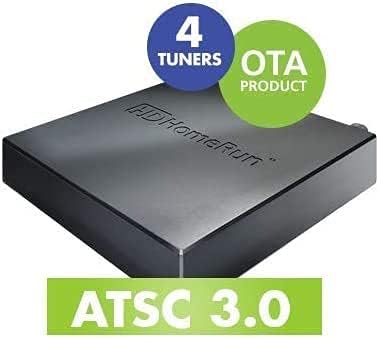
Image: The HDHomeRun Flex 4K, highlighting its four tuners and ATSC 3.0 capability.
2. What's in the Box
Verify that all components are present in the packaging:
- HDHomeRun Flex 4K (HDFX-4K) device
- Network cable (Ethernet)
- Power adapter
3. Product Overview
The HDHomeRun Flex 4K is a compact device designed for seamless integration into your home network. It features essential ports for connectivity and an indicator light for operational status.

Image: Top view of the HDHomeRun Flex 4K unit, showing its sleek, dark gray casing with the HDHomeRun logo.

Image: Rear panel of the HDHomeRun Flex 4K, showing the antenna connection, USB hard drive port, Ethernet connection, and power input.
- Antenna Connection: F-type coaxial connector for connecting your over-the-air antenna.
- USB Hard Drive: USB port for connecting an external USB hard drive for DVR functionality (requires paid TV guide service).
- Ethernet Connection: RJ45 port for connecting the device to your home router via an Ethernet cable.
- Power: Input for the included power adapter.
4. Setup
- Connect Antenna: Connect your digital TV antenna to the "Antenna connection" port on the back of the HDHomeRun Flex 4K.
- Connect to Network: Use the provided Ethernet cable to connect the "Ethernet connection" port on the HDHomeRun Flex 4K to an available LAN port on your home router.
- Connect Power: Plug the power adapter into the "Power" port on the device, then plug the adapter into a wall outlet. The device will power on automatically.
- Install HDHomeRun App: Download and install the official HDHomeRun app on your desired viewing device(s). The app is available for Android, FireTV, AppleTV, Roku, Sony, XBox, iPhone, iPad, Win10/11, and Mac.
- Discover Device: Launch the HDHomeRun app. It should automatically discover your HDHomeRun Flex 4K device on your home network. Follow the on-screen prompts to scan for channels.
- (Optional) Connect USB Hard Drive: If you plan to use the DVR feature, connect a compatible USB hard drive to the "USB hard drive" port. Note that DVR functionality requires a separate paid TV guide subscription from SiliconDust.

Image: An antenna selection guide, providing recommendations for antenna types based on distance from TV signals and troubleshooting tips for channel reception.
For optimal reception, consult the RabbitEars website to determine available channels and signal strength in your area.
5. Operating Instructions
Watching Live TV
Once the HDHomeRun app is installed and your device is discovered, you can browse and watch live over-the-air television channels. The app provides a channel guide to navigate available broadcasts.
- Launch the HDHomeRun app on your preferred device.
- Select a channel from the guide to begin watching.
- The HDHomeRun Flex 4K allows multiple devices to stream different channels simultaneously, utilizing its four tuners.

Image: The HDHomeRun logo alongside the device and a smartphone displaying live television, illustrating multi-device streaming.

Image: A family enjoying television content on various devices, illustrating the multi-room, multi-user capability of the HDHomeRun system.

Image: A user watching television, with the HDHomeRun app's interface displayed on the screen, showing various live and recorded content options.
DVR Functionality (Optional)
With a connected USB hard drive and a paid TV guide subscription, you can record live TV broadcasts for later viewing. This enables whole-home DVR capabilities.
- Ensure a compatible USB hard drive is connected to the HDHomeRun Flex 4K.
- Activate your paid TV guide subscription through the SiliconDust website or app.
- Use the HDHomeRun app's guide to schedule recordings or record live programs.
6. Maintenance
The HDHomeRun Flex 4K requires minimal maintenance to ensure optimal performance.
- Cleaning: Wipe the device with a soft, dry cloth. Do not use liquid cleaners or abrasive materials.
- Ventilation: Ensure the device is placed in a well-ventilated area to prevent overheating. Do not block any ventilation openings.
- Firmware Updates: Periodically check for firmware updates through the HDHomeRun app or SiliconDust website to ensure you have the latest features and bug fixes.
7. Troubleshooting
| Problem | Possible Solution |
|---|---|
| Not receiving any channels or poor signal. |
|
| ATSC 3.0 channels are not working or encrypted. |
|
| HDHomeRun app crashing or FF/Rewind not working on Roku devices. |
|
| Device not found by app. |
|
8. Specifications
| Feature | Detail |
|---|---|
| Model Number | HDFX-4K |
| Tuners | 4 (2 ATSC 3.0, all 4 ATSC 1.0) |
| Connectivity | Ethernet (RJ45) |
| Compatible Devices | Android, FireTV, AppleTV, Roku, Sony, XBox, iPhone, iPad, Win10/11, Mac |
| Dimensions (L x W x H) | 7 x 5 x 2.2 inches (approx. 17.8 x 12.7 x 5.6 cm) |
| Weight | 13.6 ounces (approx. 385 grams) |
| DVR Capability | Yes, with external USB hard drive and paid TV guide subscription |
9. Warranty and Support
For product support, technical assistance, or warranty information, please visit the official SiliconDust website or contact their customer support directly.
You can find more information and support resources on the SiliconDust Store on Amazon.
Please retain your proof of purchase for warranty claims.
Ask a question about this manual
Ask about setup, troubleshooting, compatibility, parts, safety, or missing instructions. Manuals+ will review the question and use this page’s manual context to help answer it.