

1. Introduction
The Logitech G502 X LIGHTSPEED Wireless Gaming Mouse is the latest iteration of Logitech's highly popular G502 series, engineered to deliver advanced gaming performance. This manual provides comprehensive instructions for setting up, operating, maintaining, and troubleshooting your new gaming mouse, ensuring you get the most out of its cutting-edge features.
2. Setup
2.1. Unboxing
Carefully remove the mouse and its accessories from the packaging. Ensure all components are present: the Logitech G502 X LIGHTSPEED Wireless Gaming Mouse, the LIGHTSPEED USB receiver, and the USB-C charging cable. The USB receiver may be located inside or alongside the mouse packaging.
2.2. Initial Connection
- Insert the LIGHTSPEED USB receiver into an available USB port on your computer (Windows 10 or later, macOS 10.14 or later).
- Turn on the mouse using the power switch located on the underside. The mouse should automatically connect to the receiver.
- For optimal performance and customization, download and install the Logitech G HUB software from the official Logitech G website. This software allows for advanced button programming, DPI adjustments, and profile management.
3. Operating Your Mouse
3.1. Buttons and Controls
The G502 X LIGHTSPEED features 13 programmable controls, offering extensive customization for various tasks and games.
- LIGHTFORCE Switches: The primary left and right click buttons utilize hybrid optical-mechanical switches, providing fast, reliable, and crisp actuation.
- Redesigned DPI-Shift Button: Located on the side, this button allows for quick DPI adjustments. It is reversible and removable to suit your grip and preference.
- Dual-Mode Scroll Wheel: The scroll wheel can switch between hyper-fast free spin for rapid scrolling and a precise ratcheting mode for controlled navigation. It also supports tilt left and right for two additional programmable controls.

A detailed diagram highlighting the redesigned dual-mode scroll wheel, adjustable DPI-shift button, USB-C charging port, PTFE feet, and POWERPLAY compatibility features of the Logitech G502 X mouse.
3.2. DPI Adjustment and HERO 25K Sensor
Equipped with the HERO 25K gaming sensor, the mouse offers incredibly precise tracking from 100 to 25,600 DPI, with zero smoothing, filtering, or acceleration. Use the DPI-shift button or Logitech G HUB software to customize your sensitivity settings.
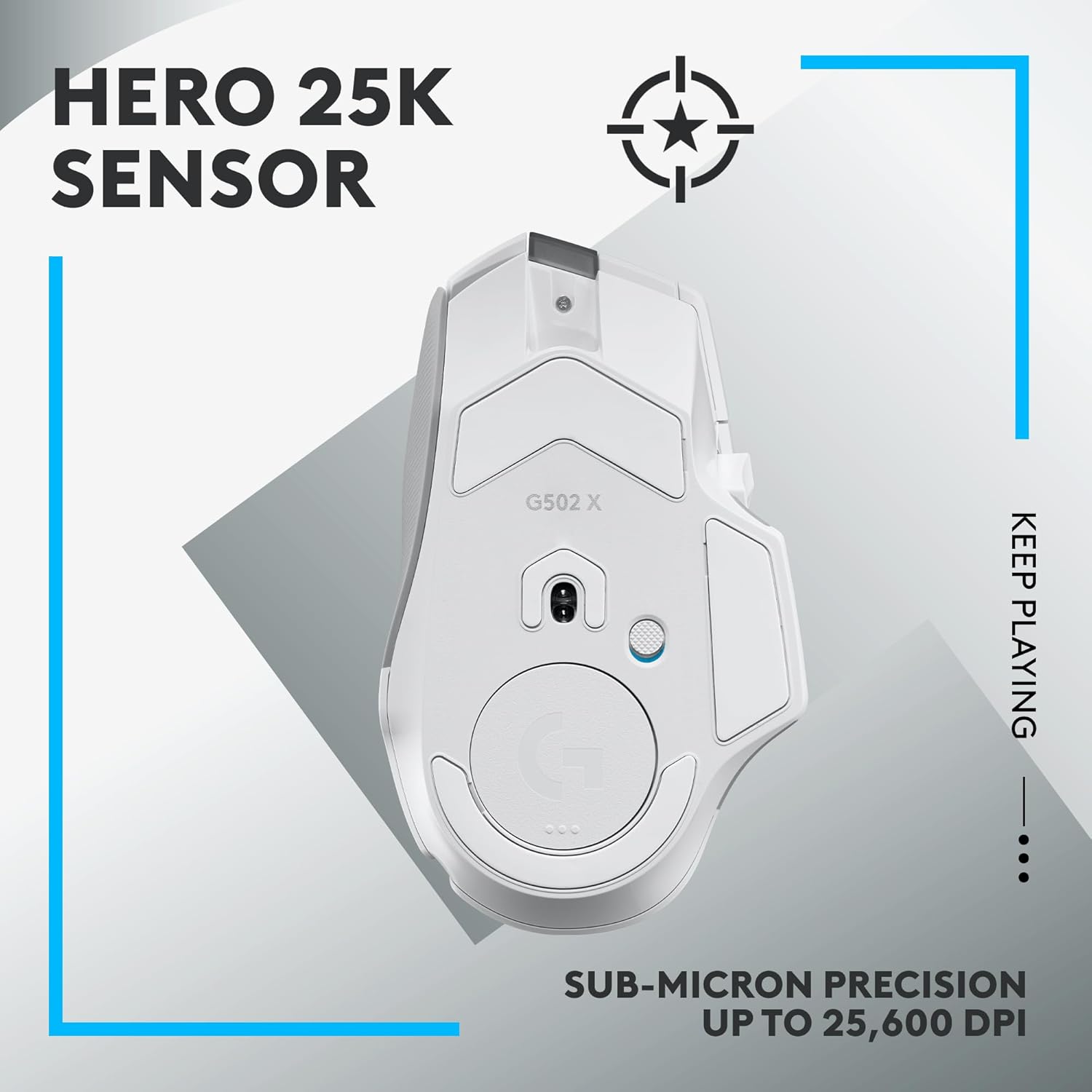
An image illustrating the HERO 25K sensor located on the underside of the Logitech G502 X mouse, emphasizing its sub-micron precision for accurate tracking.
3.3. Battery Life and Charging
The G502 X LIGHTSPEED provides up to 140 hours of constant motion battery life. When the battery is low, connect the mouse using the included USB-C charging cable. The mouse is also compatible with Logitech POWERPLAY wireless charging solution (sold separately), allowing it to charge while in use or at rest.

A visual representation of the Logitech G502 X mouse emphasizing its LIGHTSPEED wireless connectivity and impressive 140-hour battery life.
4. Maintenance
To ensure the longevity and optimal performance of your Logitech G502 X LIGHTSPEED mouse, follow these maintenance guidelines:
- Cleaning: Use a soft, dry cloth to wipe down the mouse regularly. For stubborn dirt, a slightly damp cloth can be used, but avoid excessive moisture. Do not use harsh chemicals or abrasive materials.
- Sensor Care: Keep the optical sensor on the underside of the mouse clean and free from dust or debris. Use a can of compressed air if necessary.
- Storage: When not in use for extended periods, store the mouse in a clean, dry environment away from extreme temperatures.
5. Troubleshooting
If you encounter issues with your Logitech G502 X LIGHTSPEED mouse, try the following troubleshooting steps:
- No Connection/Lag:
- Ensure the USB receiver is securely plugged into a working USB port.
- Verify the mouse is powered on.
- Move the mouse closer to the receiver to rule out interference.
- Try a different USB port or a different computer to isolate the issue.
- Inconsistent Tracking:
- Clean the optical sensor on the underside of the mouse.
- Ensure you are using the mouse on a suitable surface (e.g., a mouse pad).
- Check DPI settings in Logitech G HUB; reset to default if necessary.
- Battery Not Charging:
- Ensure the USB-C cable is properly connected to both the mouse and a power source.
- Try a different USB-C cable or USB port.
- If using POWERPLAY, ensure the POWERPLAY mat is correctly set up and powered.
- Buttons Not Responding:
- Check button assignments in Logitech G HUB.
- Restart your computer.
For further assistance, refer to the official Logitech G support website or the full user manual available as a PDF: Logitech G502 X User Manual (PDF).
6. Specifications
| Feature | Detail |
|---|---|
| Brand | Logitech G |
| Model Number | 910-006187 |
| Connectivity | LIGHTSPEED Wireless, USB-C (for charging) |
| Sensor | HERO 25K Optical |
| DPI Range | 100 - 25,600 DPI |
| Switches | LIGHTFORCE Hybrid Optical-Mechanical |
| Programmable Controls | 13 |
| Battery Life | Up to 140 hours (constant motion) |
| Weight | 102 g (3.59 ounces) |
| Dimensions | 131.4 x 41.1 x 79.2 mm (5.17 x 1.62 x 3.12 inches) |
| System Requirements | Windows 10 or later, macOS 10.14 or later |
7. Warranty and Support
Logitech G products are backed by a limited hardware warranty. For specific warranty terms and conditions, please refer to the warranty information included with your product or visit the official Logitech G support website. For technical support, FAQs, and driver downloads, please visit support.logitech.com.
You can also download the complete user manual in PDF format here: Logitech G502 X User Manual (PDF).


