
VOX 65ADW-C2B
VOX TV 65" LED 65ADW-C2B User Manual
Model: 65ADW-C2B
Introduction
This manual provides detailed instructions for the setup, operation, maintenance, and troubleshooting of your VOX 65-inch 4K LED TV, model 65ADW-C2B. Please read this manual thoroughly before using your television to ensure proper and safe operation. Keep this manual for future reference.
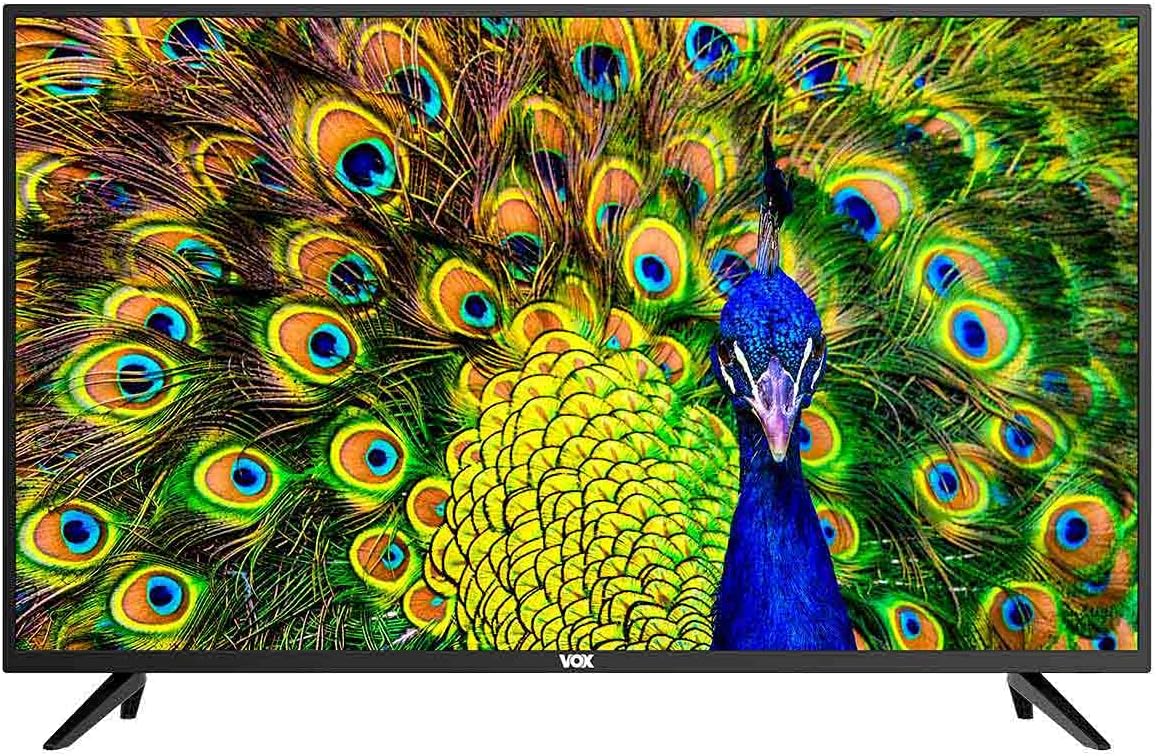
Figure 1: Front view of the VOX 65-inch 4K LED TV. The screen displays a vibrant image of a peacock, and the VOX logo is centered at the bottom bezel.
1. Setup
1.1 Unpacking
Carefully remove the television from its packaging. Ensure all accessories are present: remote control, batteries, power cord, and stand components. Retain the packaging for future transport or service needs.
1.2 Stand Installation
If you plan to use the included stand, follow these steps:
- Place the TV screen-down on a soft, flat surface to prevent scratches.
- Align the stand legs with the screw holes on the bottom of the TV.
- Secure the stand legs using the provided screws. Do not overtighten.

Figure 2: Angled front view of the VOX 65-inch TV, showcasing the installed stand legs. The screen displays a peacock image.
1.3 Wall Mounting (Optional)
The TV supports VESA standard 200 x 200 mm for wall mounting. Use a compatible wall mount bracket (sold separately) and consult the bracket's instructions for installation. Ensure the wall can support the weight of the TV.

Figure 3: Rear view of the VOX 65-inch TV, highlighting the VESA mounting points and various input/output ports on the back panel.
1.4 Connecting Devices
Connect your external devices to the appropriate ports on the TV. Refer to Figure 3 for port locations.
- HDMI (x3): For high-definition audio and video devices like Blu-ray players, game consoles, or set-top boxes.
- USB (x2): For connecting USB storage devices to play media or for PVR functionality.
- Antenna Input (x2): For connecting terrestrial (DVB-T2), cable (DVB-C), or satellite (DVB-S2) antennas.
- AV Input: For older devices using composite video and stereo audio.
- CI Slot: For Common Interface modules (e.g., for encrypted channels).
- SPDIF Optical Output: For connecting to external audio systems with optical input.
- Audio Output: For connecting headphones or external speakers.
- LAN: For wired network connection to access Smart TV features and internet.
2. Operating Instructions
2.1 Power On/Off
Connect the power cord to the TV and a power outlet. Press the power button on the remote control or on the TV itself to turn the TV on or off.
2.2 Initial Setup (Android 9.0)
Upon first power-on, the TV will guide you through the initial setup process. This includes language selection, network connection (Wi-Fi or LAN), channel scanning, and Google account setup for Android TV features.
2.3 Smart TV Features
Your VOX TV is equipped with Android 9.0, offering a range of smart features:
- Built-in Wi-Fi: Connect wirelessly to your home network for internet access.
- Miracast: Wirelessly mirror content from compatible mobile devices to your TV screen.
- HDR10 & HLG: Support for High Dynamic Range content, providing enhanced contrast and color.
- Dolby Digital Plus (DD+): Enhanced audio experience.
- Pre-installed Apps: Access popular streaming services like Amazon Prime Video and Netflix, and browse the web using the built-in browser.
2.4 Input Selection
Press the "Source" or "Input" button on your remote control to switch between connected devices (HDMI, AV, TV tuner).
2.5 Channel Tuning
Access the TV menu to perform an automatic or manual channel scan for DVB-T2 (terrestrial), DVB-C (cable), or DVB-S2 (satellite) channels.
2.6 PVR (Personal Video Recorder)
Connect a USB storage device to record live TV programs. Refer to the on-screen menu for PVR setup and operation.
3. Maintenance
3.1 Cleaning the Screen
Gently wipe the screen with a soft, lint-free cloth. For stubborn marks, slightly dampen the cloth with water or a specialized screen cleaner. Do not spray liquid directly onto the screen.
3.2 Cleaning the TV Body
Use a soft, dry cloth to wipe the TV's frame and stand. Avoid using abrasive cleaners or solvents.
3.3 Storage
If storing the TV for an extended period, disconnect it from power, remove batteries from the remote, and cover it to protect from dust. Store in a cool, dry place.
4. Troubleshooting
Before contacting customer support, try the following solutions for common issues:
| Problem | Possible Solution |
|---|---|
| No Power | Ensure the power cord is securely plugged into both the TV and the wall outlet. Check the power outlet with another device. |
| No Picture / Black Screen | Check the input source (HDMI, AV, etc.) is correctly selected. Ensure the connected device is powered on. Try a different HDMI cable. |
| No Sound | Check the volume level and ensure mute is not activated. Verify external audio systems are connected and configured correctly. |
| Remote Control Not Working | Replace the batteries. Ensure there are no obstructions between the remote and the TV's IR sensor. |
| Cannot Connect to Wi-Fi | Ensure your router is on and working. Re-enter the Wi-Fi password. Try restarting both the TV and the router. |
5. Specifications
| Feature | Detail |
|---|---|
| Brand | VOX |
| Model | 65ADW-C2B |
| Screen Size | 65 inches |
| Display Type | DLED (Direct LED) |
| Resolution | 4K (3840 x 2160 pixels) |
| Image Response | 60 Hz |
| Operating System | Android 9.0 |
| Tuner Type | DVB-T2 / C / S2 |
| Speaker Power | 2 x 8 W RMS |
| Connectivity | 3 x HDMI, 2 x USB, 2 x Antenna Input, AV Input, CI Slot, Optical SPDIF Out, Audio Out, LAN, Built-in Wi-Fi, Bluetooth |
| Technologies | H.265 HEVC, PVR, Smart TV, Miracast, HDR10, HLG, Dolby Digital Plus (DD+) |
| VESA Standard | 200 x 200 mm |
| Energy Class | G |
| Dimensions with Stand (WxDxH) | 1464 x 258 x 906 mm |
| Dimensions without Stand (WxDxH) | 1464 x 85 x 845 mm |
| Color | Black |
Related documents65ADW-C2B


Ask a question about this manual
Ask about setup, troubleshooting, compatibility, parts, safety, or missing instructions. Manuals+ will review the question and use this page’s manual context to help answer it.