
1. Introduction
This user manual provides comprehensive instructions for the Lufasa PSF-B01 WIFI Switch Module. This low-power module is designed for smart home applications, enabling wireless control of devices via a mobile application. Please read this manual carefully before use to ensure proper installation and operation.
2. Product Overview
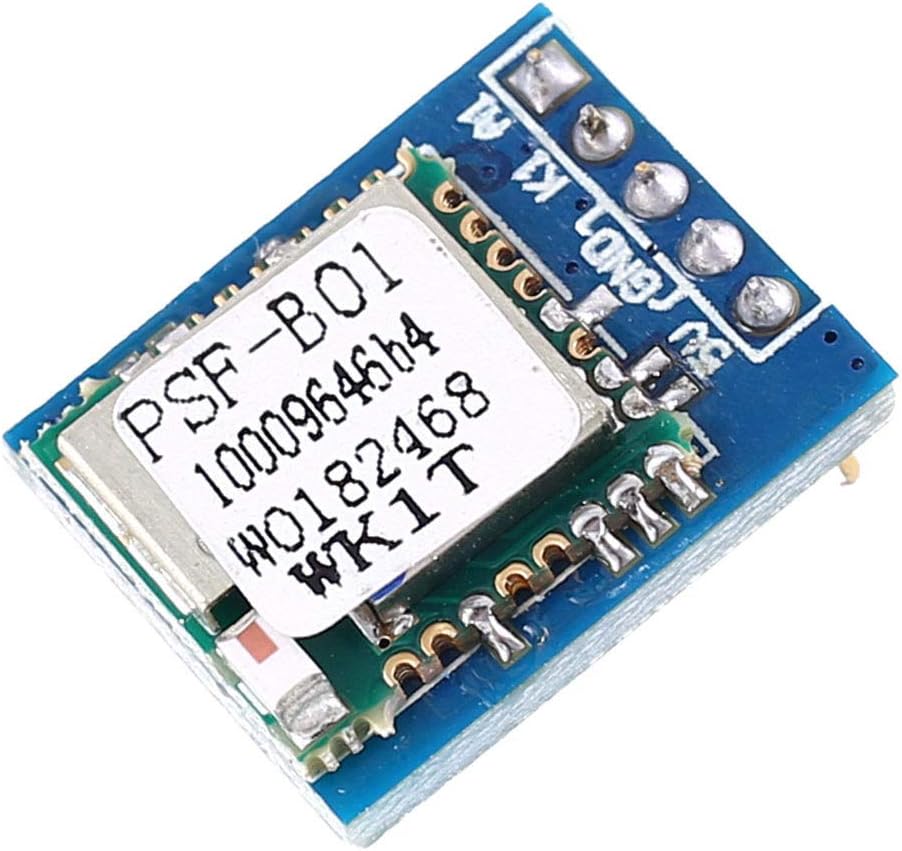
Figure 2.1: Top view of the PSF-B01 WIFI Switch Module, showing its compact design.

Figure 2.2: Pinout diagram of the PSF-B01 module, indicating connection points and their functions.
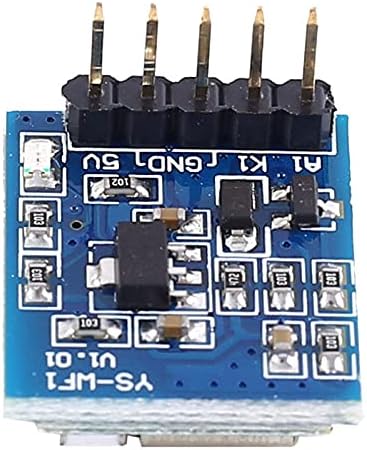
Figure 2.3: Bottom view of the PSF-B01 module, showing the solder points and components.
3. Specifications
| Parameter | Value |
|---|---|
| Working Voltage | DC 4.5V-5.5V |
| Working Current | Approx. 80mA |
| Output High Level | 5V |
| Output Low Level | 0V |
| Control Mode | WIFI / 2G / 3G / 4G |
| Supported Phones | iOS, Android |
| Working Mode | Self-locking, Inching (configurable via APP) |
| Router Compatible Frequency | 2.4G |
| Operating Temperature | -20℃ ~ 85℃ |
| Operating Humidity | 5% ~ 95% RH |
| Module Size | 20 x 17 x 13 mm |
4. Features
- Supports Android and iOS mobile phone control, in addition to manual control.
- Offers self-locking and inching operating modes. The default mode is self-locking, which can be changed to inching via the eWeLink APP.
- Includes timer, cycle time, daily work, and delay functions. The minimum time unit is minutes, supporting up to 8 groups of time settings.
- Allows one mobile phone to add an unlimited number of devices. A single device can also be shared with multiple mobile phones.
5. Setup and Connections
Refer to Figure 2.2 for the pinout diagram when making connections.
- A1: Output Terminal - This terminal outputs High (approx. 5V) or Low (0V) level signals.
- K1: Configuration Button / Manual Control Button - Press and hold for 7 seconds to enter pairing mode. Press for less than 0.5 seconds to toggle ON/OFF manually.
- GND: Power Supply Negative - Connect to the negative terminal of your DC power supply.
- 5V: Power Supply Positive - Connect to the positive terminal of your DC power supply (4.5V-5.5V).
Ensure all connections are secure and correct before applying power to prevent damage to the module or connected devices.
6. Operating Instructions
6.1. Initial Setup and Pairing with eWeLink APP
- Install eWeLink APP: Download and install the eWeLink application on your Android or iOS mobile phone. Complete the registration process.
- Connect Power: Connect the correct DC 4.5V-5.5V power supply to the WiFi switch module. The indicator light on the module will flash once per second.
- Enter Pairing Mode: Press and hold the white button (K1) on the module for 7 seconds. Release the button when the indicator light flashes twice, indicating it has entered pairing mode.
- Add Device in APP: Open the eWeLink APP and follow the on-screen prompts to add a new device.
- Verify WiFi Credentials: During the APP setup, pay close attention to the WiFi network name (SSID) and password to ensure they are entered correctly. The module supports 2.4G WiFi frequency.
- Successful Pairing: After successful pairing, the device button will appear on the main page of your eWeLink mobile application, allowing you to control the module.
6.2. APP Control and Modes
- Once paired, use the eWeLink APP to remotely control the module (ON/OFF).
- Configure the working mode (self-locking or inching) within the APP settings for the device.
- Set up timers, cycle times, daily schedules, and delays using the APP's scheduling features.
7. Maintenance
The PSF-B01 module is designed for low maintenance. To ensure optimal performance and longevity:
- Keep the module in a dry environment, away from moisture and extreme temperatures.
- Avoid exposing the module to direct sunlight or corrosive substances.
- Periodically check connections to ensure they remain secure.
- Clean the module gently with a dry, soft cloth if necessary. Do not use liquid cleaners.
8. Troubleshooting
- Module not powering on: Ensure the power supply is connected correctly (DC 4.5V-5.5V) and is providing sufficient current. Check for loose connections.
- Indicator not flashing: Verify power supply. If the indicator is solid, it might already be connected or in a different state. Try re-entering pairing mode.
- Cannot pair with APP:
- Ensure the module is in pairing mode (indicator flashing twice after 7-second button press).
- Check that your mobile phone is connected to a 2.4G WiFi network. The module does not support 5G WiFi.
- Verify the WiFi password entered in the APP is correct.
- Ensure your router is within range and has a stable internet connection.
- Try restarting your router and the module.
- Device offline in APP: Check your internet connection. Ensure the module is powered on and within range of your WiFi router.
9. Warranty and Support
For warranty information and technical support, please refer to the terms and conditions provided by your point of purchase or contact the seller directly. Keep your purchase receipt as proof of purchase.