
1. Introduction
This manual provides instructions for the FANTECH HG22 Fusion RGB USB Gaming Headset. It covers setup, operation, maintenance, and troubleshooting to ensure optimal performance and user experience. The HG22 headset features 7.1 virtual surround sound, a detachable noise-cancelling microphone, and RGB lighting, designed for PC gaming.
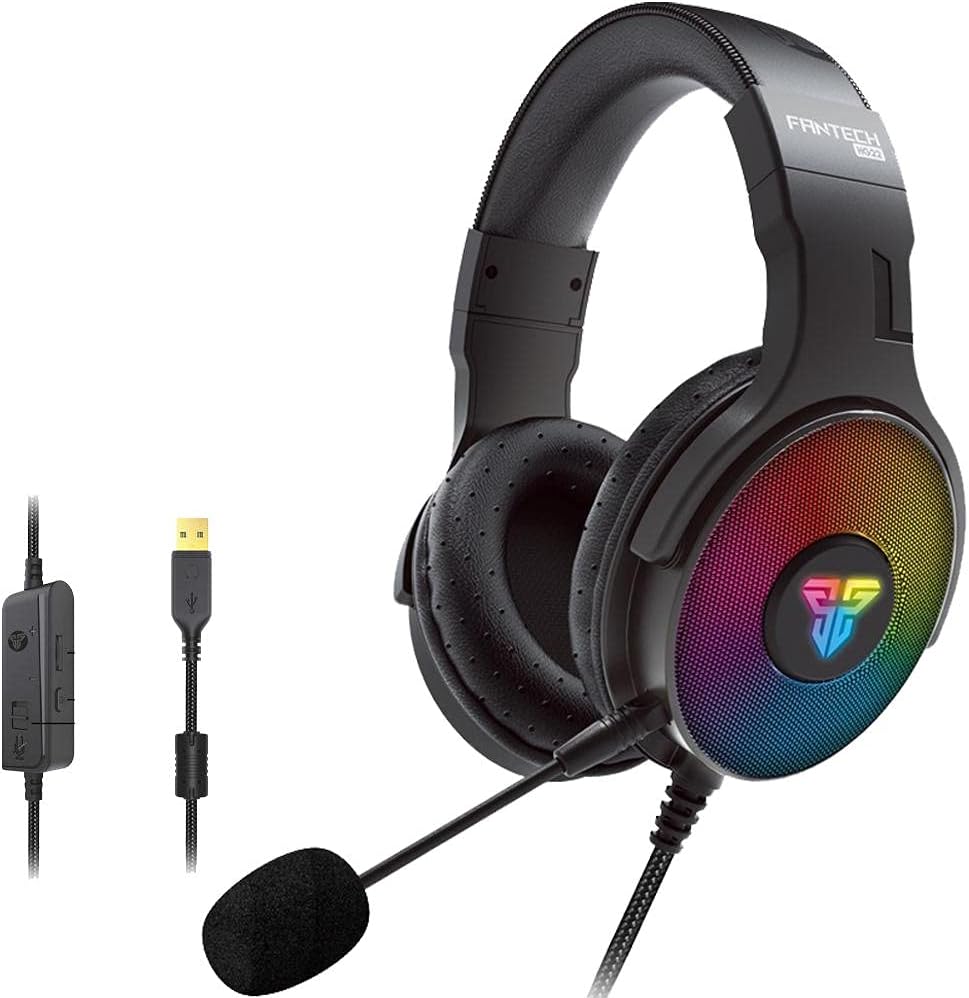
Figure 1: FANTECH HG22 Fusion RGB USB Gaming Headset overview, showing the headset, detachable microphone, and inline control unit with USB connector.
Key Features:
- Advanced 7.1 Virtual Surround Sound Engine
- Noise Cancellation Microphone
- Designed for Extended Gaming Comfort
- USB Connectivity for PC
- 50MM Drivers for clear audio
- RGB Lighting Effects
- Adjustable Steel Headband
2. Setup Instructions
Follow these steps to set up your FANTECH HG22 Gaming Headset:
- Connect to PC: Plug the USB connector of the headset into an available USB port on your computer.
- Driver Installation: Your operating system should automatically detect and install the necessary drivers. Allow a few moments for this process to complete.
- Microphone Attachment: If not already attached, insert the detachable microphone into the designated port on the left earcup until it clicks securely into place.
- Audio Settings:
- Navigate to your computer's sound settings (e.g., Windows: Right-click the speaker icon in the taskbar > Sound Settings).
- Select "FANTECH HG22" or a similar name as your default playback device.
- Select "FANTECH HG22" or a similar name as your default recording device for the microphone.
- Adjust Fit: Adjust the headband and earcups for a comfortable fit. The adjustable steel headband allows for various head sizes.

Figure 2: The adjustable steel headband ensures a comfortable and secure fit for various head sizes.
3. Operating Instructions
The FANTECH HG22 headset features an inline audio control unit for easy management of sound and microphone functions.

Figure 3: The inline audio control unit provides quick access to microphone mute, RGB lighting modes, and volume adjustments.
3.1. Audio Control Unit:
- Microphone On/Off Switch: Slide the switch to enable or disable the microphone. This allows for quick muting during calls or gameplay.
- RGB Switch: Press this button to cycle through the available RGB lighting modes (Marquee, Static, Off).
- Volume Control (+/-): Use the roller or buttons to increase or decrease the headset's audio volume.
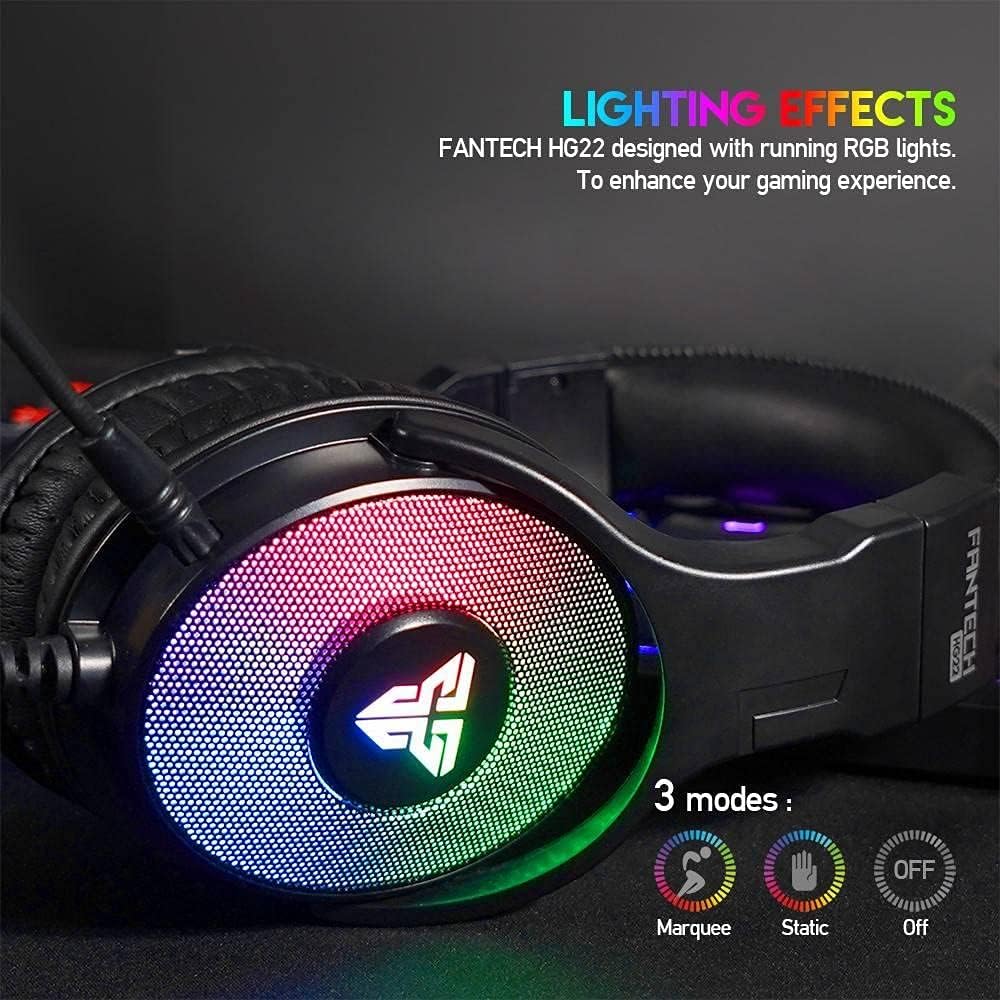
Figure 4: The headset features dynamic RGB lighting with multiple modes to personalize your gaming experience.
3.2. 7.1 Virtual Surround Sound:
The 7.1 virtual surround sound engine enhances spatial awareness in games. This feature is typically managed through software provided by FANTECH or your operating system's sound settings. Refer to FANTECH's official website for any dedicated software downloads.
3.3. Noise Cancellation Microphone:
The detachable microphone is equipped with noise cancellation technology to reduce background noise, ensuring clear communication. Position the microphone approximately 1-2 inches from your mouth for optimal voice pickup.
4. Maintenance and Care
Proper maintenance extends the lifespan of your headset:
- Cleaning: Use a soft, dry cloth to wipe down the earcups and headband. For stubborn dirt, a slightly damp cloth can be used, but ensure no moisture enters the speaker grilles or USB connector.
- Storage: Store the headset in a cool, dry place away from direct sunlight and extreme temperatures.
- Cable Care: Avoid sharp bends or excessive pulling on the USB cable to prevent damage.
- Microphone: When detaching the microphone, pull it straight out from the port. Avoid twisting or bending.
5. Troubleshooting
If you encounter issues with your FANTECH HG22 headset, try the following solutions:
| Problem | Solution |
|---|---|
| No sound from headset |
|
| Microphone not working |
|
| RGB lighting not working |
|
6. Specifications
Technical specifications for the FANTECH HG22 Fusion RGB USB Gaming Headset:
| Feature | Detail |
|---|---|
| Model Name | HG22 |
| Brand | Fantech |
| Connectivity Technology | Wired (USB) |
| Headphones Form Factor | Over Ear |
| Noise Control | Active Noise Cancellation (ANC) for microphone |
| Driver Size | 50MM |
| Cable Length | 2.1m |
| Included Components | Ear Cushions, Headband |
| Material | Plastic |
| Color | Black |
| Item Weight | 260 g (approx.) |
7. Warranty and Support
For warranty information and technical support, please refer to the official FANTECH website or contact their customer service directly. Keep your purchase receipt as proof of purchase for any warranty claims.
FANTECH Official Website: www.fantechworld.com (Please check for regional variations)


