
T-WOLF T70
T-WOLF T70 Wired Mechanical Keyboard User Manual
Model: T70
Introduction
This manual provides comprehensive instructions for the setup, operation, maintenance, and troubleshooting of your T-WOLF T70 Wired Mechanical Keyboard. The T70 is an 87-key mechanical keyboard featuring blue switches, electroplated punk keycaps, and RGB backlighting, designed for PC and laptop use.
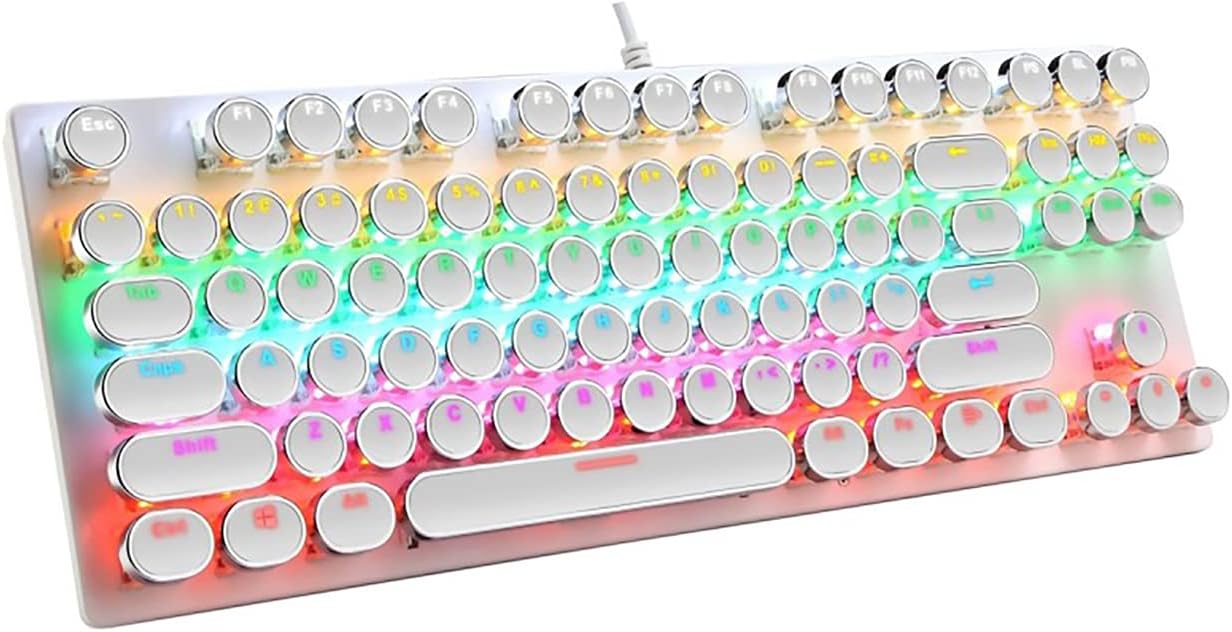
Figure 1: The T-WOLF T70 Wired Mechanical Keyboard showcasing its RGB backlighting and unique round, electroplated punk keycaps.
Setup
Follow these steps to set up your T-WOLF T70 keyboard:
- Unpack the Keyboard: Carefully remove the keyboard from its packaging. Ensure all components are present.
- Connect to Computer: The T-WOLF T70 is a wired keyboard. Locate the USB cable attached to the keyboard. Insert the USB connector into an available USB port on your PC or laptop.
- System Compatibility: The keyboard is compatible with Windows operating systems, including Windows XP, 7, 8, and 10, as well as macOS 10.2 or above. No special drivers are typically required; the keyboard should be recognized automatically by your operating system.
- Initial Test: Once connected, the keyboard's RGB backlighting should illuminate. Open a text editor or a web browser and type to confirm that the keys are functioning correctly.
Operating Instructions
The T-WOLF T70 keyboard offers standard typing functionality along with customizable RGB backlighting.
Key Features:
- 87-Key Layout: A compact tenkeyless (TKL) design, providing essential keys while saving desk space.
- Blue Mechanical Switches: Known for their tactile bump and audible click, providing satisfying feedback for typing and gaming.
- Electroplated Punk Keycaps: Unique round keycaps with an electroplated finish, offering a distinct aesthetic and feel.
- RGB Backlighting: Features dynamic RGB lighting effects.
Backlight Control:
The keyboard's RGB backlighting can be adjusted using specific key combinations. Refer to the keyboard's function keys (F1-F12) and modifier keys (Fn) for specific lighting mode changes, brightness adjustments, and speed controls. Common combinations include:
- Fn + F-keys: Often used to cycle through different lighting modes or adjust brightness.
- Fn + Arrow Keys: May control lighting direction or speed of effects.
Experiment with these combinations to find your preferred lighting setup.

Figure 2: The T-WOLF T70 keyboard, illustrating the mechanical shaft design and the unique electroplated punk keycaps.
Maintenance
Proper maintenance ensures the longevity and optimal performance of your keyboard.
- Cleaning the Keycaps:
To clean the electroplated punk keycaps, gently wipe them with a soft, lint-free cloth dampened with a small amount of water or a mild, non-abrasive cleaning solution. Avoid excessive moisture. For deeper cleaning, keycaps can be carefully removed using a keycap puller (not included) and cleaned individually.
- Cleaning the Keyboard Base:
Use a soft brush or compressed air to remove dust and debris from between the keys and from the keyboard's base. Wipe the surface with a dry or slightly damp cloth.
- Avoid Liquids: Do not spill liquids on the keyboard. In case of accidental spills, immediately disconnect the keyboard from your computer and allow it to dry completely before reconnecting.
- Storage: When not in use for extended periods, store the keyboard in a clean, dry environment away from direct sunlight and extreme temperatures.
Troubleshooting
If you encounter issues with your T-WOLF T70 keyboard, try the following solutions:
- Keyboard Not Responding:
- Ensure the USB cable is securely plugged into both the keyboard and the computer's USB port.
- Try plugging the keyboard into a different USB port on your computer.
- Restart your computer.
- Test the keyboard on another computer to determine if the issue is with the keyboard or your system.
- Backlighting Not Working or Flickering:
- Check if the backlight is turned off using the keyboard's function keys (e.g., Fn + specific F-key).
- Ensure the keyboard is receiving sufficient power from the USB port. Try a different USB port.
- If the issue persists, disconnect and reconnect the keyboard.
- Keys Not Registering or Double-Typing:
- Clean around and under the affected keycaps to remove any debris that might be obstructing the switch.
- If a specific key is consistently malfunctioning, it might indicate a hardware issue.
Specifications
Detailed specifications for the T-WOLF T70 Wired Mechanical Keyboard:
| Feature | Detail |
|---|---|
| Brand | T-WOLF |
| Model Number | T70 |
| Connectivity | Wired (USB cable with magnetic ring) |
| Keyboard Language | English |
| Number of Keys | 87 |
| Switch Type | Blue Mechanical Switches |
| Keycap Type | Electroplated Punk Keycaps (Two-color injection) |
| Backlighting | RGB Backlit (Cool and charming lighting effect) |
| Color | White |
| Material | Metal |
| Compatible Operating Systems | Windows XP / 7 / 8 / 10, macOS 10.2 or above |
| Product Dimensions (L x W x H) | 360mm x 130mm x 36mm (approx. 45.4 x 17 x 5.2 cm package dimensions) |
| Item Weight | 882 g (approx. 624g product weight) |

Figure 3: Product parameters and dimensions of the T-WOLF T70 keyboard, indicating a length of 360mm and width of 130mm.
Warranty and Support
For warranty information and technical support, please refer to the documentation provided with your purchase or visit the official T-WOLF website. Keep your proof of purchase for warranty claims.
Related documentsT70

Ask a question about this manual
Ask about setup, troubleshooting, compatibility, parts, safety, or missing instructions. Manuals+ will review the question and use this page’s manual context to help answer it.