1. Introduction
This manual provides detailed instructions for the installation, operation, and maintenance of your Topcony TY10 1080P WiFi Outdoor Security Camera. Please read this manual thoroughly before using the product to ensure correct usage and optimal performance. Keep this manual for future reference.
2. Package Contents
Verify that all items listed below are included in your package. If any items are missing or damaged, please contact customer support.
- Topcony TY10 Security Camera
- Power Adapter
- Ethernet Cable
- Mounting Screws and Wall Plugs
- Waterproof Kit for Ethernet Port
- User Manual

Image: Package contents of the Topcony TY10 camera. The image displays the camera, power adapter, Ethernet cable, mounting screws, wall plugs, and the user manual.
3. Product Overview
Familiarize yourself with the components of your Topcony TY10 camera.

Image: Diagram showing the labeled components of the Topcony TY10 camera. Key components include: 1. Antenna, 2. Speaker, 3. Infrared LEDs, 4. White LEDs, 5. HD Lens, 6. SD Card Slot, 7. Reset Button, 8. Power Interface, 9. Ethernet Interface, 10. Microphone.
- Antenna: For stable Wi-Fi connection.
- Speaker: For two-way audio communication and audible alerts.
- Infrared LEDs: Provide black and white night vision.
- White LEDs: Provide color night vision and can act as a deterrent light.
- HD Lens: Captures 1080P video footage.
- SD Card Slot: For local storage of recorded video (supports up to 128GB, SD card not included).
- Reset Button: Used to reset the camera to factory settings.
- Power Interface: Connects to the power adapter.
- Ethernet Interface: For wired network connection.
- Microphone: For two-way audio communication.
4. Setup
4.1 Physical Installation
- Choose a Location: Select an outdoor location with a clear view of the area you wish to monitor. Ensure the location has access to a power outlet and is within range of your 2.4GHz Wi-Fi network.
- Mount the Camera: Use the provided mounting screws and wall plugs to securely attach the camera to a wall or suitable surface.
- Connect Power: Connect the power adapter to the camera's power interface and plug it into an electrical outlet.
- Waterproof the Connections: For outdoor use, ensure all cable connections (power, Ethernet if used) are properly sealed using the provided waterproof kit to prevent water ingress.
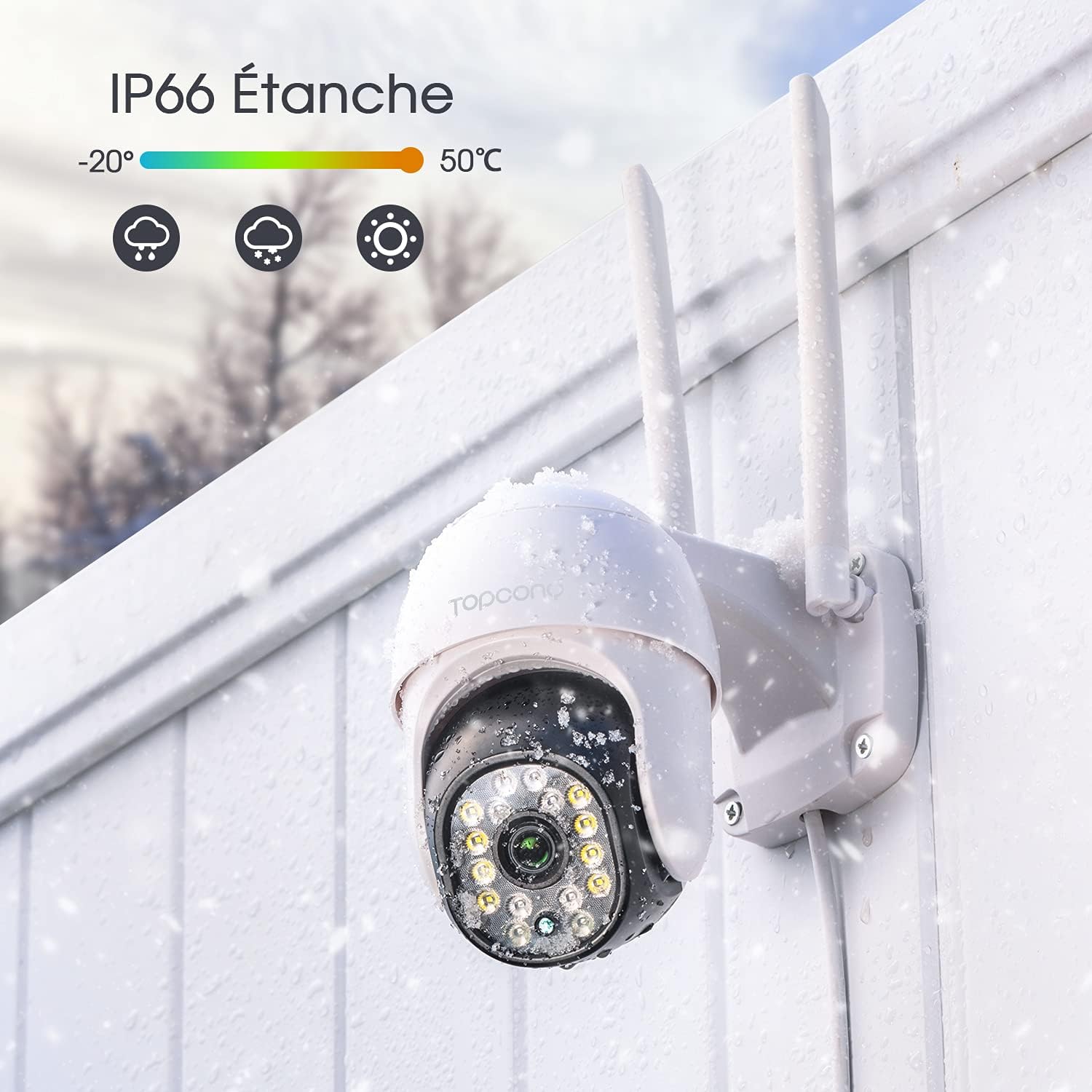
Image: The Topcony TY10 camera installed outdoors, covered in light snow, illustrating its IP66 waterproof design suitable for various weather conditions.
4.2 App Installation and Initial Connection
- Download the App: Search for 'CampHipro' or 'Camhi' in your mobile device's app store (iOS or Android) and download the application.
- Register/Log In: Open the app and create an account or log in if you already have one.
- Add Camera: Follow the in-app instructions to add a new device. This typically involves scanning the QR code located on the camera.
- Network Configuration:
- Wired Connection (Recommended for initial setup): Connect the camera to your router using the provided Ethernet cable. The app will detect the camera. Once connected, you can configure Wi-Fi settings within the app.
- Wi-Fi Connection: If connecting wirelessly, ensure your mobile device is connected to a 2.4GHz Wi-Fi network. The camera only supports 2.4GHz Wi-Fi. Enter your Wi-Fi network name (SSID) and password into the app.
- Complete Setup: Once the camera is successfully connected to your network, you can name the camera and adjust initial settings.
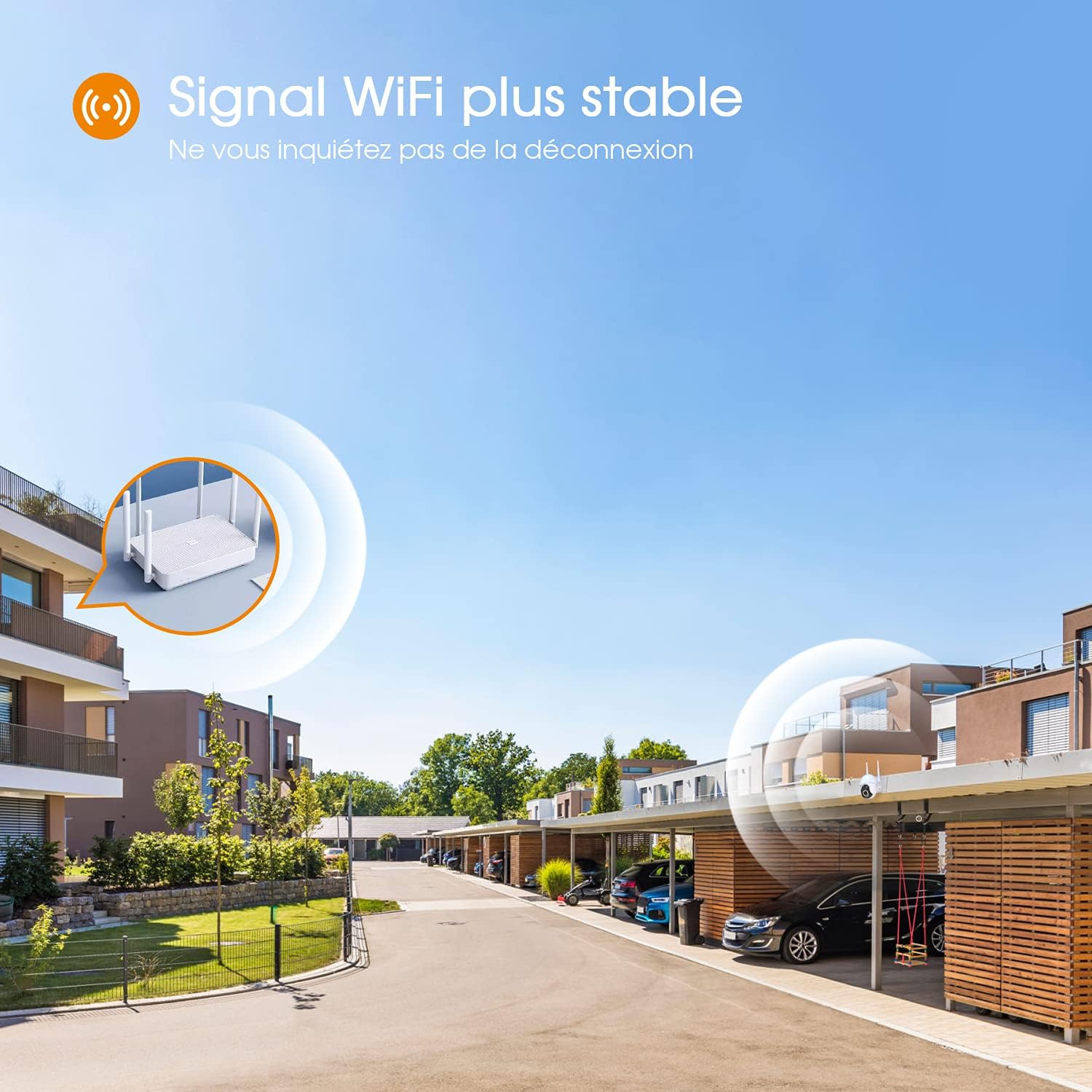
Image: A visual representation of the camera's stable Wi-Fi signal, indicating reliable connectivity for outdoor environments.
5. Operating Instructions
5.1 Live View and PTZ Control
Access the live video feed through the CampHipro/Camhi app. You can control the camera's pan and tilt functions directly from the app interface.
- Pan (Horizontal): Rotate the camera up to 355 degrees horizontally.
- Tilt (Vertical): Adjust the camera up to 90 degrees vertically.
- Digital Zoom: Pinch the screen on your mobile device to digitally zoom in on the live view.
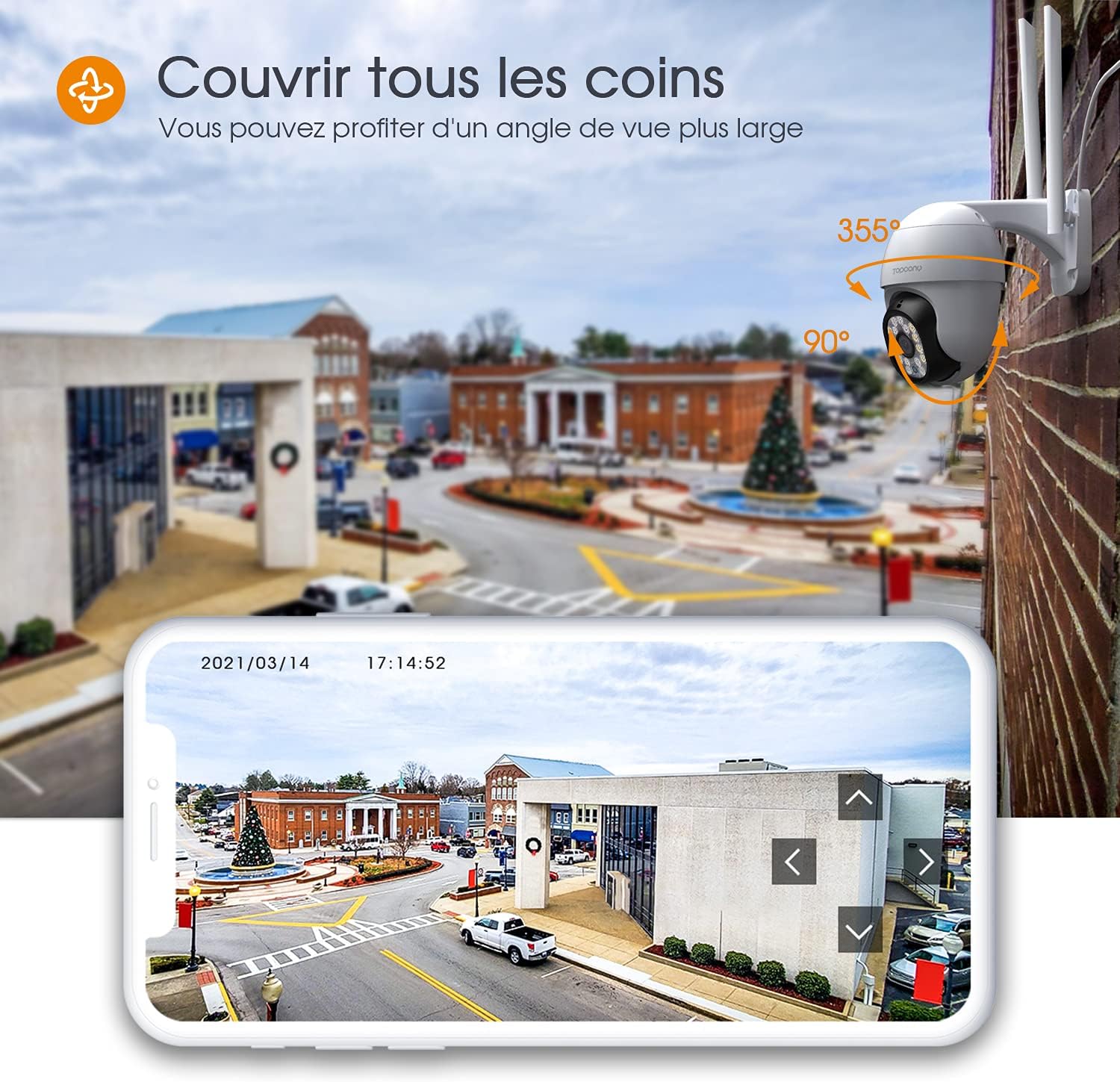
Image: A smartphone displaying the live feed from the Topcony TY10 camera, with on-screen controls for panning and tilting the camera, illustrating its 355° horizontal and 90° vertical rotation capabilities.
5.2 Night Vision Modes
The camera offers three night vision modes, configurable in the app settings:
- Color Mode: Utilizes the 8 white LEDs to provide full-color video in low-light conditions.
- Infrared Mode: Uses the 8 infrared LEDs for clear black and white video in complete darkness.
- Smart Mode: The camera automatically switches between infrared and color mode based on detected motion or ambient light conditions.

Image: A three-panel comparison showing the camera's view at 10:00 AM (daylight), 10:00 PM in color night vision mode, and 10:00 PM in infrared night vision mode, highlighting the different visual outputs.
5.3 Motion Detection and Automatic Tracking
The camera features sensitive motion detection and can automatically track moving objects.
- Enable Motion Detection: Activate this feature in the app settings. You can adjust sensitivity levels to minimize false alerts.
- Receive Alerts: When motion is detected, the camera will send an automatic alarm notification to your mobile device.
- Automatic Tracking: The camera will automatically pan and tilt to follow detected movement within its field of view.
- Record Video: Motion-triggered events are recorded to the inserted SD card. You can review these recordings via the app.

Image: The Topcony TY10 camera actively tracking a person in a yard during nighttime, with visual indicators for motion detection and automatic tracking features.
5.4 Two-Way Audio
The built-in microphone and speaker allow for two-way communication.
- Speak: Use the microphone icon in the app to speak through the camera's speaker.
- Listen: The camera's microphone captures audio from its surroundings, which can be heard through the app.
- Audible Alarm: The camera can emit a sound alarm to deter intruders, configurable in the app.

Image: A smartphone displaying the two-way audio interface of the Topcony TY10 camera, illustrating a user communicating with a delivery person at their door.
5.5 Video Recording and Storage
The camera supports continuous recording or event-based recording to a local SD card.
- SD Card: Insert a Micro SD card (up to 128GB, not included) into the designated slot. The camera will automatically overwrite older footage when the card is full.
- Playback: Review recorded footage directly from the app.
6. Maintenance
- Cleaning: Regularly clean the camera lens with a soft, dry cloth to ensure clear image quality. Do not use harsh chemicals.
- Firmware Updates: Check the app periodically for available firmware updates to ensure optimal performance and security.
- Connection Check: Periodically verify that all cables and connections are secure and waterproof.
- Storage: If storing the camera for an extended period, disconnect power and store it in a cool, dry place.
7. Troubleshooting
| Issue | Possible Cause | Solution |
|---|---|---|
| Camera fails to connect to Wi-Fi | Incorrect Wi-Fi password; Camera too far from router; Only 5GHz Wi-Fi network available. | Verify Wi-Fi password; Move camera closer to router or use an extender; Ensure you are connecting to a 2.4GHz Wi-Fi network. |
| No image or black screen | Power supply issue; Network disconnection. | Check power connection; Verify network status in the app. |
| Motion detection alerts are too frequent/infrequent | Sensitivity settings are too high/low; Environmental factors (e.g., moving branches). | Adjust motion detection sensitivity in the app settings; Define specific detection zones to exclude irrelevant areas. |
| Two-way audio not working | Microphone/speaker disabled in app; Volume too low. | Ensure microphone and speaker functions are enabled in the app; Adjust volume settings. |
| SD card not recording | SD card full or faulty; Recording settings incorrect. | Check SD card status in the app; Format the SD card if necessary; Verify recording schedule/event settings. |
8. Specifications
| Feature | Detail |
|---|---|
| Model Number | TY10 |
| Video Resolution | 1080P (1920 x 1080 pixels) |
| Pan Angle | 355 degrees |
| Tilt Angle | 90 degrees |
| Night Vision | Color Night Vision (8 white LEDs), Infrared Night Vision (8 IR LEDs), Smart Mode |
| Connectivity | 2.4GHz Wi-Fi (IEEE 802.11b/g/n), Ethernet (RJ45) |
| Storage | Micro SD Card (up to 128GB) |
| Audio | Two-way audio (built-in microphone and speaker) |
| Weather Resistance | IP66 Waterproof |
| Power Source | Electric Cable |
| Mounting Type | Wall Mount |
| Material | Plastic |
| Dimensions (L x W x H) | 19.2 x 18 x 12 cm |
| Weight | 790 grams |
9. Customer Support
For further assistance or technical support, please refer to the official Topcony website or contact their customer service directly. Contact information is typically found on the product packaging or the manufacturer's website.


