
Introduction
This manual provides essential information for setting up, operating, maintaining, and troubleshooting your GLORIOUS GMMK 60% Compact Mechanical Gaming Keyboard. The GMMK (Glorious Modular Mechanical Keyboard) is designed for customization, featuring hot-swappable switches and vibrant RGB backlighting in a compact 61-key layout.

Image: The GLORIOUS GMMK 60% Compact Mechanical Gaming Keyboard, showcasing its white keycaps and RGB lighting.
Setup Instructions
1. Unboxing and Inspection
Carefully remove the keyboard and its accessories from the packaging. Verify that all components are present, including the keyboard, USB-C cable, and keycap puller. Inspect the keyboard for any visible damage.
2. Connecting the Keyboard
Connect the provided USB-C cable to the port on the back of the keyboard and the other end to an available USB port on your computer (PC, laptop, or gaming console). The keyboard is plug-and-play and should be recognized automatically by most operating systems.

Image: The GLORIOUS GMMK 60% Compact Keyboard with its USB-C cable connected, ready for use.
Operating Instructions
Basic Keyboard Functions
The GMMK 60% Compact keyboard features a standard QWERTY layout (ANSI) with 61 keys. Due to its compact size, some functions are accessed via key combinations (Fn + key). Refer to the keyboard's layout for specific secondary functions printed on the keycaps.
RGB Lighting Control
The keyboard features 16.8 million color RGB backlighting. You can change lighting effects and colors directly from the keyboard using specific key combinations or through the GLORIOUS software. The software provides more advanced customization options.
Video: A demonstration of the RGB lighting effects on the GLORIOUS GMMK White Ice keyboard.
Hot-Swappable Switches
One of the key features of the GMMK is its hot-swappable switch design. This allows you to easily change mechanical switches without soldering. The keyboard comes pre-installed with Gateron Brown switches.
Video: A sound test demonstrating the typing experience with Gateron Brown switches on the GLORIOUS GMMK Compact keyboard.

Image: The GLORIOUS GMMK 60% Compact Keyboard shown with an optional wooden wrist rest, highlighting its compact form factor.
Maintenance
Cleaning
To clean your keyboard, first disconnect it from your computer. Use a soft, dry cloth to wipe down the keycaps and frame. For deeper cleaning, you can remove keycaps using the included keycap puller and use compressed air to clear debris from beneath the switches.
Replacing Switches and Keycaps
The GMMK's hot-swappable design allows for easy replacement of switches and keycaps. Use the provided keycap puller to gently remove keycaps. For switches, use a switch puller (not included, but often comes with new switches) to carefully extract the switch from the PCB. Ensure new switches are 3-pin compatible before inserting them.

Image: A close-up view illustrating the hot-swappable switch mechanism on the GLORIOUS GMMK keyboard.
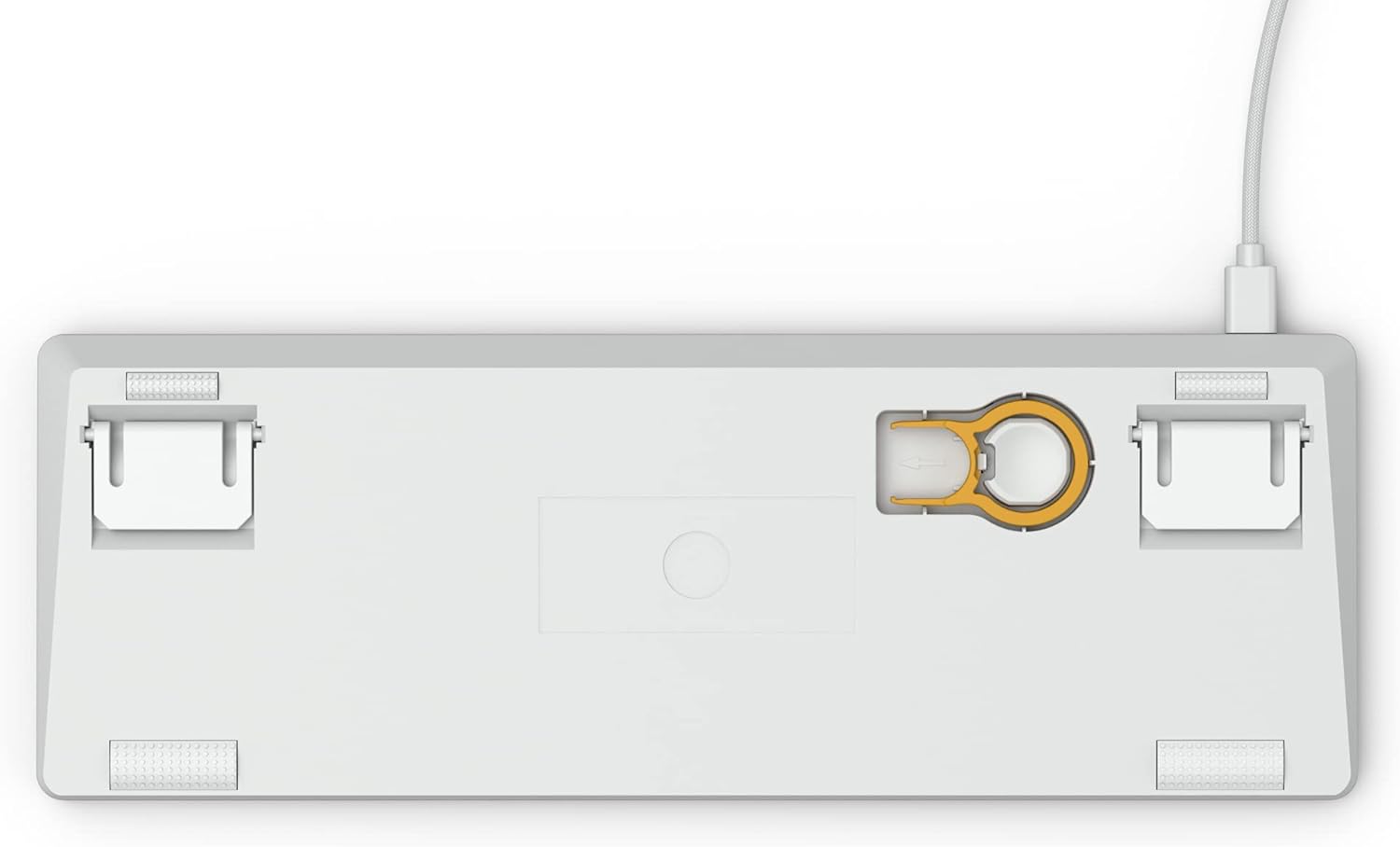
Image: The underside of the GLORIOUS GMMK 60% Compact Keyboard, showing the integrated storage for the keycap puller.
Troubleshooting
Keyboard Not Responding
- Check USB Connection: Ensure the USB-C cable is securely connected to both the keyboard and your computer. Try a different USB port.
- Restart Computer: A simple restart can often resolve connectivity issues.
- Test on Another Device: If possible, test the keyboard on another computer to determine if the issue is with the keyboard or your system.
RGB Lighting Issues
- Check On-Board Controls: Ensure you haven't accidentally turned off the RGB lighting using keyboard shortcuts.
- Software Settings: If using the GLORIOUS software, verify that the lighting settings are correctly configured.
- Firmware Update: Ensure your keyboard's firmware is up to date. Visit the GLORIOUS website for the latest firmware and software.
Keys Not Registering
- Reseat Keycap/Switch: Gently remove the keycap and then the switch for the problematic key. Reinsert them firmly to ensure proper contact.
- Clean Switch Socket: If debris is present, carefully clean the switch socket.
For more detailed troubleshooting, refer to the official GLORIOUS support resources online.
Specifications
| Model Number | GLO-GMMK-COM-BRN-W |
| Layout | 61 Key (COMPACT) Standard QWERTY (ANSI) |
| Mechanical Switch (Pre-installed) | Gateron Brown (Cherry brown equivalent) |
| Connectivity Technology | USB-C, Wired |
| Backlight | 16.8 million colors RGB LED |
| Anti-Ghosting | 100% Anti-Ghosting |
| N-Key Rollover | NKRO/6KRO |
| Polling Rate | 1000 Hz |
| Keycaps | ABS Doubleshot Injection |
| Dimensions (L x W x H) | 11.5" x 4.1" x 1.4" (29.2 cm x 10.4 cm x 3.6 cm) |
| Weight | 1.7 pounds (0.77 kg) |
| Material | Acrylonitrile Butadiene Styrene, Aluminum |
| Compatible Operating Systems | Linux, MacOS, Windows |
Warranty Information
The GLORIOUS GMMK 60% Compact Mechanical Gaming Keyboard comes with a 2-year limited manufacturer warranty. This warranty covers defects in materials and workmanship under normal use. For warranty claims or issues, please contact GLORIOUS customer support. A replacement will be provided free of charge for covered issues within one year from the date of purchase.
Support
For the latest firmware updates, software downloads, and additional support resources, please visit the official GLORIOUS website. You can also find a comprehensive troubleshooting guide (PDF) on the product's Amazon page or the GLORIOUS support portal.
Online Resources:
