
1. Introduction
This manual provides comprehensive instructions for the zemismart Tuya WiFi RF Transfer USB Dongle. This device enables smart control capabilities for zemismart AM15, AM25, and AM24 series roller blind motors, allowing integration with the Tuya Smart Life application, Amazon Alexa, and Google Home for enhanced home automation.
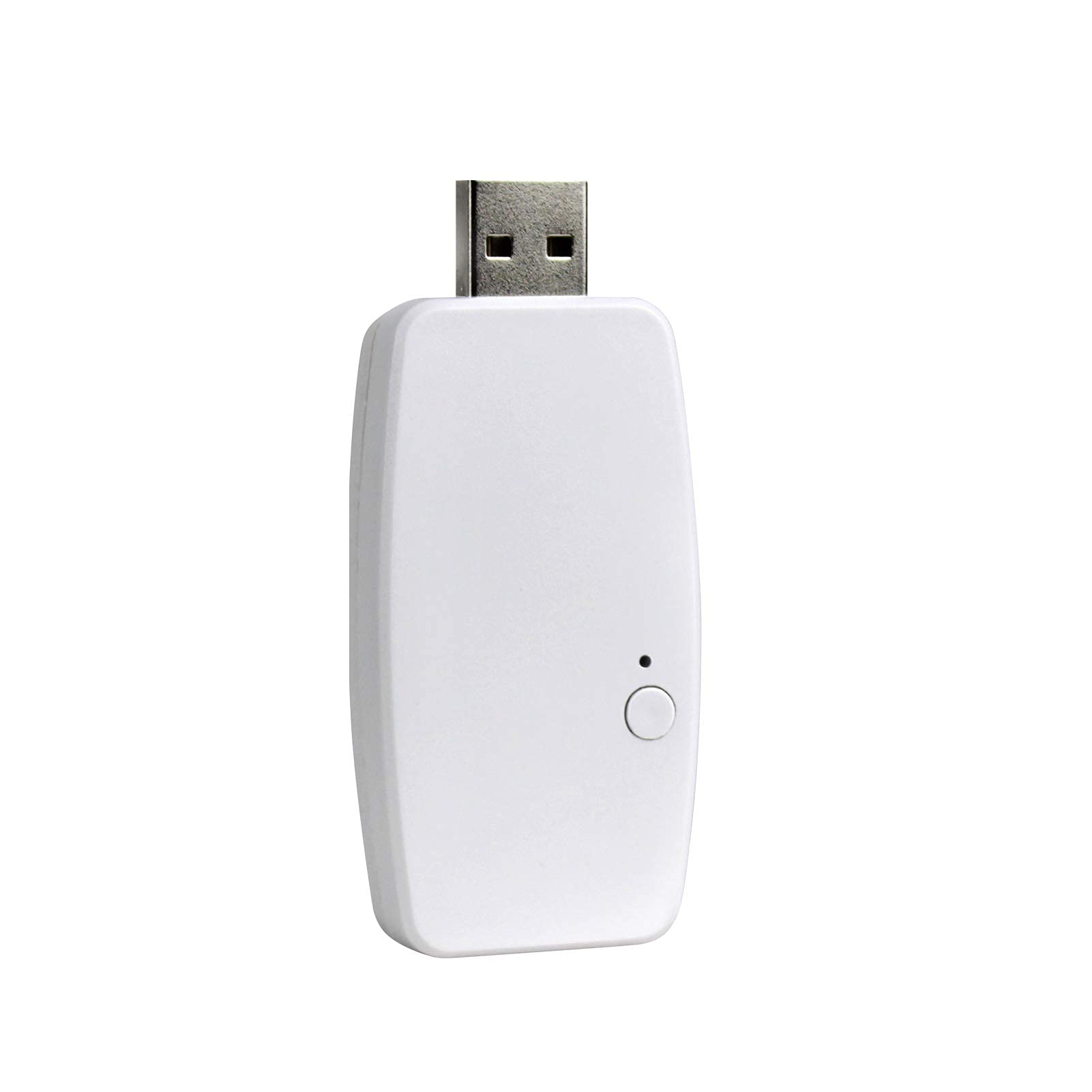
Image: The zemismart Tuya WiFi RF Transfer USB Dongle, designed for smart control of roller blinds.
2. Product Overview
The zemismart Tuya WiFi RF Transfer USB Dongle acts as a bridge, converting RF signals from your zemismart roller blind motors into WiFi signals controllable via your smartphone or voice assistants. It is specifically designed for zemismart AM15, AM25, and AM24 motors and is not compatible with other brands or motor types.
Key features include:
- Seamless integration with Tuya Smart or Smart Life application.
- Voice control compatibility with Amazon Echo (Alexa) and Google Home.
- Programmable timer functions via the Tuya Smart Life App for automated blind operation.
- Compact USB design for easy installation.
3. Safety Information
- Ensure the device is used in a dry environment. Avoid exposure to water or high humidity.
- Do not attempt to disassemble or modify the device. This may void the warranty and pose safety risks.
- Keep out of reach of children.
- Use only with compatible zemismart AM15, AM25, or AM24 roller blind motors.
- Disconnect power before performing any maintenance or installation on the roller blind motor itself.
4. Setup
Follow these steps to set up your zemismart Tuya WiFi RF Transfer USB Dongle and integrate it with your roller blind motors.

Image: Overview of zemismart roller blind motor components, including the WiFi USB dongle.
4.1. Motor Installation (if not already installed)
Ensure your zemismart roller blind motor is correctly installed into the blind tube and mounted. The dongle connects to the motor's control system, not directly to the blind fabric.

Image: Illustration of motor compatibility with 17mm, 25mm, and 28mm tubes, showing components for installation.
- Insert Motor: Put the motor into the appropriate driving tube for your roller blind.
- Install Brackets: Install the end plug and mounting bracket. Place them into the tube to test the whole length, mark the position on the wall, and then install the mounting bracket on the wall or ceiling.
- Clip Curtain: Clip the entire curtain assembly onto the mounting bracket. The physical installation is now complete.

Image: Step-by-step diagram illustrating the installation process for roller blinds.
4.2. Connecting the WiFi RF Transfer Dongle
The USB dongle connects to your zemismart roller blind motor to enable smart features. Refer to your specific motor's manual for the exact port location for the dongle. Once connected, the dongle will power on and be ready for app pairing.
5. Operating Instructions
After successful installation and pairing with the Tuya Smart or Smart Life app, you can control your roller blinds using various methods.
5.1. Tuya Smart / Smart Life App Control
Download the Tuya Smart or Smart Life app from your device's app store. Follow the in-app instructions to add the zemismart WiFi RF Transfer Dongle. Once added, you can:
- Open or close blinds partially or fully.
- Set schedules and timers for automated operation.
- Create scenes to control multiple blinds simultaneously or integrate with other smart devices.

Image: A smartphone screen showing the Tuya app interface controlling window blinds, with the WiFi dongle visible.
5.2. Voice Control (Amazon Alexa / Google Home)
Integrate your Tuya Smart or Smart Life account with Amazon Alexa or Google Home. Once linked, you can use voice commands to control your blinds.
- Example commands:
- "Alexa, open the bedroom blinds."
- "Hey Google, close the living room shades."
- "Alexa, set the kitchen blinds to 50%."

Image: A living room setting where smart speakers (Echo and Google Home) are used to control roller shades with a voice command, illustrating smart home integration.
5.3. Timer Function
Utilize the timer function within the Tuya Smart or Smart Life app to automate your blinds based on specific times or conditions.
- Set blinds to open at sunrise and close at sunset.
- Schedule blinds to open or close at fixed times daily or on specific days.

Image: A visual representation of the timer function, showing blinds closing at 9:30 PM and opening at 7:30 AM, controlled via a smartphone app.
6. Maintenance
The zemismart Tuya WiFi RF Transfer USB Dongle requires minimal maintenance. Keep the device clean and free from dust. Use a soft, dry cloth for cleaning. Do not use liquid cleaners or abrasive materials.
7. Troubleshooting
If you encounter issues with your WiFi RF Transfer Dongle, refer to the table below for common problems and solutions.
| Problem | Possible Cause | Solution |
|---|---|---|
| Dongle not responding / No indicator light | Not properly connected to motor or power source. | Ensure the dongle is securely plugged into the motor's designated port and the motor has power. |
| Cannot connect to Tuya Smart / Smart Life app | Incorrect Wi-Fi password, Wi-Fi signal too weak, or dongle not in pairing mode. | Verify Wi-Fi password. Move router closer or use a Wi-Fi extender. Follow app instructions to put dongle into pairing mode (usually involves a reset button or power cycle). Ensure your Wi-Fi is 2.4GHz. |
| Voice control not working | Tuya/Smart Life account not linked to Alexa/Google Home, or incorrect device name. | Check that your Tuya/Smart Life account is correctly linked in the Alexa/Google Home app. Ensure the device name used in voice commands matches the name in the app. |
| Blinds not moving via app/voice | Dongle not communicating with the motor, or motor issue. | Ensure the dongle is firmly connected to the motor. Check if the motor responds to its original RF remote (if applicable). Re-pair the dongle with the app if necessary. |
8. Specifications
| Feature | Detail |
|---|---|
| Model Number | e62c8b3a-14b1-4bf8-8306-f5500eed6287 |
| Dimensions (L x W x H) | 35 x 1.5 x 1.5 cm |
| Weight | 450 Grams |
| Color | USB WiFi Dongle only |
| Compatible Motors | zemismart AM15, AM25, AM24 series roller blind motors |
| Wireless Connectivity | Wi-Fi 2.4GHz |
| App Compatibility | Tuya Smart, Smart Life |
| Voice Assistant Compatibility | Amazon Alexa, Google Home |
9. Warranty and Support
For warranty information or technical support, please refer to the documentation provided with your purchase or contact zemismart customer service directly. Contact details can typically be found on the manufacturer's official website or your purchase platform.