
1. Introduction
This manual provides instructions for the VENTION 3.5mm Audio Splitter, Model BBUBY. This device allows you to connect headphones, a microphone, or speakers to a single 3.5mm audio jack on compatible devices such as PCs, laptops, and gaming consoles. It supports both OMTP and CTIA standards for broad compatibility.

Figure 1: VENTION 3.5mm Audio Splitter. This image shows the splitter cable with its single female 3.5mm input and two male 3.5mm output jacks, one for audio and one for microphone.
2. Setup
To set up your VENTION 3.5mm Audio Splitter, follow these steps:
- Identify Ports: Locate the headphone (audio output) and microphone (audio input) ports on your computer or device. These are typically color-coded (green for audio, pink for microphone) or marked with corresponding icons.
- Connect Splitter to Device: Plug the two male 3.5mm jacks of the VENTION splitter into the respective audio output and microphone input ports on your computer. The jack with the headphone icon connects to the audio output, and the jack with the microphone icon connects to the microphone input.
- Connect Headset/Speakers: Plug your headset, headphones, or speakers into the single female 3.5mm jack of the VENTION splitter.
- Verify Compatibility: The splitter is compatible with both OMTP and CTIA standard devices. Ensure your headset or speakers are properly connected.

Figure 2: Headset Splitter Cable Connection. This image illustrates connecting a headset to a laptop using the splitter, showing separate icons for control, listening, and call functions.

Figure 3: Computer Voice Input. This diagram details how to connect the splitter's male jacks to a computer's headset and microphone interfaces, and then connect a headset with a 3.5mm plug to the splitter's female end.
Video 1: VENTION Headphone Audio Splitter Demonstration. This video demonstrates the physical connection process of the VENTION audio splitter to a computer and a headset, showing its use for gaming and phone calls.
3. Operating Instructions
Once connected, the VENTION 3.5mm Audio Splitter allows for simultaneous audio output and microphone input through a single headset or speaker system.
- Audio Output: Sound from your computer will be directed to the connected headphones or speakers.
- Microphone Input: The microphone on your connected headset will function as the audio input for your computer, enabling voice communication in applications, games, or calls.
- Phone Call Function: The splitter supports phone call functions when used with compatible headsets and devices.
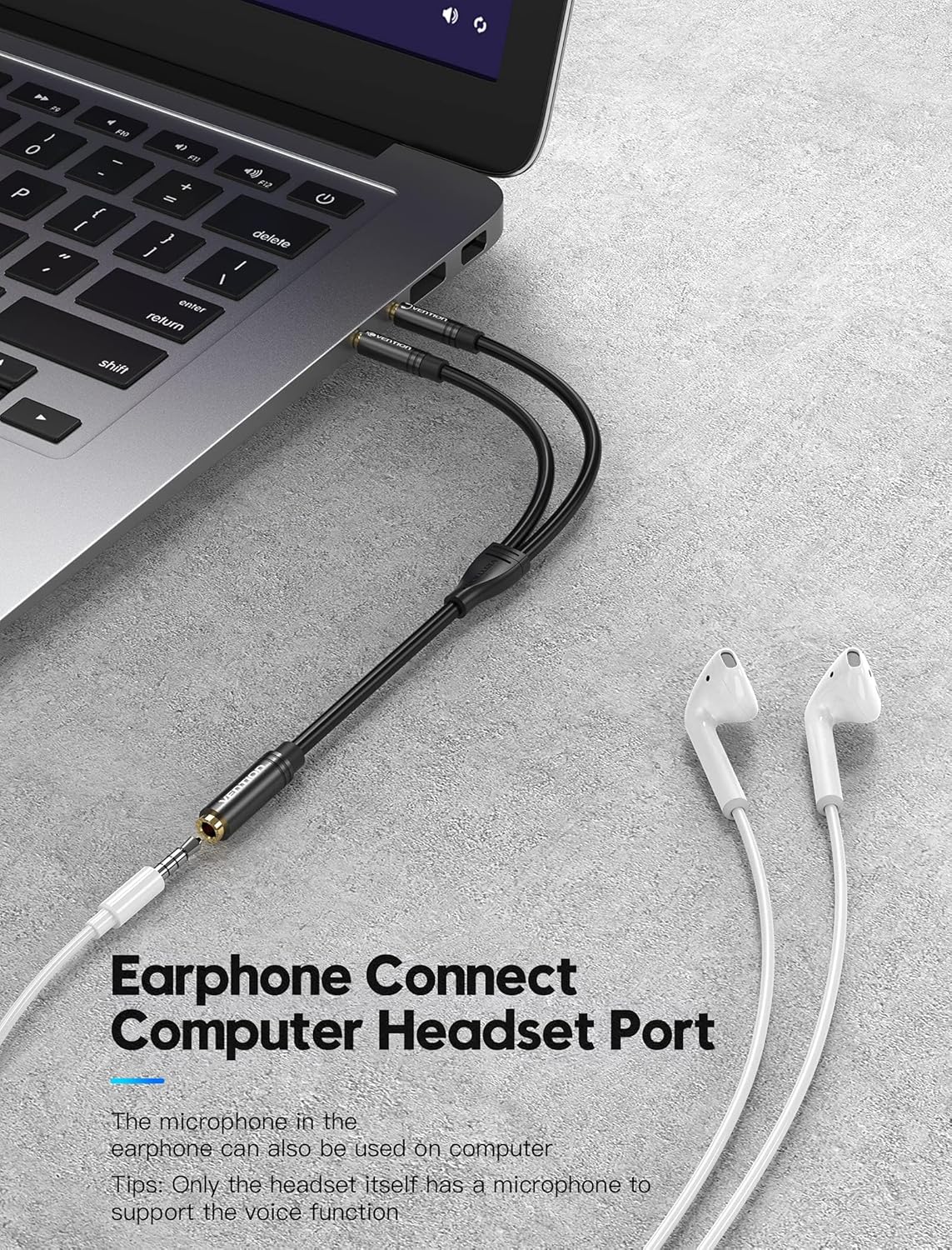
Figure 4: Earphone Connection to Computer. This image shows a user connecting earphones to a laptop's headset port using the VENTION audio splitter, highlighting its use for voice functions.
4. Maintenance
To ensure the longevity and optimal performance of your VENTION 3.5mm Audio Splitter:
- Cleaning: Use a soft, dry cloth to gently wipe the cable and connectors. Avoid using liquid cleaners or abrasive materials.
- Storage: Store the splitter in a cool, dry place away from direct sunlight and extreme temperatures.
- Handling: Avoid excessive bending, twisting, or pulling of the cable, especially near the connectors, to prevent internal damage.
5. Troubleshooting
- No Audio Output:
- Ensure all connections are secure.
- Check your computer's audio settings to ensure the correct output device is selected and volume is not muted.
- Test your headphones/speakers directly with the computer to rule out issues with the audio device itself.
- Microphone Not Working:
- Important Note: Microphone function may not work with Apple headphones and certain Beat headphones due to proprietary wiring configurations.
- Verify that the microphone jack of the splitter is correctly plugged into the microphone input port of your computer.
- Check your computer's sound settings to ensure the correct input device is selected and microphone volume is not muted.
- Test your microphone directly with a compatible device if possible.
- Poor Audio Quality:
- Ensure all connections are fully inserted.
- Check for any damage to the cable or connectors.
- Avoid placing the cable near sources of electromagnetic interference.
6. Specifications
| Feature | Detail |
|---|---|
| Brand | VENTION |
| Model Number | BBUBY |
| Connector Type | Auxiliary (3.5mm Male to 3.5mm Female) |
| Cable Length | 30cm (approximately 11.8 inches) |
| Compatibility | OMTP and CTIA Standard |
| Item Weight | 0.317 ounces |
| Package Dimensions | 5.28 x 3.78 x 0.55 inches |
| Material | Enameled copper conductor, TPE jacket, Aluminum alloy shell, Gold-plated interface |
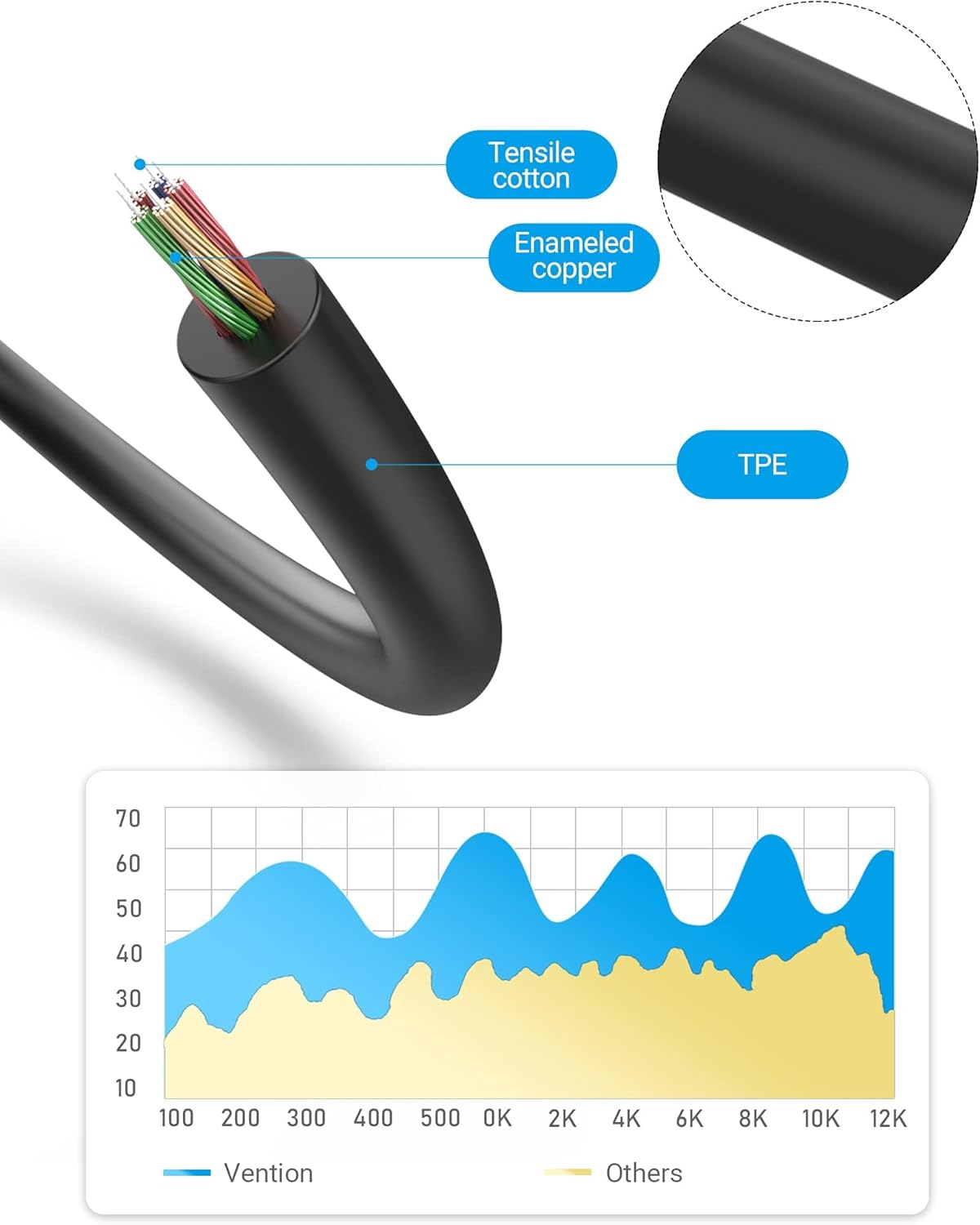
Figure 5: Cable Construction. This diagram illustrates the internal components of the cable, including tensile cotton, enameled copper, and the TPE outer jacket, contributing to its durability and performance.

Figure 6: Compatible Devices. This image displays examples of devices compatible with the splitter, including PCs, laptops (male connectors), and headsets, earphones, and speakers (female connector).
7. Warranty and Support
For specific warranty information, please refer to the documentation provided at the time of purchase or contact your retailer. For product support, please visit the official VENTION store or website.
Official VENTION Store: https://www.amazon.com/stores/Vention/page/A27ACE64-6255-49B7-855D-EE0B34D11C9A
