
1. Introduction
Thank you for choosing the NEC E438 43-inch LCD 4K UHD Commercial-Grade Monitor. This manual provides detailed instructions for the safe and efficient use of your display. Please read this manual thoroughly before operating the product and retain it for future reference.
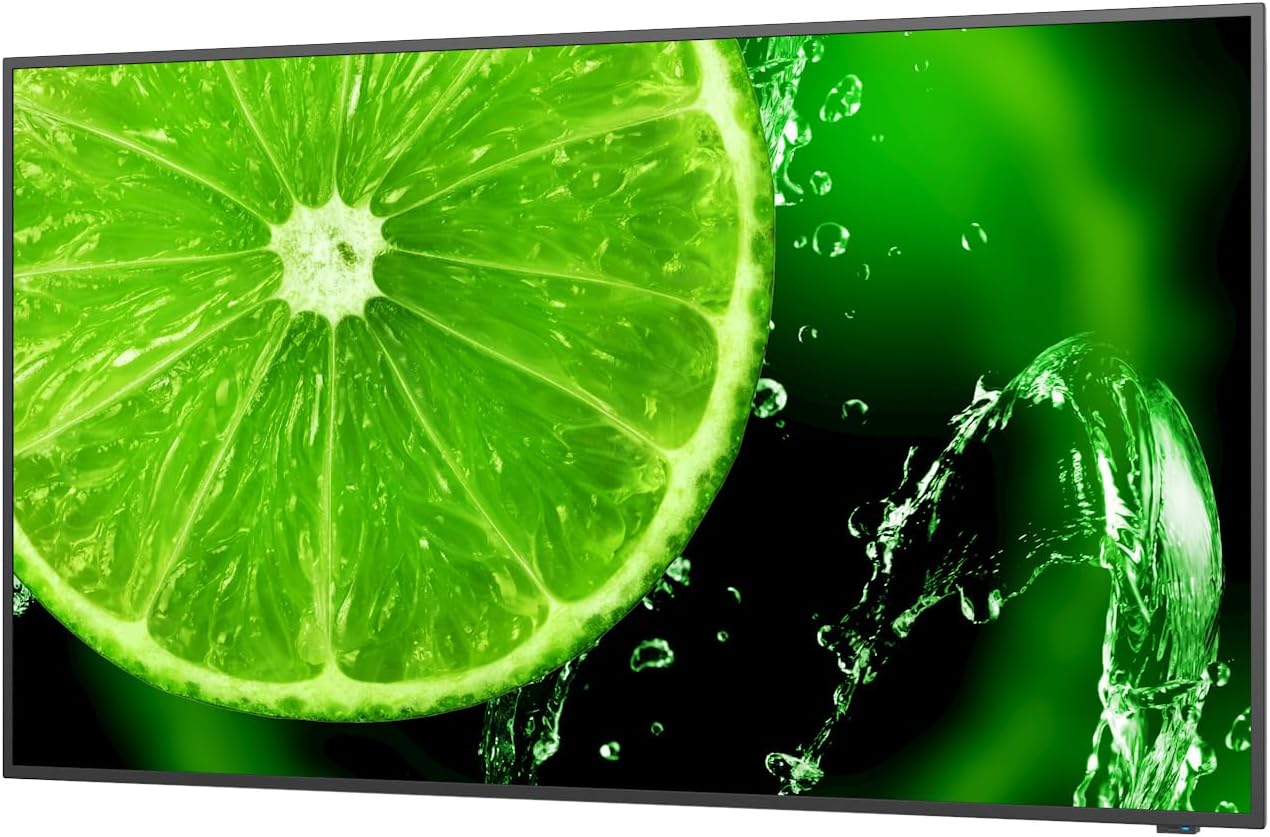
Figure 1: Front view of the NEC E438 43-inch 4K UHD monitor.
2. Safety Information
Observe the following safety precautions to prevent damage to the product and to ensure your safety:
- Do not expose the monitor to rain or moisture to avoid fire or electric shock.
- Do not open the monitor casing. Refer all servicing to qualified service personnel.
- Ensure proper ventilation. Do not block ventilation openings.
- Use only the power cord supplied with the monitor or a suitable replacement.
- Place the monitor on a stable, level surface or mount it securely according to VESA standards.
- Disconnect the power plug from the wall outlet if the monitor will not be used for a long period.
3. Package Contents
Verify that all items are present in the package:
- NEC E438 43-inch LCD 4K UHD Monitor
- Power Cord
- HDMI Cable
- USB-C Cable
- Remote Control (with batteries)
- User Manual (this document)
- Quick Setup Guide
4. Setup
4.1 Physical Placement
Place the monitor on a sturdy, flat surface or mount it using a VESA-compatible wall mount or stand. Ensure adequate space around the monitor for ventilation.
4.2 Connecting Cables
Connect the necessary cables to the corresponding ports on the monitor and your source device (e.g., computer, media player).

Figure 2: Rear view of the monitor showing connection ports and mounting points.

Figure 3: Side view of the monitor illustrating the input port cluster.
- Power: Connect the power cord to the monitor's AC input and then to a grounded electrical outlet.
- Video Input: Use an HDMI, VGA, or USB-C cable to connect your source device to the monitor. The monitor supports multiple HDMI inputs.
- LAN: Connect an Ethernet cable to the LAN port for network connectivity.
- USB-C: For video, data, and power delivery (if supported by the source device).
5. Operating Instructions
5.1 Power On/Off
Press the power button located on the monitor or on the remote control to turn the display on or off. The power indicator light will illuminate when the monitor is on.
5.2 Input Selection
Use the 'Input' button on the remote control or the monitor's control panel to cycle through available input sources (HDMI 1, HDMI 2, HDMI 3, VGA, USB-C, etc.).
5.3 On-Screen Display (OSD) Menu
Access the OSD menu to adjust various display settings such as brightness, contrast, color temperature, aspect ratio, and audio settings. Navigate the menu using the directional buttons on the remote or monitor and confirm selections with the 'Enter' button.
5.4 Audio
The monitor includes integrated speakers. Adjust the volume using the remote control or through the OSD menu. You can also connect external audio devices if desired.
6. Maintenance
6.1 Cleaning the Monitor
- Always unplug the monitor before cleaning.
- Use a soft, lint-free cloth slightly dampened with water or a mild, non-abrasive screen cleaner.
- Do not spray cleaner directly onto the screen.
- Avoid using harsh chemicals, solvents, or abrasive materials.
6.2 General Care
- Keep the monitor away from direct sunlight and heat sources.
- Ensure proper ventilation to prevent overheating.
- Avoid placing heavy objects on the monitor or its cables.
7. Troubleshooting
If you encounter issues with your monitor, refer to the following common troubleshooting steps:
| Problem | Possible Solution |
|---|---|
| No power | Check if the power cord is securely connected to both the monitor and the power outlet. Ensure the power outlet is functional. |
| No signal | Verify that the video cable (HDMI, VGA, USB-C) is correctly connected to both the monitor and the source device. Select the correct input source using the 'Input' button. |
| Image is distorted or unclear | Adjust resolution and refresh rate settings on your source device. Check cable connections for looseness or damage. Perform an auto-adjustment via the OSD menu if using VGA. |
| No sound from speakers | Check the volume settings on the monitor and your source device. Ensure the audio output is correctly configured on your source device. |
If the problem persists after trying these steps, please contact NEC customer support.
8. Specifications
Key technical specifications for the NEC E438 monitor:
- Screen Size: 43 Inches
- Resolution: 3840 x 2160 (4K UHD)
- Aspect Ratio: 16:9
- Panel Type: IPS (In-Plane Switching)
- Image Brightness: 350 cd/m² (NITS)
- Video Inputs: HDMI (multiple), VGA, USB-C
- Other Ports: LAN, Total 2 USB Ports
- Speakers: Integrated
- Product Dimensions: 2.8 x 38.2 x 22.04 inches
- Item Weight: 19.58 pounds
- Voltage: 240 Volts
- Model Number: 60005045

Figure 4: Excerpt from the product data sheet.
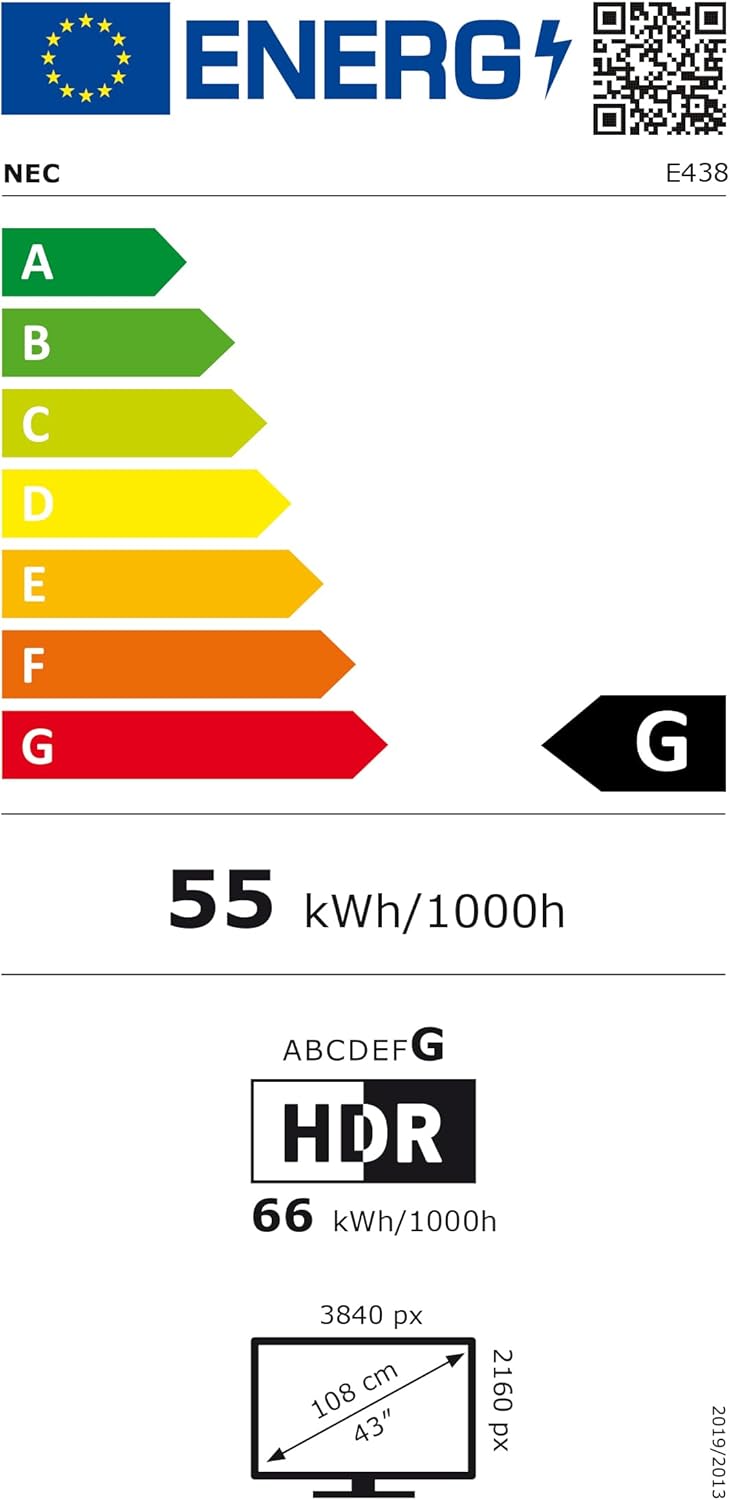
Figure 5: EU Energy Label for the NEC E438 monitor.
For more detailed energy information, please visit the EPREL database: https://eprel.ec.europa.eu/qr/429363
9. Warranty and Support
9.1 Warranty Information
This NEC E438 monitor comes with a 3-year limited warranty. Please refer to the warranty card included in your package for specific terms and conditions. Keep your proof of purchase for warranty claims.
9.2 Customer Support
For technical assistance, service, or further inquiries, please contact NEC customer support. Visit the official NEC website for contact details and support resources.


