Download PDFFree PDF. The Save button below keeps a bookmark and private notes in your account.
WiZ Connected 6FT RGB Wi-Fi LED Smart Color Changing Light Strip User Manual
Model: 603530 | Brand: WiZ Connected
Introduction
The WiZ 6-foot LED light strip starter kit provides everything needed for bright, full-color smart lighting. This flexible strip can be cut to size for indirect, linear lighting in any space. Control is managed via the WiZ app or voice commands, allowing for dimming, brightening, and activation of preset light modes on existing Wi-Fi networks.
Key Features:
Easy Setup: Connects to your existing 2.4Ghz Wi-Fi network. Download the WiZ Connected app to begin.
Smart Control: Manage lighting from anywhere using the WiZ Connected app or hands-free with voice control. The app facilitates sharing control with family and guests.
Flexible Installation: The flexible strip can be adhered to various surfaces, such as tray ceilings or under cabinets, to enhance room decor.
Smart Features: Schedule lights to turn on or off according to routines or activate vacation mode to simulate presence when away from home.
User-Friendly App: The free WiZ Connected app offers an intuitive interface and includes ready-to-use presets for immediate light strip operation.
Wellbeing Enhancement: WiZ lighting provides bright daylight for energy and focus, transitioning smoothly to soft warm white to help you relax and improved sleep.
Safety Information
Please read and understand all safety instructions before installing or using this product. Failure to follow these instructions may result in electric shock, fire, or other hazards.
Indoor Use Only: This light strip is designed for indoor use in dry locations. Do not expose to water or moisture.
Power Supply: Use only the provided power adapter. Using an incompatible power supply may damage the product and void the warranty.
Electrical Safety: Ensure the power outlet is easily accessible and that the voltage matches the product's requirements (120 Volts). Do not overload electrical outlets.
Installation: Do not cut the light strip while it is connected to power. Ensure the surface for adhesion is clean and dry. Avoid installing near heat sources or in direct sunlight.
Handling: Do not bend the light strip sharply or apply excessive force, as this may damage the internal circuitry.
Cleaning: Disconnect power before cleaning. Use a soft, dry cloth. Do not use liquid cleaners or abrasive materials.
Package Contents
Verify that all items are included in your package:
1 x WiZ Connected 6FT (2M) Light Strip
1 x Power Plug
Setup
Follow these steps to set up your WiZ Connected Light Strip:
1. Physical Installation
Prepare the Surface: Choose a clean, dry, and smooth surface for installation. Ensure it is free from dust, oil, and moisture.
Attach the Light Strip: Carefully peel off the adhesive backing from the light strip. Press the strip firmly onto the desired surface. Avoid stretching or bending the strip at sharp angles.
Connect Power: Plug the light strip into the provided power adapter, then plug the adapter into a standard 120V electrical outlet.
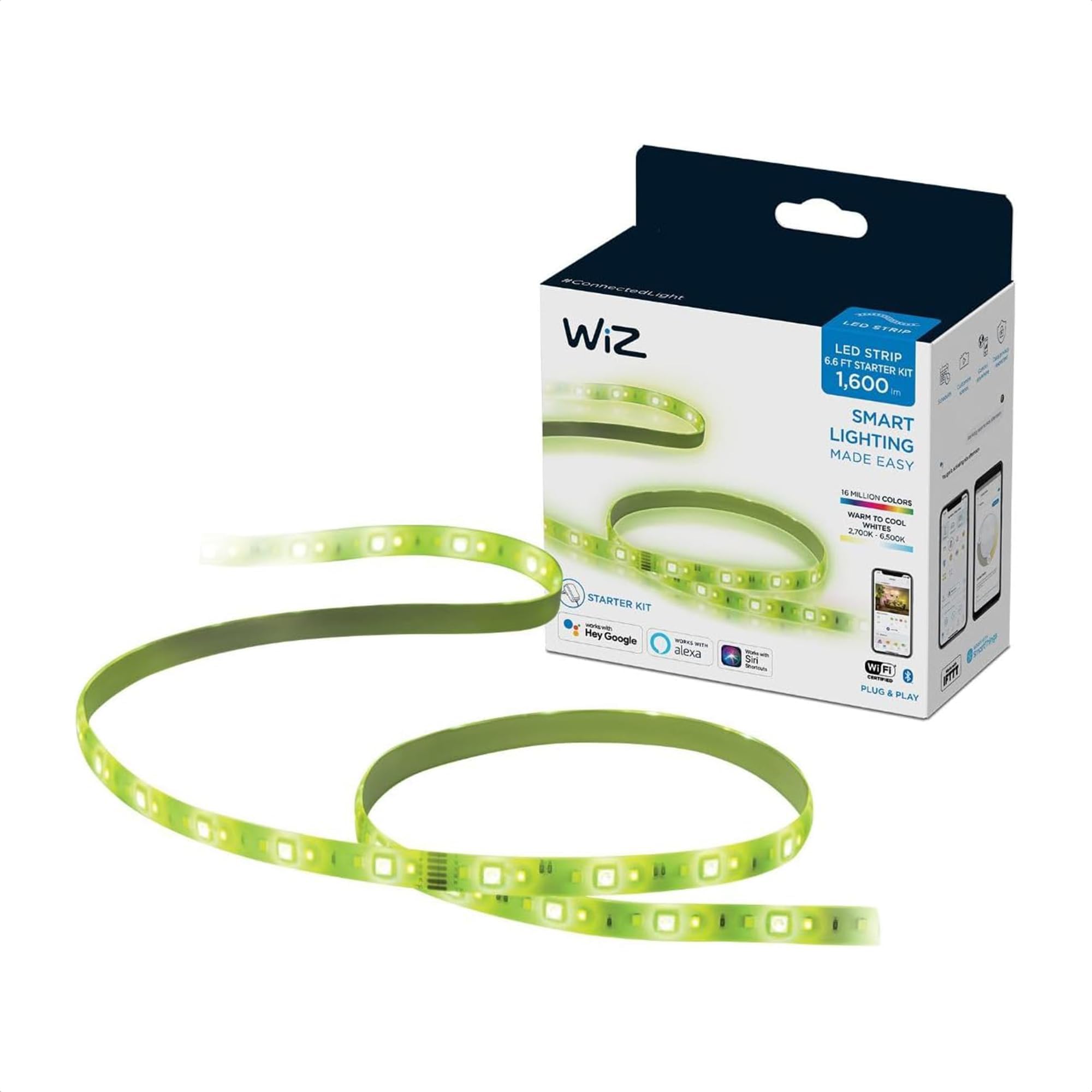
Image: The WiZ Connected 6FT RGB Wi-Fi LED Smart Color Changing Light Strip, showing its flexible design and length.
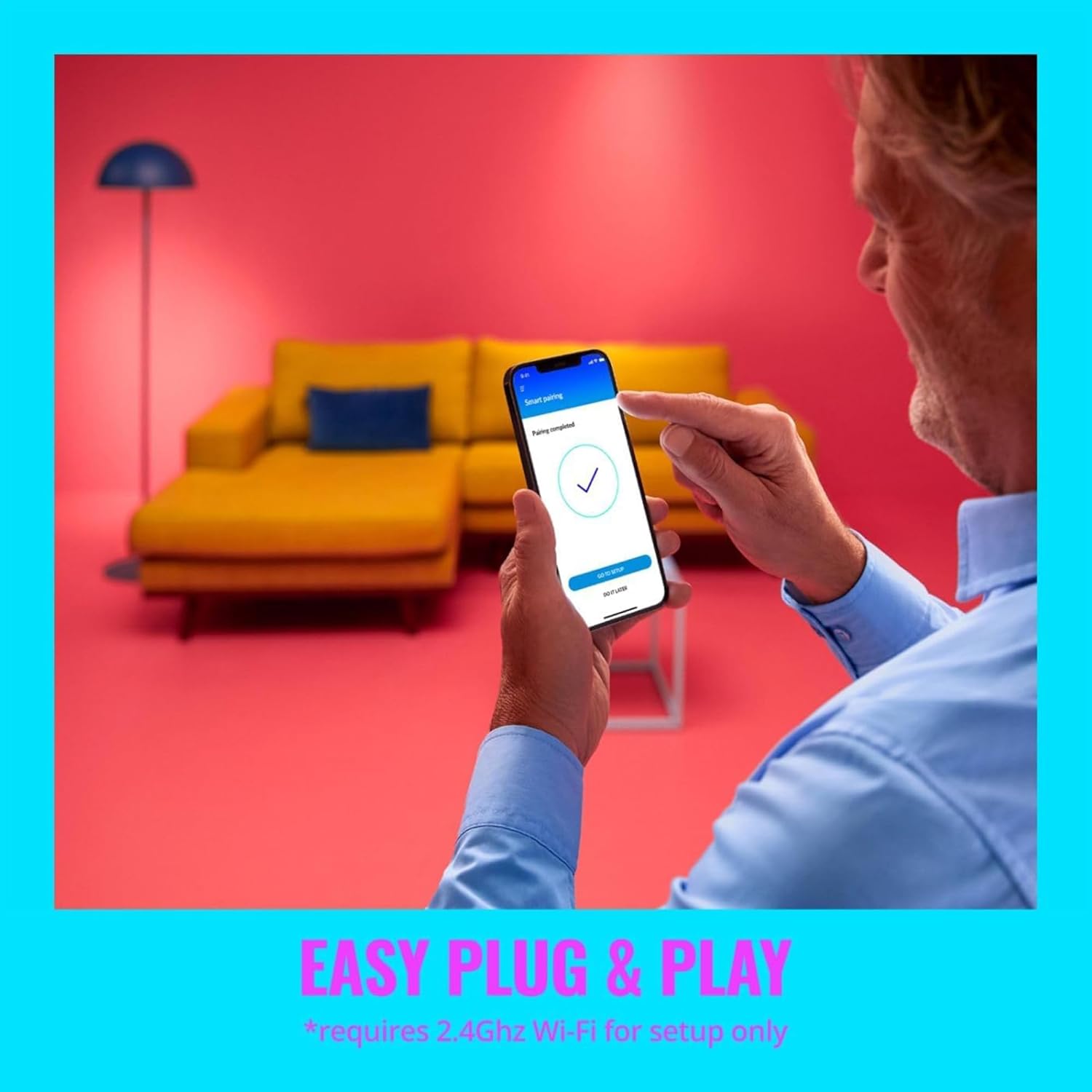
Image: A smartphone screen displaying a successful pairing message for the WiZ app, with a light strip installed in the background, illustrating the easy plug and play setup process.
2. App Pairing and Wi-Fi Connection
Download the WiZ Connected App: Search for "WiZ Connected" in your smartphone's app store (available for iOS and Android) and install it.
Create an Account: Open the app and follow the on-screen instructions to create a new WiZ account or log in if you already have one.
Add Device: In the app, tap the "+" icon to add a new device. The app will guide you through the pairing process. Ensure your phone's Bluetooth is enabled.
Connect to 2.4GHz Wi-Fi: The light strip requires a 2.4GHz Wi-Fi network for operation. During setup, you will be prompted to enter your Wi-Fi network name and password.
Assign to a Room: Once connected, assign your light strip to a specific room within the app for organized control.
Customize Settings: Give your light a name and configure its power-on behavior (e.g., default light mode when switched on).
Video: This video demonstrates the step-by-step process of setting up your WiZ smart lighting device, including app download, pairing, and initial configuration.
Operating Instructions
Control your WiZ Light Strip using the app or voice commands.
1. Using the WiZ App
On/Off: Toggle the light strip on or off directly from the app's main screen or within the room view.
Brightness Control: Adjust the brightness level using the slider in the app.
Color Selection: Choose from millions of colors or various shades of white (warm to cool) to match your mood or activity.
Preset Modes: The app offers numerous preset dynamic light modes (e.g., Cozy, Focus, Relax, Movie Night) designed for different atmospheres.
Custom Scenes: Create and save your own custom light scenes with specific colors, brightness, and effects.
Schedules: Set schedules for your light strip to turn on/off or change modes automatically at specific times.
Vacation Mode: Activate vacation mode to randomly turn lights on and off, simulating occupancy when you are away.
Image: A room illuminated with both blue/purple and warm white light, demonstrating the WiZ light strip's capability to produce millions of colors and various white tones.
Image: Four quadrants showing different room lighting moods (candle, heart, breeze, trees), illustrating the various preset dynamic modes available with WiZ smart lighting.
2. Voice Control
The WiZ Light Strip is compatible with popular voice assistants. Link your WiZ account to your preferred voice assistant (e.g., Amazon Alexa, Google Assistant, Siri Shortcuts) through their respective apps.
Amazon Alexa: "Alexa, turn on the living room light strip."
Google Assistant: "Hey Google, set the kitchen light strip to blue."
Siri Shortcuts: Create custom shortcuts for quick commands.
Image: A person holding a potted plant, with speech bubbles indicating compatibility with Hey Google, Alexa, and Siri Shortcuts, highlighting the voice control feature of WiZ lights.
3. SpaceSense™ Technology
Some WiZ devices feature SpaceSense™ technology, which uses Wi-Fi signals to detect motion and automate lighting. If your light strip is part of a SpaceSense™ enabled setup, it can act as a motion sensor.
Image: A person walking through a doorway with lights activating, demonstrating WiZ SpaceSense™ technology where lights function as motion sensors.
Video: This video showcases various applications and features of WiZ smart lighting, demonstrating how it can enhance different aspects of daily life and home ambiance.
Maintenance
To ensure the longevity and optimal performance of your WiZ Light Strip, follow these maintenance guidelines:
Cleaning: Disconnect the light strip from power before cleaning. Use a soft, dry, lint-free cloth to gently wipe the surface. Do not use abrasive cleaners, solvents, or harsh chemicals, as these can damage the strip.
Storage: If storing the light strip for an extended period, ensure it is clean and dry. Store it in a cool, dry place away from direct sunlight and extreme temperatures.
Inspection: Periodically inspect the light strip and its connections for any signs of damage, such as frayed wires or loose connections. If damage is found, discontinue use and contact support.
Troubleshooting
If you encounter issues with your WiZ Light Strip, refer to the following common solutions:
Problem
Possible Cause
Solution
Light strip does not turn on.
No power, loose connection, faulty power adapter.
Ensure the power adapter is securely plugged into both the light strip and a working electrical outlet.
Test the outlet with another device to confirm it has power.
If the issue persists, the power adapter or light strip may be faulty. Contact support.
Light strip cannot connect to Wi-Fi or app.
Incorrect Wi-Fi band (not 2.4GHz), incorrect password, Wi-Fi signal too weak, app glitch.
Confirm your Wi-Fi network is 2.4GHz. WiZ devices do not support 5GHz networks.
Double-check the Wi-Fi password entered in the app.
Move the light strip closer to your Wi-Fi router or consider a Wi-Fi extender.
Restart your Wi-Fi router and the light strip (unplug and replug).
Close and reopen the WiZ app, or reinstall it if necessary.
Perform a factory reset on the light strip (refer to WiZ support for specific instructions, usually involves cycling power multiple times).
Voice control not working.
Incorrect linking with voice assistant, device name mismatch, internet connectivity issues.
Ensure your WiZ account is correctly linked to your voice assistant (Alexa, Google Home) app.
Verify that the name of your light strip in the WiZ app matches the name used in voice commands.
Check your internet connection.
Try unlinking and relinking the WiZ skill/service in your voice assistant app.
Difficulty pairing after changing phone.
Device still linked to old phone's app instance or user profile.
If you changed phones, ensure you log into the same WiZ account.
If the device was previously paired to a different WiZ Home, you might need to perform a factory reset on the light strip and re-add it.
Consider inviting yourself as a user to the existing WiZ Home if the original setup was on a different account.
Specifications
Brand
WiZ Connected
Model Number
603530
Style
LightStrip Base (6FT)
Item Length
6 Feet (2 Meters)
Light Source Type
LED
Light Color
RGB (Color Changing) and Warm White
Color Temperature
5000 Kelvin (Daylight) - adjustable
Wattage
20 watts
Voltage
120 Volts
Connectivity Technology
Wi-Fi (2.4GHz)
Control Method
App, Remote, Voice (Alexa, Google Assistant, Siri)
Indoor/Outdoor Usage
Indoor
Water Resistance Level
Not Water Resistant
Material Type
Synthetic Polymer (PMMA)
Item Weight
10 ounces
Item Dimensions
2.76 x 5.51 x 6.3 inches (packaging)
UPC
046677603533
Warranty Information
This WiZ Connected Light Strip comes with a 2-year manufacturer's warranty. This warranty covers defects in materials and workmanship under normal use. Please retain your proof of purchase for warranty claims. For specific terms and conditions, refer to the official WiZ Connected website or contact customer support.
Support
For further assistance, technical support, or to explore more WiZ products, please visit:
Ask about setup, troubleshooting, compatibility, parts, safety, or missing instructions. Manuals+ will review the question and use this page’s manual context to help answer it.