
1. Introduction
This manual provides detailed instructions for the proper setup, operation, and maintenance of your GAMFAMI Multi-Function Charging Stand with Cooling Fan. This accessory is designed to enhance your PlayStation 5 gaming experience by providing vertical storage, efficient cooling, and convenient charging for your PS5 DualSense controllers. It is compatible with both PS5 Disc and Digital Editions.
2. Package Contents
Please verify that all items listed below are included in your package:
- Multi-Function Charging Stand
- Headphone Holder
- 4 Controller Charging Adapters
- USB Power Cable
- User Manual (this document)
Note: The PS5 console, PS5 controllers, and power adapter are not included.

Image: All components of the charging stand laid out, including the base, vertical support, headphone holder, and charging adapters.
3. Setup Instructions
- Place the Stand: Position the multi-function charging stand on a stable, flat surface.
- Install PS5 Console: Carefully insert your PS5 console (Disc or Digital Edition) into the designated vertical slot on the stand. Ensure it is seated securely. A screw is provided to fasten the console to the stand for added stability.
- Attach Headphone Holder: Connect the headphone holder to the top of the vertical support on the stand.
- Connect Power: Plug the provided USB power cable into the Type-C input port on the back of the stand. Connect the other end of the USB cable to a 5V/1.5-2A power adapter (not included) or a suitable USB power source.

Image: A close-up view showing the bottom of the PS5 console being attached to the stand with a screw for secure vertical placement.
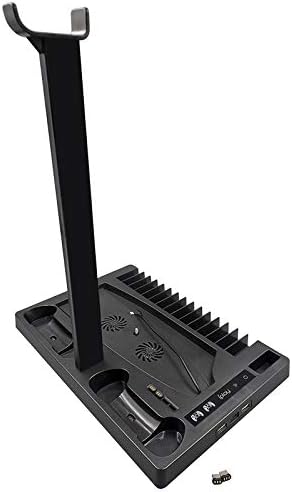
Image: The multi-function stand fully assembled, holding a PS5 console, two DualSense controllers, and a pair of gaming headphones.
4. Operating Instructions
4.1 Power On/Off
Touch the LED power icon on the stand to turn the unit on or off. The LED lights will illuminate when the stand is active.
4.2 Controller Charging
- Insert a charging adapter into the USB-C port of your PS5 DualSense controller.
- Place the controller into one of the two charging docks on the stand.
- The LED indicator for that dock will turn red to signify active charging.
- Once the controller is fully charged, the LED indicator will turn green.
For optimal charging performance, it is recommended to use a 5V/1.5-2A power adapter.
4.3 Cooling Fan Operation
The stand features two built-in cooling fans to help dissipate heat from your PS5 console.
- Touch the fan icon on the stand to cycle through the fan speeds: Low, Medium, High, and Off.
- Adjust the fan speed based on your console's temperature and usage intensity.
4.4 Storage Features
- Game Slots: The stand includes 15 dedicated slots for storing your PS5 game discs.
- Headphone Holder: Utilize the attached holder to conveniently store your gaming headphones.
- Media Remote Slot: A dedicated slot is available for your PS5 media remote.
4.5 USB Hub Functionality
The stand provides additional connectivity options:
- 2 USB HUB Output Ports: These ports can be used to charge other USB-powered devices or connect additional accessories.
- 1 Type-C Input Port: This port allows the stand to be powered by a wall adapter, enabling controller charging even when your PS5 console is turned off.

Image: A detailed view of the stand's front, showing the LED charging status indicators, fan control button, and additional USB-A and USB-C ports.
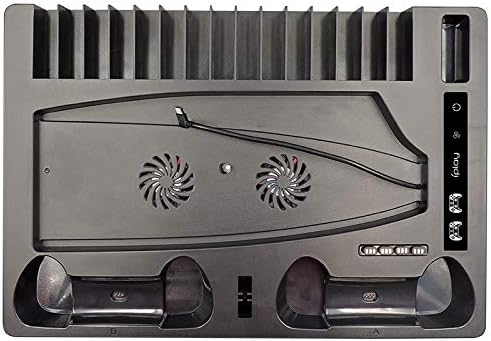
Image: An overhead perspective of the stand, highlighting the two cooling fan vents, controller charging docks, and the array of game storage slots.
Video: This video demonstrates the unboxing, assembly, and various functions of the GAMFAMI Multi-Function Charging Stand, including console placement, controller charging, and fan operation.
5. Maintenance
- Keep the stand clean by wiping it with a soft, dry cloth. Avoid using abrasive cleaners or solvents.
- Ensure that the cooling fan vents are free from dust and obstructions to maintain optimal airflow.
- Avoid exposing the product to liquids or excessive moisture.
6. Troubleshooting
6.1 Controllers Not Charging
- Ensure the charging stand is powered on (LED power icon illuminated).
- Verify that the USB power cable is securely connected to the stand and a working power source (5V/1.5-2A adapter recommended).
- Check if the controller charging adapters are correctly inserted into both the controllers and the charging docks on the stand.
- Confirm that the controller's battery is not already full (green LED indicates full charge).
6.2 Cooling Fan Not Operating
- Ensure the charging stand is powered on.
- Press the fan icon to cycle through the fan speed settings.
- Check for any physical obstructions in the fan vents.
6.3 Stand Not Powering On
- Verify that the USB power cable is securely connected to the stand and the power source.
- Test the power adapter or USB port with another device to ensure it is functional.
7. Specifications
| Product Dimensions | 12.87 x 8.86 x 1.77 inches |
| Item Weight | 2.57 pounds |
| Model Number | GMEKIT01-SRK5 |
| Manufacturer | GAMFAMI |
| Compatible Devices | PS5 Disc/Digital Edition, PS5 DualSense Controllers, Headphones, Media Remote |
| Power Input | Type-C (requires 5V/1.5-2A adapter) |
| Output Ports | 2x USB HUB, 2x Controller Charging Docks |
8. Warranty and Support
For warranty information, technical assistance, or customer support, please refer to the contact details provided with your product packaging or visit the official GAMFAMI website. Keep your purchase receipt for warranty claims.