
Lomiluskr K680T
Lomiluskr K680T Wireless 60% Mechanical Keyboard
User Manual
Introduction
Thank you for choosing the Lomiluskr K680T Wireless 60% Mechanical Keyboard. This manual provides detailed instructions for setting up, operating, and maintaining your new keyboard. Please read this manual thoroughly before use to ensure optimal performance and longevity of your device.
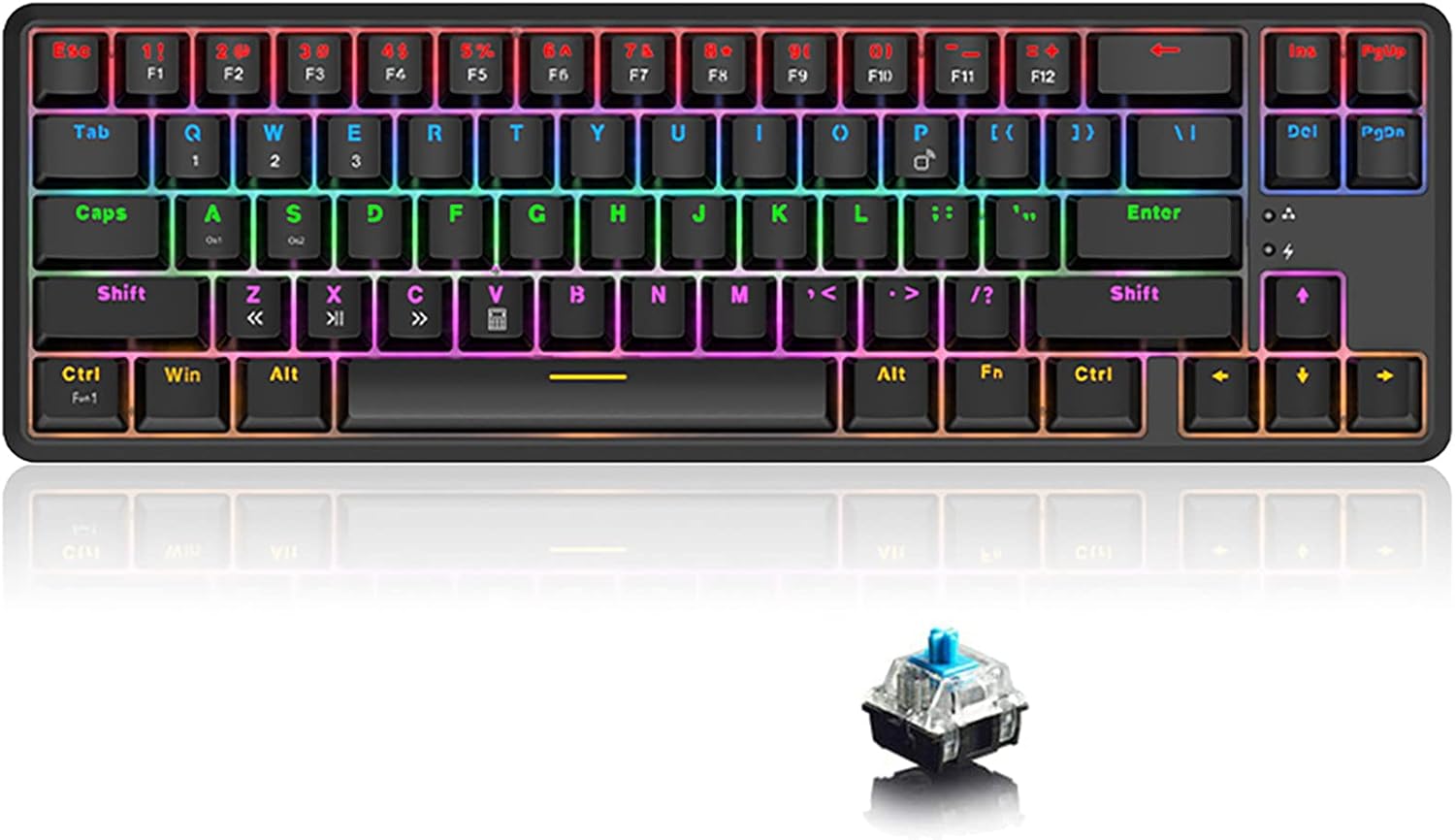
Image: Front view of the Lomiluskr K680T Mechanical Keyboard, showcasing its compact 60% layout and vibrant RGB backlighting.
Key Features
- 68-Key Compact Layout: A 60% layout with 68 keys, designed to save desktop space while retaining essential keys for gaming and daily use.
- Bluetooth Wireless / Wired Dual Mode: Offers flexibility with both Bluetooth 3.0 wireless and USB Type-C wired connectivity.
- Multi-Device Connection: Connects to up to 3 devices simultaneously, allowing easy switching between them (FN+Q/W/E).
- N-Key Rollover: Full N-key rollover in wired mode ensures all key presses are registered accurately, preventing ghosting.
- Multicolor Backlight with 18 Effects: Features a vibrant multicolor backlight with 18 customizable lighting effects.
- 1000mAh Built-in Battery: Provides long-lasting wireless usage.
- Professional Mechanical Switches: Equipped with durable mechanical switches for a responsive and tactile typing experience.

Image: The K680T keyboard alongside its packaging, highlighting key features such as N-Key Rollover, Wired/Bluetooth connectivity, Multicolor Backlight, Compact 68 Keys, and Double-Shot Injection Keycaps.
Package Contents
Please check the package contents upon unboxing to ensure all items are present:
- Lomiluskr K680T Mechanical Keyboard
- USB Type-C Cable
- Keycap Puller
- User Manual (this document)

Image: The complete package contents of the Lomiluskr K680T, including the keyboard, USB-C cable, keycap puller, and user manual.
Setup
Wired Connection
- Locate the USB Type-C port on the keyboard.
- Connect one end of the provided USB Type-C cable to the keyboard.
- Connect the other end of the USB cable to an available USB port on your computer.
- The keyboard will be automatically recognized by your system and is ready for use. The keyboard will also charge in wired mode.
Bluetooth Connection
The K680T keyboard supports Bluetooth 3.0 and can connect to up to 3 devices simultaneously.
- Step 1: Locate the switch on the bottom of the keyboard and slide it to the "BT" position to enable Bluetooth mode.
- Step 2: Select a device slot by pressing FN + Q (Device 1, indicator light red), FN + W (Device 2, indicator light green), or FN + E (Device 3, indicator light blue).
- Step 3: Enter pairing mode by pressing and holding FN + P for 2 seconds. The indicator light will flash, indicating it is ready for pairing.
- Step 4: On your device (computer, tablet, smartphone), enable Bluetooth and search for available devices.
- Step 5: Select "AJAZZ K680T Keyboard" from the list of found devices to complete the pairing process.

Image: A step-by-step guide illustrating the Bluetooth connection method, including selecting device slots (FN+Q/W/E) and initiating pairing (FN+P).

Image: Visual representation of the keyboard's dual-mode capability, showing both Bluetooth wireless and USB wired connections for versatile use.
Operating Instructions
Switching Between Modes
To switch between wired and Bluetooth modes, use the physical switch located on the bottom of the keyboard. Slide it to the desired position (USB for wired, BT for Bluetooth).
Multi-Device Switching
Once paired with multiple devices (up to 3), you can easily switch between them:
- Press FN + Q to switch to Device 1.
- Press FN + W to switch to Device 2.
- Press FN + E to switch to Device 3.

Image: The keyboard connected to multiple devices (laptop, tablet, smartphone), demonstrating the ease of switching between them using FN+Q/W/E.
Backlight Control
The K680T features a multicolor backlight with 18 different lighting effects. Use the following key combinations to control the backlight:
- Press FN + → to cycle through different backlight effects.
- Press FN + ← to cycle through different backlight effects in reverse.
- Press FN + ↑ to increase backlight brightness.
- Press FN + ↓ to decrease backlight brightness.
N-Key Rollover
In wired mode, the K680T supports N-key rollover, meaning all simultaneous key presses will be registered accurately. This is particularly beneficial for fast typing and gaming.
Battery Management
The keyboard is equipped with a 1000mAh built-in battery. When the battery is low, the indicator light may flash. Connect the keyboard via the USB Type-C cable to charge it. A full charge takes approximately 3 hours. The keyboard can last up to 10 hours with backlight on, and up to 60 hours with backlight off, with a standby time of 360 hours.

Image: An illustration highlighting the 1000mAh battery capacity and its long-lasting performance, including usage and standby times.
Specifications
| Feature | Specification |
|---|---|
| Model | K680T |
| Layout | 68-key, 60% Compact |
| Connectivity | Bluetooth 3.0 + USB Wired (Type-C) |
| Battery Capacity | 1000mAh |
| Cable Length | 1.6m |
| Backlight | Multicolor (18 effects) |
| Dimensions (L x W x H) | 340.2 x 108 x 35.2mm (13.39 x 4.25 x 1.39 inches) |
| Weight | 810g (1.9 pounds) |
| Compatible Devices | Mac, PC, Laptop, Tablet, Smartphone, PS |

Image: A diagram illustrating the compact 68-key layout of the K680T keyboard with its precise dimensions, emphasizing its space-saving design.
Maintenance
To ensure the longevity and optimal performance of your Lomiluskr K680T keyboard, follow these maintenance guidelines:
- Cleaning: Regularly clean the keyboard with a soft, dry cloth. For deeper cleaning, use a can of compressed air to remove dust and debris from between the keycaps.
- Keycap Removal: Use the provided keycap puller to carefully remove keycaps for thorough cleaning or switch replacement. Avoid using excessive force to prevent damage.
- Liquid Spills: In case of liquid spills, immediately disconnect the keyboard from your device. Turn it upside down to drain any liquid and allow it to dry completely before reconnecting. Do not use a hairdryer as excessive heat can damage components.
- Storage: Store the keyboard in a cool, dry place away from direct sunlight and extreme temperatures.
Troubleshooting
If you encounter any issues with your K680T keyboard, please refer to the following common troubleshooting steps:
- Keyboard Not Responding (Wired):
- Ensure the USB Type-C cable is securely connected to both the keyboard and your computer.
- Try connecting the keyboard to a different USB port on your computer.
- Test the keyboard on another computer to rule out system-specific issues.
- Keyboard Not Connecting (Bluetooth):
- Ensure the switch on the bottom of the keyboard is set to "BT" mode.
- Verify that Bluetooth is enabled on your device.
- Make sure the keyboard is in pairing mode (FN+P, indicator flashing).
- Delete any previous pairings of the keyboard from your device's Bluetooth settings and attempt to pair again.
- Ensure the keyboard battery has sufficient charge.
- Backlight Not Working/Incorrect:
- Check if the backlight is turned off (FN + ↓ multiple times).
- Cycle through backlight effects using FN + → or FN + ←.
- Ensure the keyboard battery is charged, as low battery can affect backlight functionality.
- Keys Not Registering:
- Clean around the affected key to remove any debris.
- If a specific key is consistently not working, it might indicate a switch issue.
Warranty and Support
The Lomiluskr K680T Mechanical Keyboard comes with a standard manufacturer's warranty. For specific warranty terms and conditions, please refer to the documentation provided with your purchase or contact the seller directly.
For technical support, troubleshooting assistance, or any inquiries regarding your product, please contact Lomiluskr customer service through the platform where you purchased the product or visit the official Lomiluskr support channels if available.
Ask a question about this manual
Ask about setup, troubleshooting, compatibility, parts, safety, or missing instructions. Manuals+ will review the question and use this page’s manual context to help answer it.