Introduction
This manual provides detailed instructions for the installation, operation, and maintenance of your Heegomn 1080P Wireless Outdoor Security Camera. Designed for both indoor and outdoor use, this battery-powered camera offers 1080P video, motion detection, two-way audio, and color night vision, ensuring comprehensive surveillance for your property.
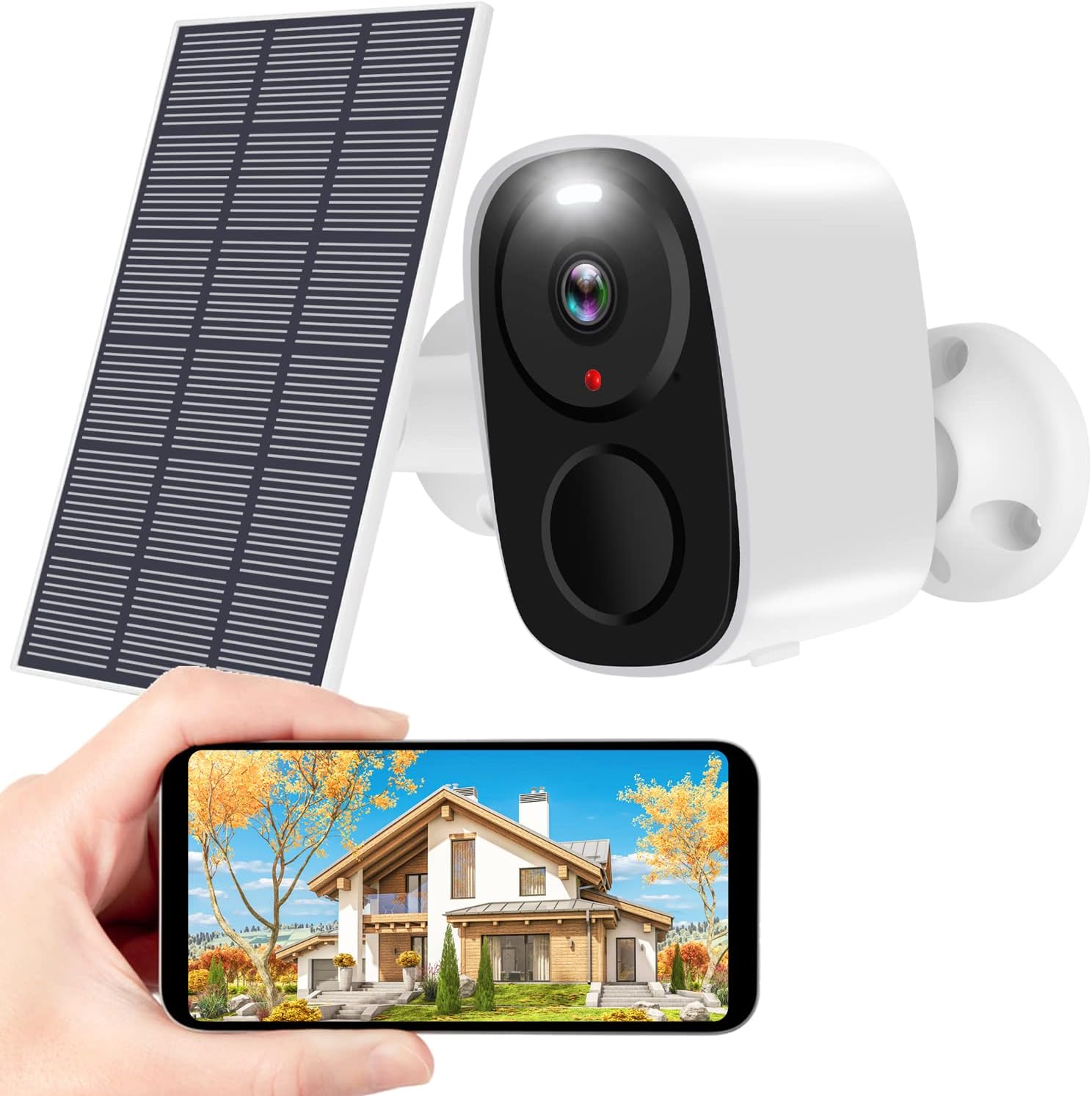
The Heegomn 1080P Wireless Outdoor Security Camera, shown with its accompanying solar panel and a smartphone displaying its live feed, highlighting its primary function for home surveillance.
What's in the Box
Please check the contents of your package to ensure all items are present and in good condition:
- 1 x Wireless Security Camera
- 1 x Solar Panel
- 2 x Metal Mounts
- 1 x USB Cable
- 2 x Screw Sets (for mounting)
- 1 x User Manual (this document)
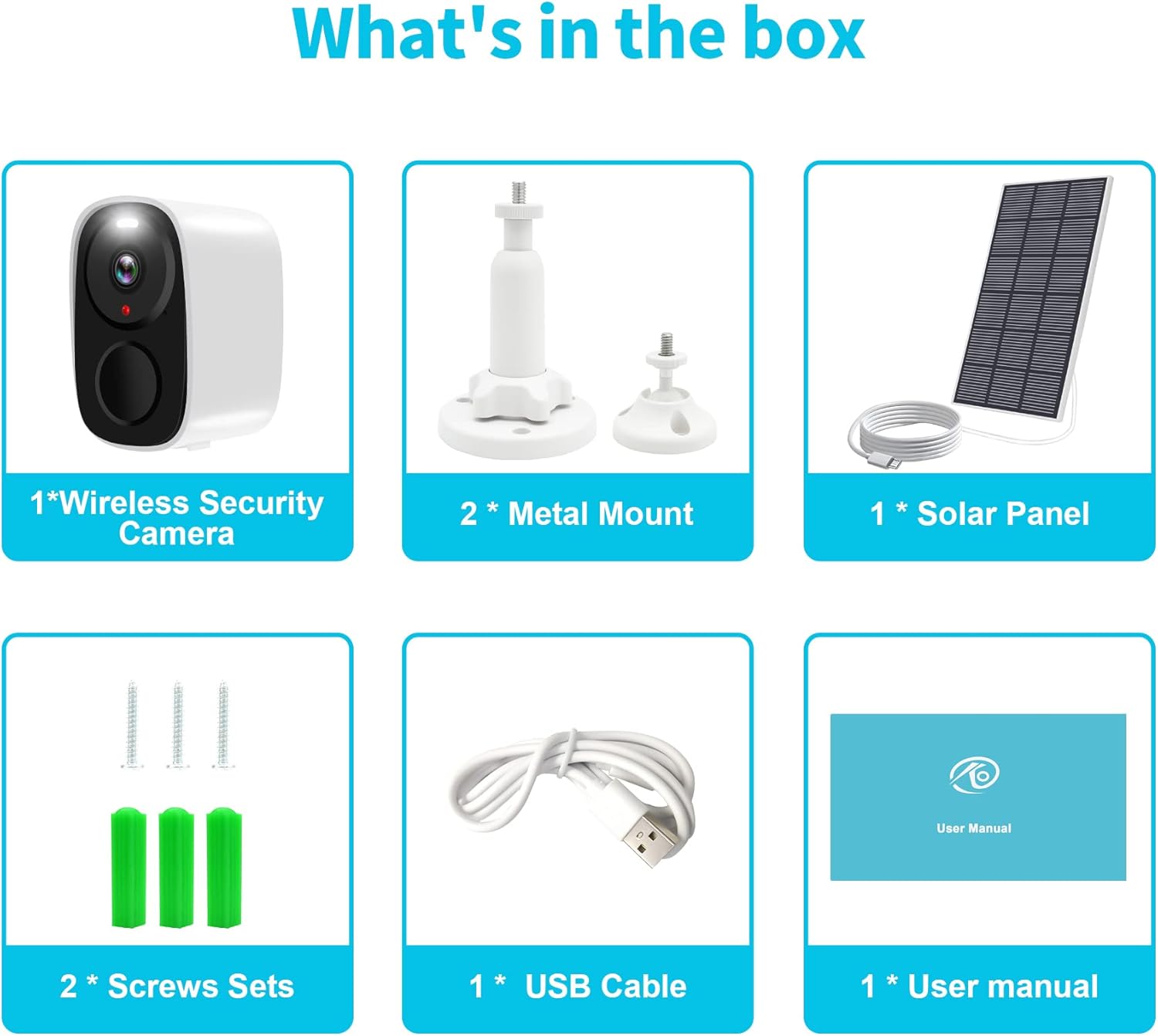
An illustration showing all components included in the Heegomn Security Camera package: the camera, solar panel, metal mounts, USB cable, screw sets, and user manual.
Setup Guide
Follow these steps to set up your Heegomn security camera:
- Charge the Camera: Before initial use, fully charge the camera using the provided USB cable. Connect the USB cable to the camera's charging port and a 5V/1A power adapter (not included).
- Download the App: Scan the QR code provided in the quick guide or search for "O-KAM" (or "CloudEdge" as mentioned in feature bullets, but O-KAM is shown in image) in your mobile app store (App Store for iOS or Google Play for Android). Install the application.
- Register an Account: Open the app and follow the on-screen instructions to register a new account.
- Add the Camera:
- Ensure your camera is powered on.
- In the app, tap "Add Device" or the "+" icon.
- Select your camera model or scan the QR code on the camera itself.
- Follow the app's prompts to connect the camera to your 2.4GHz Wi-Fi network. Note: This camera does not support 5GHz Wi-Fi.
- A QR code will appear on your phone screen. Position the camera lens to scan this QR code from your phone. You will hear a confirmation sound from the camera once connected.
- Mount the Camera:
- Choose a suitable location for installation, ensuring good Wi-Fi signal and optimal sunlight exposure if using the solar panel.
- Use the provided metal mounts and screw sets to securely attach the camera to a wall or desired surface.
- Adjust the camera angle for the desired viewing area.
- Connect Solar Panel (Optional): If using the solar panel, connect its cable to the camera's charging port. Ensure the solar panel is positioned to receive maximum direct sunlight throughout the day for continuous power.

A visual guide illustrating the three main steps for setting up the camera: scanning the QR code to download the app, fully charging and connecting to Wi-Fi, and adding the camera to your phone.

The Heegomn camera mounted outdoors, illustrating its continuous power supply when connected to the solar panel, ideal for outdoor use.
Operating Your Camera
Live View and Playback
Access the live feed and review recorded footage anytime, anywhere through the O-KAM (or CloudEdge) app. The camera provides 1920*1080P image quality.

The mobile application interface displaying live camera view, along with options for SD card storage (up to 256GB) and cloud storage (with a 7-day free trial).
Two-Way Audio
The built-in microphone and speaker enable two-way communication. You can listen to the environment around the camera and speak through the camera from your smartphone.
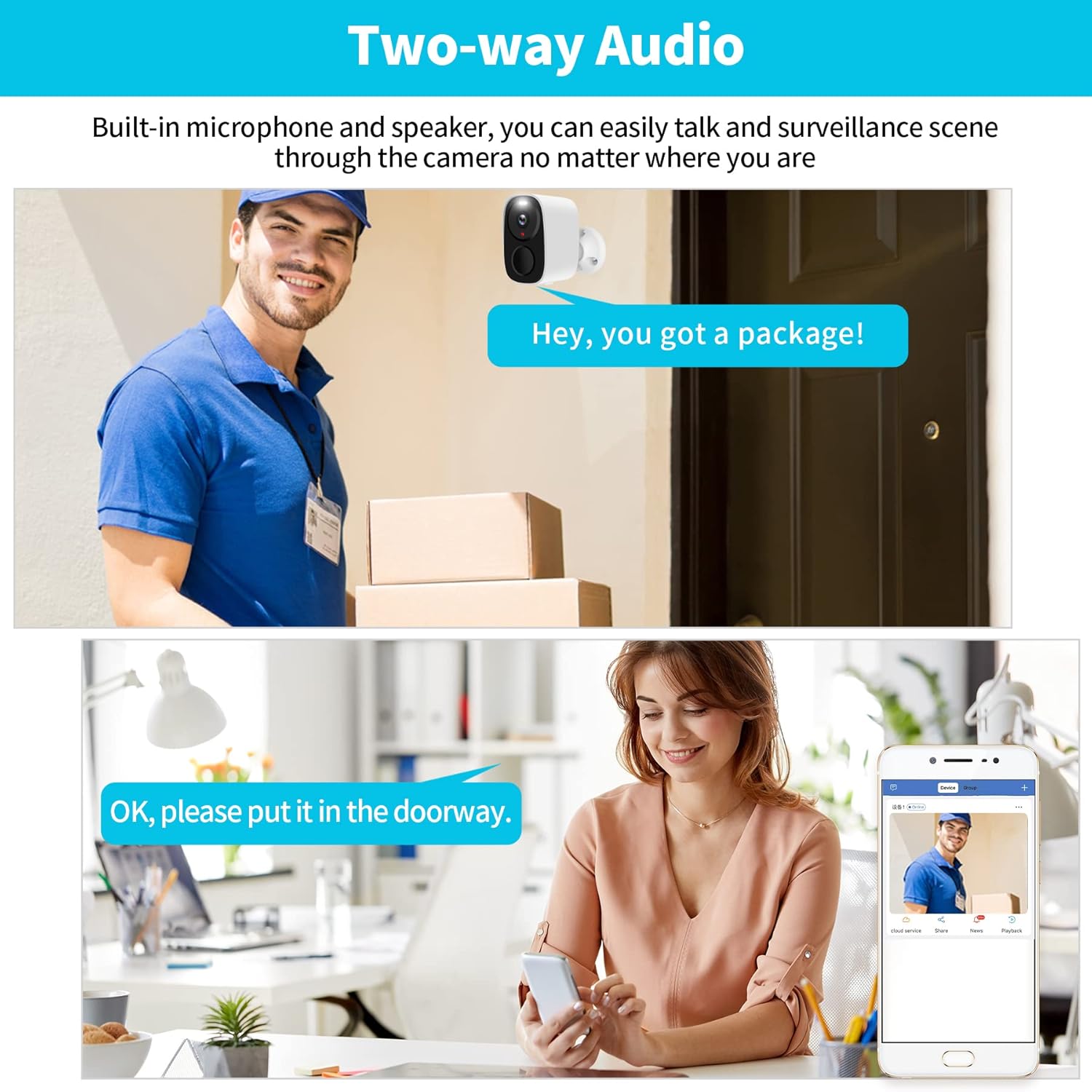
A visual representation of the camera's two-way audio capability, showing a person at the door speaking to someone indoors via the camera and smartphone app.
Motion Detection and Smart Alarms
The camera features a PIR motion sensor and AI technology to detect and distinguish humans and pets. Upon detection, it sends instant app push notifications to your phone, providing real-time alerts.

The camera's smart PIR motion detection feature is depicted, showing a child jumping near a pool and the corresponding instant app notifications received on a smartphone.
Color Night Vision
Equipped with a starlight image sensor and infrared lights, the camera provides clear night vision up to 33 feet, including color night vision capabilities for enhanced detail in low-light conditions.
Storage Options
The camera supports local storage via a micro SD card (up to 256GB, not included) and offers cloud storage options. All video recordings are encrypted for security.
Maintenance
- Cleaning: Regularly wipe the camera lens and body with a soft, dry cloth to remove dust and dirt. Avoid using harsh chemicals or abrasive materials.
- Battery Life: If not connected to a solar panel, monitor the battery level via the app and recharge as needed. For optimal battery life, ensure the solar panel receives adequate sunlight.
- Firmware Updates: Check the app periodically for firmware updates. Keeping your camera's firmware updated ensures optimal performance and security.
- Wi-Fi Connection: Ensure your 2.4GHz Wi-Fi signal remains strong at the camera's location for stable operation.
Troubleshooting
| Problem | Possible Solution |
|---|---|
| Camera won't power on. | Ensure the battery is fully charged. Connect to a power source using the USB cable. |
| Cannot connect to Wi-Fi. |
|
| Poor image quality. |
|
| Motion detection not working. |
|
| Two-way audio issues. |
|
Specifications
| Feature | Detail |
|---|---|
| Model Number | CB54 |
| Video Resolution | 1080p (1920x1080) |
| Connectivity | 2.4GHz Wi-Fi (Does not support 5GHz) |
| Power Source | Battery Powered (5200 mAh Lithium Ion, included), Solar Powered (via included solar panel) |
| Night Vision Range | Up to 33 feet (Infrared and Color Night Vision) |
| Field of View | 140 Degrees |
| Audio | Two-Way Talk (Built-in microphone and speaker) |
| Storage | Micro SD Card (up to 256GB, not included), Cloud Storage |
| Water Resistance | IP66 (Waterproof) |
| Motion Detection | PIR Sensor with AI Human/Pet Detection |
| Dimensions (L x W x H) | 4 x 2 x 1.5 inches |
| Weight | 16 ounces (1 pound) |
| Operating Voltage | 5 Volts (DC) |
| Wattage | 5 watts |
Warranty and Support
Heegomn offers a 30-day free return policy through Amazon and lifelong trade-in support for this product. For technical assistance or warranty claims, please refer to the contact information provided in your product packaging or visit the official Heegomn support website.
For further assistance, you may also refer to the official user manual PDF available at: Heegomn User Manual PDF


