1. Introduction
This manual provides essential information for the safe and efficient use of your Lenovo ThinkPad P15 Gen 1 20ST006JUS Mobile Workstation. Please read this manual thoroughly before operating the device to ensure proper functionality and to prevent damage.

Figure 1: Front view of the Lenovo ThinkPad P15 Gen 1 Mobile Workstation displaying the Windows operating system desktop.
2. Setup
2.1 Unpacking
Carefully remove all components from the packaging. Verify that all items listed in the 'What's in the Box' section are present. Retain the packaging for future transport or storage.
- Lenovo ThinkPad P15 Gen 1 Mobile Workstation
- AC Power Adapter and Power Cord
- Documentation (this manual, warranty information)
2.2 Connecting Power
- Connect the power cord to the AC power adapter.
- Plug the AC power adapter into the power connector on your workstation.
- Plug the power cord into a grounded electrical outlet.
2.3 Initial Boot and Windows Setup
Press the power button to turn on the workstation. Follow the on-screen instructions to complete the initial Windows 10 Pro setup, including language selection, network connection, and user account creation.

Figure 2: Angled view of the Lenovo ThinkPad P15 Gen 1, showcasing its display with a colorful background.
3. Operating Instructions
3.1 Powering On and Off
- To Power On: Press the power button located on the top right of the keyboard deck.
- To Power Off: Click the Windows Start button, then select Power > Shut down.
- Sleep Mode: Close the lid or select Power > Sleep from the Start menu.
3.2 Keyboard and Input Devices
The ThinkPad P15 Gen 1 features a full-sized keyboard with a numeric keypad, a TrackPoint pointing device, and a multi-touch touchpad.
- TrackPoint: Use the red cap in the center of the keyboard to move the pointer. The three buttons below the spacebar function as left-click, scroll, and right-click.
- Touchpad: Use multi-finger gestures for scrolling, zooming, and other functions. Refer to Windows settings for customization.
- Backlit Keyboard: Press Fn + Spacebar to cycle through backlight brightness levels.

Figure 3: Detailed view of the keyboard, TrackPoint, and touchpad on the ThinkPad P15 Gen 1.
3.3 Connecting Peripherals and External Displays
The workstation is equipped with various ports for connectivity.
- USB Ports: Connect USB devices such as external drives, mice, or keyboards. The device includes USB 2.0 and USB 3.0 ports.
- HDMI: Connect to an external monitor or projector using an HDMI cable.
- Ethernet: Connect to a wired network using an Ethernet cable.
- Audio Jack: Connect headphones or external speakers.

Figure 4: Left side of the workstation, displaying ports such as USB and audio jack.
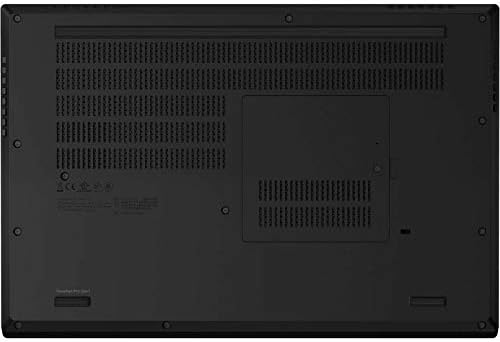
Figure 5: Right side of the workstation, displaying additional ports.

Figure 6: Rear view of the workstation, highlighting the Ethernet port and other connectors.
3.4 Network Connectivity
- Wi-Fi: To connect to a wireless network, click the network icon in the taskbar, select your desired network, and enter the password if required.
- Ethernet: Plug an Ethernet cable into the RJ-45 port on the workstation and connect the other end to a router or network jack.
4. Maintenance
4.1 Cleaning the Workstation
- Use a soft, lint-free cloth slightly dampened with water or a screen cleaner to clean the display.
- For the keyboard and chassis, use a soft cloth. Avoid harsh chemicals.
- Regularly clean the vents to ensure proper airflow and prevent overheating.
4.2 Battery Care
- Avoid fully discharging the battery frequently.
- Store the workstation in a cool, dry place if not used for extended periods.
- For optimal battery life, keep the battery charge between 20% and 80%.
4.3 Software Updates
Regularly update your Windows operating system and Lenovo drivers to ensure optimal performance and security. Check for updates via Windows Update and the Lenovo Vantage application.

Figure 7: Underside of the workstation, showing ventilation areas critical for cooling.
5. Troubleshooting
This section addresses common issues you might encounter with your ThinkPad P15 Gen 1.
5.1 No Power
- Ensure the AC adapter is securely connected to both the workstation and a working power outlet.
- Check the power cord for any damage.
- If using battery power, ensure the battery is charged.
5.2 Display Issues
- If the screen is blank, try pressing Fn + F7 (or the appropriate function key for display toggle) to ensure the display is not turned off.
- Adjust screen brightness using the function keys (e.g., Fn + F5/F6).
- If connected to an external monitor, ensure the correct display output mode is selected (e.g., Duplicate, Extend).
5.3 Network Connectivity Problems
- Wi-Fi: Verify that Wi-Fi is enabled in Windows settings. Restart your router and modem.
- Ethernet: Ensure the Ethernet cable is properly connected. Check the network adapter status in Device Manager.
5.4 Slow Performance
- Close unnecessary applications running in the background.
- Check Task Manager for processes consuming high CPU or RAM.
- Ensure your operating system and drivers are up to date.
- Run a disk cleanup and defragmentation (for HDD, not necessary for SSD).
6. Specifications
Detailed technical specifications for the Lenovo ThinkPad P15 Gen 1 20ST006JUS Mobile Workstation.
| Feature | Specification |
|---|---|
| Model Number | 20ST006JUS |
| Processor | Intel Core i7-10850H (10th Gen), Hexa-core (6 Core), 2.70 GHz |
| RAM | 32 GB SDRAM |
| Storage | 1 TB SSD |
| Graphics Coprocessor | NVIDIA Quadro RTX 3000 (6 GB Dedicated) |
| Display | 15.6 Inches, Full HD (1920 x 1080 pixels) |
| Operating System | Windows 10 Pro |
| Wireless Connectivity | 802.11a |
| USB Ports | 2x USB 2.0, 2x USB 3.0 |
| Special Feature | Backlit Keyboard |
| Item Weight | 10.4 ounces |
| Color | Black |
7. Warranty and Support
Your Lenovo ThinkPad P15 Gen 1 Mobile Workstation comes with a standard manufacturer's warranty. For detailed warranty terms and conditions, please refer to the warranty documentation included with your product or visit the official Lenovo support website.
For technical assistance, driver downloads, or further support, please visit the Lenovo Support Website. You can also find contact information for customer service and authorized service centers there.


