
eero eero Pro 6E
eero Pro 6E Mesh WiFi Router User Manual
Model: eero Pro 6E
Introduction
The eero Pro 6E is eero's first Wi-Fi 6E router, designed to provide fast, reliable, and secure mesh Wi-Fi coverage for your home. It supports internet plans up to 2.5 Gbps and offers direct access to the new 6 GHz band for Wi-Fi 6E compatible devices, resulting in lower latency and enhanced performance. This manual provides essential information for setting up, operating, maintaining, and troubleshooting your eero Pro 6E system.

Image: The eero Pro 6E device, a compact white unit, designed to blend seamlessly into home environments.
Setup
Setting up your eero Pro 6E system is designed to be quick and straightforward, primarily guided by the eero mobile application.
What You Need:
- An eero Pro 6E device (or multiple for a mesh system).
- A supported iOS or Android device (smartphone or tablet).
- An active internet service connection (with a cable or DSL modem, if required by your ISP).
- The eero app, downloaded from the Apple App Store or Google Play Store.
Initial Setup Steps:
- Download the eero App: Search for "eero" in your device's app store and download the official eero application.
- Create an eero Account: Open the app and follow the prompts to create a new eero account or log in if you already have one.
- Connect Your First eero:
- Unplug your existing modem and router (if applicable).
- Connect one eero Pro 6E device to your modem using the provided Ethernet cable. Use either the 2.5 Gb Ethernet port or the 1 Gb Ethernet port.
- Plug in the power adapter to your eero and then into a power outlet.
- Wait for the eero's LED indicator to turn solid blue, indicating it's ready for setup.
- Follow In-App Instructions: The eero app will guide you through naming your network, setting a password, and adding additional eero devices if you have a multi-pack system.
- Placement of Additional eeros: For optimal mesh performance, place additional eero devices strategically throughout your home to extend Wi-Fi coverage, ensuring they are within range of another eero.

Image: The eero app on a smartphone, demonstrating the simple, guided setup process for the eero Pro 6E.
Operating Your eero Pro 6E
Once set up, your eero Pro 6E system operates automatically to provide seamless Wi-Fi coverage. The eero app serves as your primary interface for managing your network.
Key Features and Usage:
- TrueMesh Technology: eero's patented TrueMesh technology intelligently routes traffic to reduce drop-offs and dead spots, ensuring a consistent connection throughout your coverage area.
- Device Connectivity: The system supports over 100 connected devices simultaneously, making it suitable for smart homes with numerous gadgets.
- High-Speed Performance: With Wi-Fi 6E, the eero Pro 6E utilizes the 6 GHz band, offering increased bandwidth and faster speeds for compatible devices, ideal for 8K streaming, AR/VR, and gaming.
- Guest Network: Easily create a separate guest network through the eero app to provide internet access to visitors without sharing your main network password.
- Parental Controls (eero Plus): If subscribed to eero Plus, you can manage profiles, pause internet access for specific devices, and implement content filters.
- Network Management via App: The eero app allows you to view connected devices, check network speed, and manage advanced settings from anywhere.

Image: A family enjoying various online activities, illustrating the eero Pro 6E's capability to support multiple devices and high-bandwidth applications.
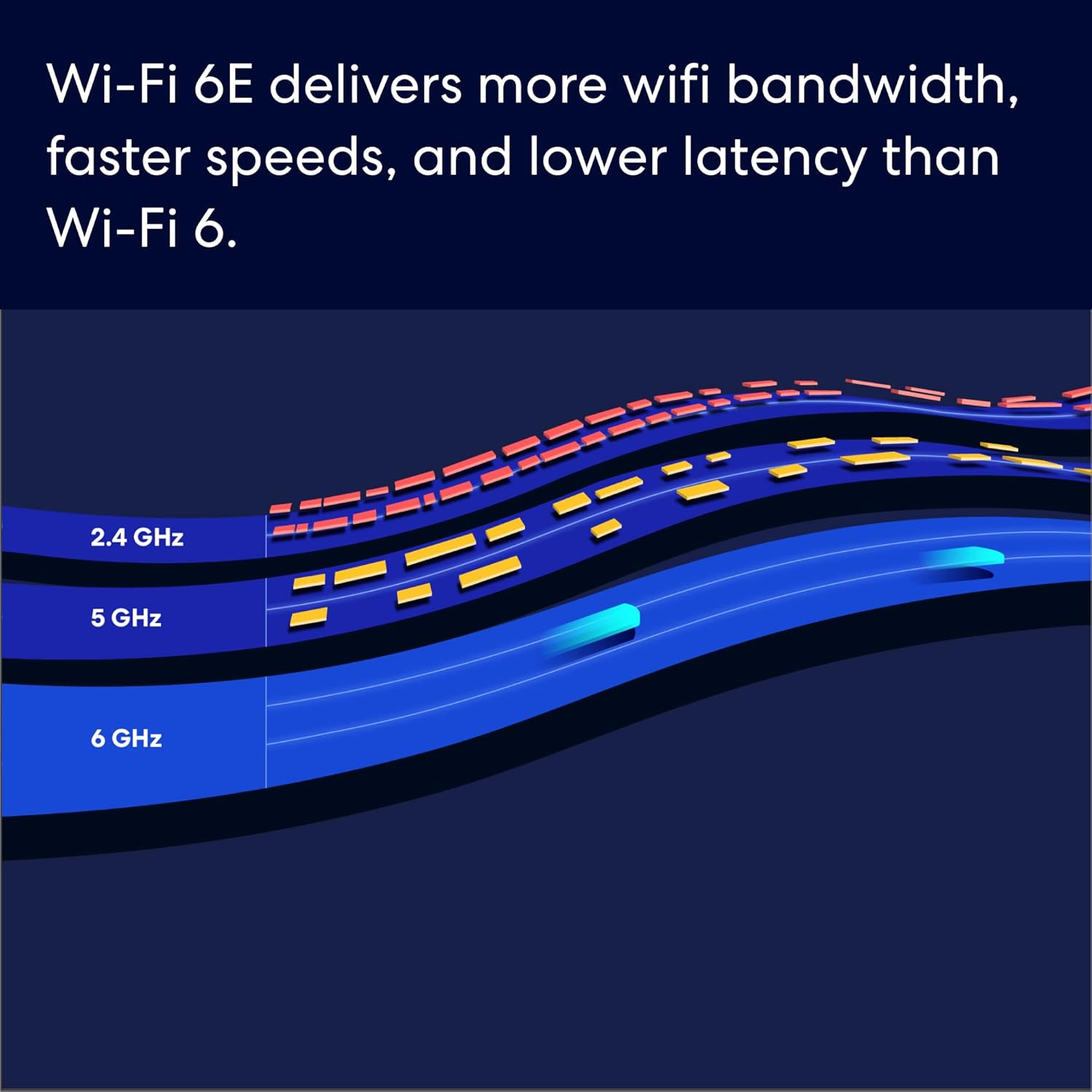
Image: A visual representation of Wi-Fi 6E's enhanced bandwidth across different frequency bands, including the new 6 GHz band.

Image: A user engaged in high-performance gaming, showcasing the eero Pro 6E's ability to handle demanding applications like AR/VR and 8K streaming.

Image: An illustration depicting the eero Pro 6E's coverage area within a home, supporting over 100 devices across 2,000 sq. ft.
Maintenance
The eero Pro 6E system is designed for minimal maintenance, with many processes handled automatically.
Automatic Software Updates:
Your eero system receives automatic software updates to help keep your network safe, secure, and performing optimally. These updates often include new features, performance improvements, and security patches. Ensure your eero devices remain powered on and connected to the internet to receive these updates.
Cleaning Your eero Device:
To clean your eero device, gently wipe it with a soft, dry cloth. Avoid using liquid cleaners or abrasive materials, as these can damage the device.
Troubleshooting
If you encounter issues with your eero Pro 6E system, try the following common troubleshooting steps:
- Check Connections: Ensure all Ethernet cables are securely plugged into both the eero and your modem/devices. Verify that all eero devices are properly plugged into power outlets.
- Restart Your Network:
- Unplug your modem from power, wait 30 seconds, then plug it back in.
- Once your modem is fully online (check its indicator lights), unplug your primary eero device from power, wait 30 seconds, then plug it back in.
- Wait for your primary eero to come online (solid blue LED).
- If you have additional eero devices, unplug them from power, wait 30 seconds, then plug them back in.
- Check eero App Status: Open the eero app to check the status of your network and individual eero devices. The app often provides specific error messages or guidance.
- Relocate eero Devices: If you experience weak signals in certain areas, try repositioning your eero devices. Ensure they are not obstructed by large objects or placed too close to other electronics that might cause interference.
- Verify Internet Service: Confirm that your internet service provider (ISP) is not experiencing an outage. You can often check your ISP's website or contact their support.
- Contact Customer Support: If the issue persists, refer to the "Warranty and Support" section for contact information.
Specifications
| Feature | Detail |
|---|---|
| Model | eero Pro 6E |
| Wi-Fi Coverage (1-pack) | Up to 2,000 sq. ft. |
| Type | Router (connects to modem as primary router) |
| Supported Speeds | Network speeds up to 2.3 Gbps (wired up to 1 Gbps, wireless up to 1.6 Gbps). Ideal for gigabit+ internet plans (up to 2.5 Gbps using 2.5Gb Ethernet port). |
| Wired Connectivity | One auto-sensing 2.5 gigabit Ethernet port and one auto-sensing 1 gigabit Ethernet port per eero. |
| Speed Rating | AX5400 |
| Smart Home Connectivity | Works with Alexa, Amazon Frustration Free Setup, 802.15.4 radio (Zigbee, Thread), Bluetooth Low Energy 5.0. |
| Electrical Rating | 100-240V AC, 50-60 Hz |
| Processor, Memory, Storage | 1 GHz dual-core processor, 1024MB RAM, 4GB flash storage. |
| Network Security & Services | Profiles, WPA3 (eero Labs feature), WPA2, TLS v1.2+, VPN passthrough, IPv6, NAT, UPnP, port forwarding, DHCP, static IP, cloud connectivity. |
| Required for Setup | Supported iOS or Android device and internet service (with cable or DSL modem, if required). |
| Temperature Rating | Operating: 32°F-104°F (0°C-40°C); Storage: -13°F-140°F (-25°C-60°C) |
| Dimensions | 5.6 in x 5.4 in x 2.0 in (142mm x 138mm x 51mm) |
Warranty and Support
Warranty Information:
The eero Pro 6E comes with a 1-year limited warranty. This warranty covers defects in materials and workmanship under normal use. For full details, please refer to the official eero warranty policy available on their support website.
Software Security Updates:
This device receives guaranteed software security updates for at least five years after the device is last available for purchase as a new unit on eero's websites. These updates are crucial for maintaining the security and functionality of your network.
eero Plus Subscription:
A 30-day eero Plus trial is available, limited to one per new eero customer account. This subscription offers additional features such as advanced online security, ad blocking, and enhanced network management. Additional terms apply; refer to the eero Plus Terms of Service for more details.
Customer Support:
Free customer support is available 7 days a week to assist with any questions or troubleshooting needs. You can reach eero's expert Wi-Fi troubleshooters by phone or email:
- Phone (US): +1-877-659-2347
- Email: support@eero.com
- Online Support: Visit support.eero.com for more information and resources.
Related documentseero Pro 6E


Ask a question about this manual
Ask about setup, troubleshooting, compatibility, parts, safety, or missing instructions. Manuals+ will review the question and use this page’s manual context to help answer it.